belbo
  • Overview
    • Getting to know Belbo
    • Location Settings
    • Switch to Belbo
    • Calendar View & Navigation
    • Recurring Appointments & Courses
    • Appointment Entry & Management
    • Logins & Permissions
    • Multiple Locations & Head Office
    • Manage Employees
    • Absences & Holidays
    • General
    • Working Hours
    • Time Tracking
    • Data Protection (GDPR)
    • Customer Communication (Email, SMS)
    • Customer Management & Records
    • Bonus & Loyalty Programs
    • Campaigns (Newsletter & SMS)
    • Marketing Consents (GDPR)
    • Tracking & Analytics
    • Overview
    • Services & Prices
    • Products
    • Service Packages & Subscriptions
    • Vouchers
    • Purchasing & Suppliers
    • Stock & Inventory
    • Scanning & Sales
    • Cost of goods & expenses
    • Design & Texts
    • Setup & Settings
    • Integration (Website, Google, Instagram, Facebook)
    • Online payment
    • Accounting & Exports
    • Cash Register Settings & Hardware
    • Checkout process
    • Daily Closing & Reports
    • TSE & Cash Register Anti-Tampering Ordinance
    • Export Overview
    • Employee Utilization
    • Revenue & Reports
    • Belbo Satellite
    • Printer
    • EC Terminal & Card Payment
    • Troubleshooting Hardware
    • Scanner & POS Devices
    • General Settings
    • API & Integrations
    • Notifications & Emails
    • Contracts & Legal
Skip to content

Customer credit

With Belbo you can grant customer credit. The customer can then pay the next time. How you can pay "on account" you can find out here. This article is about the customer paying in the following appointment by cash, EC card or similar.


Create payment method "customer credit"

1) Create a customer credit account in the "Own Chart of Accounts" function. Discuss with your tax office what the accounting account number (usually 4 digits) should be. However, this number can be changed at any time later.
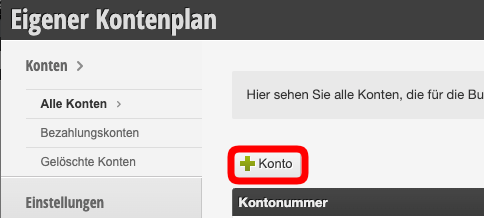
2) Enable the option "Offer as payment account when cashing up".
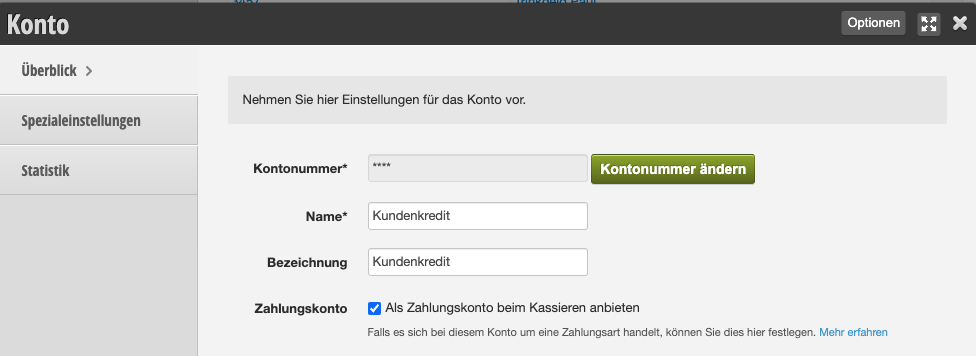
3) Enable the option "Each customer receives its own account of this type."

Grant customer credit

If a customer wants to pay part of his invoice the next time, now select the payment method "customer credit". Please note that you should definitely use a customer profile in the appointment so that the claim does not get lost.

Settle customer credit

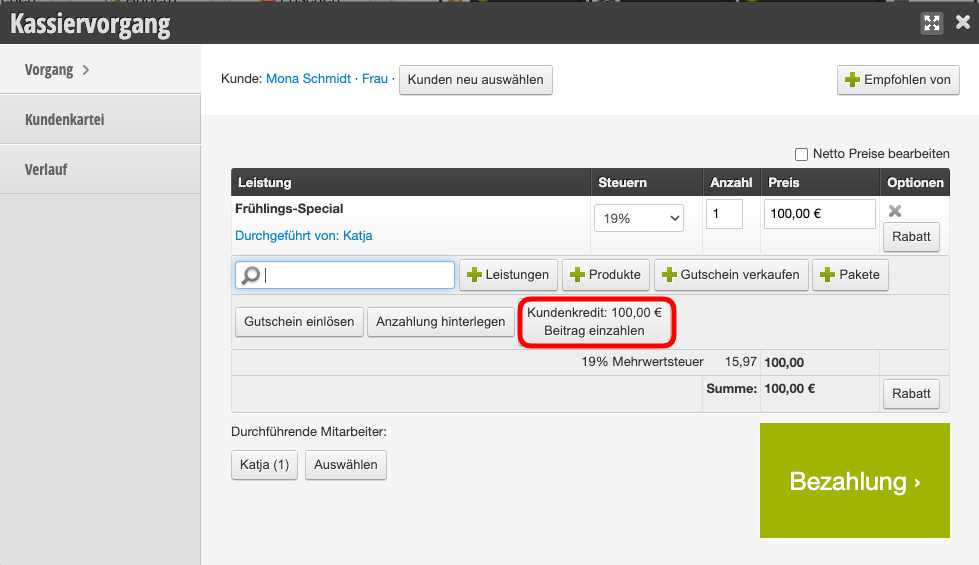
From now on, the credit appears in all cashier transactions next to the "Redeem voucher" button in the cashier process. If the customer has received credit, the corresponding value appears there. You can then resolve the credit the next time.
Simply click on the credit to add the amount to the current appointment.
Categories: Checkout process
This manual is a service by belbo. Legal notice