
In addition to cash receipts, you can also create A4 invoices with Belbo, which you can send to your customers by email or print out and hand to them.
Activate A4 Invoices
If you don't yet have the option to select A4 invoices in the checkout process, this function must first be activated.
- Go to "Settings" and then "Receipt Design"
- If this function is not activated, it can be activated via "Settings > Add Function".
- Activate the option "Offer printing of invoices in A4 format."
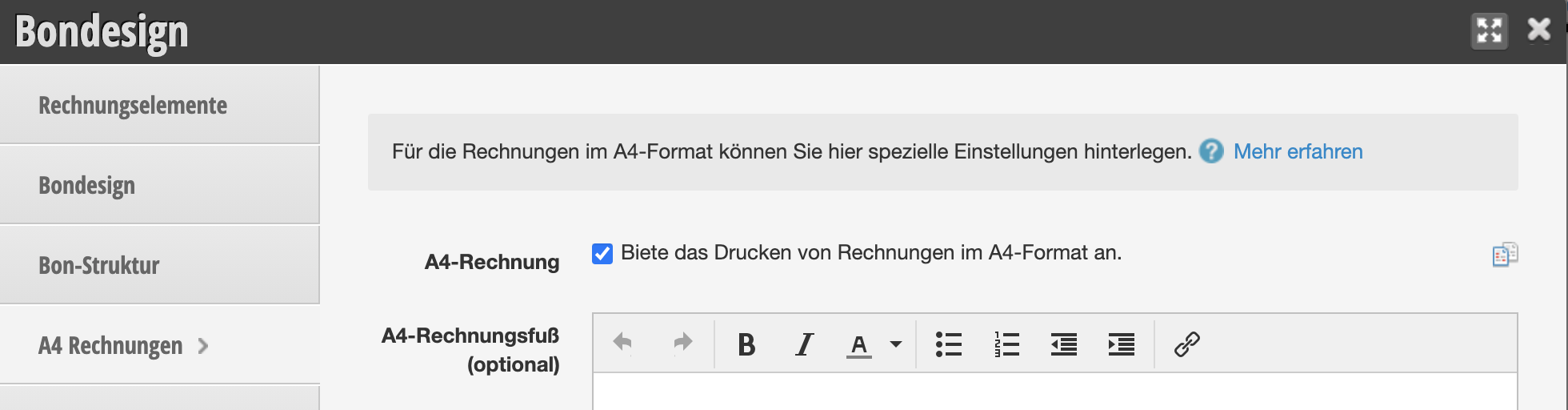
After that, you can create the A4 invoice in every checkout process:
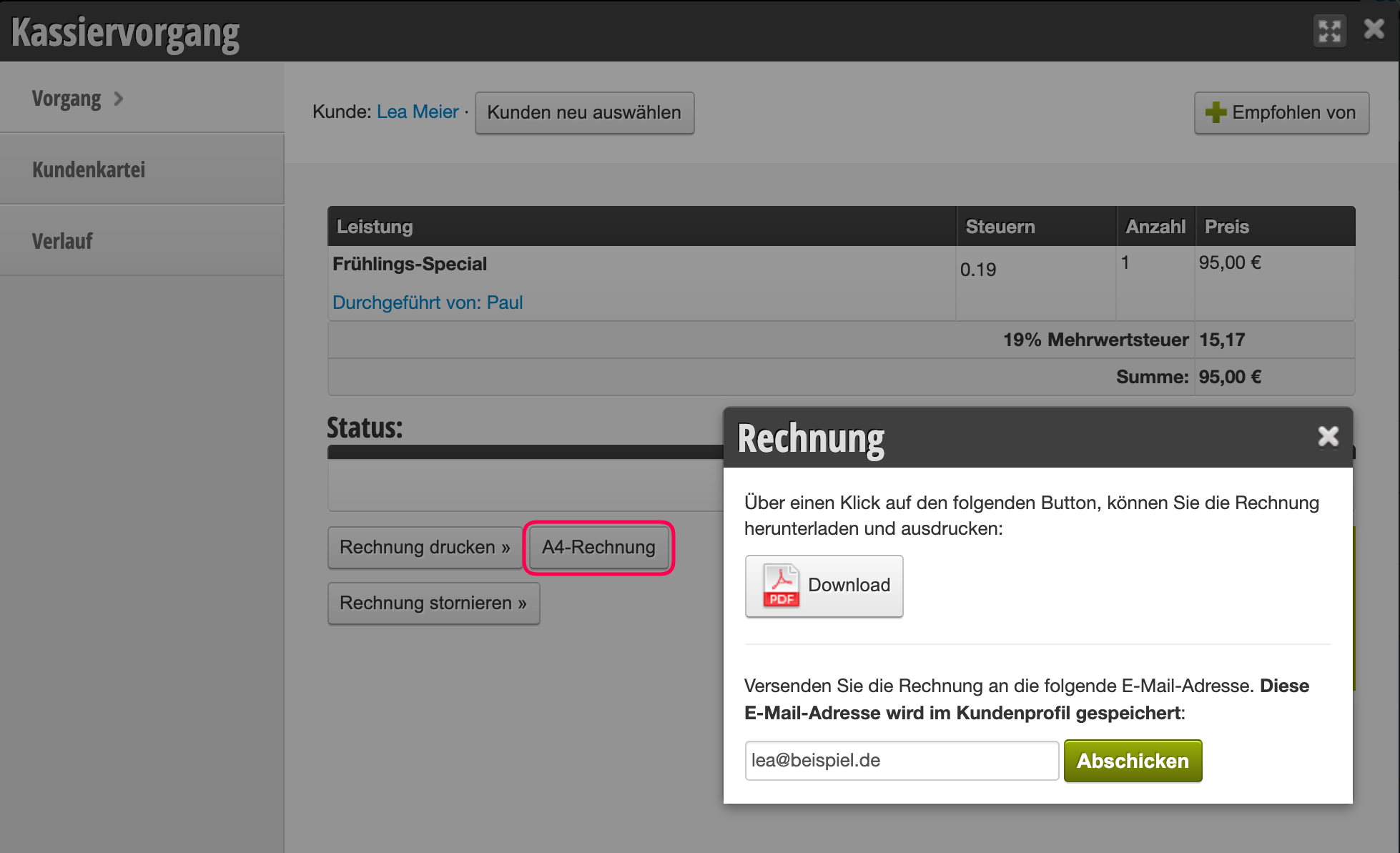
- Click on the PDF icon to download and print the invoice.
- Or click "Send" to easily send the invoice by email to the customer.
Edit Invoice Elements
If you offer payment by invoice, it makes sense to include your bank details on your invoice.
- Go to "Settings" and then "Receipt Design"
- Proceed as described in this article
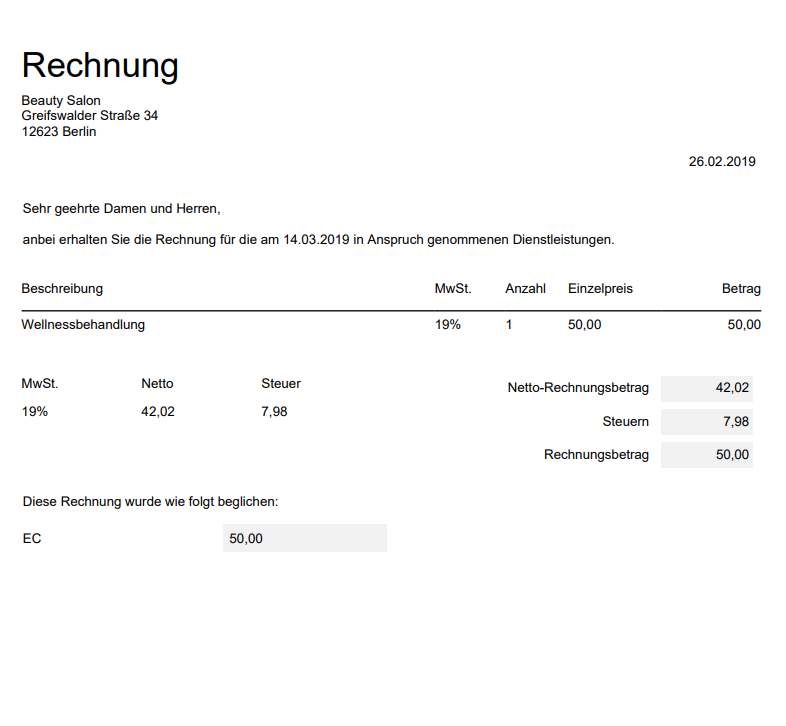
Customer Name & Address on Receipt and A4 Invoice
If you want the customer's address to appear on your invoice, you can use certain placeholders to display it. To do this, open the Receipt Design function and edit the "Invoice Header". Under "Text Placeholders" you will find the fields "Street", "ZIP Code", "City" under the "Customer" category. Please note that for this you must have created additional customer fields with exactly these names.
You can find instructions for this here.
Customer Pays by Invoice
If you want to allow your customers to pay for services and products on account, i.e., by bank transfer, you can do this in Belbo.
- Check out the appointment as usual and select "Invoice" as the payment method in the last step.
- In the completed checkout process, click on "A4 Invoice" and send the invoice by email or print it out for the customer.
- Once you record the payment, you can note this under Cash Register > Closings > Payment Overview.
Customer Doesn't Show Up / Misses Appointment Without Excuse
If you have specified in your terms and conditions that customers who miss their appointment should receive an invoice, you can proceed as follows:
- Click on the missed appointment and click "Check Out".
- If you charge the full appointment fee, you can check out normally.
- You can also create a service called "No-Show Fee" and add this service instead in the checkout process.
- If you only charge e.g. 50% of the appointment value, you can grant a discount of 50%.
- Under "Payment Method", click "Invoice" or "Bank Transfer" etc.* and complete the process.
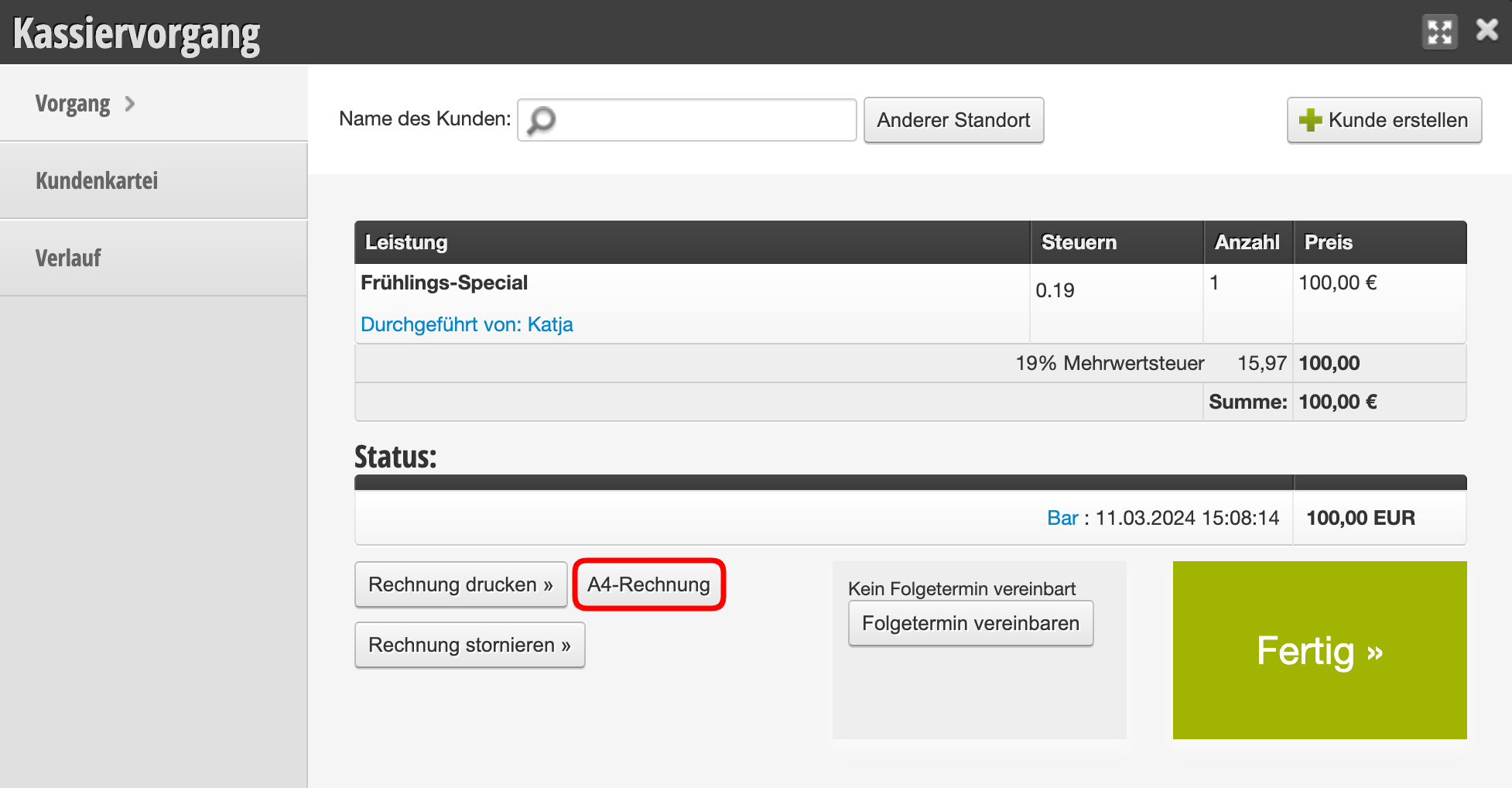
- As described above, click on "A4 Invoice" and print out the invoice or send it by email to the customer.
You can find more measures against unreliable customers here.
Customer Changes Mind and Wants to Pay in Cash or by EC Card a Few Days Later
In some cases, a customer comes to your business after some time and wants to settle the outstanding invoice with cash.
In this case, it is not permitted to accept the cash and place it in the register, as this would affect the cash balance without a booking being made.
Ask the customer to transfer the invoice amount. If they absolutely insist on paying, place the money in an envelope, which you label carefully (e.g., "Invoice from Customer Name, Date, Time") and take it with you on your next bank deposit.
Please inform your accountant about this special payment afterwards.
If payment by EC card has already been made, please ask your accountant how this should be recorded.