With newsletters and bulk SMS, you can reach all your customers for whom the corresponding contact information is stored in the customer file.
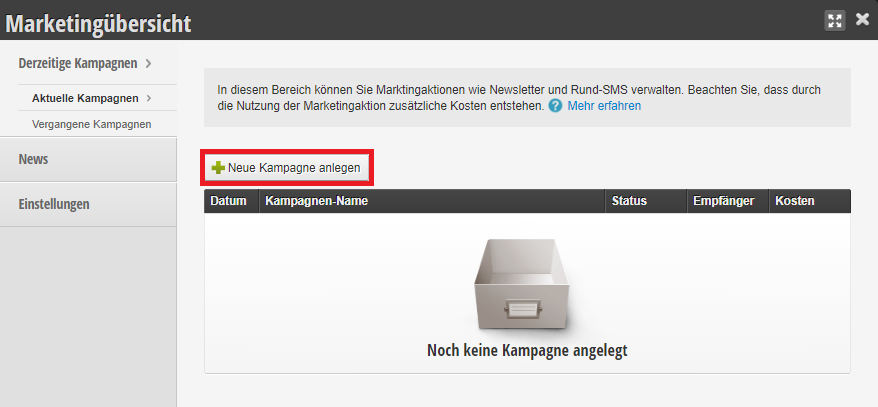
You can access this area via Customers > Marketing Functions
If this function is not enabled, it can be activated via "Settings > Add Function".
Important prerequisite for sending campaigns
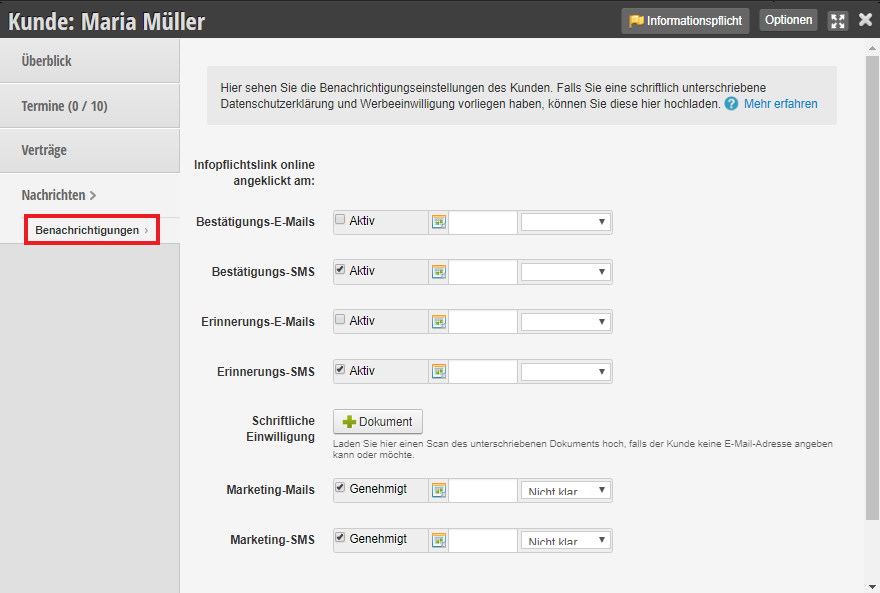
Message option activated in customer file
Only customers who have the corresponding options enabled in their customer files will receive marketing emails and SMS campaigns. Reminder and confirmation emails are not affected.
Create a campaign
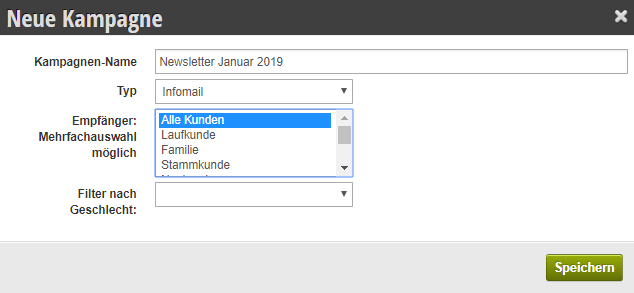
To create a new campaign, click "Create New Campaign" and fill in the following fields. When you save, the basic structure of the campaign will be created first and nothing will be sent yet.
Prepare campaign
The campaign name is internal and is not seen by customers. It helps you and your team recognize and assign open campaigns.
The type determines what kind of campaign you want to send. Learn more about the different types at the end of this article.
The recipient selection allows you to assign the new campaign to specific target groups. It is possible to select multiple customer statuses
The gender filter allows you to address only women or men. If you do not select a gender, the campaign will be sent to customers of all genders.
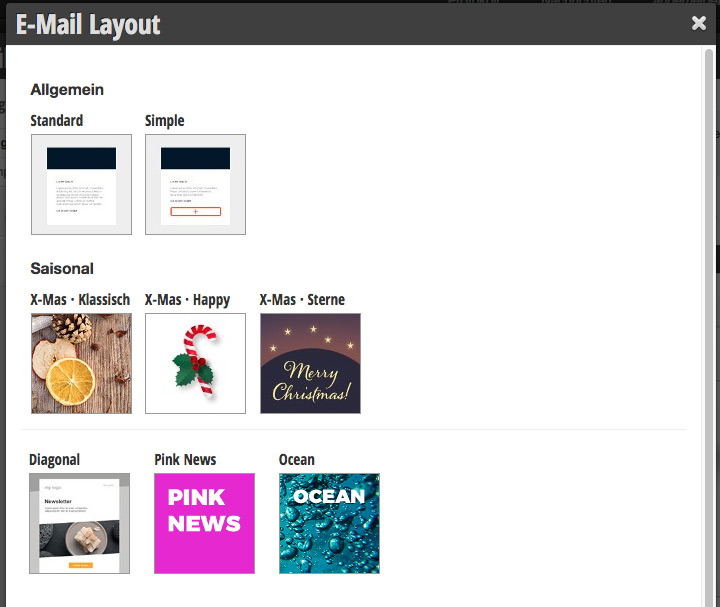
Select design
Next, select an appropriate design for your campaign. Attention: The "Standard" template only offers a header image and a text field. If you want to design the newsletter freely, select "Simple" or another design template.
Design email
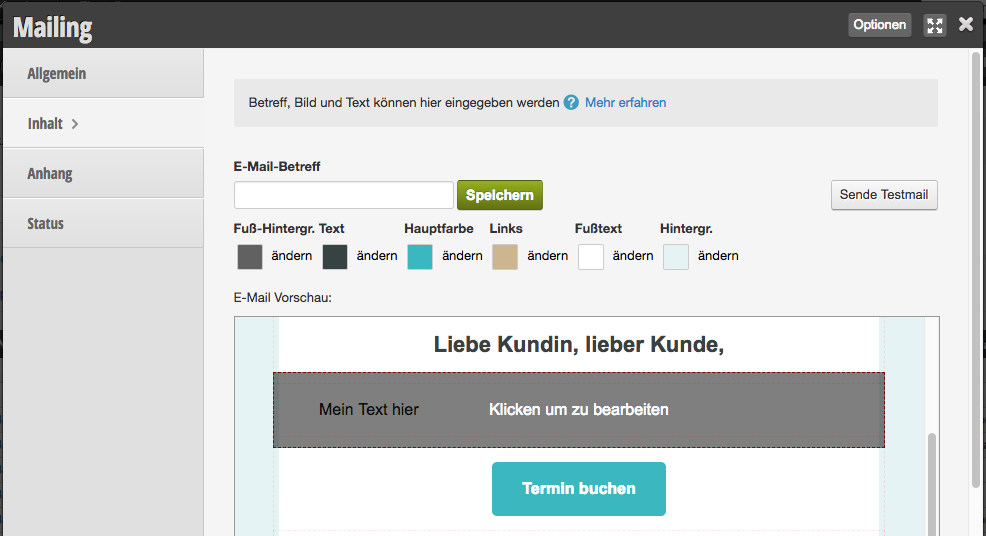
Now you can open your new campaign and edit text, design and attachments.
Edit design template
Once you have selected a design, you can change the existing text and images by clicking on each element.
Add elements
If you want to add more elements such as text blocks, images or booking buttons to the design, you can click the "+ Add Element" button. Then you can select from the available elements. Different designs may have different elements available.
Edit colors
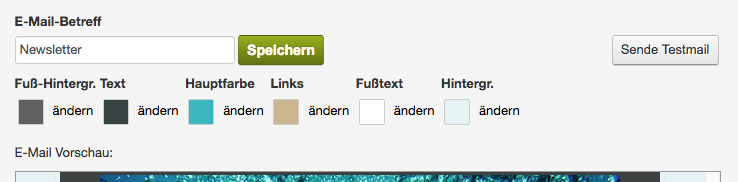
In the header of the email preview, you can change the colors of text or backgrounds throughout the email. For example, if you click on the "Text" color button, all flowing text in the design will be changed.
You can change the color of an individual element by clicking on it (for text and buttons). The color of backgrounds can only be changed via the color buttons at the top of the preview.
Campaign types
Info email
Design an email newsletter for the desired customer group. Sending an email newsletter costs 0.5 cents per recipient. Only one email is sent to duplicated email addresses.
Online booking invitation
If you want to invite all customers to book online, you can send an online booking invitation. In addition to your text, this email type contains a link where your customers can register directly and book an appointment.
SMS
Compose an SMS that you can send to all your customers with a registered mobile number. Sending a bulk SMS costs 10 cents per SMS sent. Therefore, please make sure not to use more than 160 characters! More information on bulk SMS can be found here.
Direct message to app users (iOS)
If you offer the Belbo customer app, you can send iOS users a free direct message that is sent directly to their smartphone. Users must have allowed the app to display such messages.
After saving your campaign, you can send yourself a test email or SMS to see how this message appears in your customer's mailbox or on their phone. Once you are satisfied, you can start sending under "General". The Status menu item shows you which customers this campaign has already been sent to. Please note that it may take some time for all messages to be sent. This depends on how many messages you are sending and possibly other Belbo users sending messages during this period.
AI Tip
Have your AI assistant write your newsletter for you. Copy the prompt below and answer the short follow-up questions. You'll get a subject line, preview text, and a blueprint that shows you how to add elements one by one in Belbo and insert the texts. You can also expand the prompt immediately with information about the newsletter content.
Check the newsletter after saving in the email preview and send yourself a test email before sending. Don't forget to enter the appropriate link for the booking button.
Write me a newsletter for my customers. I use the salon software Belbo and build the newsletter in the mailing editor there.
Ask me briefly about the following points before writing, but only those that I have not already answered in this message:
1. the name of my salon or studio,
2. whether I use "you" (informal) or "you" (formal) with my customers,
3. whether I write as an individual (I) or on behalf of a team (we),
4. the occasion and content of the newsletter, e.g. a promotion, an offer, news or a seasonal topic. For offers, ask about price, time period and conditions.
5. where the customer should go: to general appointment booking, to booking a specific service, to the gift certificate shop, to the product shop or nowhere,
6. which template I use: "Simple" (header image and one text block) or "Building blocks" (freely combinable elements).
Use only these Belbo placeholders for the salutation, written exactly as shown, with percent signs and in capital letters:
%LIEBEANREDEOHNENAME% becomes "Dear" (feminine) or "Dear" (masculine). Followed by %VORNAME%. This is the appropriate greeting for the informal form: %LIEBEANREDEOHNENAME% %VORNAME%,
%SEHRGEEHRTEANREDE% becomes "Dear Ms. Surname" or "Dear Mr. Surname". This is the appropriate greeting for the formal form: %SEHRGEEHRTEANREDE%,
%LIEBEANREDE% becomes "Dear Ms. First Name Surname" or "Dear Mr. First Name Surname", a more personal greeting for the formal form.
%VORNAME% becomes the first name, %NACHNAME% becomes the surname.
Here's how you deliver the result:
Subject: at most about 50 characters, without placeholders.
Preview text: at most about 90 characters, without placeholders. It appears in the inbox next to the subject line and should complement it, not repeat it.
For the "Simple" template: a single text with salutation, content and closing. If a link makes sense, write which link should be inserted where.
For the "Building blocks" template: a numbered blueprint. For each element, name the exact element name from Belbo and below it the content. These elements exist: Heading, Subheading, Text field, Booking button, Divider line, Image / Text, Image / Text (1/3), Text / Image, Text / Image (2/3), Image full width, Image in content. The header image is already there and is at the very top.
Rules:
- Never write out words like "Dear", "Dearest" or "Very respectfully" yourself, but always use the appropriate placeholder. Belbo inserts the correct form depending on the customer.
- After %SEHRGEEHRTEANREDE% and %LIEBEANREDE%, no further name follows, it's already included there.
- Use placeholders only in text fields, not in headings, subheadings, buttons, subject lines or preview text.
- Keep the newsletter short and clear: one heading, at most three text sections and at most two buttons.
- For the booking button, specify the button text and write which link must be entered. You can find the links in Belbo under Settings > Online Booking > Links. For a specific service, create the link there using the link generator; for gift certificates, there is a separate link to the gift certificate shop.
- For image elements, describe in one sentence which image is suitable. Images should be significantly wider than they are tall, at most square. If you ask me to do so, create suitable images for me in this format.
- Do not invent any offers, prices, time periods or placeholders that I have not mentioned.
Deliver all texts as plain text without formatting such as asterisks or hashtags so I can insert them directly into Belbo.
Here's my information for the newsletter (if I haven't added anything here, ask me as described above):
Sending SMS campaigns incurs costs. These are shown to you transparently before sending. Costs are only charged if you actually start the sending and the campaign is sent.


 You can change the color of an individual element by clicking on it (for text and buttons). The color of backgrounds can only be changed via the color buttons at the top of the preview.