
If your company is represented at multiple locations, these can be added to your calendar.
Everything about: Staff
Employee: Dashboard
In the Dashboard you will find statistics on sales, working hours and absences of your employees based on appointments entered in the calendar.
Attention: If you use the Belbo cash register, please refer to the exact sales figures in your cash register statistics! We explicitly recommend the Barometer function for this.
Employee File
In the employee file, you can view and modify all essential data of a team member.Read more
Delete team member
Deleting a team member is only possible if there are no future appointments for this person.
Add employee
To create a schedule and display your employees in the calendar, you must first add your employees.
- 1
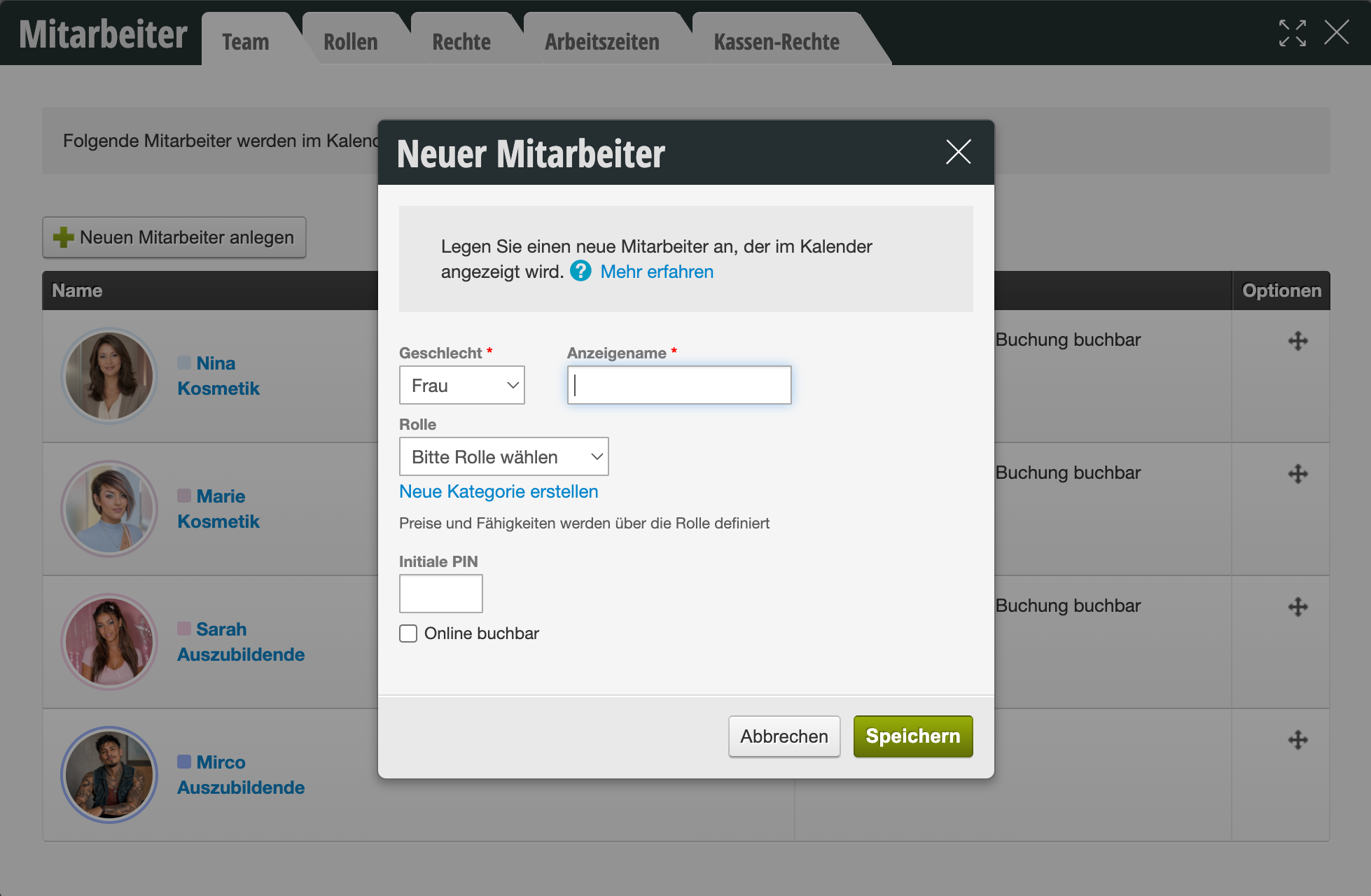
Use the + Add New Employee button to enter your new employee.
- 2
Assign the employee a role using the predefined groups or create a new role (see also: the meaning of the role).
- 3
Decide whether the employee should be available for online booking (you can also select/change these settings later).
- 4
After entering all requested data, complete the entry by clicking "Save".
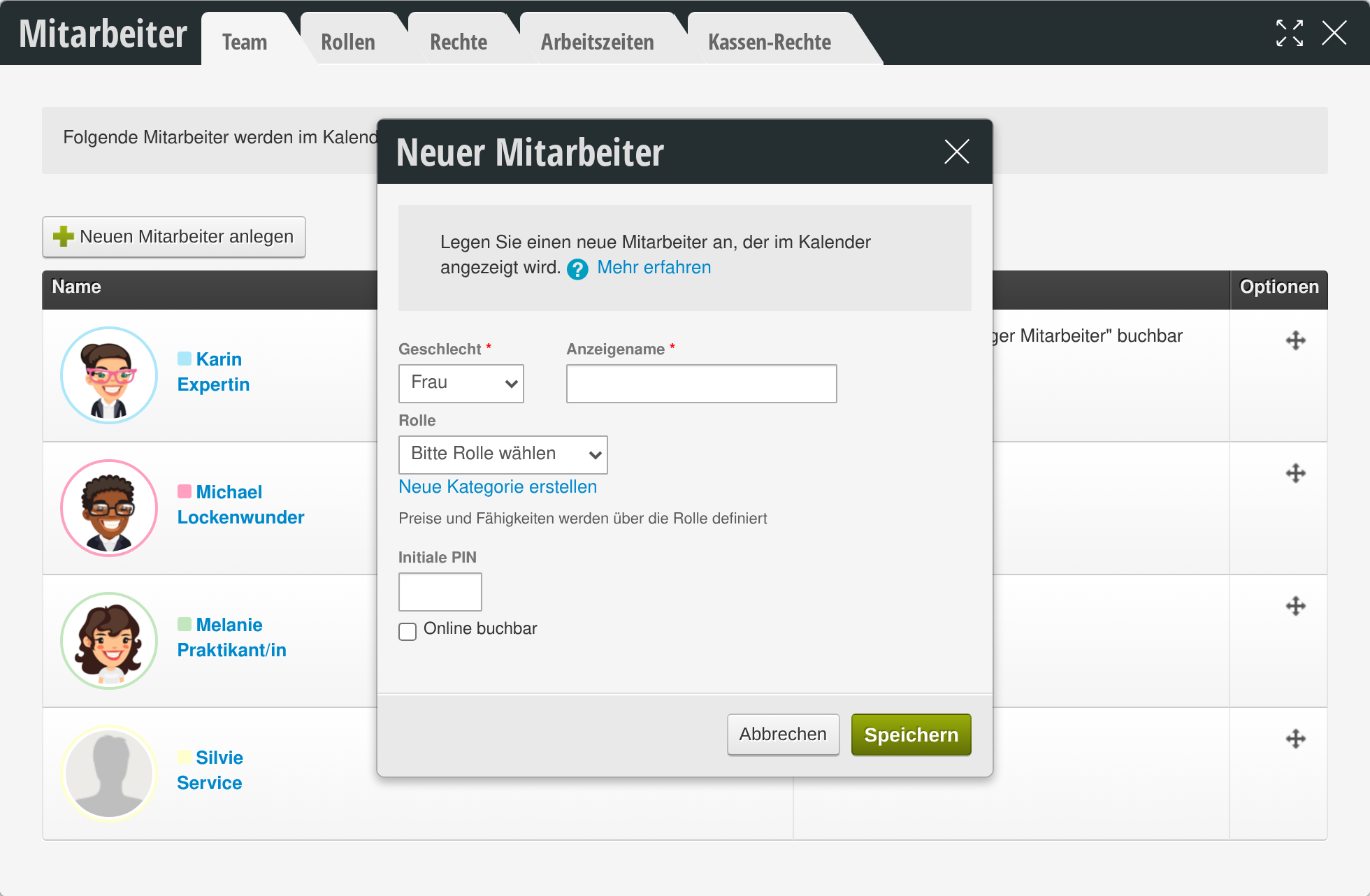
The newly added employee will now be displayed in the overview, as well as in the calendar and in the schedule.
Employee
Here you will find an overview of the various topics related to employees. Click on one of the following topics to get more information: