
If your company is represented at multiple locations, these can be added to your calendar.
Adding locations
After you have activated the multiple locations mode, you can add further locations:
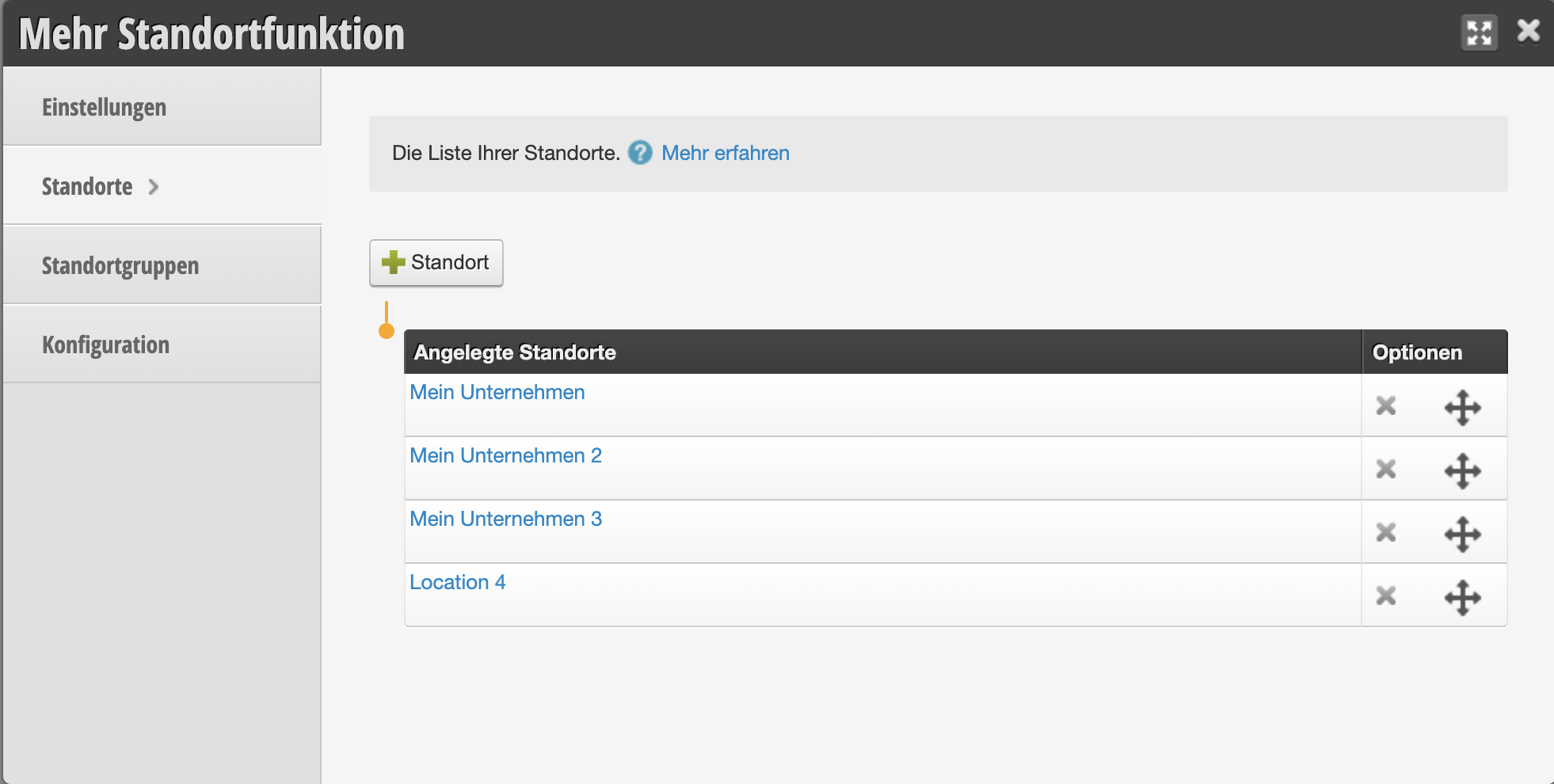
- Click on the "Locations" tab in the function.
- Click on + Location and enter the name of the location.
- Only enter a location group if you have very many locations that you want to divide into meaningful groups to make it easier for customers and employees to select a location.
- Save your entry.
Multiple locations in the calendar
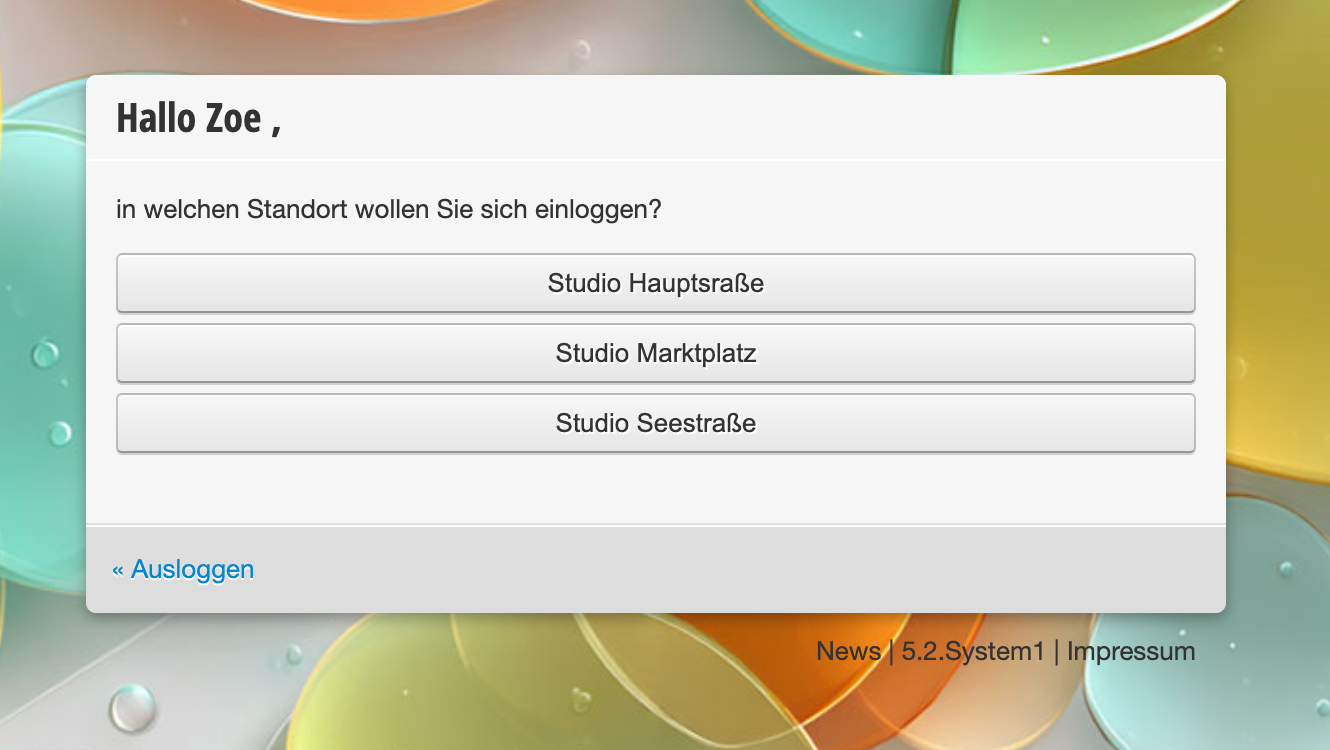
Once you have added additional locations to your calendar, you can select the desired location after logging in.
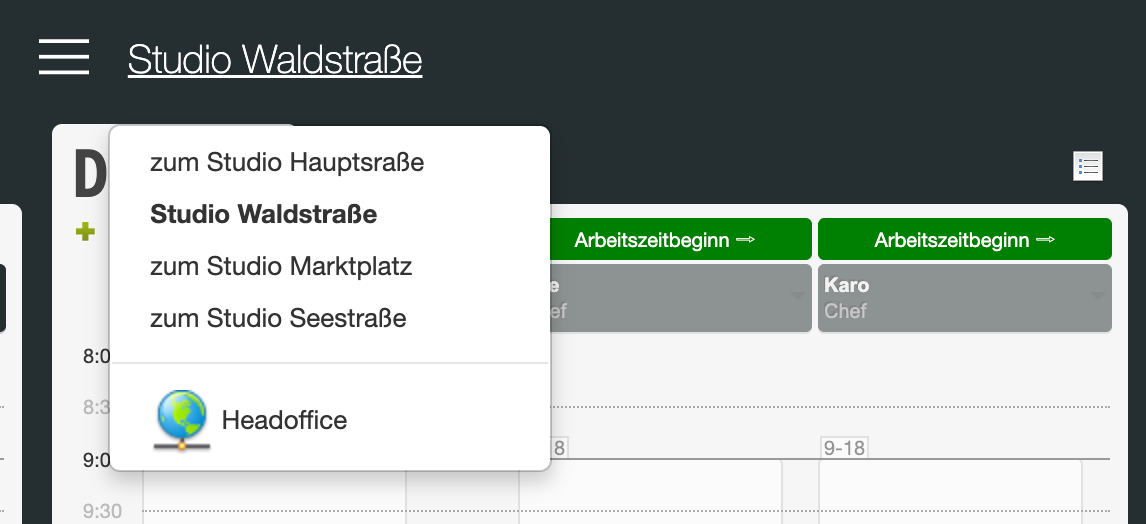
Even if you are in the calendar of one location, you can switch to the other locations at any time.
You can learn how to transfer your employees to other locations here.
In the Customer Settings, you can specify whether all your locations share a common customer database, or whether each location can only access its own customers.
Multiple locations in online booking
After logging in, your customers can first select the desired branch.
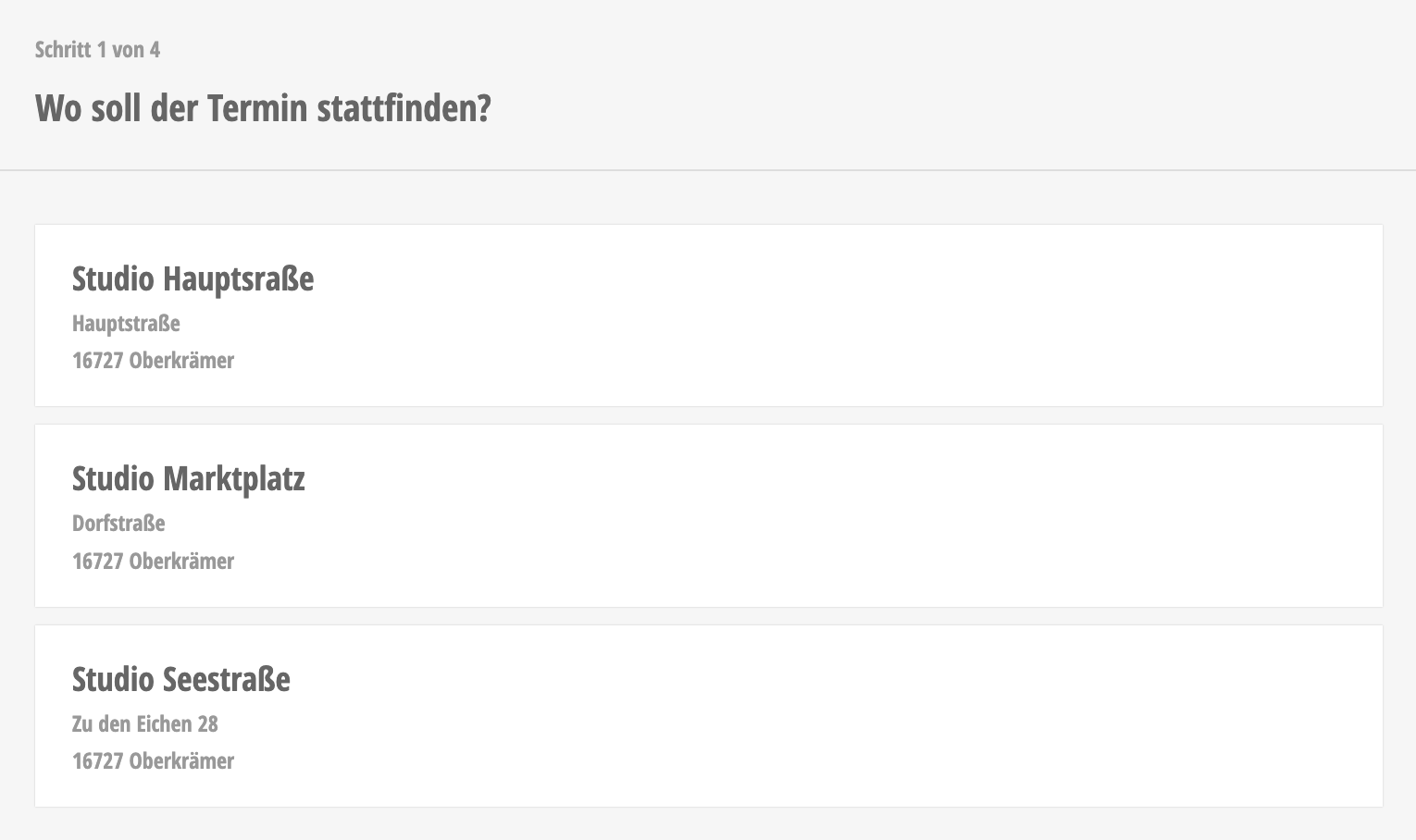
If you link another location in the Online Booking Settings, customers who cannot find their desired appointment time during the booking process can search directly at the other branch.
In the Online Booking Settings, you can specify whether your customers can book appointments at all locations, or only at the location assigned in the customer file.