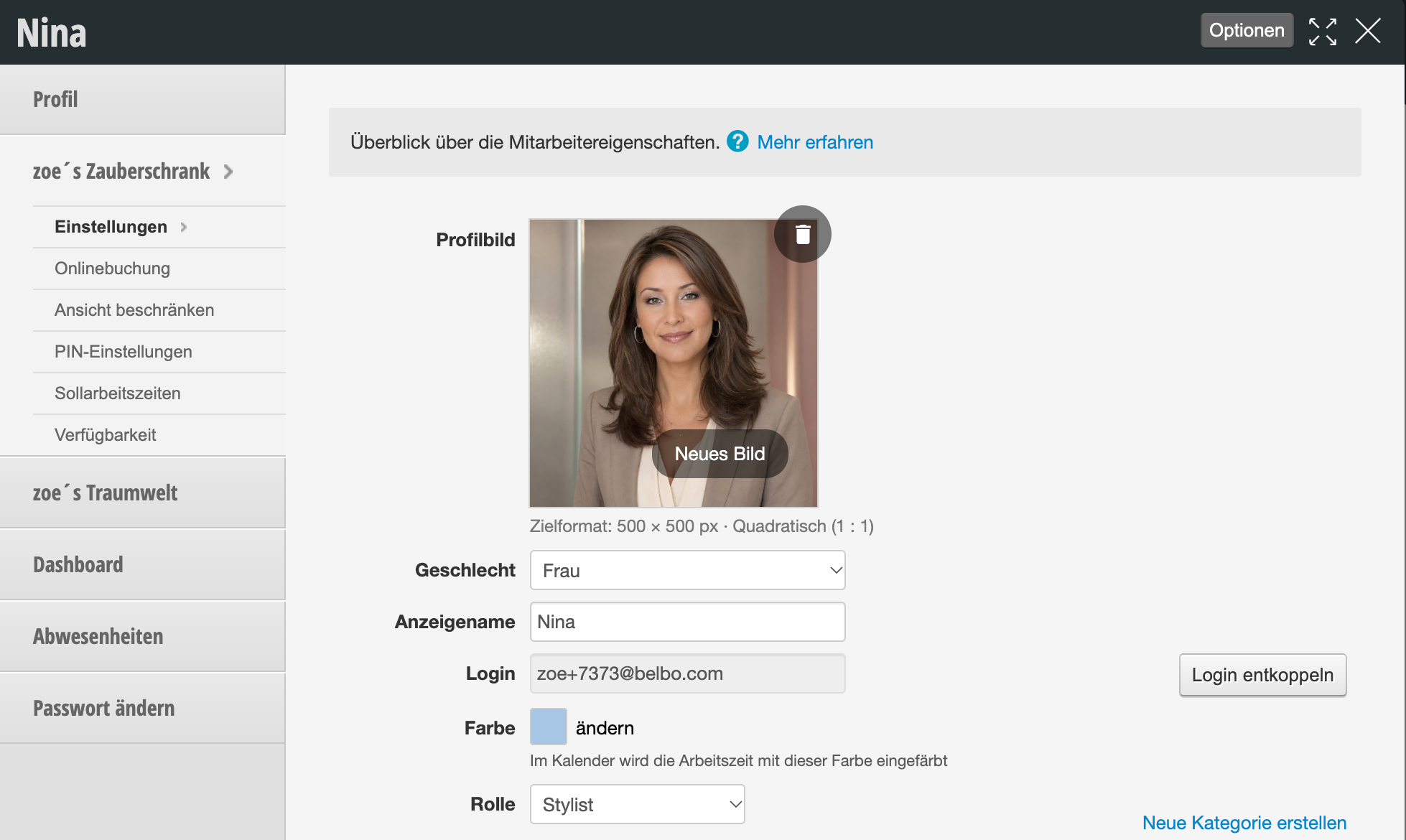
Your employees are basically only registered at the original location. If you wish, you can add an existing employee to a further branch.
Add employee to another branch
- Go to the location where you want to add the employee.
- Under Settings > Employees select + Create new employee.
- If multiple branches are linked in your calendar, you have the option to create an existing employee from another location.
- Select the desired employee and select the appropriate role.
- Go to Settings > Employees > Permissions and select the desired permissions that this employee should have at the current location.
- Your employee is now registered at the new location and can log in there.
Locations in the Employee file
Your employee can then access both locations with the same login details.
In this case, a distinction is also made between locations in the employee file, and you can make different default settings for all locations.