
belbo
  • Overview
    • Getting to know Belbo
    • Location Settings
    • Switch to Belbo
    • Calendar View & Navigation
    • Recurring Appointments & Courses
    • Appointment Entry & Management
    • Logins & Permissions
    • Multiple Locations & Head Office
    • Manage Employees
    • Absences & Holidays
    • General
    • Working Hours
    • Time Tracking
    • Data Protection (GDPR)
    • Customer Communication (Email, SMS)
    • Customer Management & Records
    • Bonus & Loyalty Programs
    • Campaigns (Newsletter & SMS)
    • Marketing Consents (GDPR)
    • Tracking & Analytics
    • Overview
    • Services & Prices
    • Products
    • Service Packages & Subscriptions
    • Vouchers
    • Purchasing & Suppliers
    • Stock & Inventory
    • Scanning & Sales
    • Cost of goods & expenses
    • Design & Texts
    • Setup & Settings
    • Integration (Website, Google, Instagram, Facebook)
    • Online payment
    • Accounting & Exports
    • Cash Register Settings & Hardware
    • Checkout process
    • Daily Closing & Reports
    • TSE & Cash Register Anti-Tampering Ordinance
    • Export Overview
    • Employee Utilization
    • Revenue & Reports
    • Belbo Satellite
    • Printer
    • EC Terminal & Card Payment
    • Troubleshooting Hardware
    • Scanner & POS Devices
    • General Settings
    • API & Integrations
    • Notifications & Emails
    • Contracts & Legal
Skip to content

Online Booking Settings: General

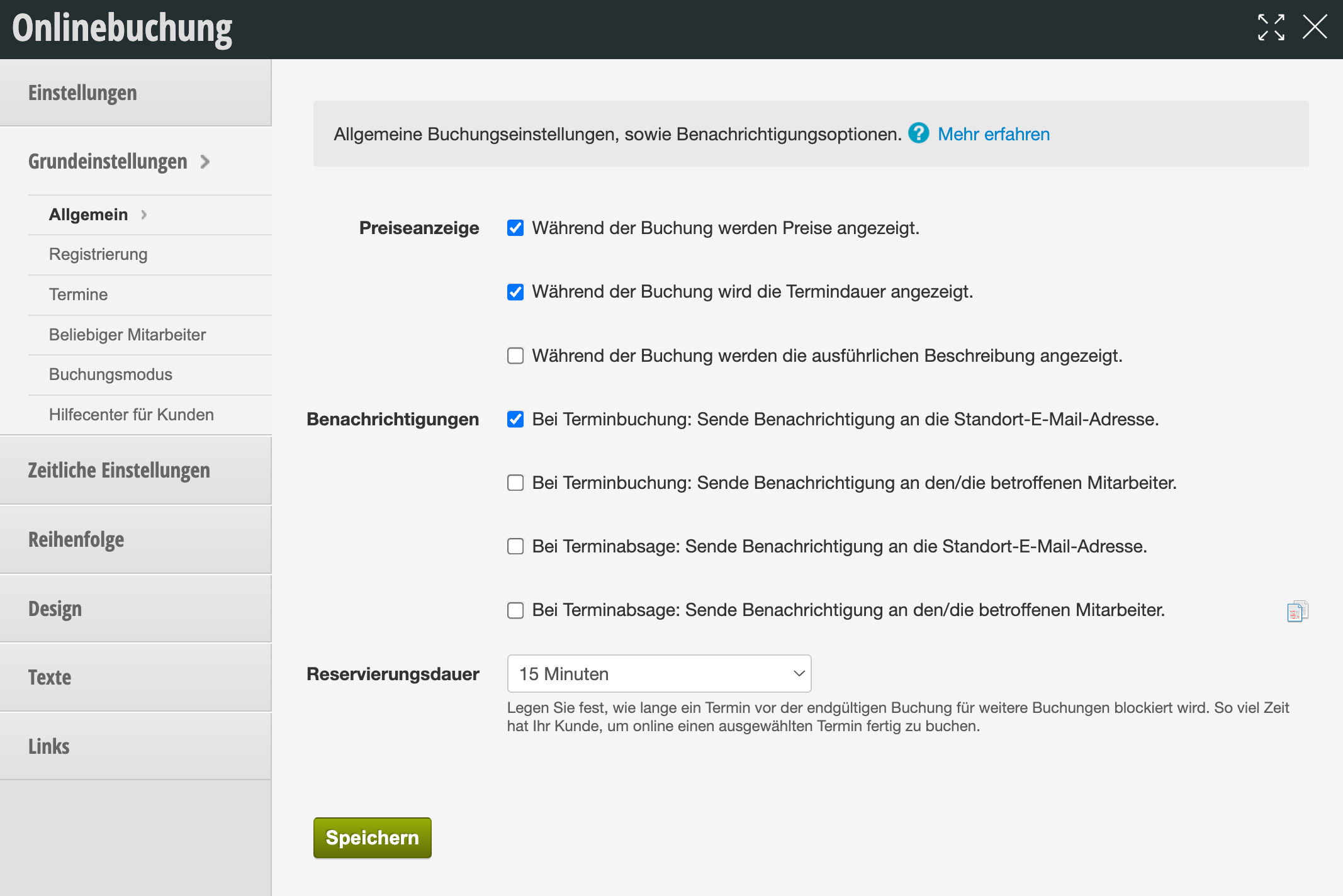
In the General Booking Settings, you can make the most important basic settings for your online booking.

Price Display
Prices are displayed during booking. If this checkbox is not set, customers cannot see any prices during online booking.

Notifications
Determine here who will be notified in the event of an online booked appointment. You can view all self-booked appointments at any time in the booking list.

Please note that only employees with an assigned email address can receive messages. In the employee file, you can create a separate login for each employee.

Reservation Duration

Determine how much time employees and customers have to enter an appointment.

In both cases, clicking on the desired time creates an appointment draft, which from that point on is no longer bookable for customers and already appears to colleagues as a "dotted" draft in the calendar. This makes unnoticed double bookings in the calendar impossible. However, to ensure that the appointment becomes available again after an improper cancellation of the booking, the draft is automatically deleted after the reservation duration.

We recommend not setting the time period too short, so that your customers have enough time to book the desired appointment, even if something comes up for them in the meantime, for example.

Locations
If you have linked multiple locations in one calendar, it may make sense that not all customers should be able to book at all locations.
If you enable the option "Customers may only book at locations they have been approved for", you will find the option in each customer file to assign this customer to a specific location.

Example use case:
You have several locations grouped together in one account, but you do not want your customers to be able to choose a location during online booking.
You can specify exactly in each customer file which location you want to make available to the customer.

Linked Location
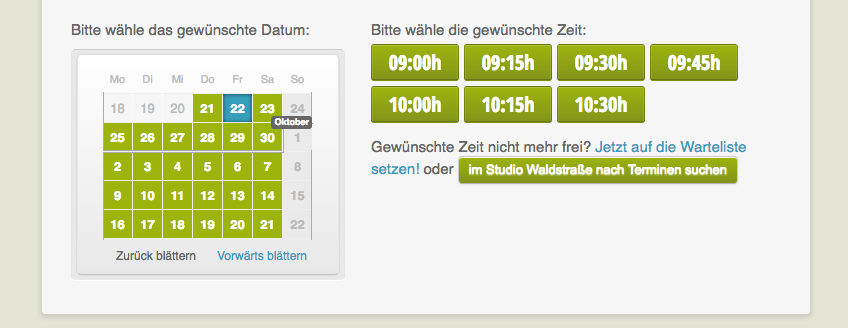
Optionally select a location here that should be offered if no more appointments are available.

Example of a linked location during booking:

Example of common general settings:
You can find an overview of all online booking settings here.
Categories: Setup & Settings
Tags: Buchungseinstellungen, Mitarbeiter-Benachrichtigungen, Onlinebuchung
This manual is a service by belbo. Legal notice