
You can assign each customer a customer status to distinguish your customers in the calendar or to tailor marketing measures to specific customer groups.
Create or edit customer status
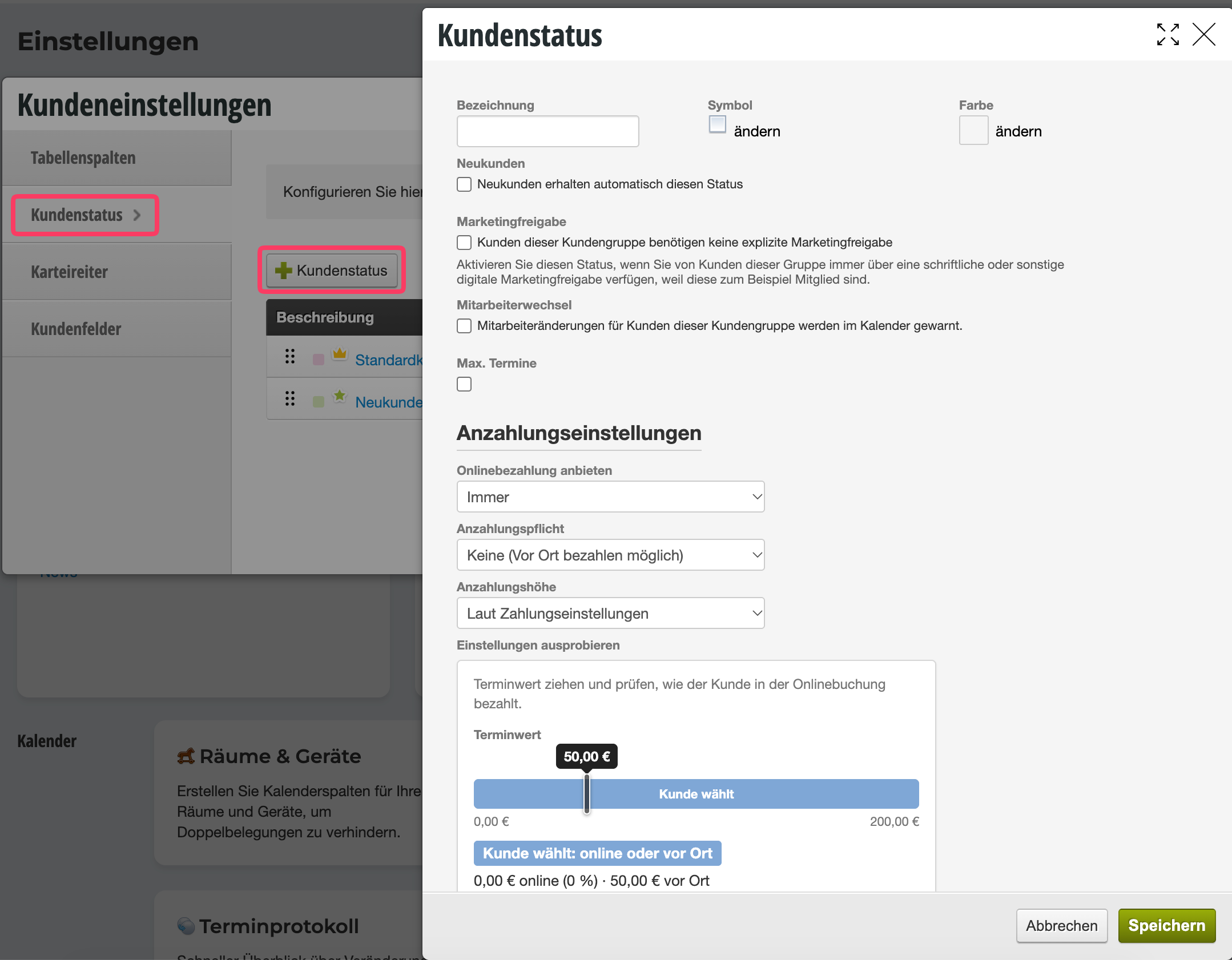
Click on "+ New Customer Status" under Settings > Customer Settings to create a new status.
Properties of the customer status
You can assign certain properties to each customer status, which are then automatically transferred to all customers with this status.
- Label: The name of the customer status, e.g. "Regular Customer", "New Customer", etc.
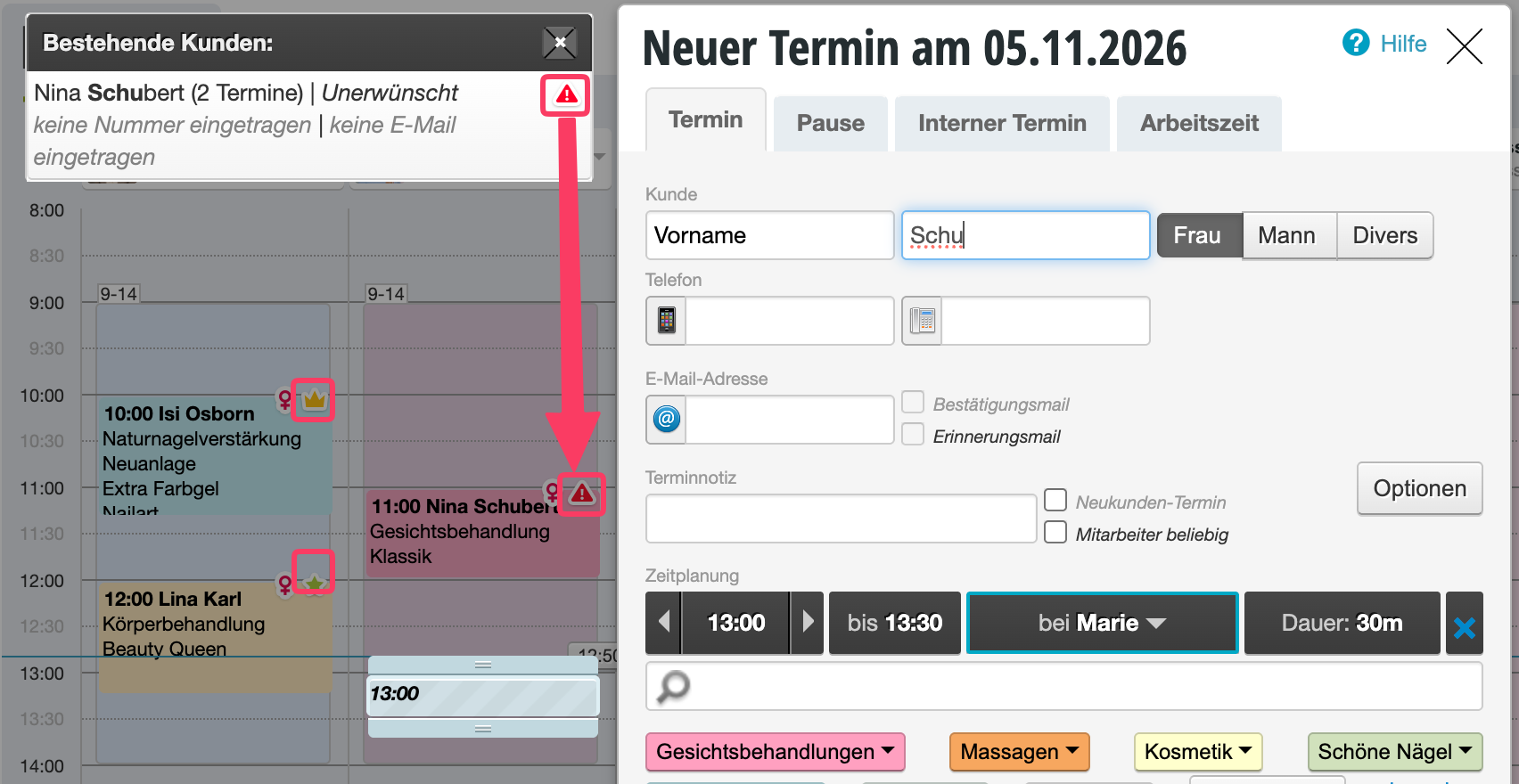
- Symbol: A symbol that automatically appears at each appointment, so the status is recognizable at a glance in the calendar.
- New customers automatically receive this status: The initial status that is automatically assigned to new customers when they are entered in the calendar by an employee or book online.
- Customers can book appointments and courses online: Customers can book appointments online.
- Customers must always pay online: Customers with this customer status must pay for their appointments online before they can book. Suitable for unreliable customers or new customers. Warning: Only possible if online payment is enabled and correctly configured! Costs may be incurred from third-party providers.
- Marketing approval: According to GDPR, you may only contact customers via newsletter if they have explicitly permitted you to do so. If you maintain this permission outside of Belbo (for example, through contractual agreement), you can activate this option so that all customers with this status are automatically included in newsletters, even if no marketing approval is set in the customer file in Belbo. Customers who explicitly object to receiving messages will no longer be contacted. Warning: You are responsible for compliance with GDPR regulations when sending your marketing emails. Violations of the GDPR can result in severe penalties!
- Employee change: If you have customer groups that should preferably be served by specific employees, you can specify this. If an appointment in the calendar is moved to another employee, a corresponding warning appears.
- Max. appointments: Specify that customers with this status may only receive a limited number of appointments for a certain period. Suitable for example for fitness studios, where members with special contracts are allowed to train a maximum of 2x per week.
- Color: Set the color of this status to immediately recognize the status in customer selection in the calendar. Suitable for example for blocked customers.
Assign customer status to a customer
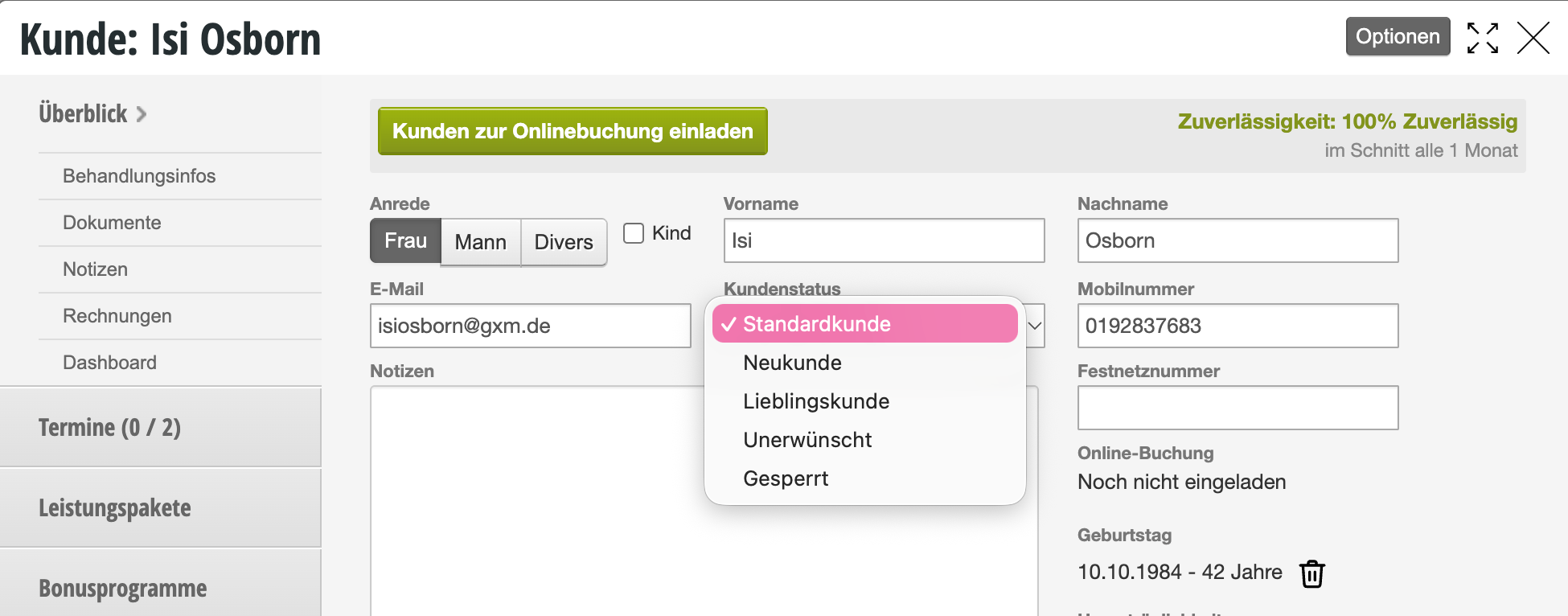
Once you have saved the status, it is selectable in each customer file:
Examples of customer status in the calendar
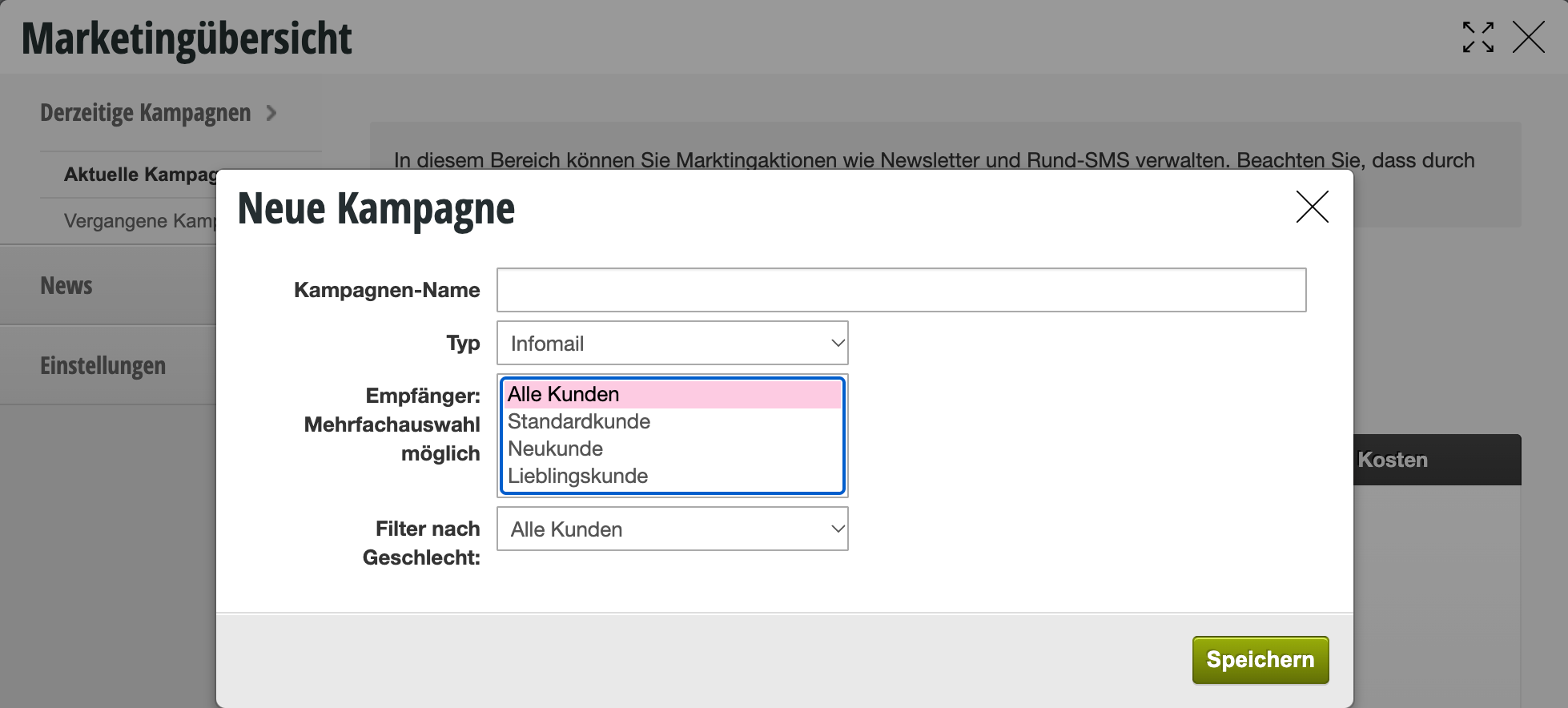
Customer status and marketing measures
If you want to send your customers holiday greetings and a discount voucher, for example, you can do this with the help of online vouchers and marketing functions. However, if only regular customers should receive this greeting, you can filter your mass email for only this specific customer status.
Note: Please note that according to the General Data Protection Regulation, your customers have the right to request all data stored about them. This also includes their own customer status.
Custom booking process for specific customer groups
You can specify that customers with a certain status may only book a selection of your services. The prerequisite for this is that you link the online booking so that customers must first log in or register before they see the selection of services.
Learn more about customer status-specific booking.
Block bookings for new customers with certain employees
If you want to prevent a specific employee from being booked by new customers, you can set this here. Learn more about blocking new customers for specific employees here.