
If you work with the Belbo cash register system, you must create a daily closing for the current day every day.
This guide assumes a user with all cash register rights. In Cash Register Rights you can hide individual areas of your cash register for specific users. If you as an owner do not see certain areas shown here in your cash register, please log in with an authorized login or contact the Belbo team.
Daily Closing Overview
In the overview you will find all past daily closings and can create the closing for the current day.
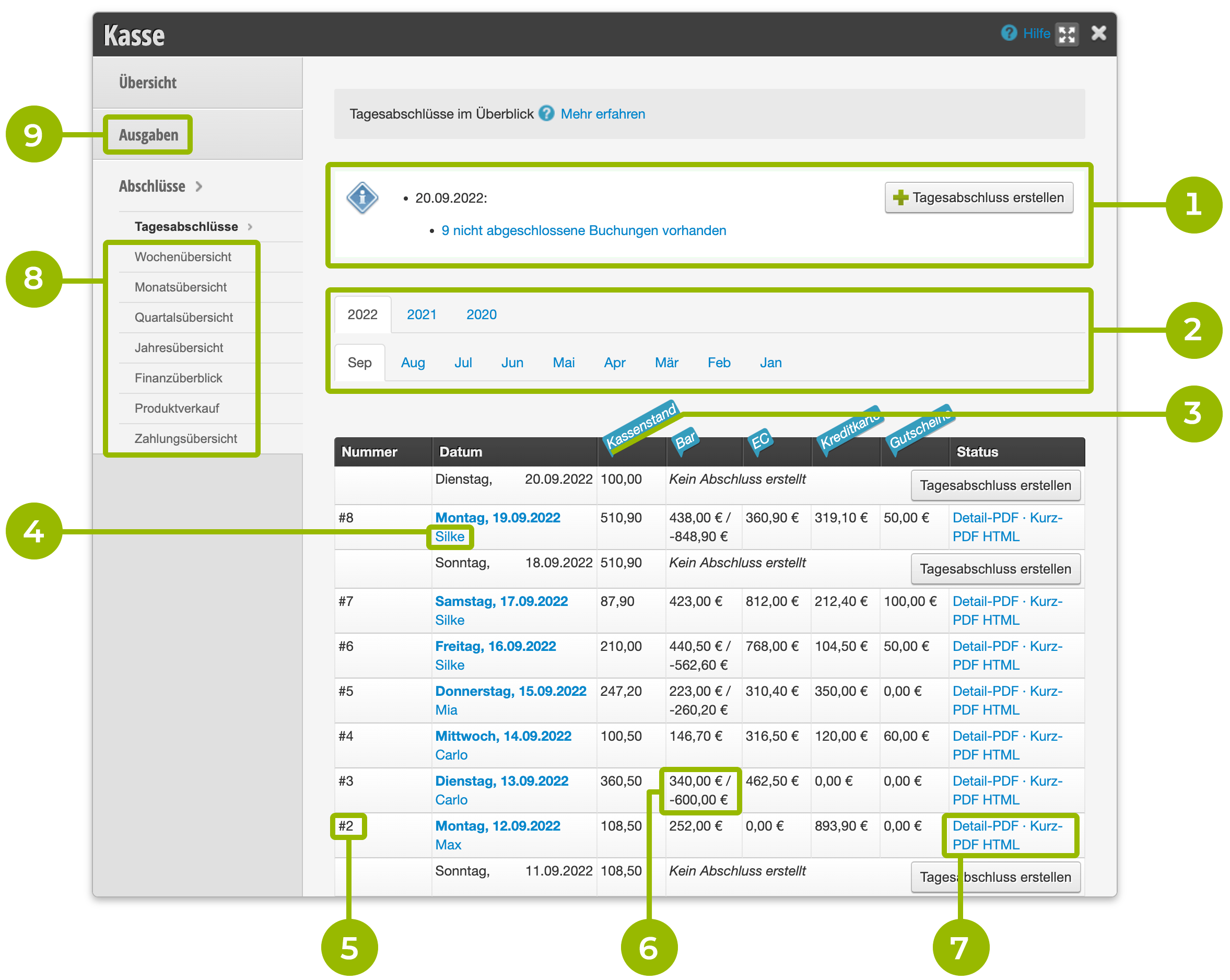
- If there are open bookings on the current day that are not yet included in a closing, information appears about how many bookings already exist. At this point you can conveniently create the day's closing using the "+Create Daily Closing" button.
- In the date selection you can scroll back in time and view all previously created closings.
- The table below shows the current month and all closings created so far. It is organized by date and payment methods. The cash register balance at the beginning of each day is also shown.
- The overview shows who created the respective closing.
- Each closing has its own sequential number.
- In the "Cash" column you can see the cash payments and cash withdrawals made for each day.
- On the right side of the table you can download the most common export formats for each closing.
- In the side menu you have access to numerous informative statistics.
- Daily cash expenses are recorded before creating a daily closing.
Create Daily Closing
- When creating the daily closing, the cash register balance must be counted and reconciled with the displayed cash register balance. If there is a shortage, it must be made up.
- All redeemed vouchers must be retained and filed with the daily closing.
- The total amount of card payments must be reconciled and match.
- In case of discrepancies, the invoices must be corrected accordingly.
Before creating the daily closing, all appointments of the day must be cashed in and all cash expenses must be entered.
- Click "Cash Register" in the top right of the main navigation
- Click on "Closings".
- Click "Create Daily Closing" in the header area of the overview or in today's date line.
- Check the displayed totals (see below under "Checking the Closing").
- Note any special features in the comment field.
- When you click "Create Daily Closing" you have automatically created a daily closing draft. This can be easily reviewed and then closed and corrected. Only click "Save" when the closing is to be created.
- After the daily closing has been created, print the detail PDF and attach the receipts.
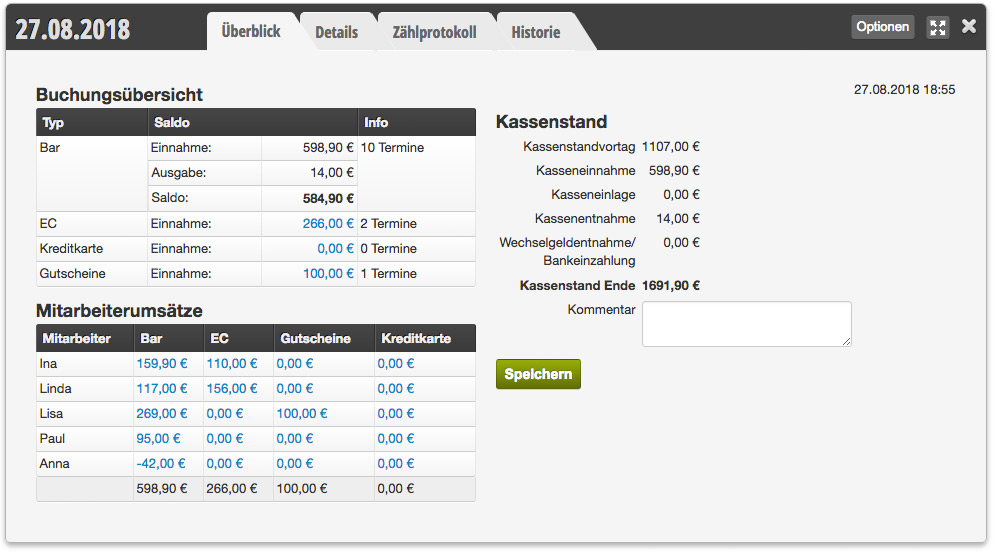
On closed days where no bookings took place, no closing needs to be created.
Checking the Closing
Before you click "Save", this overview is a daily closing draft. You can leave this at any time by clicking the cross button (1) and open it again. When reopening the draft, any changes made will be automatically applied. Only after everything has been checked and corrected, click "Save" and a daily closing with a fixed closing number will be created. This should preferably not need to be corrected anymore.
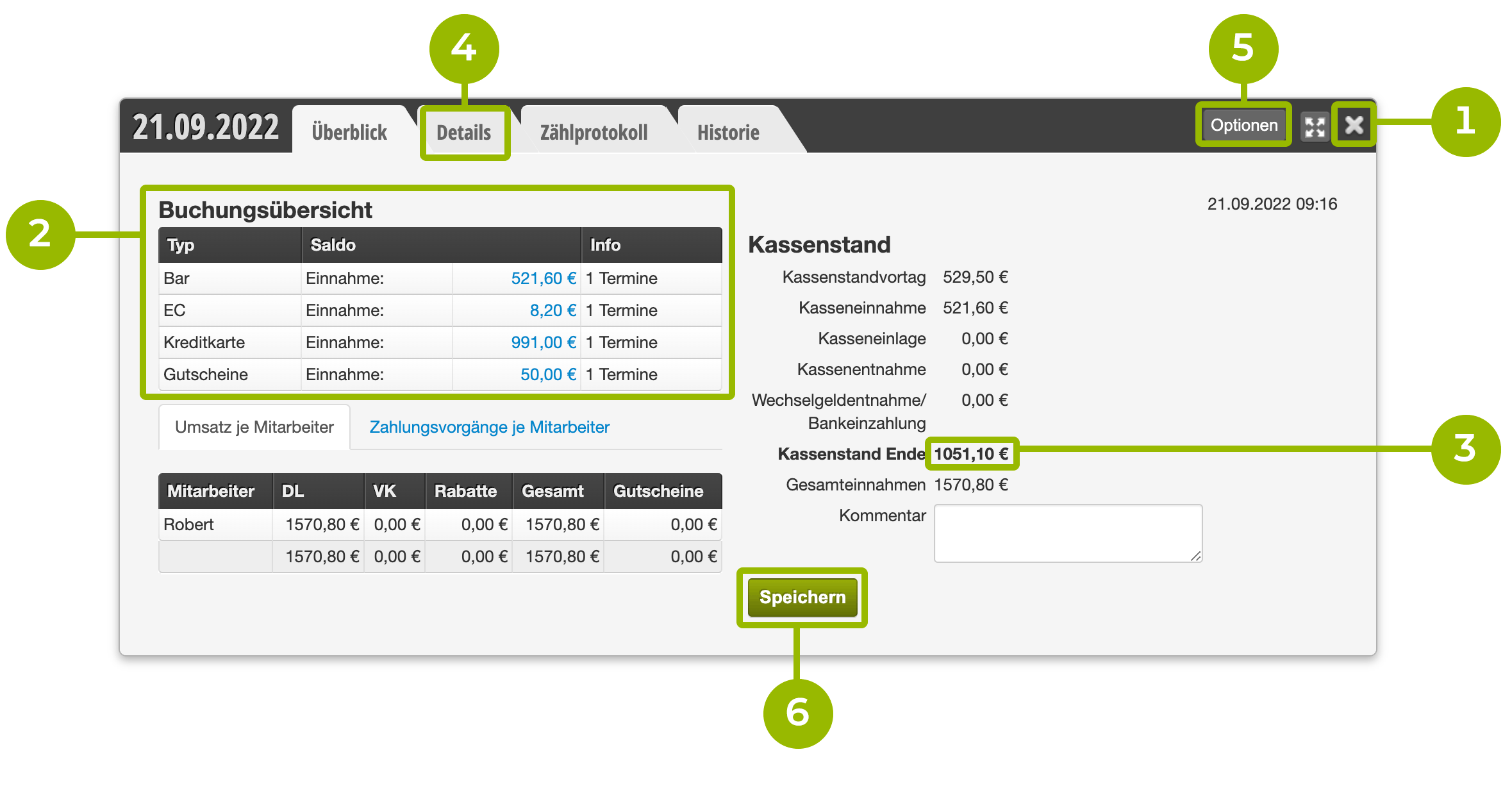
If a draft has been created by mistake, it can be deleted again via the "Options" button (5).
Count Cash
Check the cash receipts shown (2) as well as the cash amount under "Cash Register Balance End" (3). We recommend using the Counting Protocol to make counting the cash balance easier.
Check Other Payment Methods
Reconcile the amounts shown (2) with the Z receipt from your card terminal as well as any submitted vouchers or other payment methods (e.g. PayPal). Only when all displayed amounts are correct, click "Save" (6).
Error Correction
If discrepancies appear (e.g. due to incorrectly cashed appointments with mixed up payment methods), the bookings of the day can be analyzed in the "Details" tab (4). As long as it is a daily closing draft, the mixed up payment methods can be changed in the Details tab.
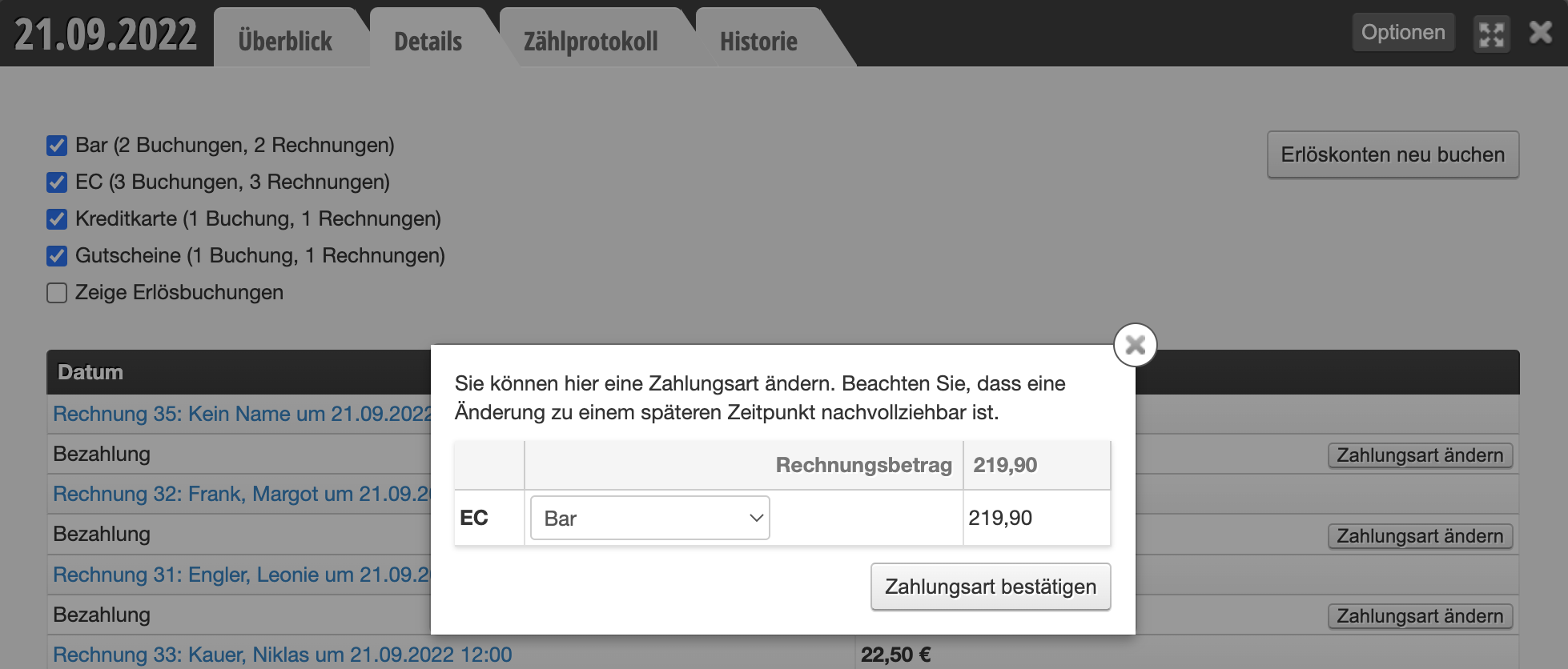
If cash expenses have been forgotten, they can be entered in the "Expenses" tab.
After all corrections have been made, the overview page of the closing draft can be called up again and the "Save" button can be pressed.
The closing is complete!
Uncreated Closings
If bookings (expenses or appointment collections) were created on a past day that are not yet included in any closing, your cash register will report this. This is a violation of GoBD. Create the closing as soon as possible.
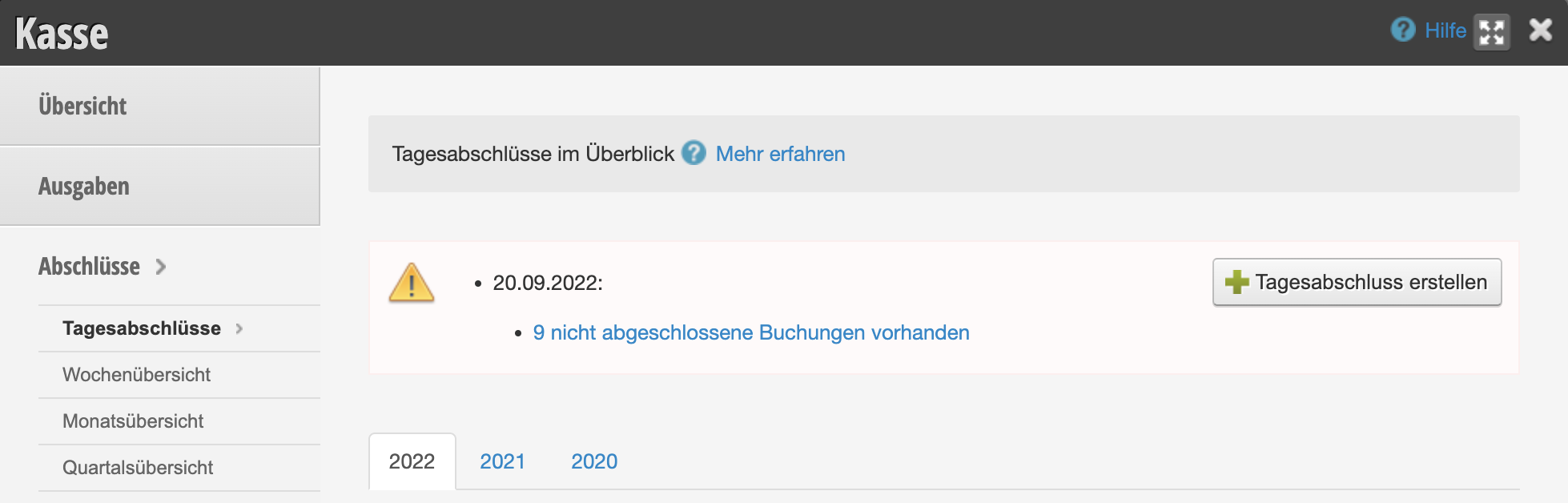
If there are multiple uncreated closings, they must be created in the correct order, starting with the date furthest in the past.
Correct Created Daily Closings
Ideally, a carefully checked daily closing is created each day, which does not require any subsequent correction. Should a correction still be necessary, you can recreate already created daily closings in Belbo. Detailed information on this can be found in the article Correct Daily Closing.