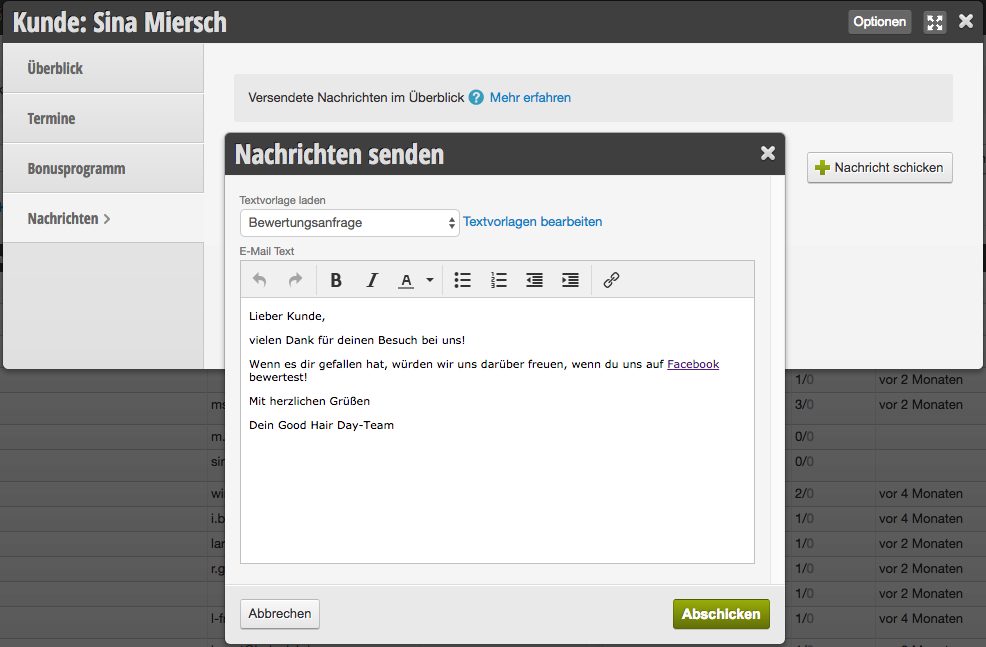
In every customer file, you have the option to send direct messages to individual customers. Here you can create templates for direct messages so you don't have to compose frequently sent messages from scratch every time.
Tip: If you want to send this message to all your customers after their appointment as a matter of course, it's best to use Automatic Emails.
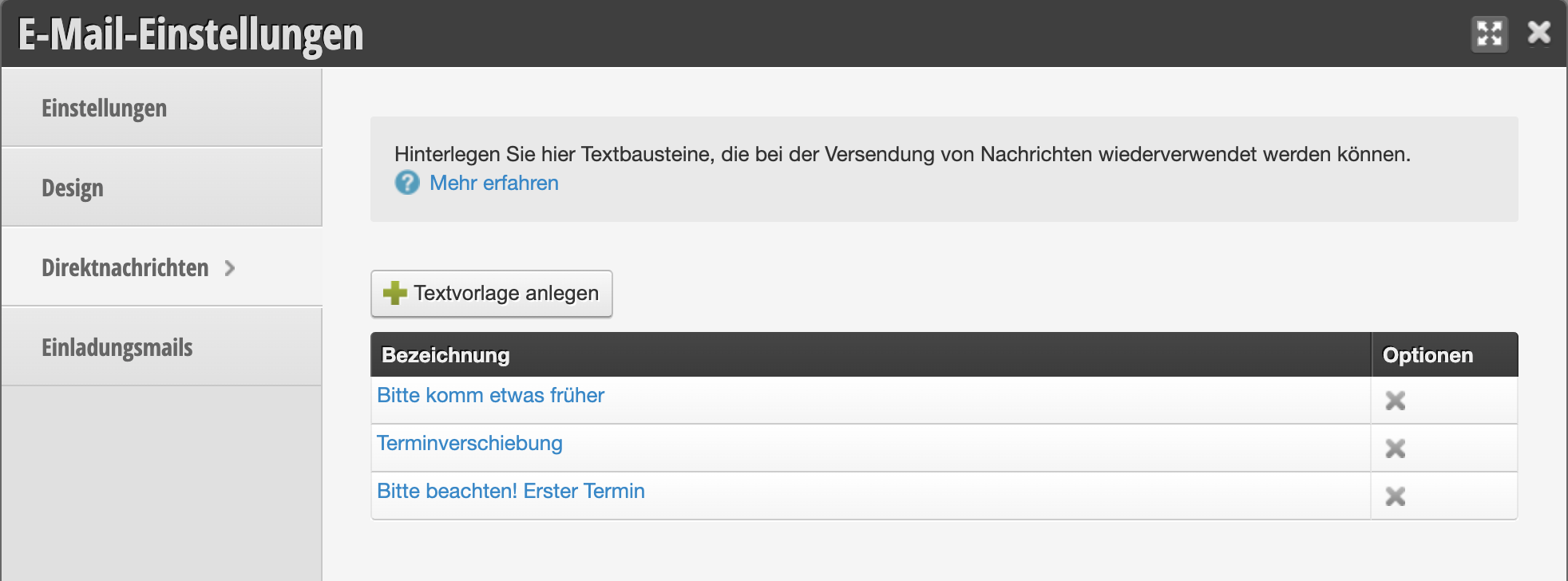
Using text templates
Create template
To create a text template, click on +Create text template.
Then give the template a meaningful name so you can identify it later.
Then enter the desired texts for email and SMS. If you only want to compose one of the two message types, leave that field empty. Please note that SMS will only be sent if you have activated the SMS sending function.
Then give the template a meaningful name so you can identify it later.
Then enter the desired texts for email and SMS. If you only want to compose one of the two message types, leave that field empty. Please note that SMS will only be sent if you have activated the SMS sending function.
Example of a text template:
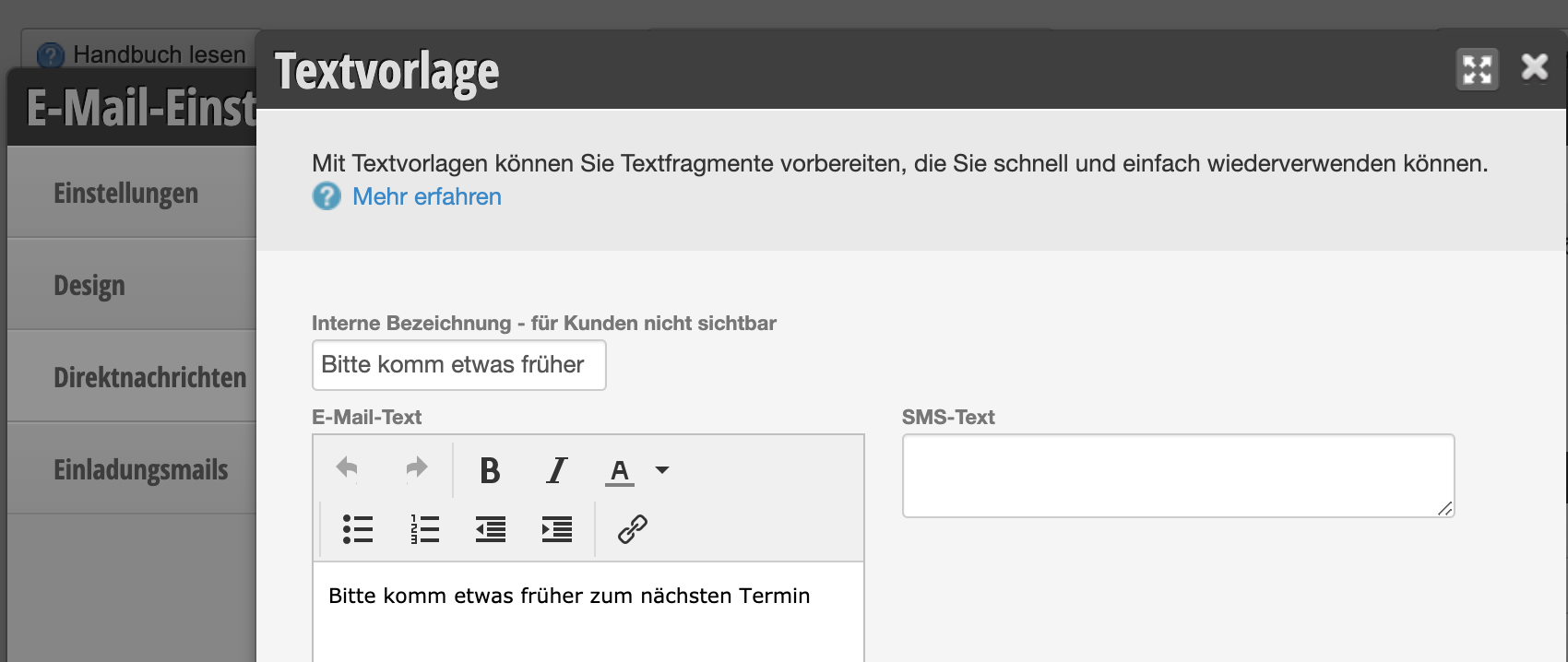
There is a character limit of 3000 characters.
Use text template
Open the customer file of the customer you want to send the message to. In the Messages menu item, you can click on + Send message to send a new message. Your saved text templates are available here.
Please note that you should only make personal additions after loading the text template.
Please note that you should only make personal additions after loading the text template.
Using text template in customer file: