
belbo
  • Overview
    • Getting to know Belbo
    • Location Settings
    • Switch to Belbo
    • Calendar View & Navigation
    • Recurring Appointments & Courses
    • Appointment Entry & Management
    • Tasks
    • Overview
    • Multiple Locations & Head Office
    • Manage Employees
    • Logins
    • Rights
    • Overview
    • Absences & Holidays
    • Working Hours
    • Time Tracking
    • Overview
    • Data Protection (GDPR)
    • Customer Communication (Email, SMS)
    • Customer Management & Records
    • Overview
    • Bonus & Loyalty Programs
    • Campaigns (Newsletter & SMS)
    • Marketing Consents (GDPR)
    • Tracking & Analytics
    • Overview
    • Services & Prices
    • Service Packages & Subscriptions
    • Vouchers
    • Products
    • Purchasing & Suppliers
    • Inventory & Stock Counts
    • Scanning & Sales
    • Cost of Goods & Expenses
    • Overview
    • Design & Texts
    • Setup & Settings
    • Integration (Website, Google, Instagram, Facebook)
    • Online payment
    • Overview
    • Accounting & Exports
    • Cash Register Settings & Hardware
    • Checkout process
    • Daily Closing & Reports
    • TSE & Cash Register Anti-Tampering Ordinance
    • Overview
    • Export Overview
    • Employee Utilization
    • Revenue & Reports
    • Belbo Satellite
    • Printer
    • EC Terminal & Card Payment
    • Troubleshooting Hardware
    • Scanner & POS Devices
    • General Settings
    • API & Integrations
    • Notifications & Emails
    • Contracts & Legal
Skip to content
Customers›Customer Management & Records

Color Formulas in belbo

Feature: Customers › Customer Settings

In the hair salon, individual color formulas can be created for each customer so that the formulas already used can be looked up during a later visit by the customer.

You can access this area via Settings >
If this function is not activated, it can be edited via "Settings > Customer Settings".

Create formula field

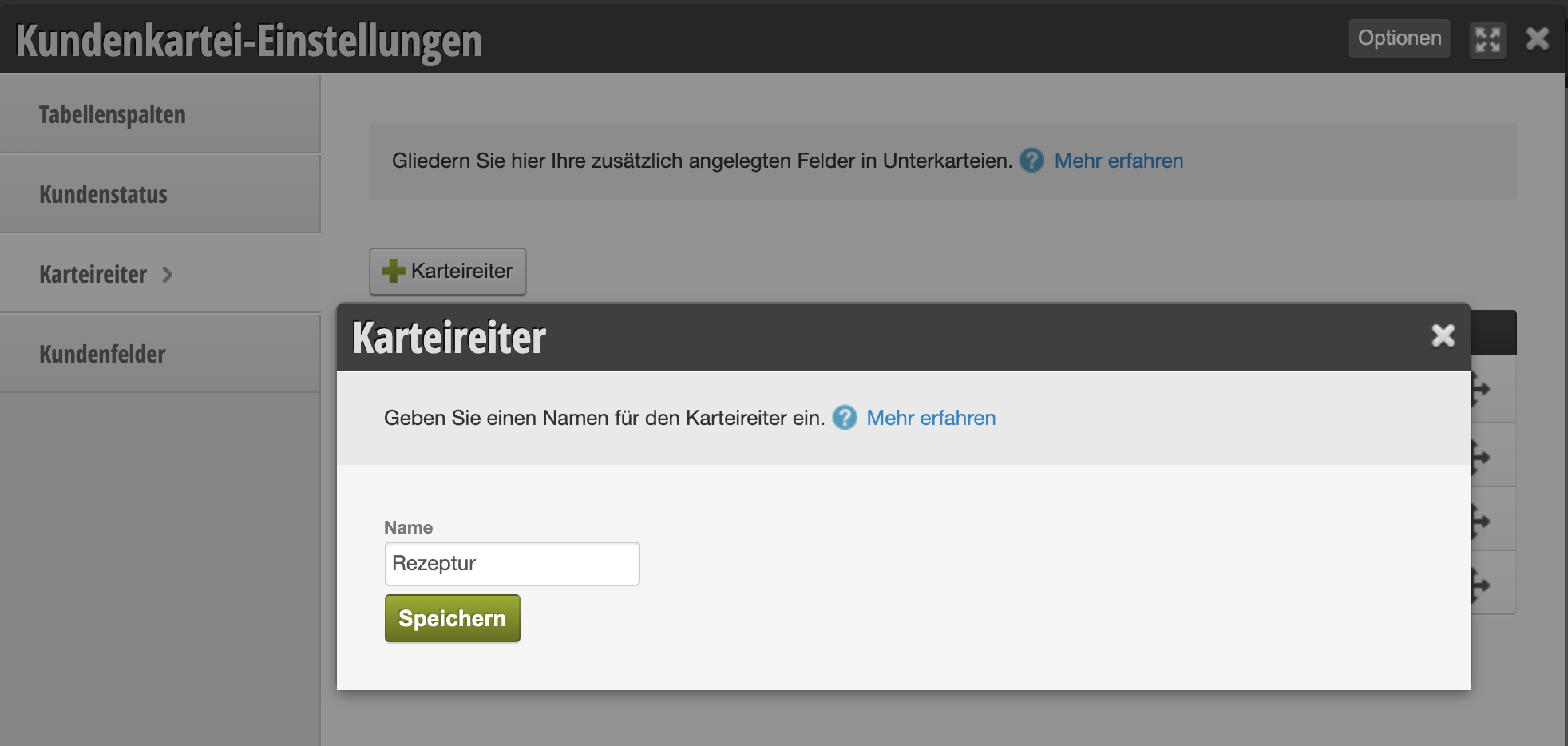
Step 1: Add your own tab in each customer file

Under Settings > Customer Settings > Card tabs you can first create a new card tab. This gives each customer file an extra tab, which provides you with enough space for all formulas.
Step 2: Add formula field

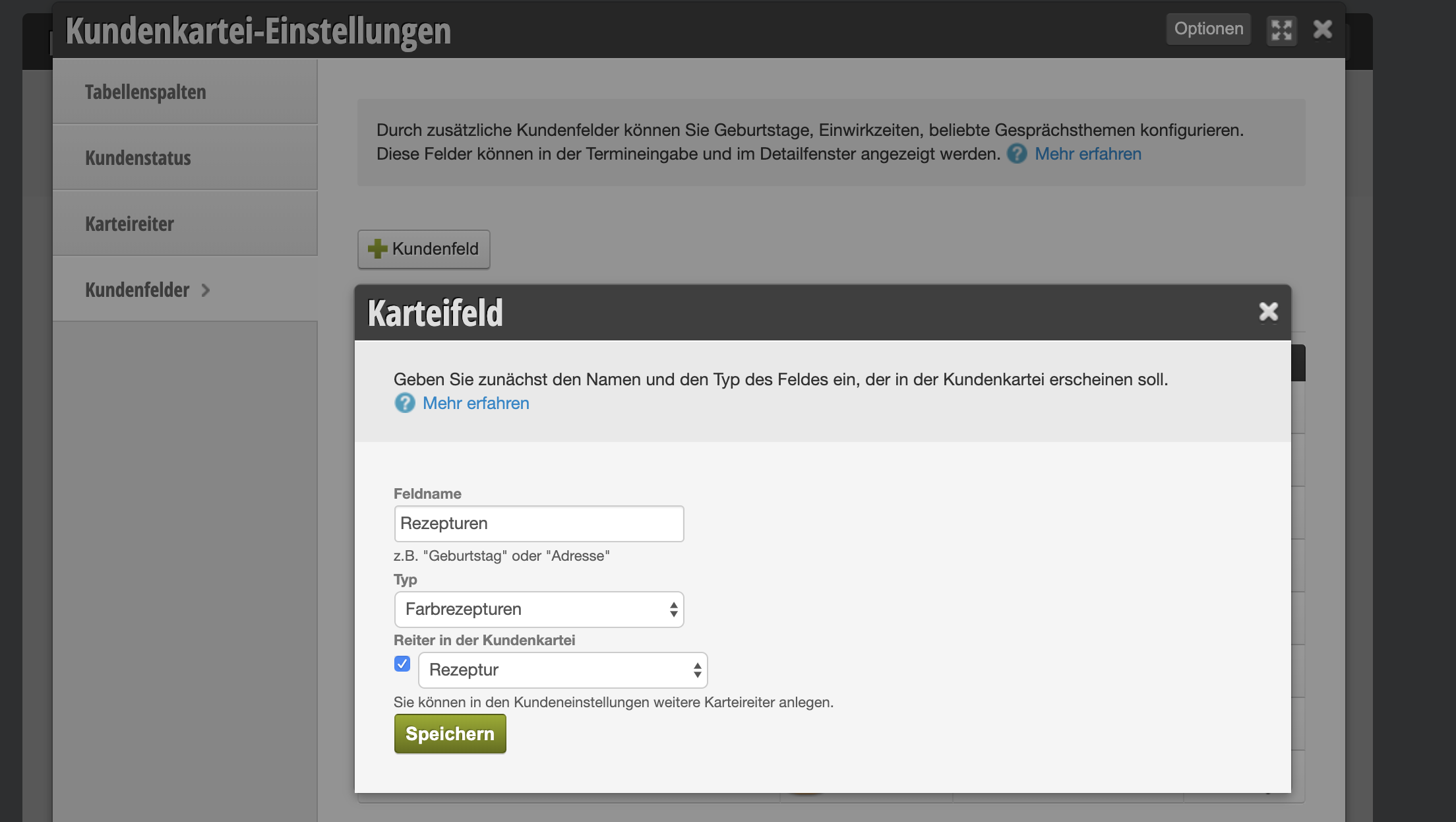
Under Settings > Customer Settings > Customer Fields you can then create a new customer field with the following properties:

  • Name: Formulas (or similar)
  • Type: Color formulas (important!)
  • Tab in customer file: Formulas (or the name of the tab created in step 1)
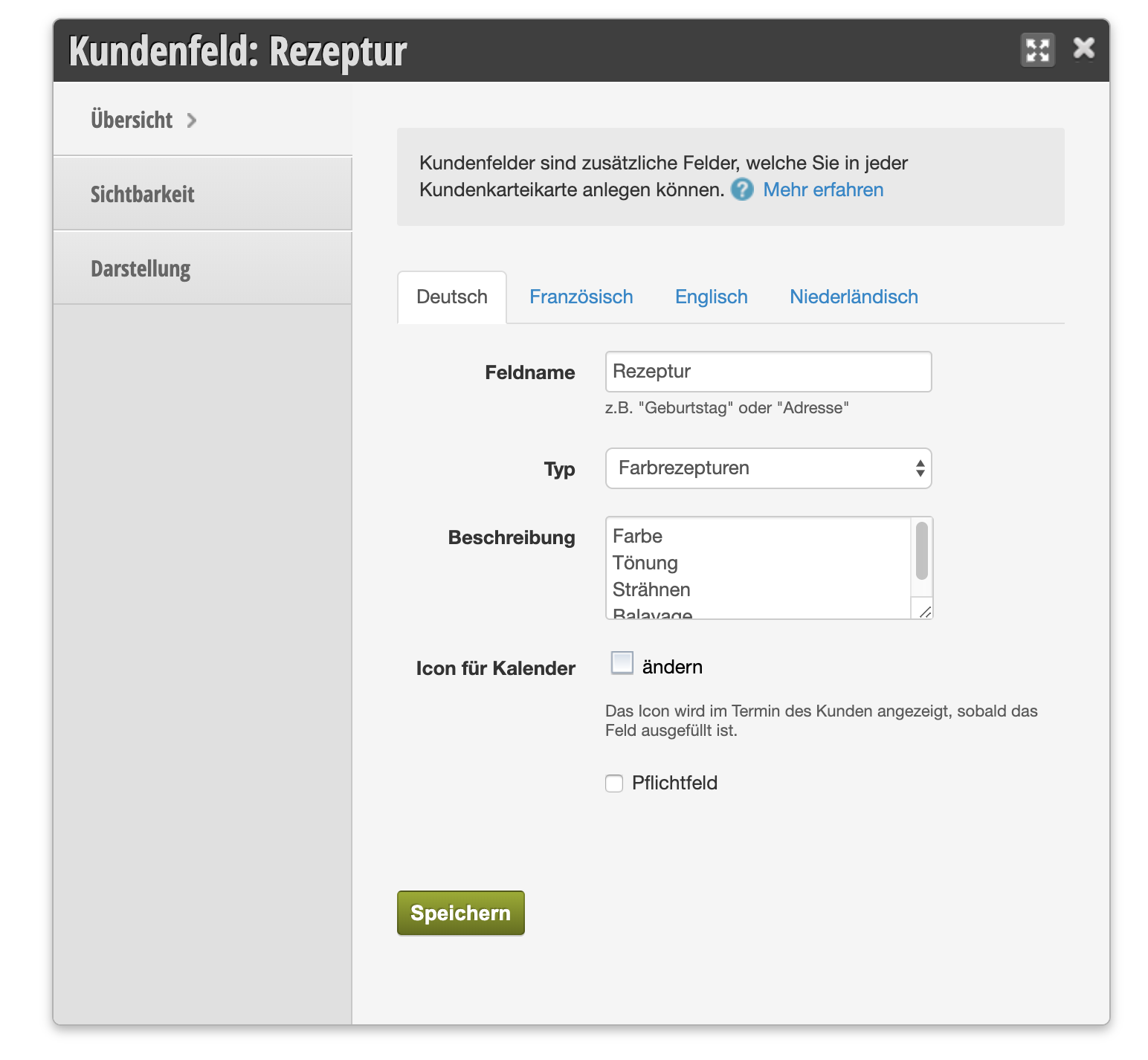
The newly created customer field will then open so you can adjust settings. Here you should first add the individual formula types you offer under "Description". These can then be selected when creating a new formula, so it will be clear later what type of chemical treatment the formula is intended for.
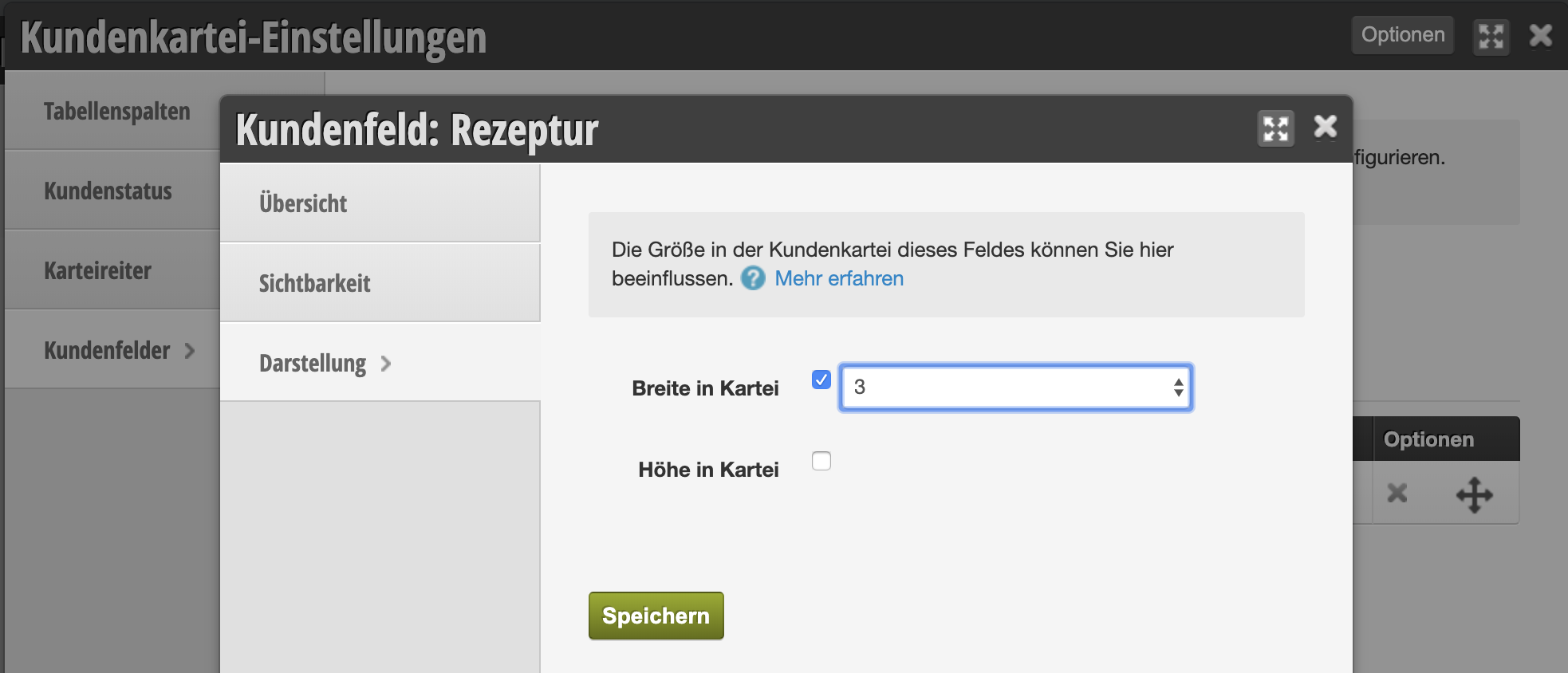
Finally, we recommend that you also adjust the size of the field so it is displayed in full width within the customer file:
Enter formulas

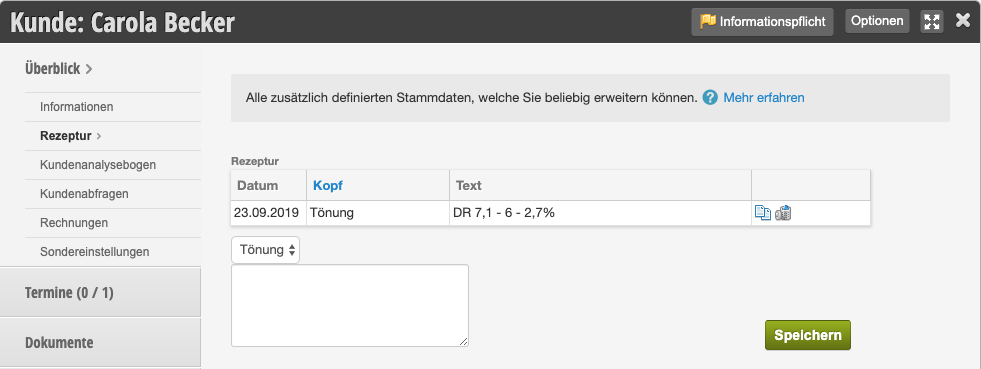
Once a customer has visited you and received a color service, the formula can be stored in the customer file:
Print formulas

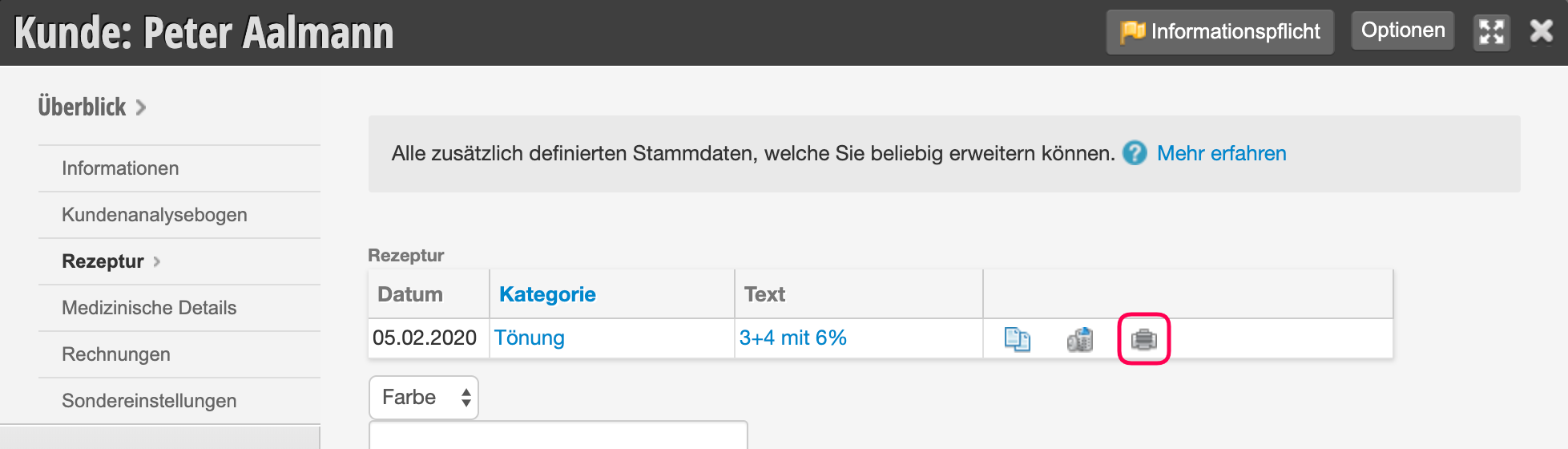
Print individual formula (Bond printer)

Requirement for this type of printing: The Belbo Satellite is installed and the printer connection is correctly activated.

To print a single formula that can then be handed to the employee, open the customer file. Then you can select the desired formula in the recipes tab.
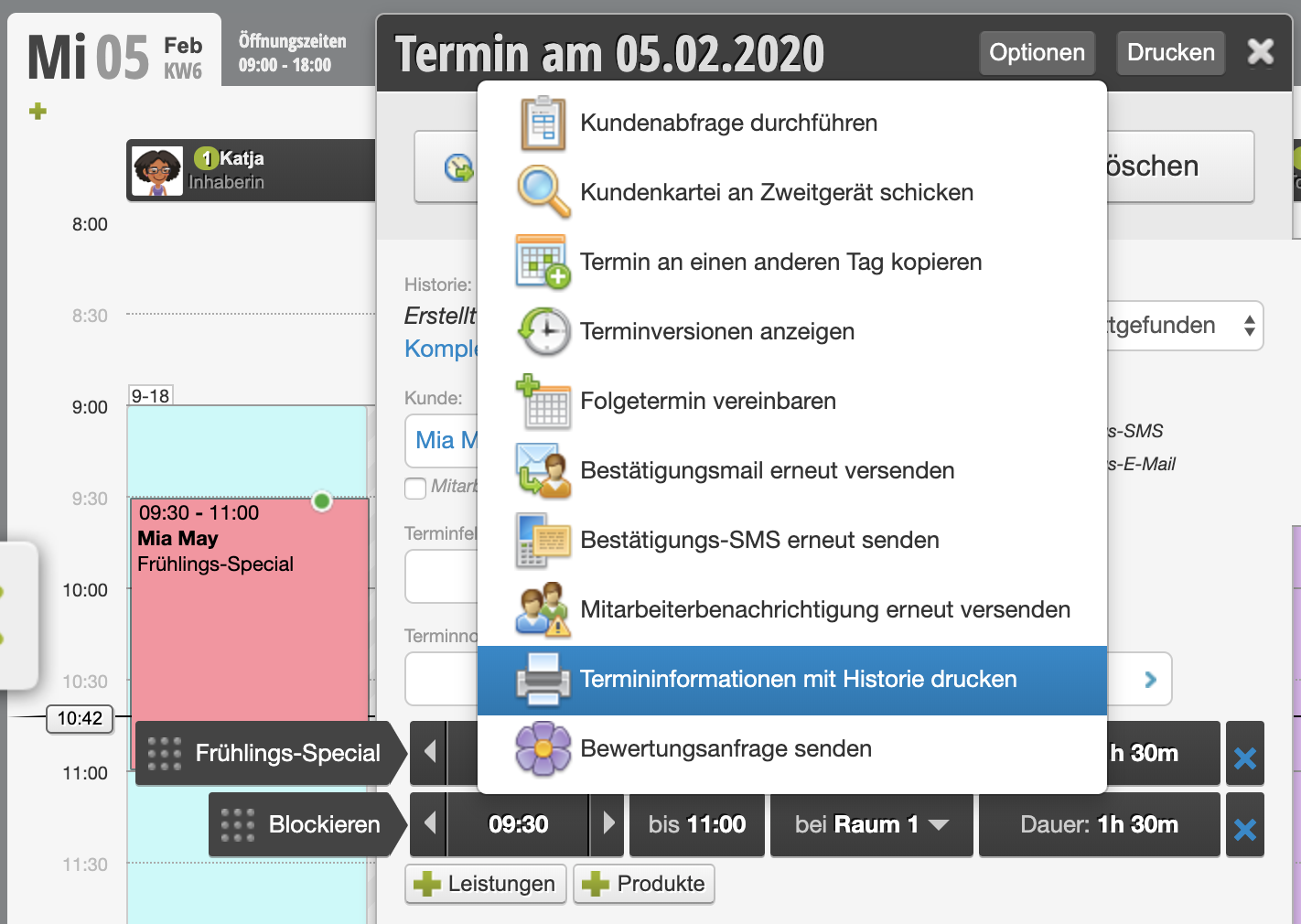
Print customer's formula history (A4)
Print formulas of the day (A4)

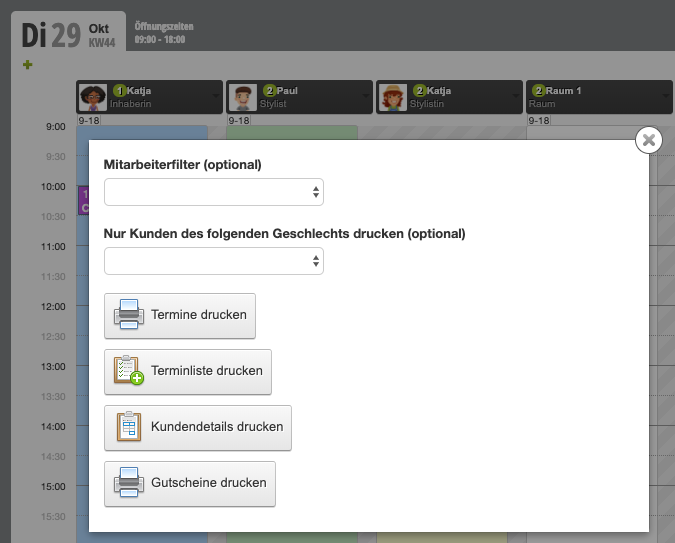
To print the formulas of the day, click on the desired date (usually the current day) and select "Print customers". In the dialog that then appears, go to "Print customer details". This gives you a summary of all customer details, which also shows the formulas. You can print this overview for each employee in the morning.
Tip: We recommend avoiding printing paper and giving your employees the option to access customer data via mobile phone or tablet.
Categories: Customer Management & Records
Tags: Farbrezepte, Kundenfelder, Rezepturen

Have a question? Ask it here.

This manual is a service by belbo. Legal notice