
belbo
  • Overview
    • Getting to know Belbo
    • Location Settings
    • Switch to Belbo
    • Calendar View & Navigation
    • Recurring Appointments & Courses
    • Appointment Entry & Management
    • Logins & Permissions
    • Multiple Locations & Head Office
    • Manage Employees
    • Absences & Holidays
    • General
    • Working Hours
    • Time Tracking
    • Data Protection (GDPR)
    • Customer Communication (Email, SMS)
    • Customer Management & Records
    • Bonus & Loyalty Programs
    • Campaigns (Newsletter & SMS)
    • Marketing Consents (GDPR)
    • Tracking & Analytics
    • Overview
    • Services & Prices
    • Products
    • Service Packages & Subscriptions
    • Vouchers
    • Purchasing & Suppliers
    • Stock & Inventory
    • Scanning & Sales
    • Cost of goods & expenses
    • Design & Texts
    • Setup & Settings
    • Integration (Website, Google, Instagram, Facebook)
    • Online payment
    • Accounting & Exports
    • Cash Register Settings & Hardware
    • Checkout process
    • Daily Closing & Reports
    • TSE & Cash Register Anti-Tampering Ordinance
    • Export Overview
    • Employee Utilization
    • Revenue & Reports
    • Belbo Satellite
    • Printer
    • EC Terminal & Card Payment
    • Troubleshooting Hardware
    • Scanner & POS Devices
    • General Settings
    • API & Integrations
    • Notifications & Emails
    • Contracts & Legal
Skip to content

Printer Connection

You can connect your bond printer directly to Belbo from your Mac or PC to open the cash drawer or print a receipt directly from the checkout process.

You can access this area via Settings > Printer Connection

If this function is not enabled, it can be activated via "Settings > Add Function".

Important Requirements

  • The printer must be installed on the Mac or PC you are using according to the instructions
  • Belbo Satellite must be installed
  • The printer connection can only be used via the browsers Google Chrome or Microsoft Edge. Unfortunately, Safari, Firefox and others cannot be connected.

Further information can be found here.

Settings

Once the "Printer Connection" module has been activated, you will find it under "Settings". Here you can select the desired settings.
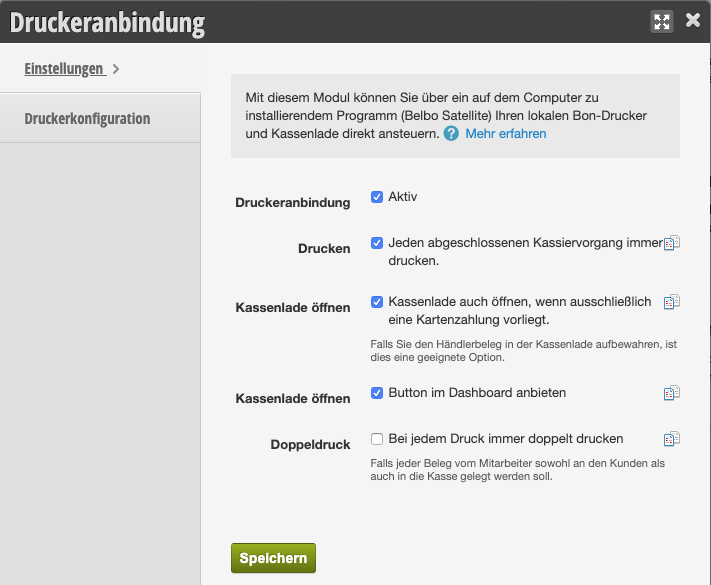
Set up Printer Connection

Now you can connect your printer to Belbo.

  1. Switch to the "Printer Configuration" tab.
  2. Select your printer model under "Printer Type".
  3. Click "Set up Printer" to find the installed printer.
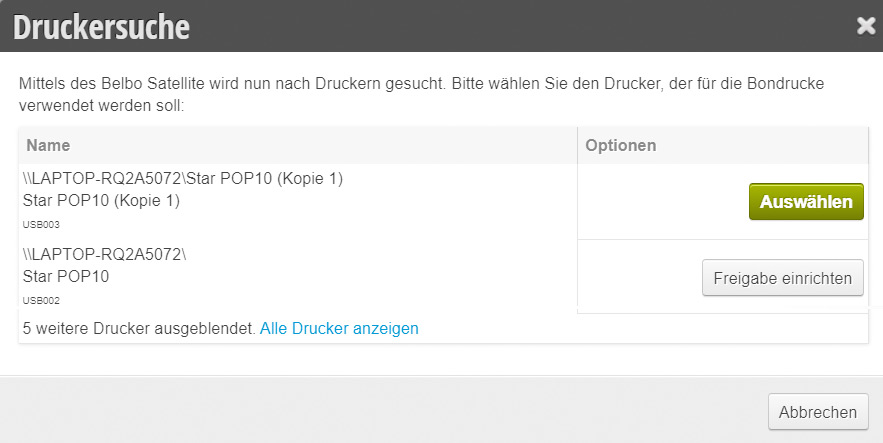
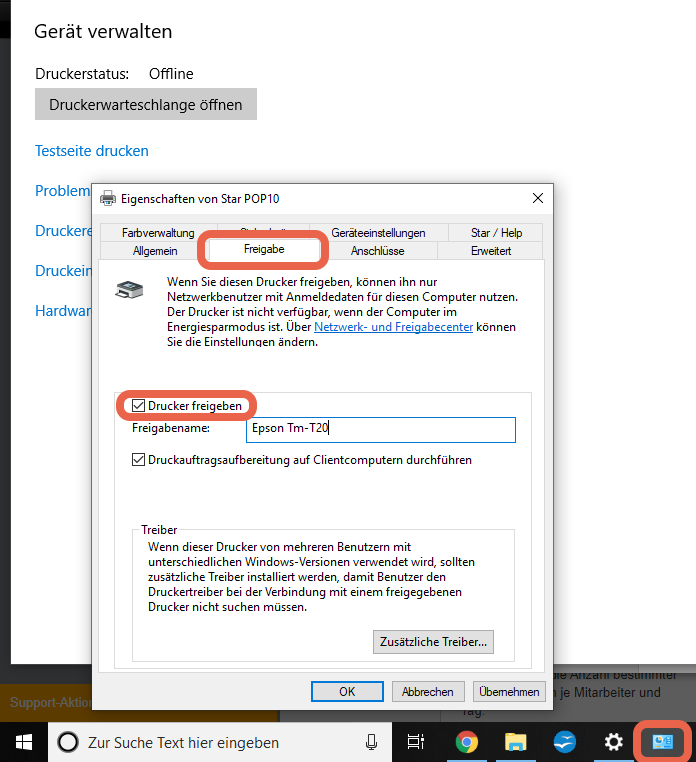
If the printer is not yet shared, click on "Set up Printer Sharing". A Windows dialog will then open. Here please click on the "Sharing" tab and select that the printer should be shared:
Once the printer has been shared, you can click directly on "Select". The printer will be added automatically:

Example of correct connection of an Epson printer:
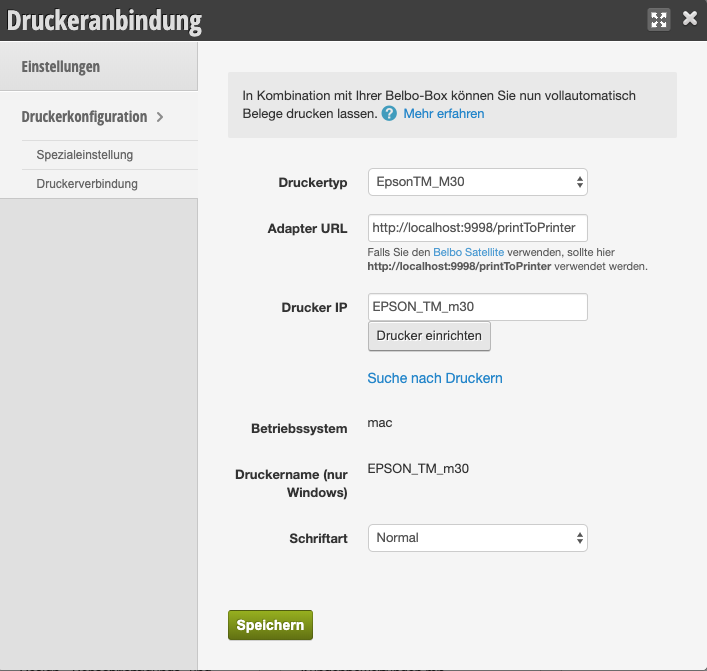
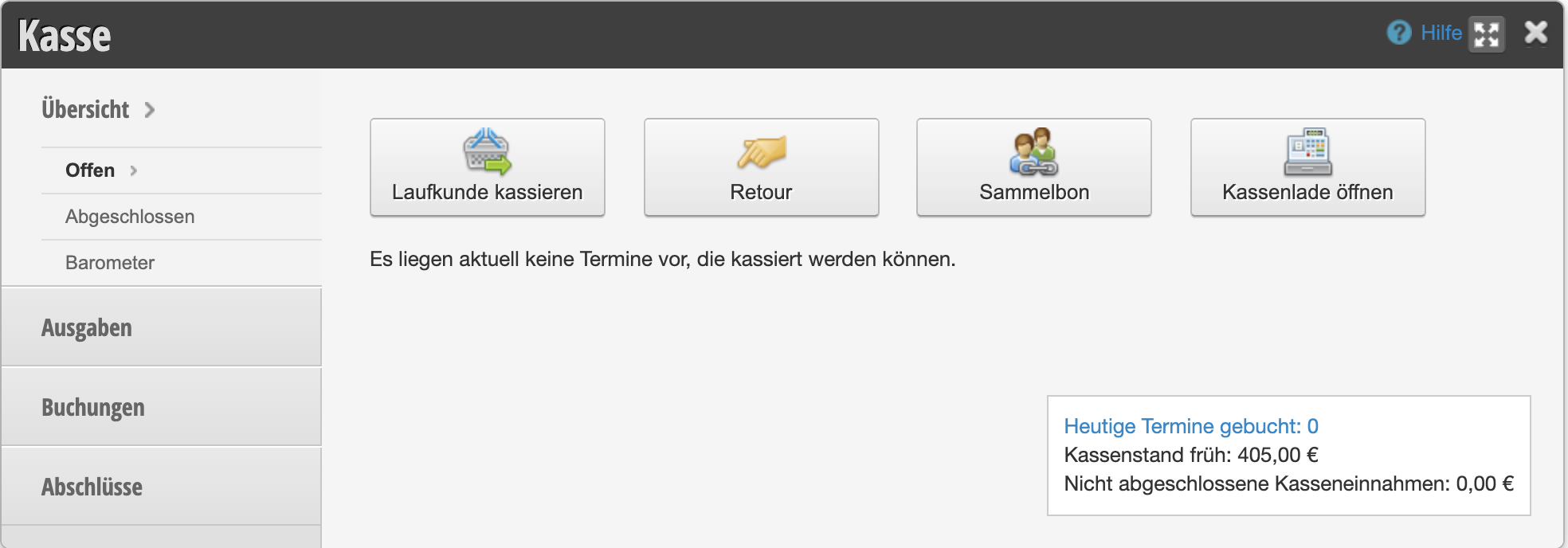
Now you can trigger the receipt printing directly from the checkout process or open the cash drawer from the Belbo checkout.
The menu items "Special Settings" and "Printer Connection" only need to be filled in a few cases and can normally be ignored.

Categories: Printer
This manual is a service by belbo. Legal notice