

belbo
  • Overview
    • Getting to know Belbo
    • Location Settings
    • Switch to Belbo
    • Calendar View & Navigation
    • Recurring Appointments & Courses
    • Appointment Entry & Management
    • Logins & Permissions
    • Multiple Locations & Head Office
    • Manage Employees
    • Absences & Holidays
    • General
    • Working Hours
    • Time Tracking
    • Data Protection (GDPR)
    • Customer Communication (Email, SMS)
    • Customer Management & Records
    • Bonus & Loyalty Programs
    • Campaigns (Newsletter & SMS)
    • Marketing Consents (GDPR)
    • Tracking & Analytics
    • Overview
    • Services & Prices
    • Products
    • Service Packages & Subscriptions
    • Vouchers
    • Purchasing & Suppliers
    • Inventory & Stock Taking
    • Scanning & Sales
    • Goods Used & Costs
    • Design & Texts
    • Setup & Settings
    • Integration (Website, Google, Instagram, Facebook)
    • Online payment
    • Accounting & Exports
    • Cash Register Settings & Hardware
    • Checkout process
    • Daily Closing & Reports
    • TSE & Cash Register Anti-Tampering Ordinance
    • Export Overview
    • Employee Utilization
    • Revenue & Reports
    • Belbo Satellite
    • Printer
    • EC Terminal & Card Payment
    • Troubleshooting Hardware
    • Scanner & POS Devices
    • General Settings
    • API & Integrations
    • Notifications & Emails
    • Contracts & Legal
Skip to content

Everything about: Hardware & Technology

mPOP Cash Register Installation for Mac


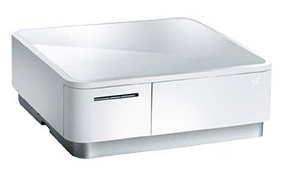
Here you will learn how to install your mPOP cash drawer on a Mac computer and connect it to Belbo. If you are using Windows, please read this article.

You can connect your mPOP cash register to Belbo to print receipts faster and open the cash drawer with one click.

The Star mPOP cash register must be connected to the computer via a USB cable. This cable is not included in the scope of delivery and must be ordered separately; it requires a USB-B connector on one end and USB-C on the other (for newer Macs).


Read more →
mPOP Cash Register Installation for Windows


Learn here how to install your mPOP cash drawer on a Windows computer and connect it with Belbo. If you are using Mac, please read this article.

You can connect your mPOP cash register with Belbo to print receipts faster and open the cash drawer with a click. Please follow these steps:

  • Step 1: mPOP Installation and Test
  • Step 2: Install Belbo Satellite
  • Step 3: Printer Connection

Your Star mPOP cash register can be connected to your computer via USB cable. This cable is not included and must be ordered separately. You can do this here.


Read more →

Connect EC Terminal

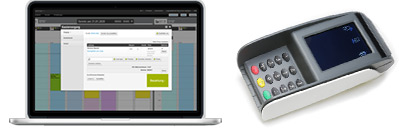
With Belbo, you can automatically forward payment amounts to your card terminal. This ensures that the invoice amount is transferred correctly during the payment process. This saves time and reduces the likelihood of errors.

You can access this area via Settings > Card Terminal
If this function is not enabled, it can be activated via "Settings > Add Function".

Read more →

Satellite with Firefox

The Firefox Browser requires you to make a security setting. Otherwise, communication between Belbo Satellite and your computer may be blocked.

You must allow a page loaded from HTTPS to communicate via HTTP. This works as follows:

Read more →

Troubleshooting iPad and mPOP Register Usage

If you are using the Belbo cash register system on an iPad in combination with the mPOP cash drawer-bond printer combination, you can check here how to solve any problems.


Read more →

Belbo-Box Setup and Troubleshooting

If you have already received a Belbo Box, the following points must be checked:

Read more →

The calendar is slow

Belbo places great importance on the performance (stability and speed) of your calendar. If you nevertheless notice that the calendar is slow, you can perform the following tests: Read more →

Post navigation

Newer posts →
This manual is a service by belbo. Legal notice