
belbo
  • Overview
    • Getting to know Belbo
    • Location Settings
    • Switch to Belbo
    • Calendar View & Navigation
    • Recurring Appointments & Courses
    • Appointment Entry & Management
    • Logins & Permissions
    • Multiple Locations & Head Office
    • Manage Employees
    • Absences & Holidays
    • General
    • Working Hours
    • Time Tracking
    • Data Protection (GDPR)
    • Customer Communication (Email, SMS)
    • Customer Management & Records
    • Bonus & Loyalty Programs
    • Campaigns (Newsletter & SMS)
    • Marketing Consents (GDPR)
    • Tracking & Analytics
    • Overview
    • Services & Prices
    • Products
    • Service Packages & Subscriptions
    • Vouchers
    • Purchasing & Suppliers
    • Stock & Inventory
    • Scanning & Sales
    • Materials & Costs
    • Design & Texts
    • Setup & Settings
    • Integration (Website, Google, Instagram, Facebook)
    • Online payment
    • Accounting & Exports
    • Cash Register Settings & Hardware
    • Checkout process
    • Daily Closing & Reports
    • TSE & Cash Register Anti-Tampering Ordinance
    • Export Overview
    • Employee Utilization
    • Revenue & Reports
    • Belbo Satellite
    • Printer
    • EC Terminal & Card Payment
    • Troubleshooting Hardware
    • Scanner & POS Devices
    • General Settings
    • API & Integrations
    • Notifications & Emails
    • Contracts & Legal
Skip to content

Contact selected customers

If you want to contact or export selected customer groups, Belbo offers various options to filter your customers.

Customer Status

You can filter your customers by status to selectively contact or export customers.

  1. Select "Customers" from the main menu.
  2. Click on the desired customer status.
  3. Click on "Export" or "Contact Customers" in the lower area of the page.
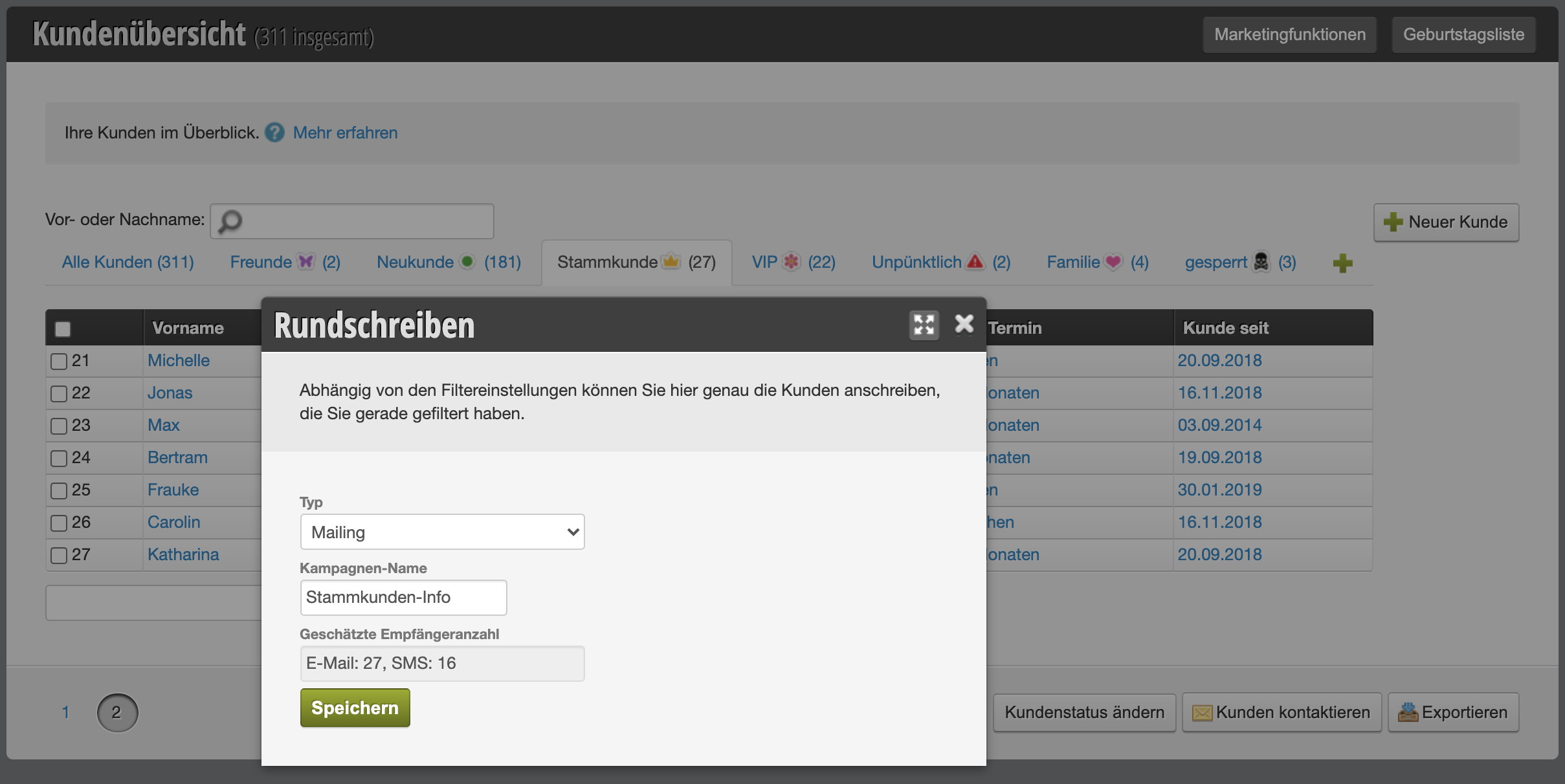
Filter Customers

You can also filter your customers by other criteria. Click on the desired column header in the customer overview and apply the desired filter.
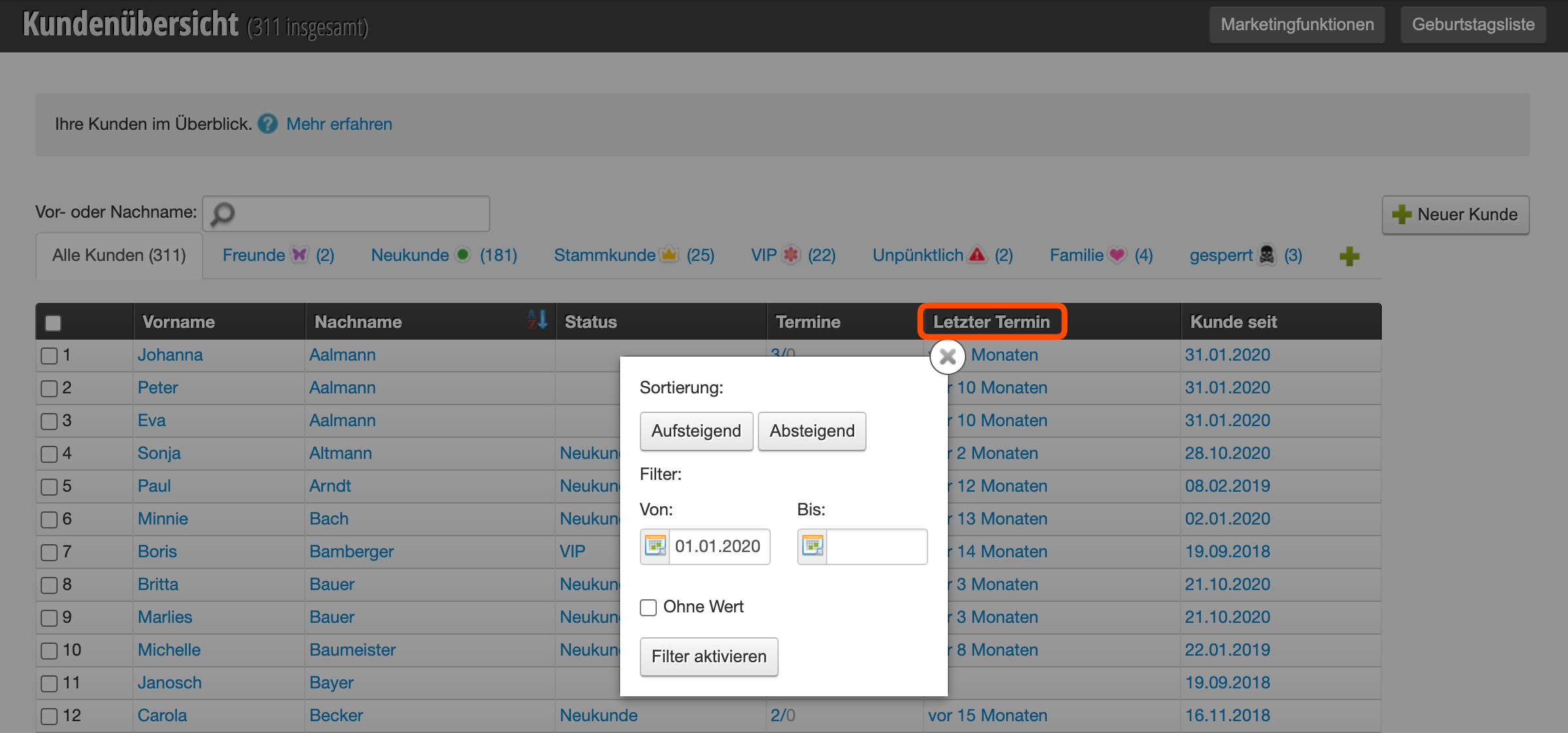
In our example, customers are filtered who had their last appointment after 01.01.2020.

Then click on "Activate Filter". Customers who match the criteria you selected will be displayed.
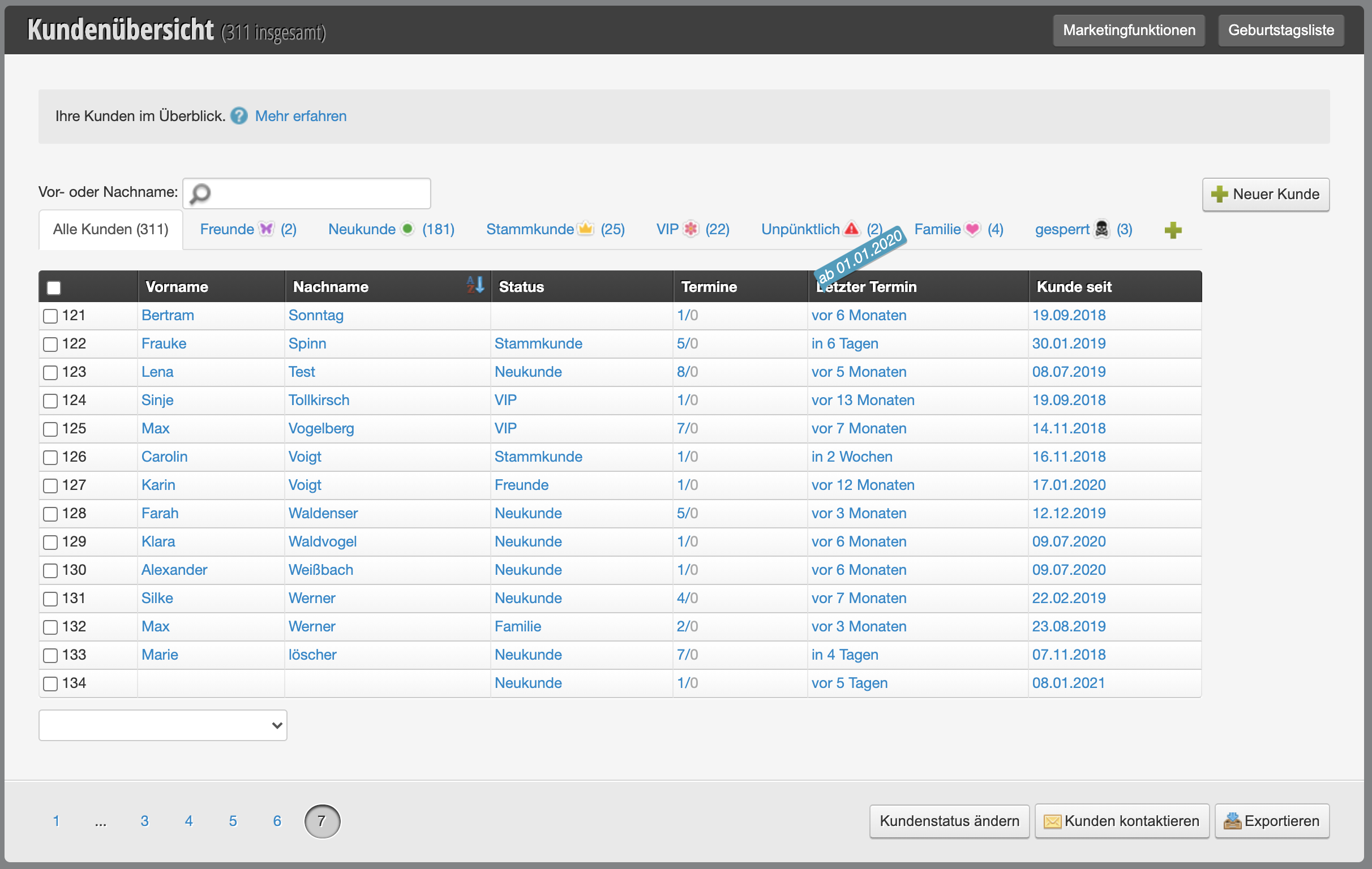
Now you can select the "Contact Customers" button at the bottom right and create a campaign in which only the filtered customers are included. After creating the campaign, proceed as described here: Customer Filter for Newsletter

To display additional table columns, you can add them in the customer settings. More information about table columns can be found here.
ATTENTION: Please note that these customers require marketing authorization. More information here.
Categories: Customer Management & Records
This manual is a service by belbo. Legal notice