
Download
Version 4.4.0 Beta (15.07.2026) – select the appropriate DMG file for your Mac:
 Newer Macs Older Macs
Would you prefer not to use the beta version? You can still find the last stable version here: Download Version 4.3.1 (DMG for Intel and Apple Chips)
Installation
-
1
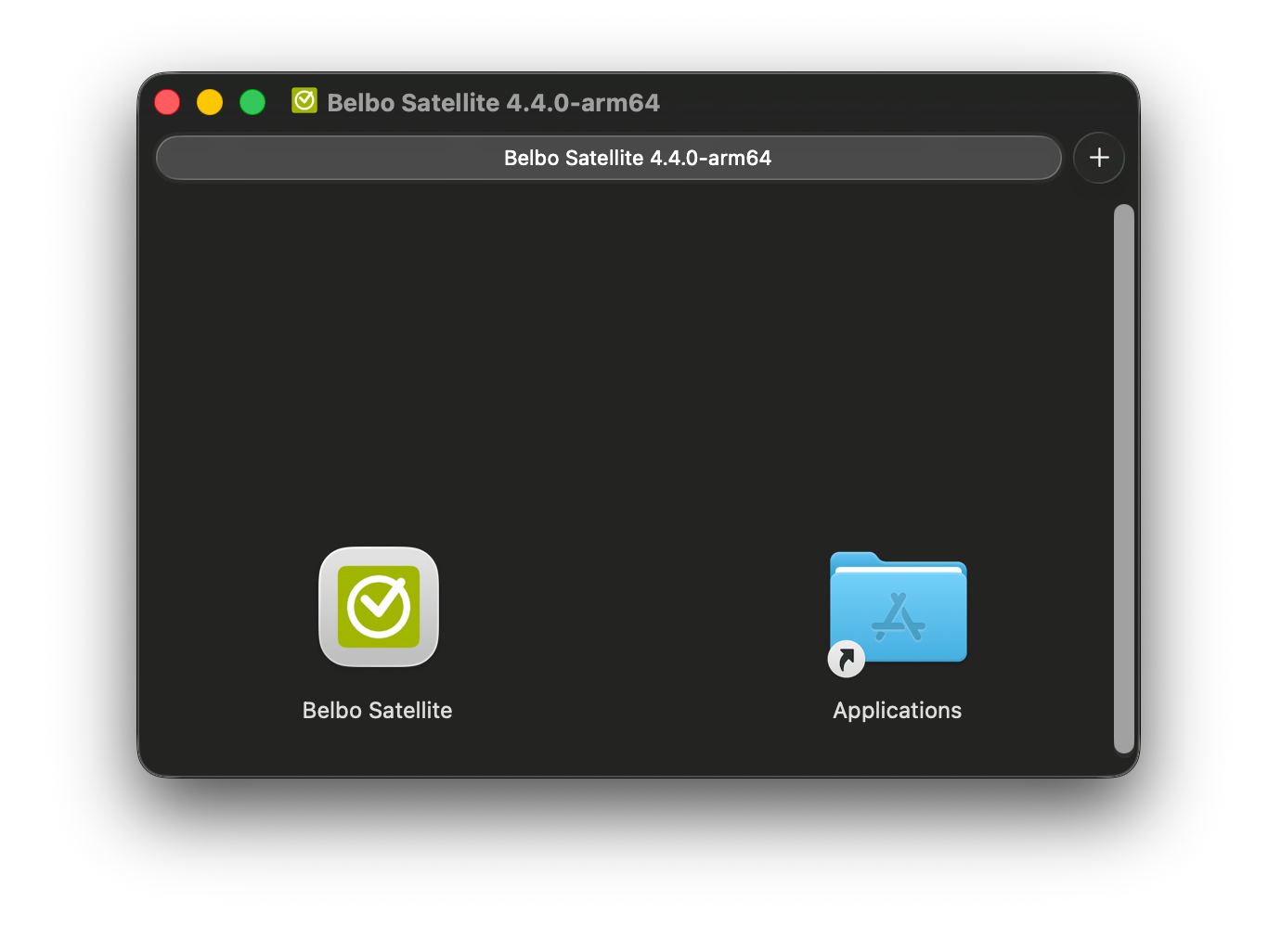
Download: After downloading, double-click the .dmg file. Drag the Satellite app as shown in the image into the Applications folder and then double-click the blue folder icon to open the folder.
-
2
Installation: Click on the Belbo Satellite icon and confirm the installation again with "Open". If your computer shows you a warning, please confirm with "OK" that you want to run the application.
-
3
Activation: Afterwards you will see a Belbo icon in the top system menu bar. Click on the icon to see the available options. Enable Autostart here so that the application is automatically available even after restarting your computer. If the option is grayed out, click on the icon again – activation may take a moment on first launch.
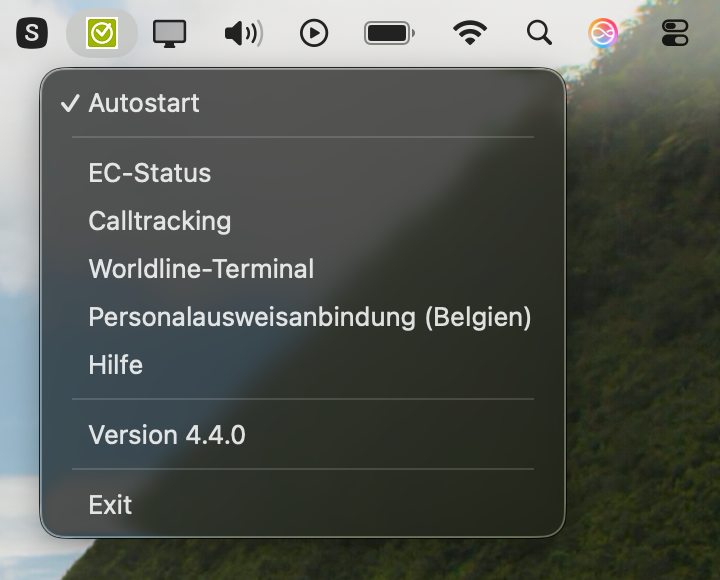
The installation is now complete. For security, check that the icon appears in the menu bar after a computer restart and is clickable.
Browser
No icon visible?
Security settings blocking certain apps
Allow the Satellite app to be installed in your Mac's security settings:
- Click on the magnifying glass in the menu bar or press Command + Space to open Spotlight Search
- Type "Security" and open the Security settings
- If you see a message here regarding the Satellite app, confirm that you want to run this app
Uninstallation
First remove the Autostart checkbox and then drag the "belbo-satellite" application to the Trash. If you have already deleted the application, you can check under System Settings » Users & Groups » Login Items to see if "belbo-satellite" still appears there. Remove it if necessary.