
With Belbo you can create an online product shop so your customers can purchase products online. This way you generate additional sales and offer your customers great added value.
Requirements for the online product shop
The following settings are necessary to use the Belbo product shop:
-
- The products to be sold have been created. You can create your products under Settings > Prices & Competencies > Products.
- The inventory is maintained. In the product shop, your customers can only purchase products that are in stock according to the inventory.
- Your online payment is set up and ready. An active Stripe or PayPal merchant account is configured under Settings > Online Payment.
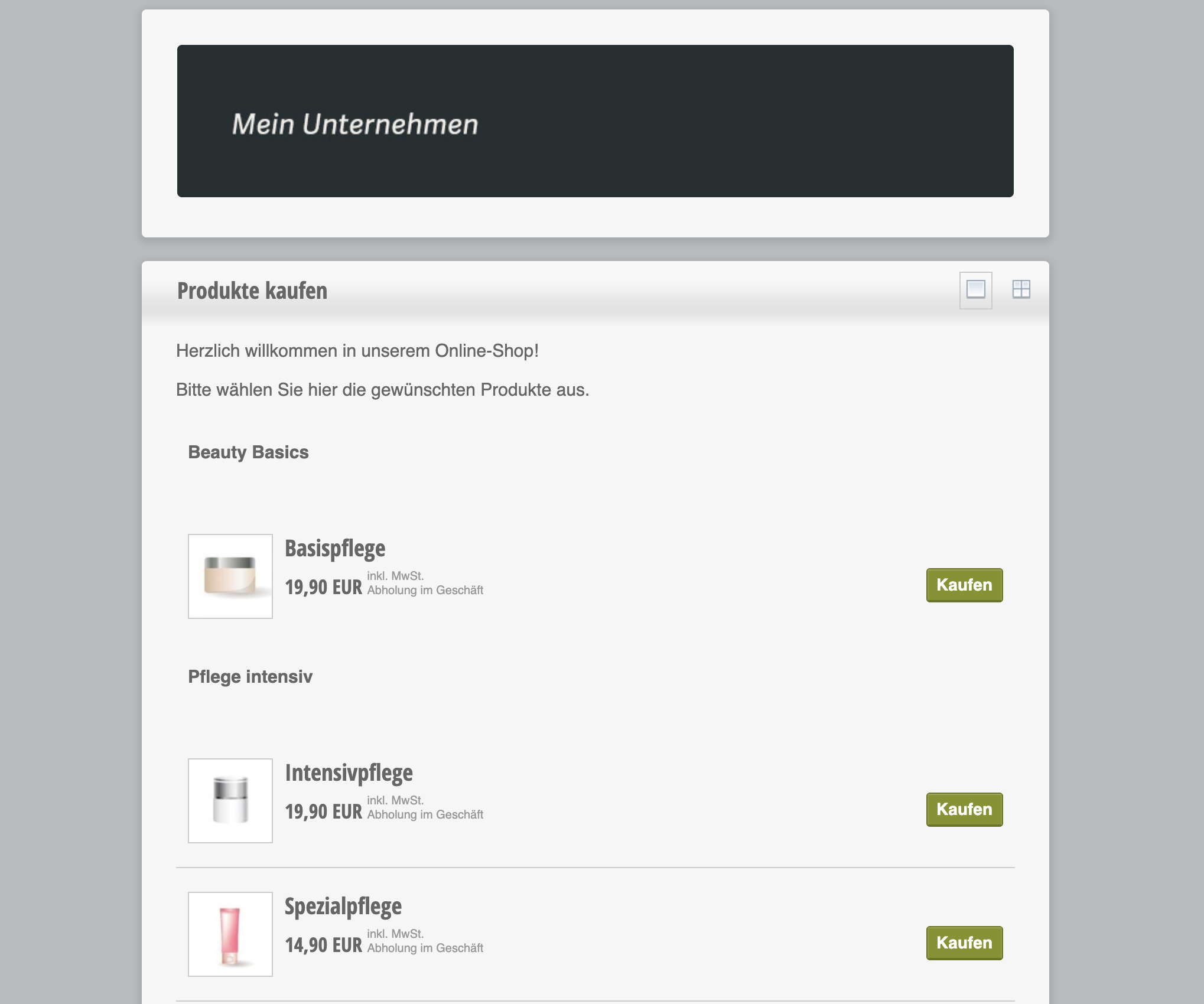
Example of a product shop:
Set up the product shop
1.) Activation
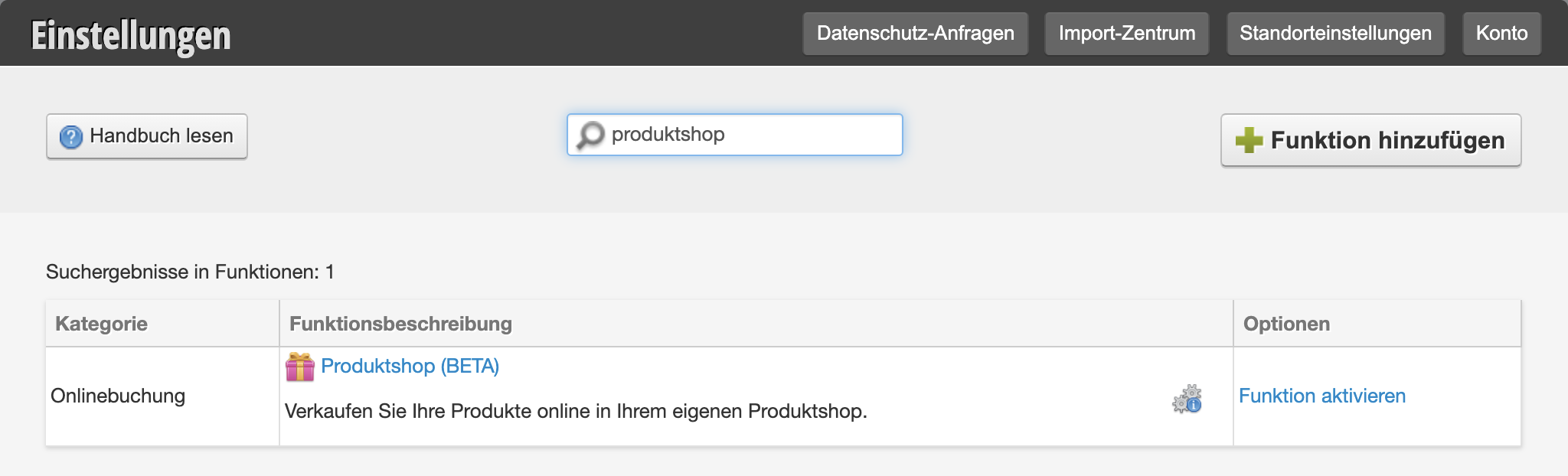
Activate the product shop under "Settings" by entering the term "product shop" in the search field at the top of the page or by clicking the "Add function" button.
2.) Make settings
-
-
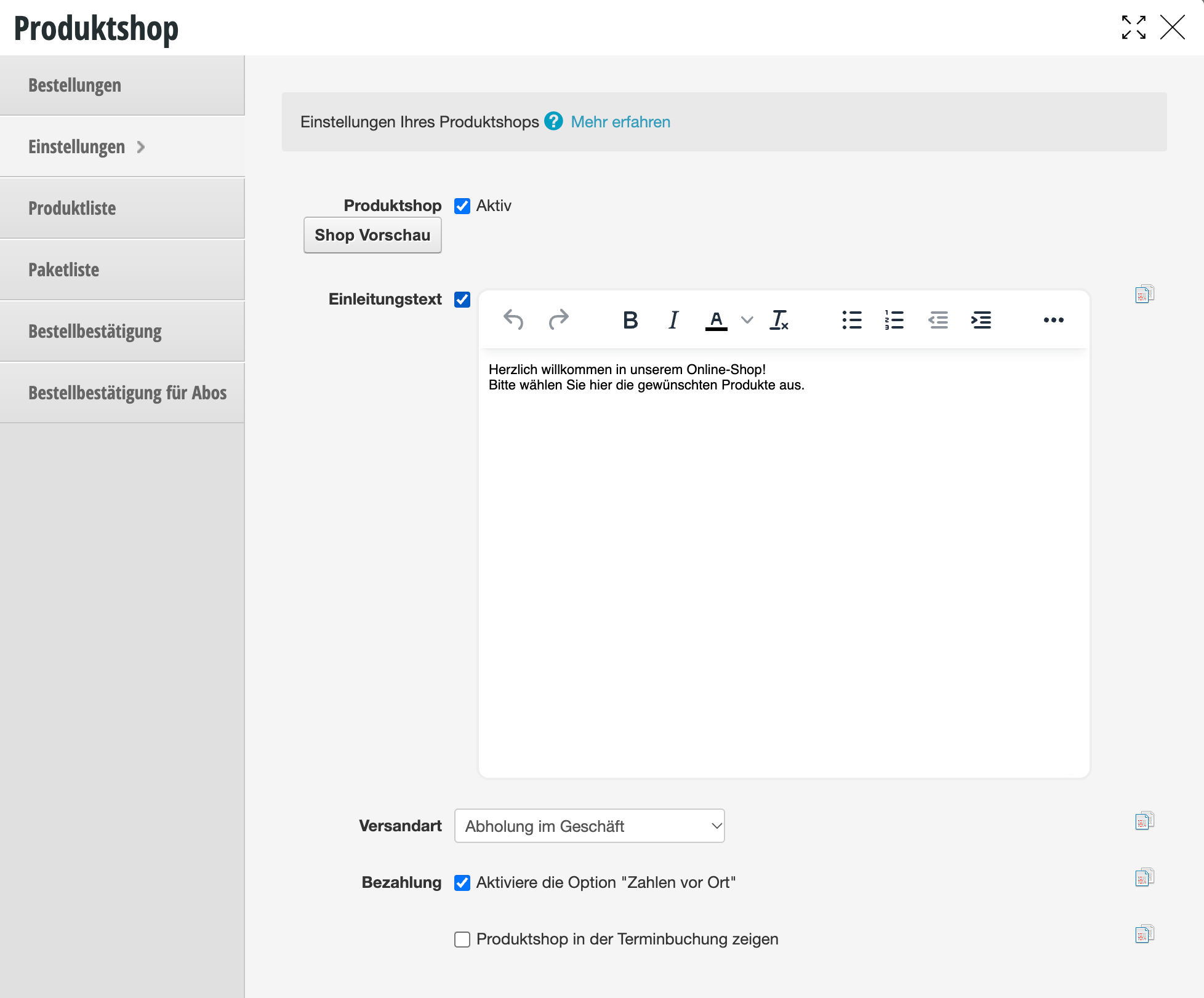
- Shop preview: Click the preview button to go directly to your shop. After setup is complete, you can share this link on your website or social media to draw your customers' attention to it.
- Introduction text: Create an introduction text for your product shop.
- Shipping method: Choose whether you want to ship your products to your customers or whether they should pick up the products at your physical store.
- Payment / Shipping costs: Depending on which shipping method you have chosen, you can set the postage costs here or whether the customer can also pay on site.
- Allowed countries: Specify here to which countries you can ship your products.
-
3.) Select products
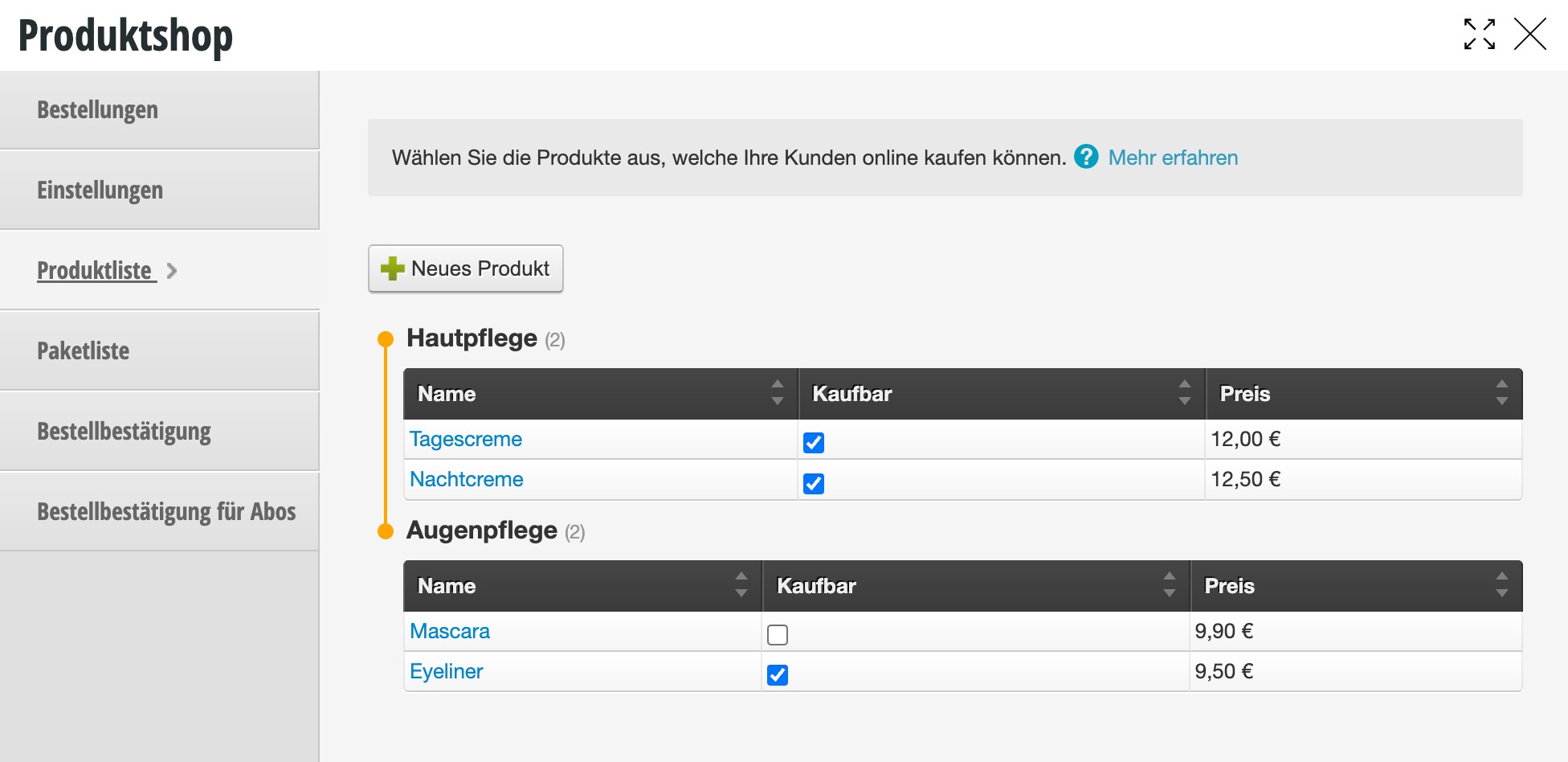
Next, select the products you wish to sell online by checking the corresponding boxes:
4.) Edit email text
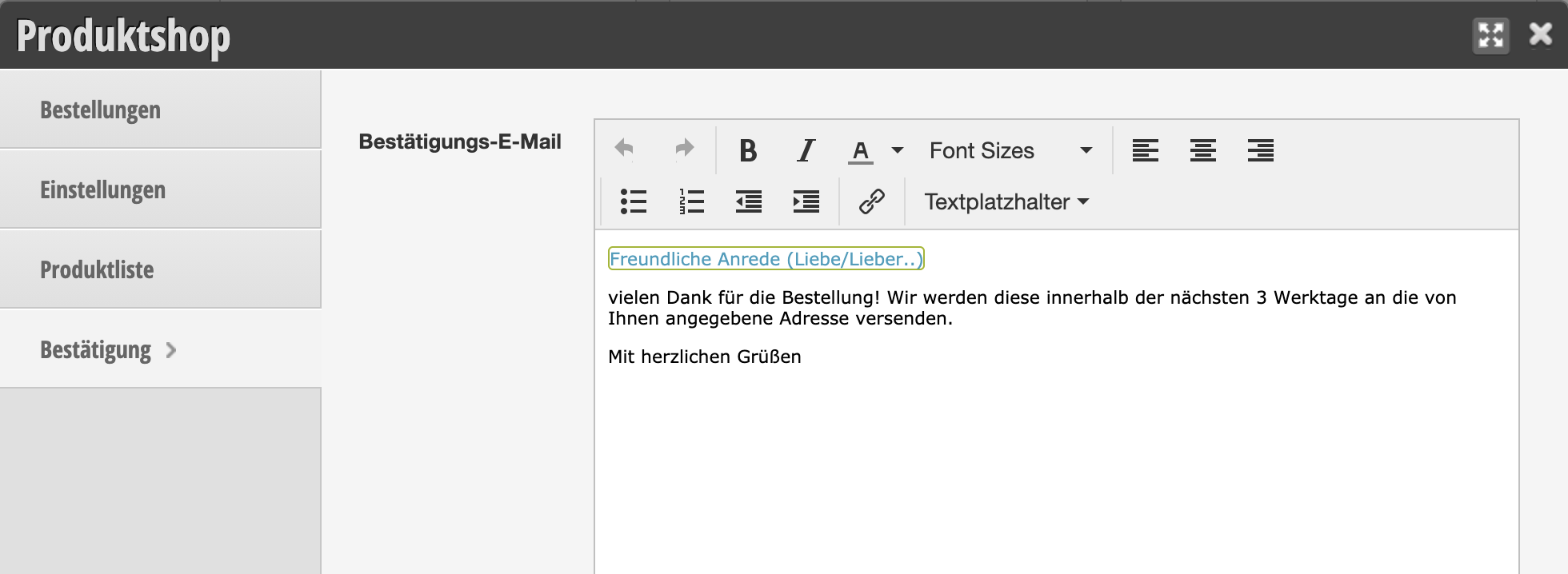
When a product is sold, a confirmation email is sent to the customer. This can be customized under Settings » Product Shop » Confirmation. If necessary, address any special circumstances here, such as your opening hours in the case of self-pickup.
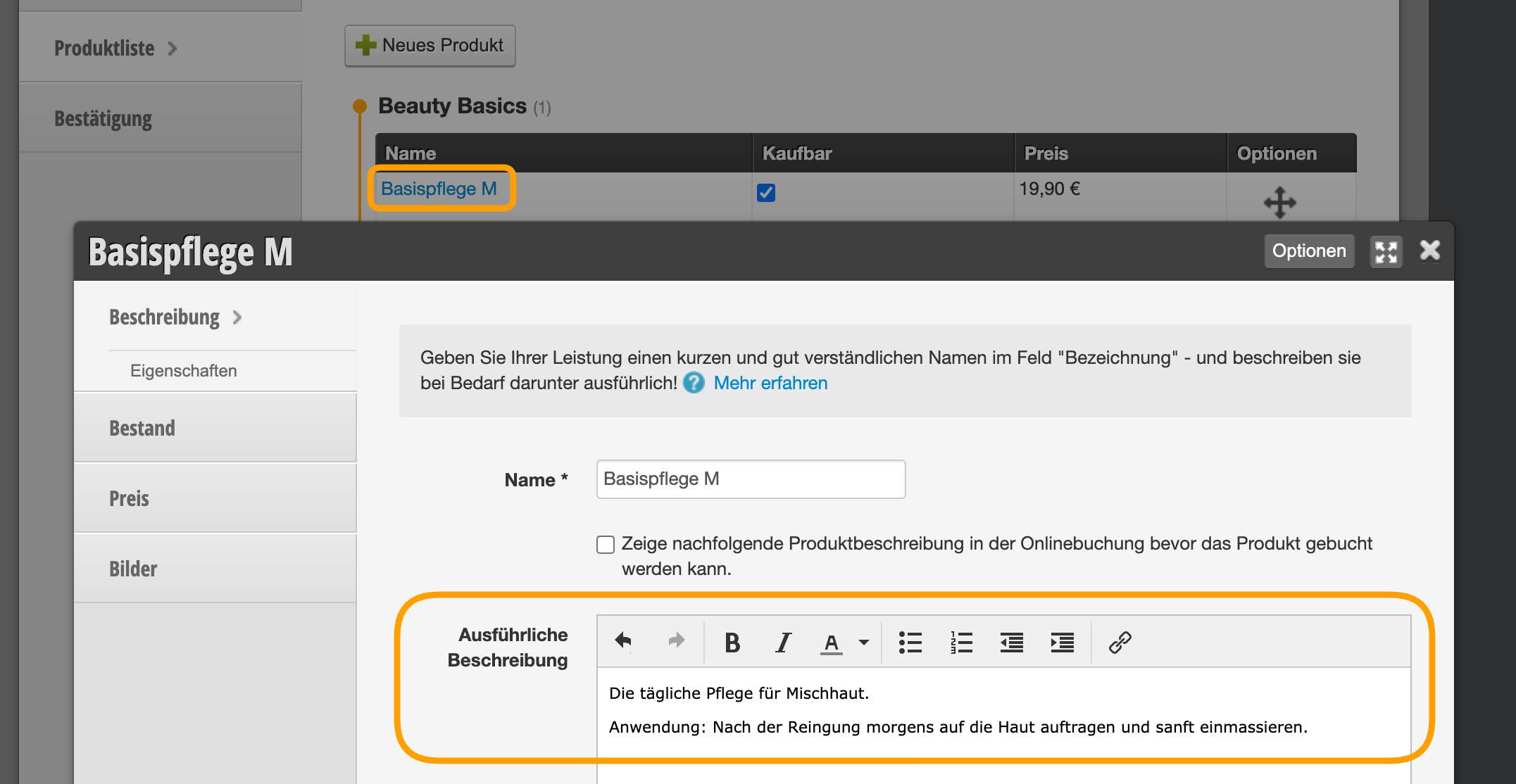
Images and description texts for your products
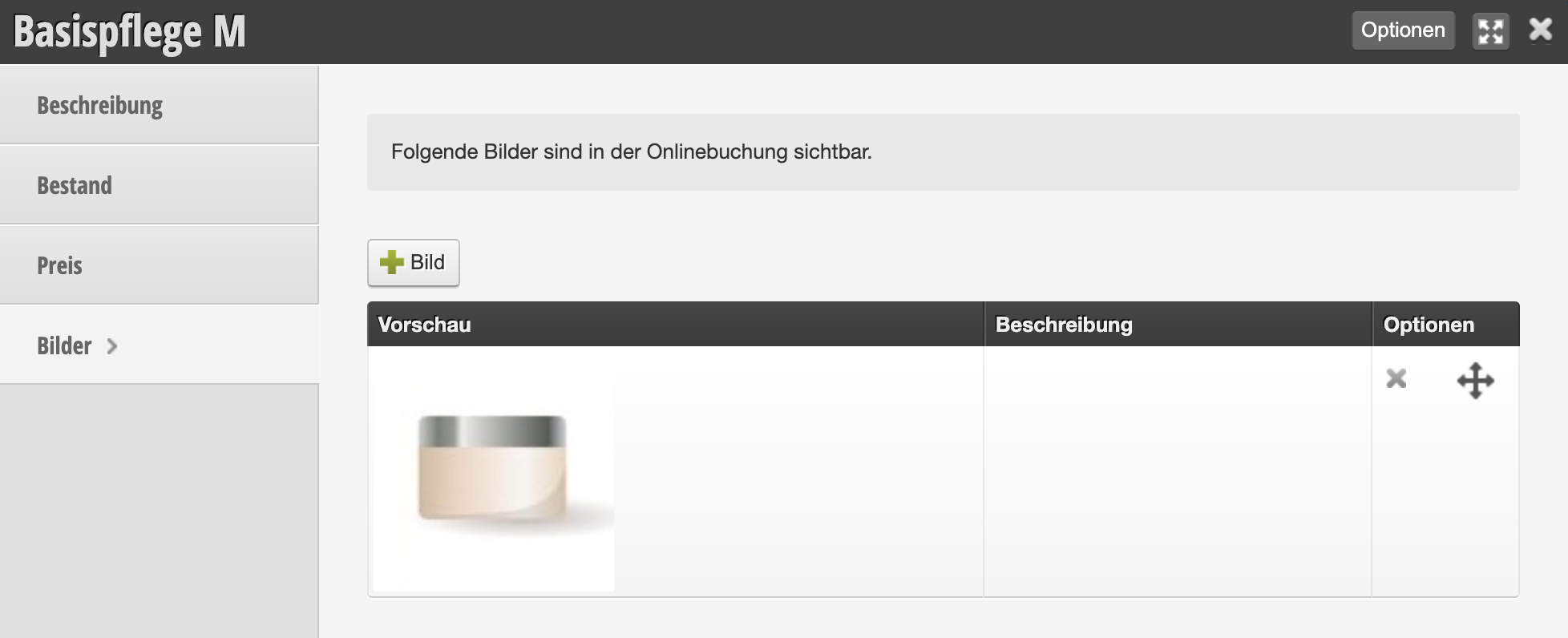
You can add images and texts to each of your products to explain the product in more detail.
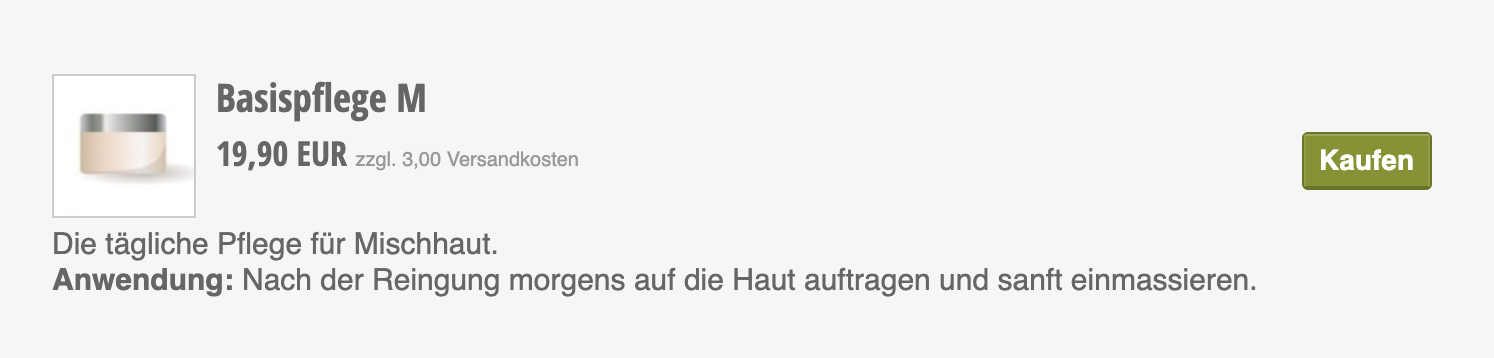
In the booking, the customer can inform herself directly about the product.
Integrate the product shop into the online booking page
You can link the shop on your online booking page in addition to your website and social media. The footer and the information page are particularly suitable for this.