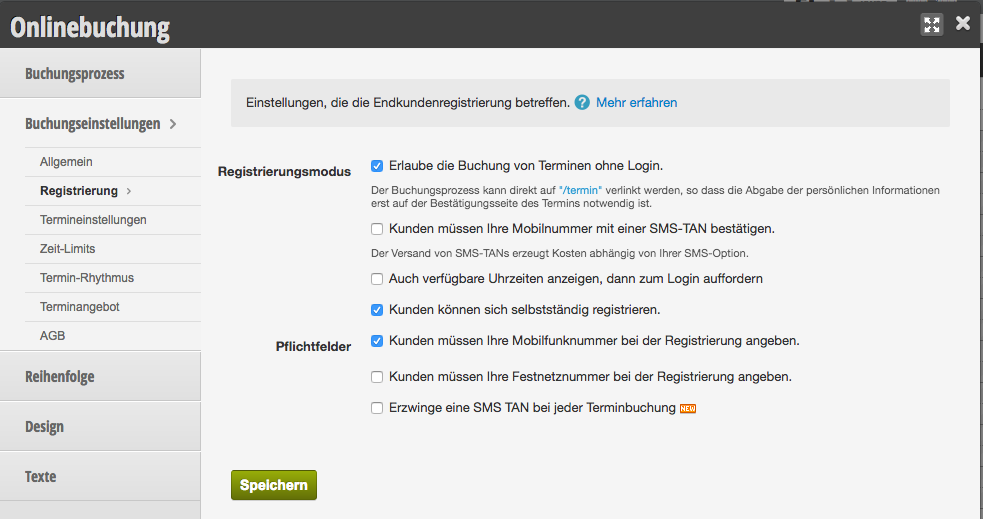
In the registration settings, you can specify whether and how your customers can register themselves on your online booking page.
Allow booking of appointments without login
If you allow booking without login, customers can book an appointment without prior registration. After the customer has selected the desired appointment, they enter their details without logging in and registering.
- Advantages: Customers who prefer not to register can quickly book an appointment.
- Disadvantages: Customers must enter all their details (name, first name, email, mobile number, etc.) every time. The appointments are not assigned to the corresponding customer file.
Also show available times, then prompt for login
If you want your users to log in only after viewing the available times, activate this function.
Customers can register independently.
If you do not want customers to be able to register themselves, deactivate this function. This way, only customers with existing access can book appointments.
You have the option at any time to invite selected customers in the customer file to online booking.
You have the option at any time to invite selected customers in the customer file to online booking.
Customers must provide their mobile phone number during registration
During registration, a mandatory field "Mobile Number" is created. Customers can only register if this field is filled in.
Customers must provide their landline number during registration.
During registration, a mandatory field "Landline Number" is created. Customers can only register if this field is filled in.
Example of common registration settings: