Create landing pages with specific offers that you can use for your marketing campaigns.
Use case:
You want to target new customers specifically and are planning a campaign on social media. The new customers you address should be able to book some selected services at a particularly attractive price. Existing customers should continue to use the normal booking process with the full prices.
You can access this area via Settings > Landing Pages
If this function is not activated, you can activate it via "Settings > Add Function".
If you want to launch targeted marketing campaigns for specific services, you can define landing pages here where only the services included in the campaign are offered. Your normal online booking page remains unaffected and continues to work as usual.
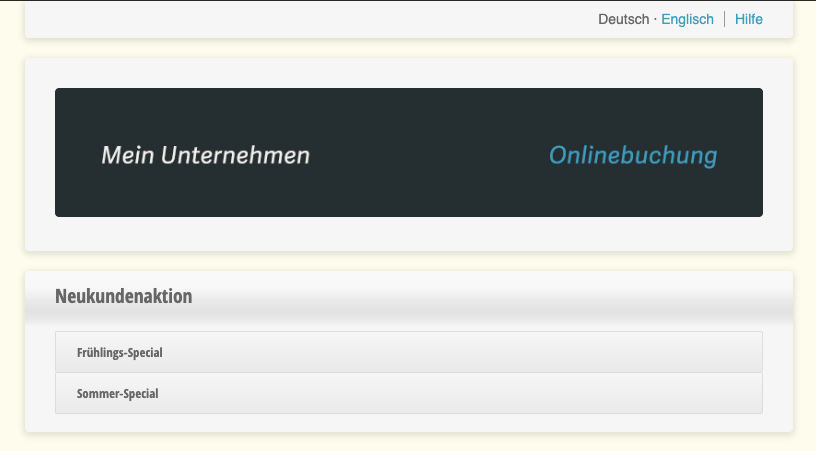
Example of a landing page with 2 advertised services to choose from:
Create Landing Page
Go to Settings and select the "Landing Pages" module or activate this function under "Add Function".
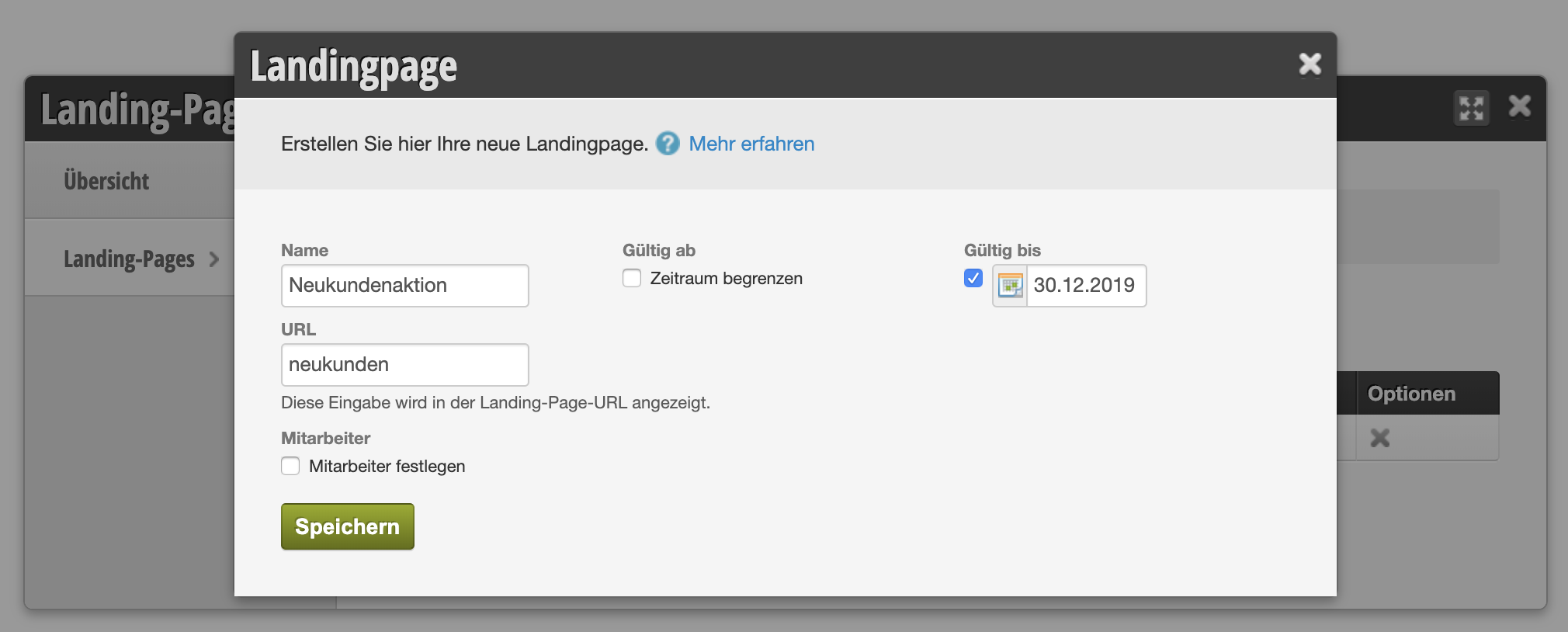
Click on + Landing Page to create a new landing page.
Name
Your name for this campaign, to distinguish between different landing pages. The name will also be displayed to the customer in the title of the landing page.
Date Limitation
If you want your landing page to be accessible only from a certain date, or only until a certain date, you can enter the start and/or end date here. If you leave the corresponding fields empty, there will be no time limitation and the landing page will be accessible until you delete it.
URL
This is the Belbo web address where your landing page will be accessible later. If your Belbo address is
"https://mycompany.belbo.com", your landing page will later be found at
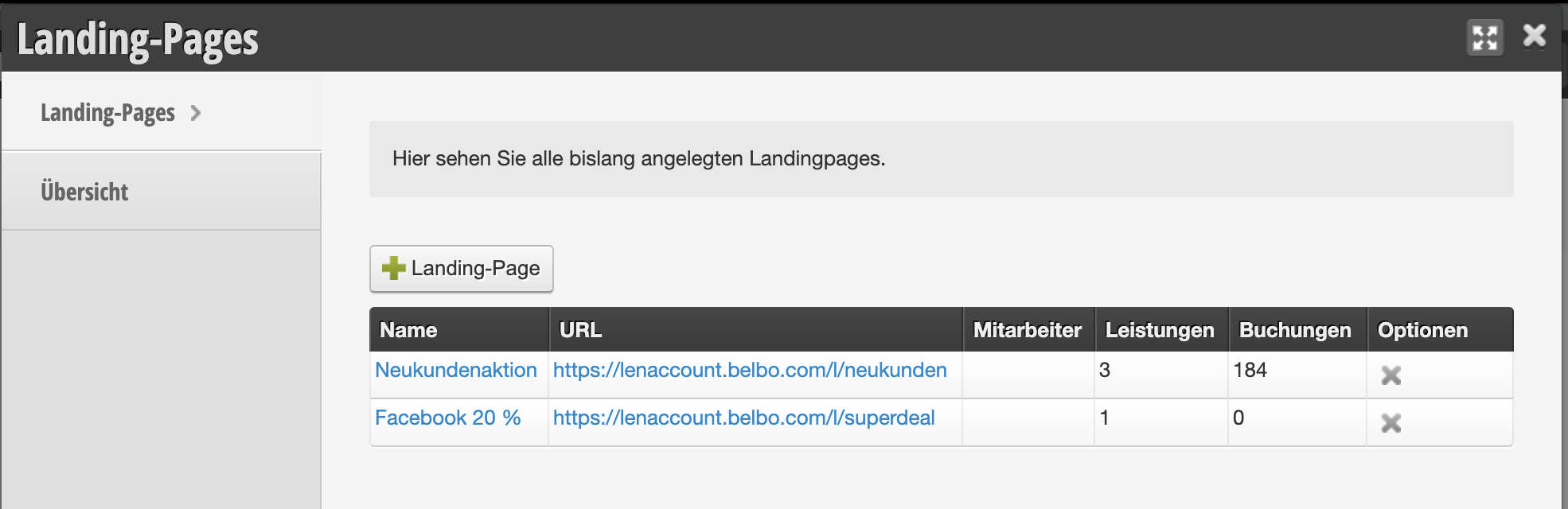
"https://mycompany.belbo.com/l/newcustomers". You can also find this link on the overview page of your already created landing pages:
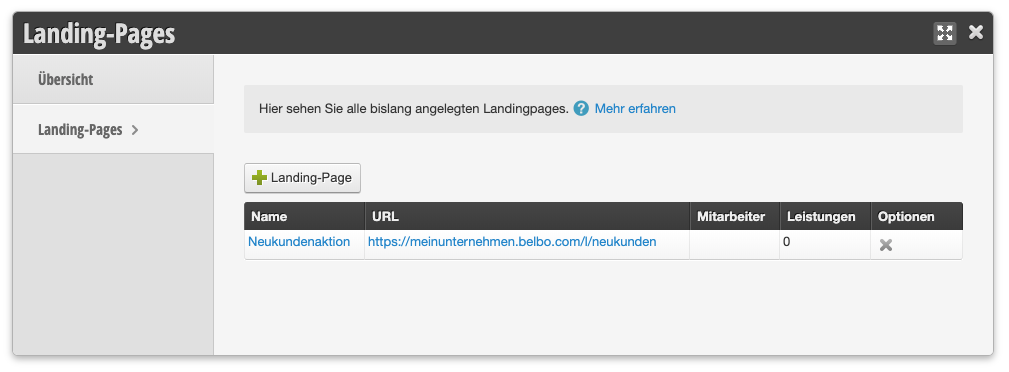
By clicking on the link shown here, you will go directly to your landing page. You can also use this URL in your marketing campaigns to link to the page.
Staff Member
If you want this marketing campaign to be booked only with a specific staff member, you can set this here.
Attention: Please make sure that this staff member is also entered in the competency settings of the selected services.
Add Services
Click on the name of the already created landing page to add services to the page.
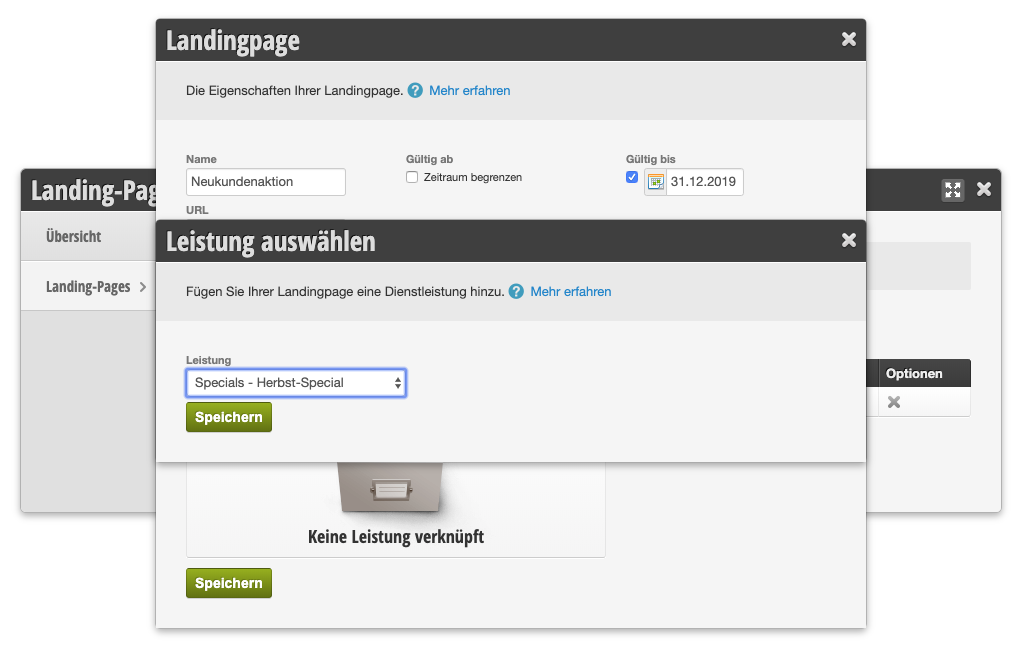
Customers can then select this service on the landing page and book an appointment.
Evaluation
On the Landing Pages overview, you can see how many bookings have been made through your landing page.
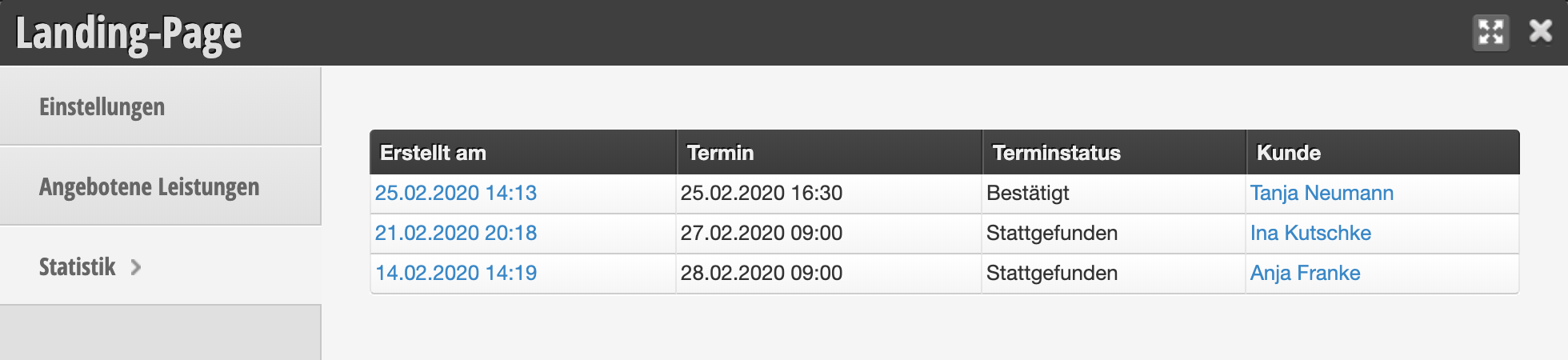
In each landing page, you can also see the details of each booking:
Tip: To evaluate the number of new customers acquired, you can activate the "
Daily Statistics" module.
