belbo
  • Overview
    • Getting to know Belbo
    • Location Settings
    • Switch to Belbo
    • Calendar View & Navigation
    • Recurring Appointments & Courses
    • Appointment Entry & Management
    • Logins & Permissions
    • Multiple Locations & Head Office
    • Manage Employees
    • Absences & Holidays
    • General
    • Working Hours
    • Time Tracking
    • Data Protection (GDPR)
    • Customer Communication (Email, SMS)
    • Customer Management & Records
    • Bonus & Loyalty Programs
    • Campaigns (Newsletter & SMS)
    • Marketing Consents (GDPR)
    • Tracking & Analytics
    • Overview
    • Services & Prices
    • Products
    • Service Packages & Subscriptions
    • Vouchers
    • Purchasing & Suppliers
    • Stock & Inventory
    • Scanning & Sales
    • Cost of goods & expenses
    • Design & Texts
    • Setup & Settings
    • Integration (Website, Google, Instagram, Facebook)
    • Online payment
    • Accounting & Exports
    • Cash Register Settings & Hardware
    • Checkout process
    • Daily Closing & Reports
    • TSE & Cash Register Anti-Tampering Ordinance
    • Export Overview
    • Employee Utilization
    • Revenue & Reports
    • Belbo Satellite
    • Printer
    • EC Terminal & Card Payment
    • Troubleshooting Hardware
    • Scanner & POS Devices
    • General Settings
    • API & Integrations
    • Notifications & Emails
    • Contracts & Legal
Skip to content

Events (Setup Times)

If you want to regularly enter setup times in the schedule for which employees are present but not available for customer bookings, use events.

Use case example:
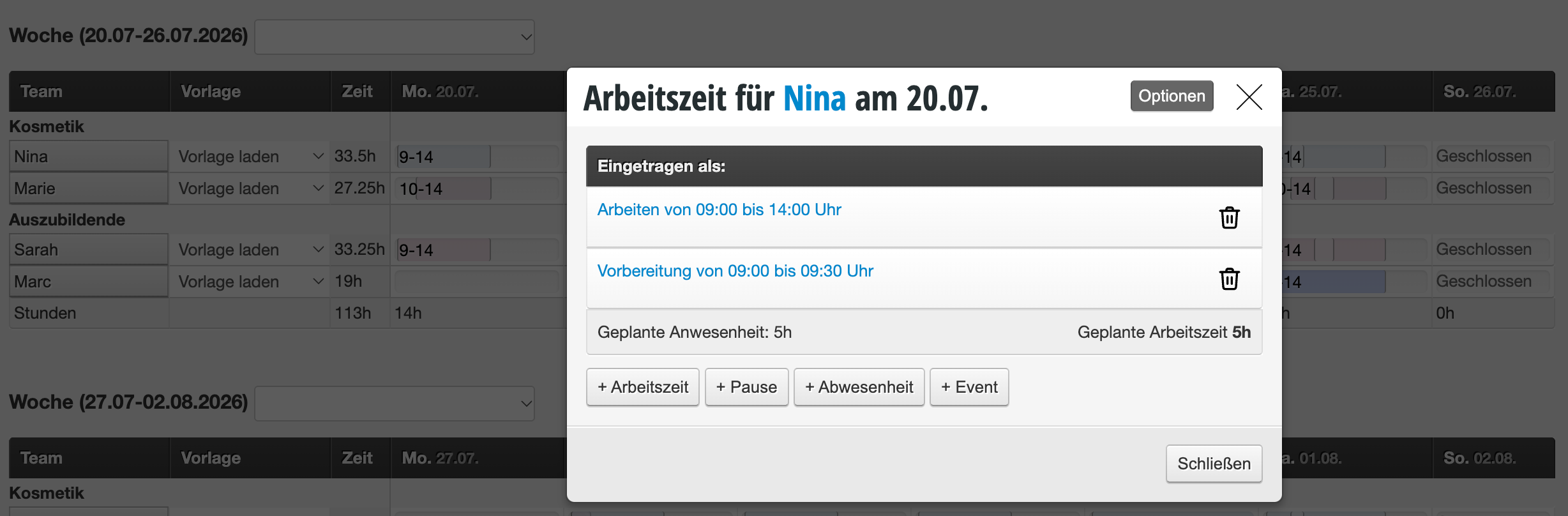
Your employees start at nine in the morning, but first have to do 15 minutes of preparation and cannot yet accept customers. These preparation times can be entered in the schedule and easily carried forward in the shift plans.
Alternative approach: Instead of permanently entering preparation time in the schedule, you can also automatically add a preparation time to appointments and services. This is blocked directly before the respective appointment without you having to manually manage events for it.

Creating events in the schedule

Click on the desired day in the schedule overview and create the event. If you repeat this for all days of a shift, you can save it and transfer it to the future.

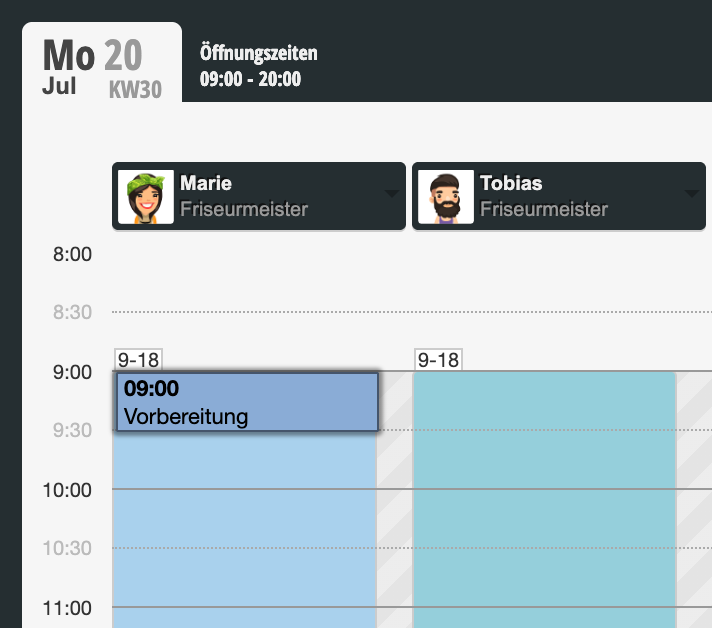
Event in the calendar

Events are displayed in the calendar. This way, colleagues can also see that the corresponding employee cannot accept appointments during this time.

Count event time as working time

If your event times should be counted as working times in reports and statistics when they fall outside regular working hours, you must ensure that you have activated this function in the schedule settings.

For detailed information on schedules, see here.
Categories: Working Hours
Tags: Events, Rüstzeiten
This manual is a service by belbo. Legal notice