belbo
  • Overview
    • Getting to know Belbo
    • Location Settings
    • Switch to Belbo
    • Calendar View & Navigation
    • Recurring Appointments & Courses
    • Appointment Entry & Management
    • Logins & Permissions
    • Multiple Locations & Head Office
    • Manage Employees
    • Absences & Holidays
    • General
    • Working Hours
    • Time Tracking
    • Data Protection (GDPR)
    • Customer Communication (Email, SMS)
    • Customer Management & Records
    • Bonus & Loyalty Programs
    • Campaigns (Newsletter & SMS)
    • Marketing Consents (GDPR)
    • Tracking & Analytics
    • Overview
    • Services & Prices
    • Products
    • Service Packages & Subscriptions
    • Vouchers
    • Purchasing & Suppliers
    • Stock & Inventory
    • Scanning & Sales
    • Cost of goods & expenses
    • Design & Texts
    • Setup & Settings
    • Integration (Website, Google, Instagram, Facebook)
    • Online payment
    • Accounting & Exports
    • Cash Register Settings & Hardware
    • Checkout process
    • Daily Closing & Reports
    • TSE & Cash Register Anti-Tampering Ordinance
    • Export Overview
    • Employee Utilization
    • Revenue & Reports
    • Belbo Satellite
    • Printer
    • EC Terminal & Card Payment
    • Troubleshooting Hardware
    • Scanner & POS Devices
    • General Settings
    • API & Integrations
    • Notifications & Emails
    • Contracts & Legal
Skip to content

Any Employee

If you want to give your customers the option to find an appointment at their preferred time without having to choose a specific employee, activate this feature.

You can access this area via
Settings > Online Booking > Basic Settings > Any Employee

In Online Booking

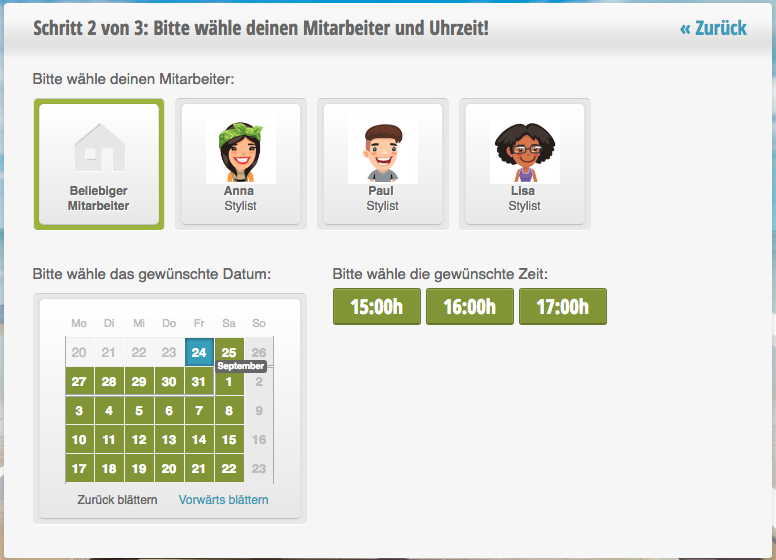
When this feature is enabled, your customers will be offered a corresponding button in online booking. This displays the next available appointment with an employee who can perform the selected service.

In the subsequent step, the customer is shown which employee was selected by the system.

Edit Settings

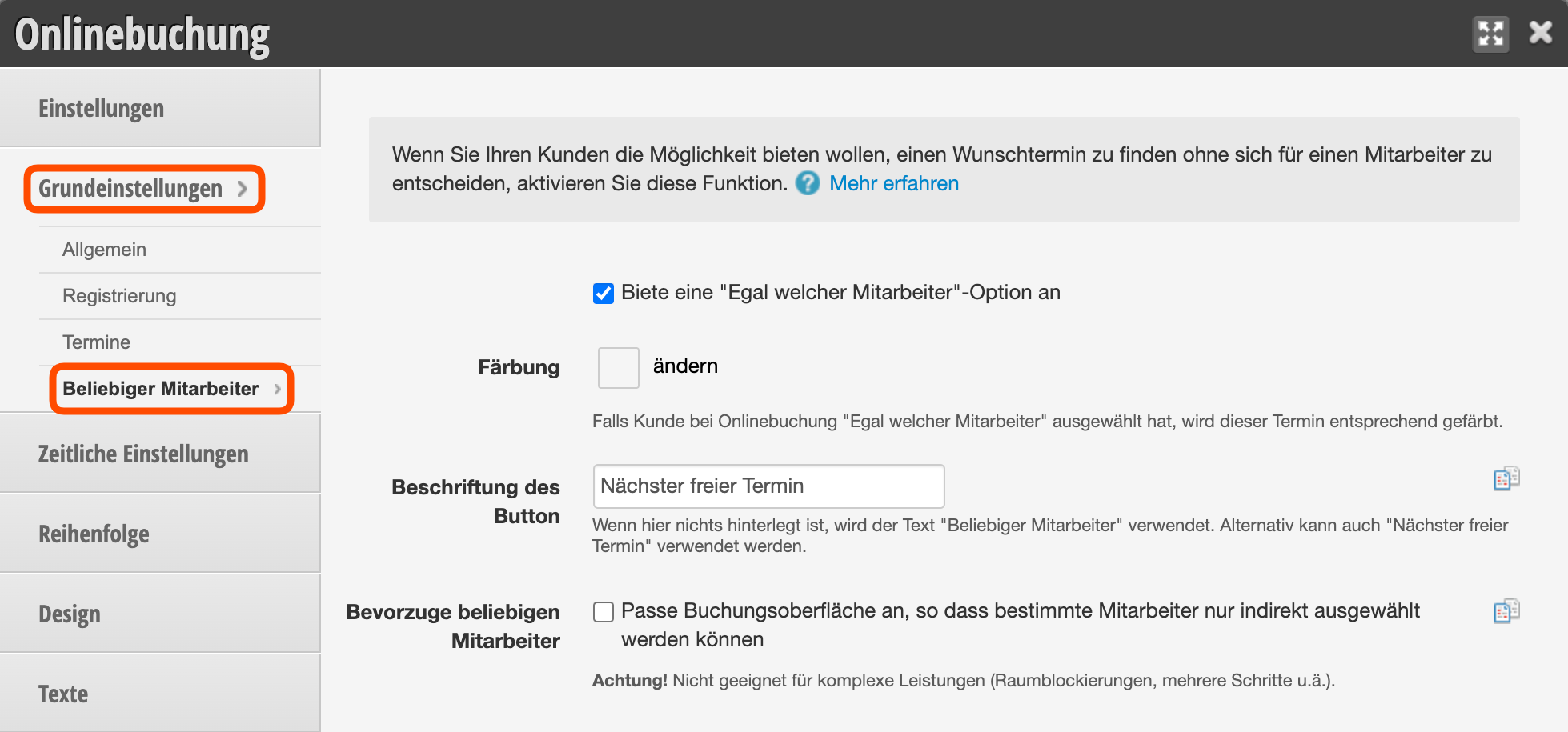
Under Settings > Online Booking > Basic Settings > Any Employee you can edit this function.

  • Coloring: Appointments booked by customers via the "Any Employee" button can be color-coded so your team recognizes that these appointments can be moved to less booked time slots. Please note that the appointment color can depend on many other factors and certain colors may already have a different meaning. More on appointment colors can be found here.
  • Button Label: If you want to change the label of the button in online booking, you can override it using the text field. Please keep the text short.
  • Prefer any employee: In rare cases, it makes sense to select this option.

Define Available Employees

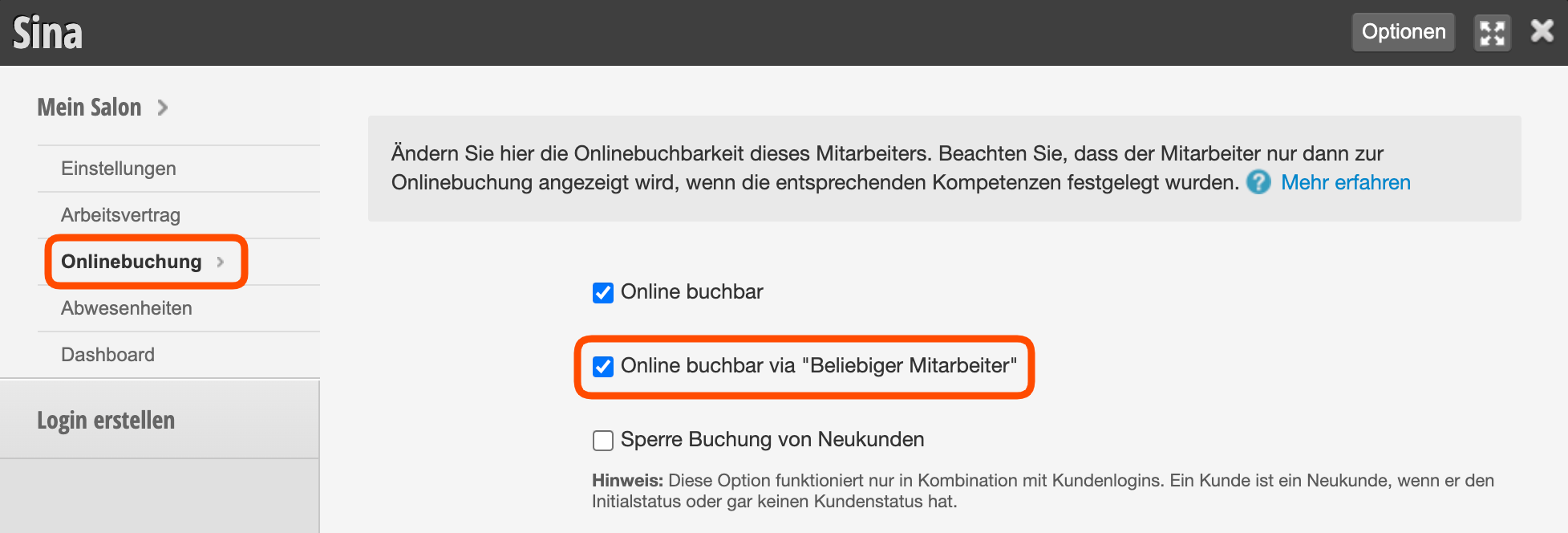
In each employee profile you can specify whether an employee is available when the customer uses the "Any Employee" button.

Our recommendations:

  • Highly booked employees should not be available through this feature.
  • New and poorly booked employees should be available through this feature.
  • It may make sense to make certain employees available exclusively through this feature, such as apprentices or temporary staff.
To define how your available employees should be prioritized for this type of booking, you can use the "Any Employee Prioritization" feature.
Categories: Setup & Settings
Tags: Beliebig, nächster freier Termin
This manual is a service by belbo. Legal notice