
If you use the "Any Employee" feature, customers do not need to choose a specific employee during online booking. This simplifies the booking process for new customers. To determine how your available employees should be prioritized for this type of booking, you can use the "Any Employee Prioritization" feature.
Prerequisites
To use this feature, booking via "Any Employee" must be enabled in the online booking settings. For more information, see the article "Any Employee".
Prioritize Employees
You can either set a general prioritization or define it individually for specific services.
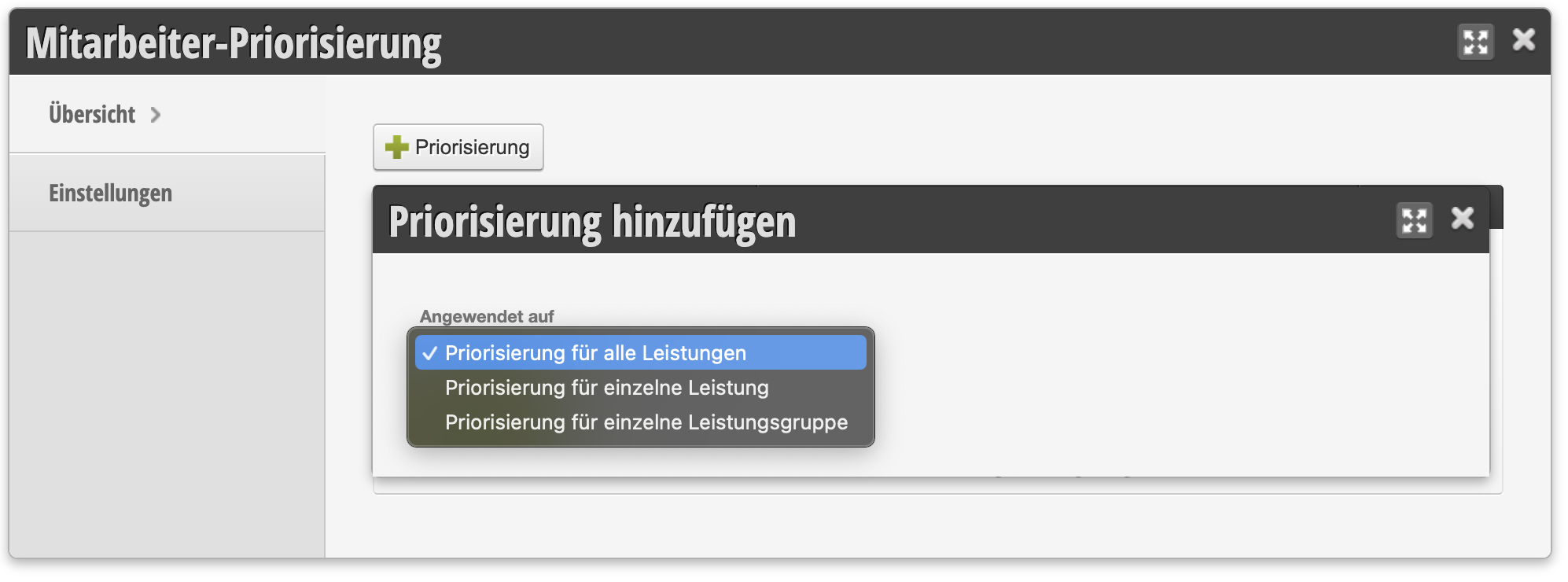
- First, select which service(s) the prioritization should apply to. You can choose between individual services, service groups, or all services.
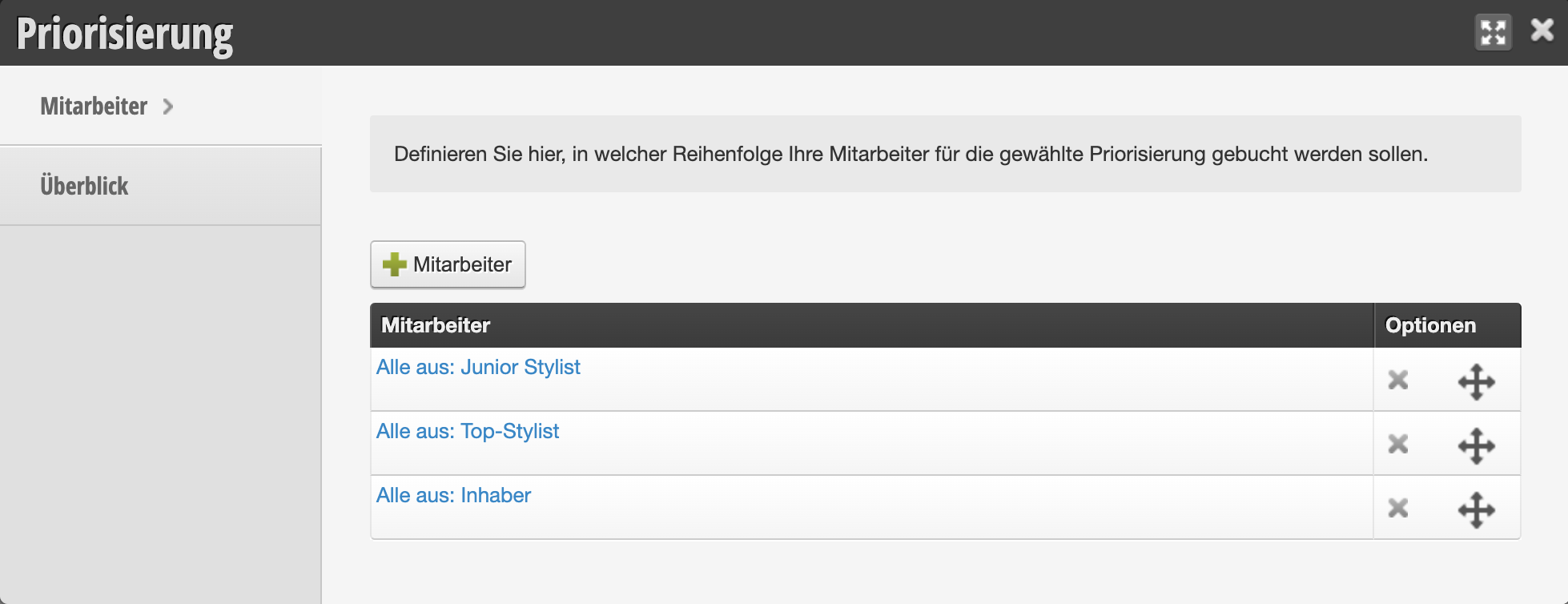
- Next, click on the created prioritization rule to set the order of employees that the system will select during online booking. Here too, you can either select individual team members or roles:
Use Cases
Prioritizing Individual Team Members

In the example above, team members are selected for all services in the displayed order. If all listed employees are available at the customer's desired time, Sina will be selected for the appointment. If Sina is booked, Marie will be selected. Only if no one else is available will Max take the appointment. This is useful, for example, to prioritize new employees who are still building their customer base.
Prioritizing by Role

In the example above, roles are selected for all services in the "Women's Cut" category in the displayed order. If all listed employees are available at the customer's desired time, a team member with the "Junior Stylist" role will be selected for the appointment. If all Junior Stylists are booked, a team member with the "Top Stylist" role will be selected. Only if no one else is available will the owner take the appointment. This is useful, for example, to relieve popular employees from being overbooked.
Prioritizing by Workload
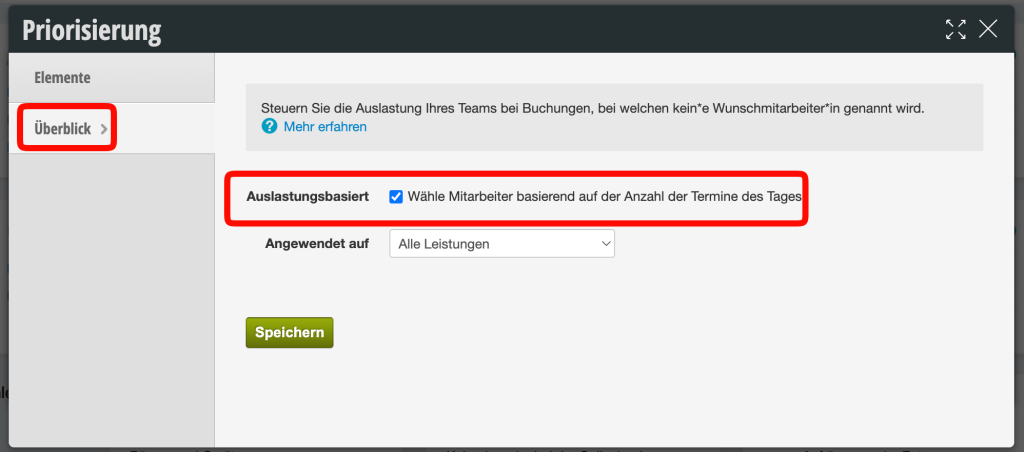
If workload rather than specific individuals is the deciding factor for selection, the feature can also prioritize the person with the least bookings on the customer's desired day.

To do this, simply set this option:
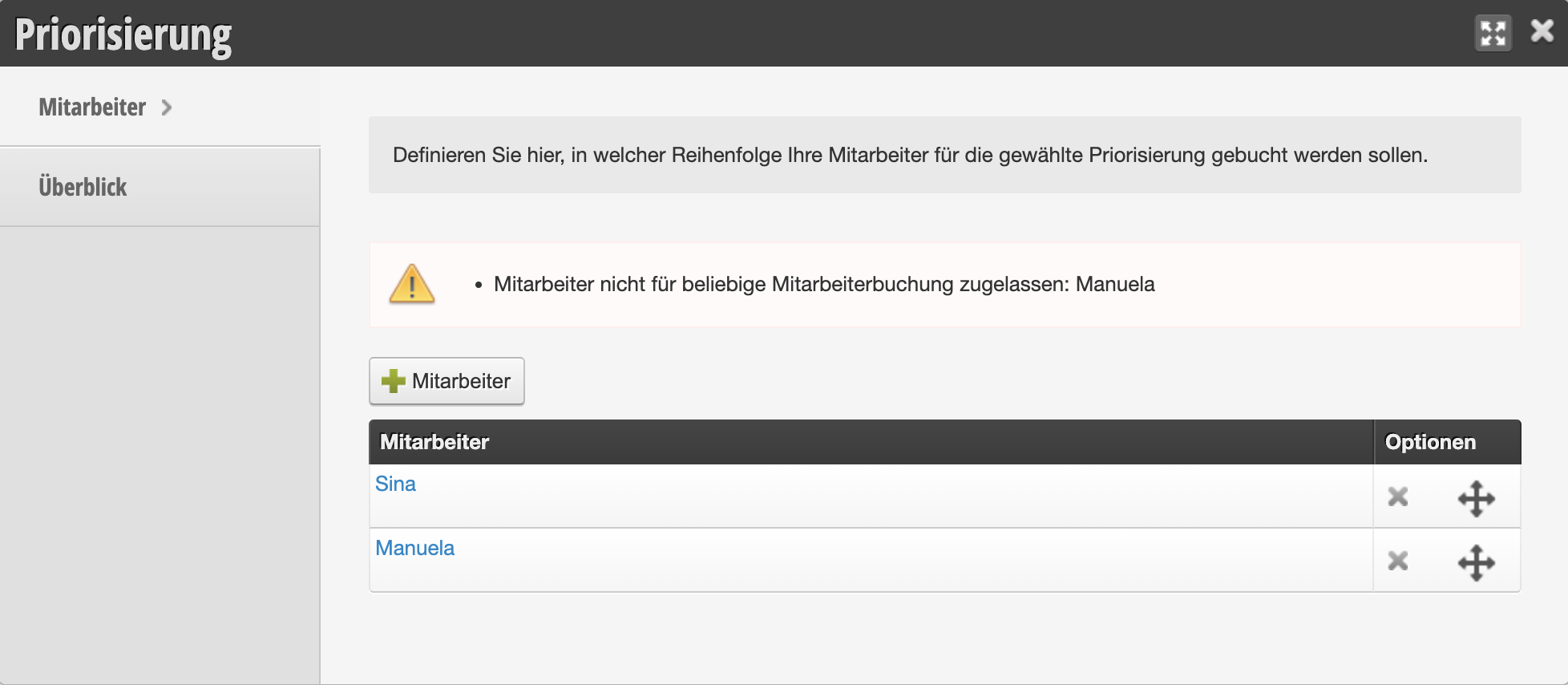 In this case, edit the bookability in the employee's file.