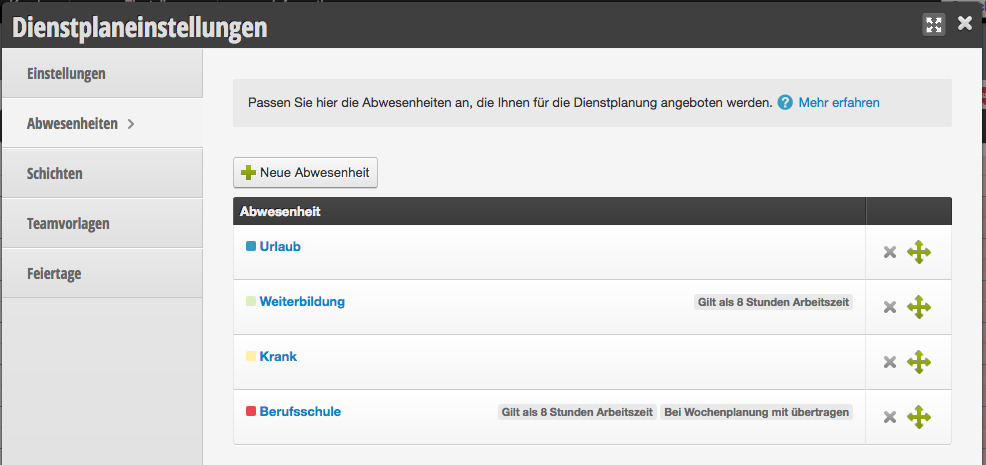
To be able to enter absences in the calendar and in the schedule, you must create them first in the schedule settings.
Common absences are, for example, "Vacation", "Vocational School", "Illness", "Days Off", "Further Training".
Create absences
Select + New Absence to create a new absence or click on an existing absence to edit it.
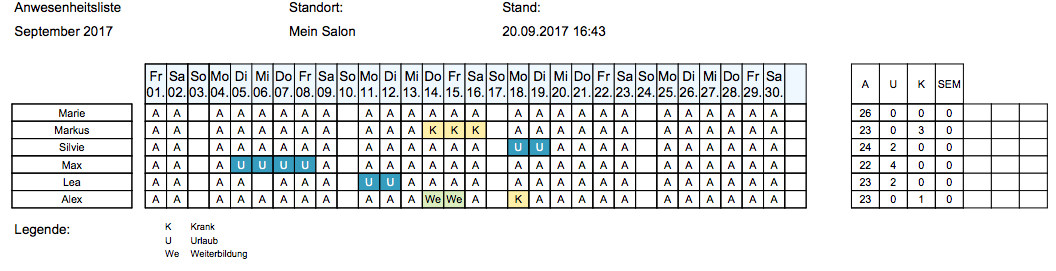
Example of abbreviations in the attendance export:
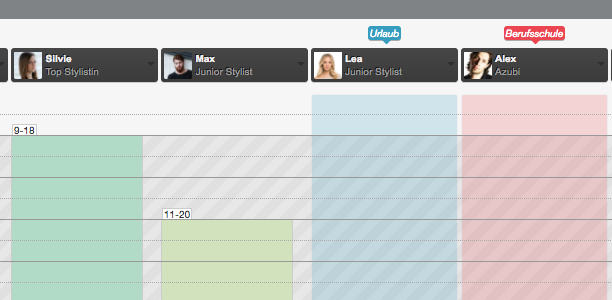
Example of differently colored absences in the calendar:
If this option is disabled, this absence will not be transferred. If you enter it in the distant future, it will not be overwritten if you recreate the schedules. Suitable for "Vacation", "Further Training", "Illness".
For more information on schedule transfer, see here.
The use cases for this are very specific: If you use certain absences as markers for days that should be visible in the calendar, for example, but have no impact on the schedule, this could be useful for you.
Use absence in the schedule
In the schedule, you can enter absences for the desired days, which are then visible in the calendar and, according to your settings, are counted or not counted as working time in the reports.
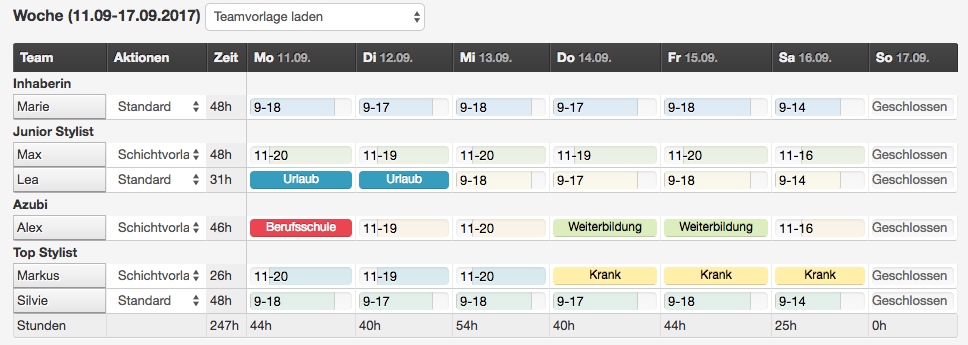
Enter absence in the calendar
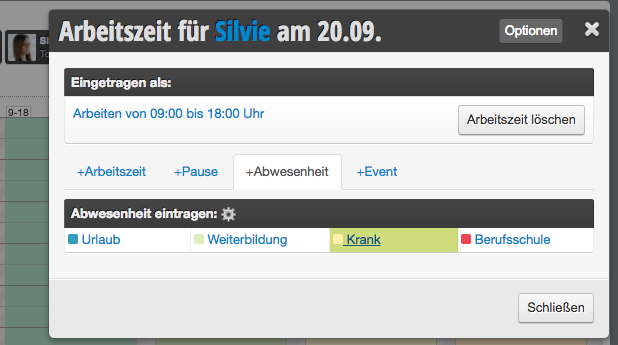
Click on the desired employee and select "Change Working Times". Then select the desired absence.
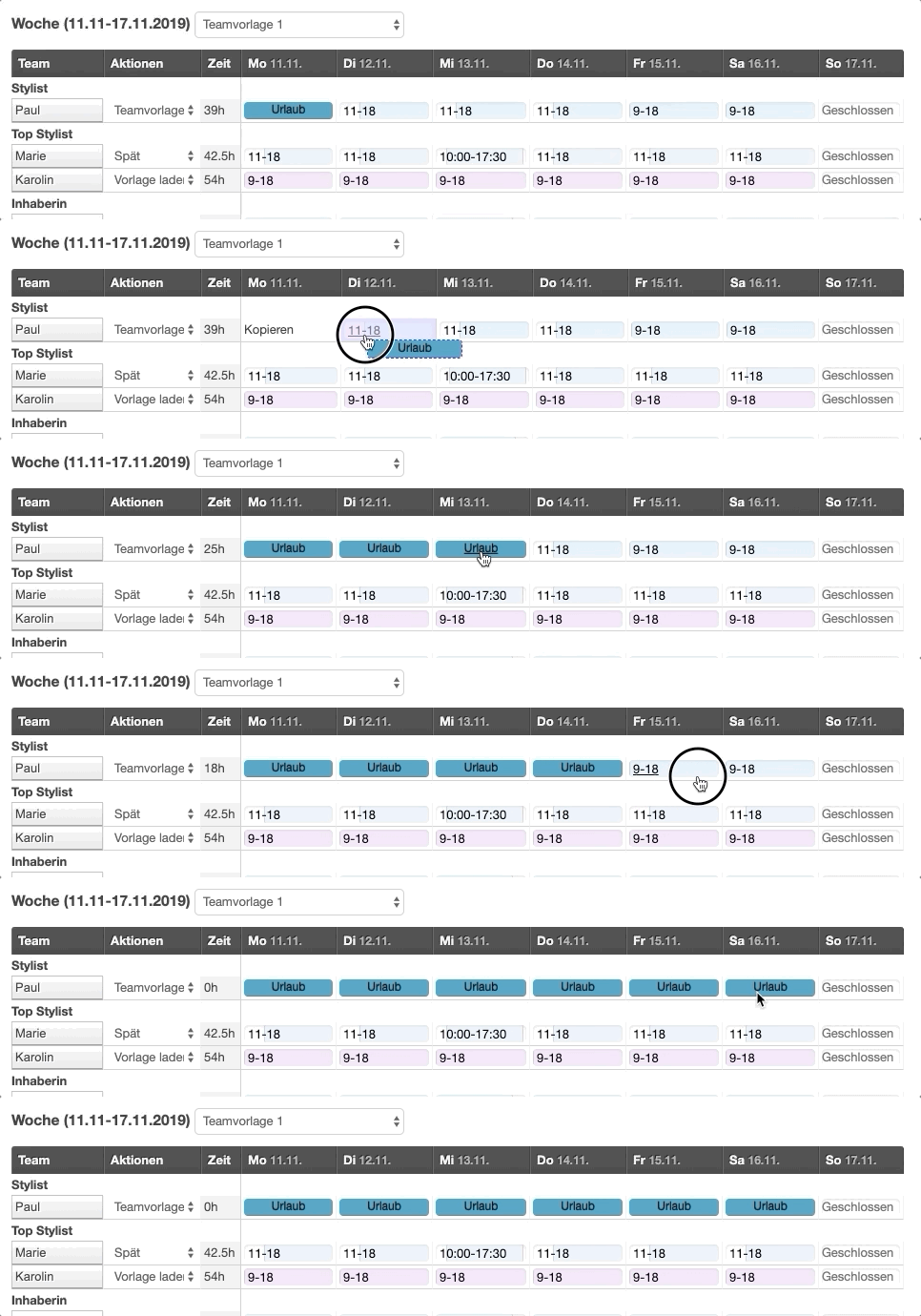
Enter vacation for multiple days
View absences in the employee file
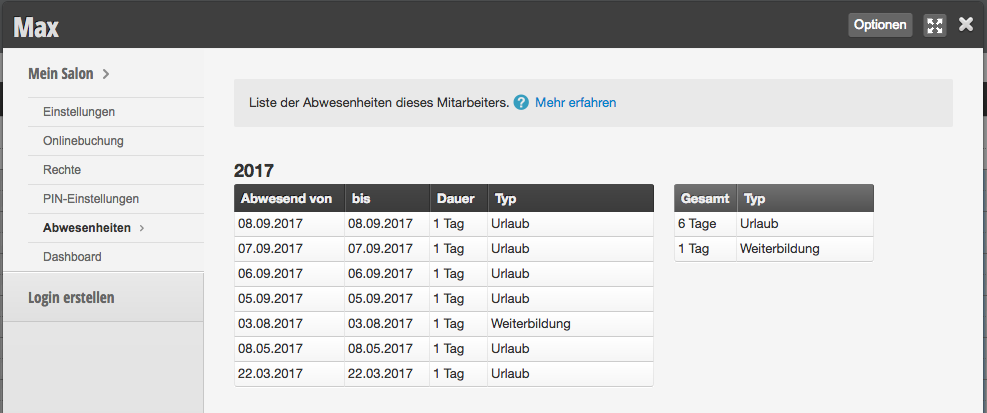
In each employee file, you can view all absences entered so far for the employee under the Absences menu item.