
belbo
  • Overview
    • Getting to know Belbo
    • Location Settings
    • Switch to Belbo
    • Calendar View & Navigation
    • Recurring Appointments & Courses
    • Appointment Entry & Management
    • Tasks
    • Overview
    • Multiple Locations & Head Office
    • Manage Employees
    • Logins
    • Rights
    • Overview
    • Absences & Holidays
    • Working Hours
    • Time Tracking
    • Overview
    • Data Protection (GDPR)
    • Customer Communication (Email, SMS)
    • Customer Management & Records
    • Overview
    • Bonus & Loyalty Programs
    • Campaigns (Newsletter & SMS)
    • Marketing Consents (GDPR)
    • Tracking & Analytics
    • Overview
    • Services & Prices
    • Service Packages & Subscriptions
    • Vouchers
    • Products
    • Purchasing & Suppliers
    • Stock & Inventory
    • Scanning & Sales
    • Material & Expenses
    • Overview
    • Setup & Settings
    • Design
    • I'm ready to help you translate the category name from German to English. However, I don't see the actual text to translate in your message. Please provide the German category name that needs to be translated, and I'll translate it for you while preserving all HTML tags, comments, and WordPress shortcodes exactly as they are.
    • Integration (Website, Google, Instagram, Facebook)
    • Online payment
    • Overview
    • Accounting & Exports
    • Cash Register Settings
    • Checkout process
    • Daily Closing & Reports
    • TSE & Cash Register Anti-Tampering Ordinance
    • Overview
    • Export Overview
    • Employee Utilization
    • Revenue & Reports
    • Belbo Satellite
    • Printer
    • EC Terminal & Card Payment
    • Troubleshooting Hardware
    • Scanner & POS Devices
    • General Settings
    • API & Integrations
    • Notifications & Emails
    • Contracts & Legal
Skip to content
Hardware & Technology›Belbo Satellite

Satellite under macOS

Here you will learn how to install the Belbo Satellite on a Mac computer. If you are using Windows, please read this article.

Download

Version 4.4.0 is currently a beta version. In rare cases, unexpected behavior may occur.

Version 4.4.0 Beta (15.07.2026) – select the appropriate DMG file for your Mac:

Mac Newer Macs
Apple Chip (M1 and newer) Download nowbelbo_satellite_4-4-0_arm64.dmg (102.6 MB)
Mac Older Macs
Intel Chip Download nowbelbo_satellite_4-4-0_x64.dmg (109.3 MB)

Would you prefer not to use the beta version? You can still find the last stable version here: Download Version 4.3.1 (DMG for Intel and Apple Chips)

Installation

  1. 1
    Download: After downloading, double-click the .dmg file. Drag the Satellite app as shown in the image into the Applications folder and then double-click the blue folder icon to open the folder.
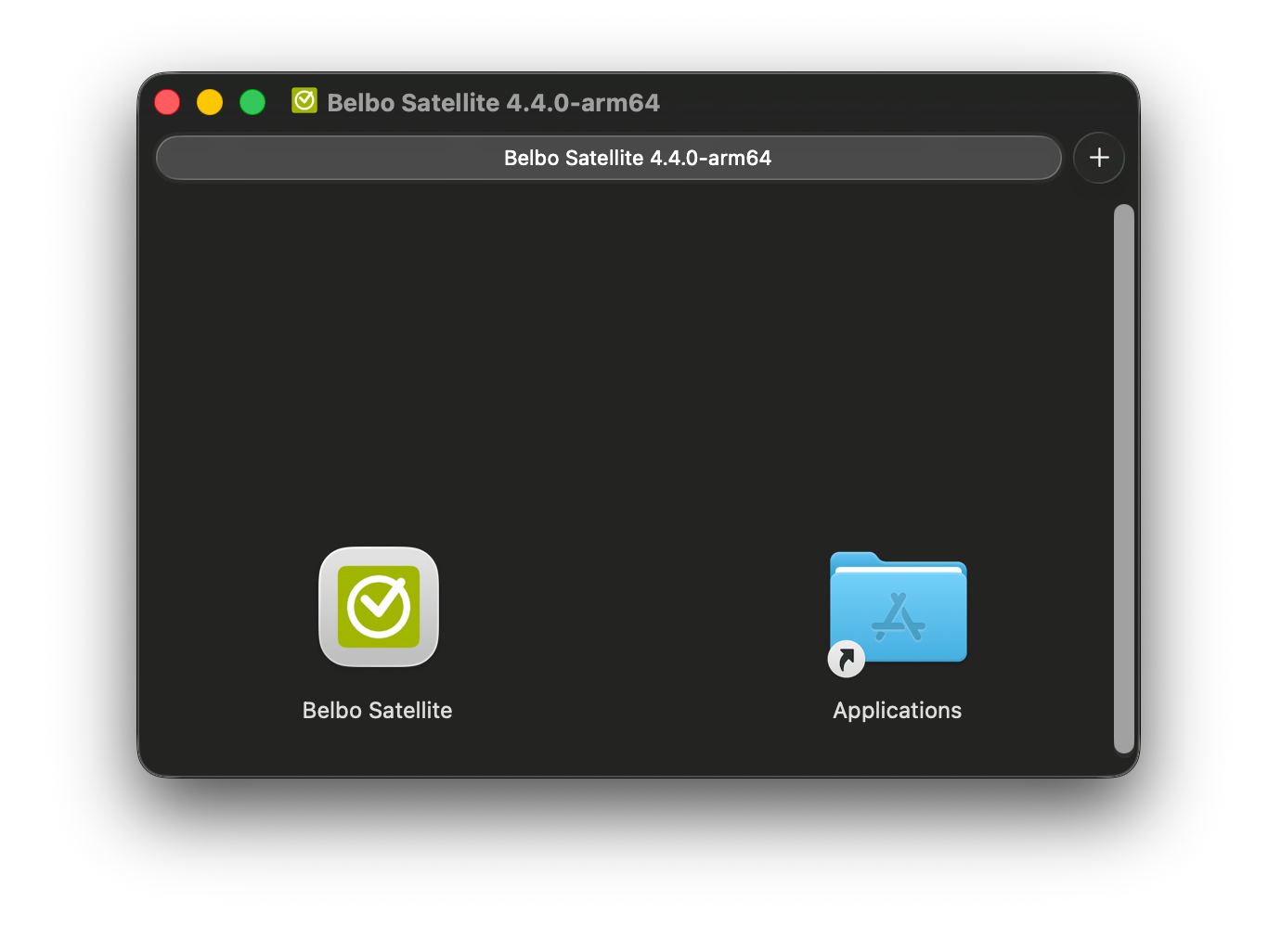
    macOS Finder window with Belbo Satellite 4.4.0-arm64 installation, showing Belbo Satellite app and Applications folder
  2. 2
    Installation: Click on the Belbo Satellite icon and confirm the installation again with "Open". If your computer shows you a warning, please confirm with "OK" that you want to run the application.
  3. 3
    Activation: Afterwards you will see a Belbo icon in the top system menu bar. Click on the icon to see the available options. Enable Autostart here so that the application is automatically available even after restarting your computer. If the option is grayed out, click on the icon again – activation may take a moment on first launch.
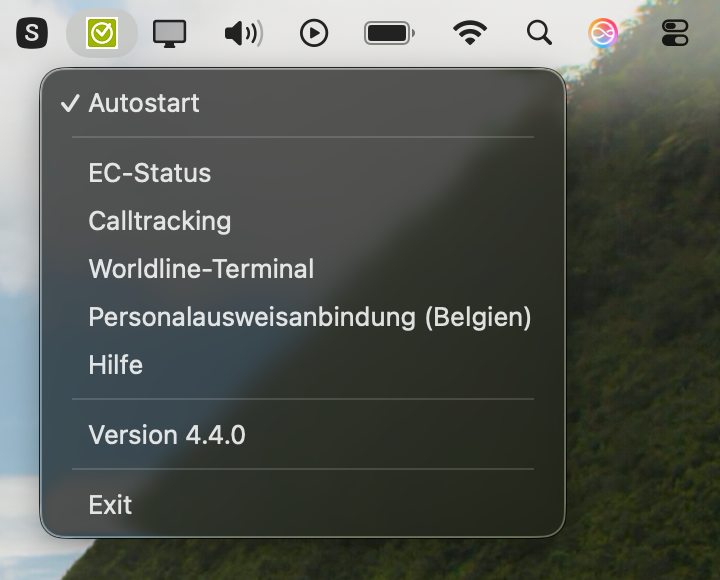
    Belbo Satellite menu under macOS with options for Autostart, EC status, call tracking, Worldline terminal, ID card integration and version 4.4.0

The installation is now complete. For security, check that the icon appears in the menu bar after a computer restart and is clickable.

Browser

We recommend the Google Chrome browser for Belbo. Microsoft Edge and Mozilla Firefox also work. Safari does not yet support the required functions technically.

No icon visible?

Security settings blocking certain apps
Allow the Satellite app to be installed in your Mac's security settings:
  • Click on the magnifying glass in the menu bar or press Command + Space to open Spotlight Search
  • Type "Security" and open the Security settings
  • If you see a message here regarding the Satellite app, confirm that you want to run this app

Uninstallation

First remove the Autostart checkbox and then drag the "belbo-satellite" application to the Trash. If you have already deleted the application, you can check under System Settings » Users & Groups » Login Items to see if "belbo-satellite" still appears there. Remove it if necessary.

Categories: Belbo Satellite
Tags: Mac, Satellite

Have a question? Ask it here.

This manual is a service by belbo. Legal notice