
belbo
  • Overview
    • Getting to know Belbo
    • Location Settings
    • Switch to Belbo
    • Calendar View & Navigation
    • Recurring Appointments & Courses
    • Appointment Entry & Management
    • Logins & Permissions
    • Multiple Locations & Head Office
    • Manage Employees
    • Absences & Holidays
    • General
    • Working Hours
    • Time Tracking
    • Data Protection (GDPR)
    • Customer Communication (Email, SMS)
    • Customer Management & Records
    • Bonus & Loyalty Programs
    • Campaigns (Newsletter & SMS)
    • Marketing Consents (GDPR)
    • Tracking & Analytics
    • Overview
    • Services & Prices
    • Products
    • Service Packages & Subscriptions
    • Vouchers
    • Purchasing & Suppliers
    • Stock & Inventory
    • Scanning & Sales
    • Cost of goods & expenses
    • Design & Texts
    • Setup & Settings
    • Integration (Website, Google, Instagram, Facebook)
    • Online payment
    • Accounting & Exports
    • Cash Register Settings & Hardware
    • Checkout process
    • Daily Closing & Reports
    • TSE & Cash Register Anti-Tampering Ordinance
    • Export Overview
    • Employee Utilization
    • Revenue & Reports
    • Belbo Satellite
    • Printer
    • EC Terminal & Card Payment
    • Troubleshooting Hardware
    • Scanner & POS Devices
    • General Settings
    • API & Integrations
    • Notifications & Emails
    • Contracts & Legal
Skip to content

Tag: Bewertungsanfrage

Rating Function

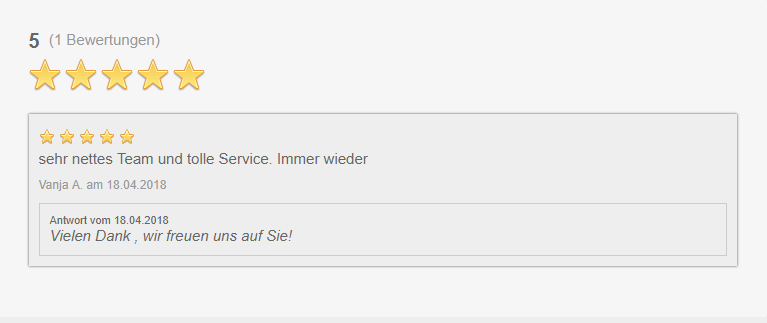
With the rating function, you enable your customers to quickly and easily rate their visit with you. Ratings show you what customers think of your business. You can use ratings for your internal quality assurance or also publish them for marketing purposes on your online booking page.
You can access this area via Settings > Ratings If this function is not activated, it can be activated via "Settings > Add function".

Customers form an impression of your store/salon, the products and the service on the internet before they book an appointment with you or make their way to your business. For this reason, customer ratings are perfect for impressing new customers. It is therefore all the more important to respond to and evaluate your customers' ratings. This way, you will always have a clear picture of what your customers think of your business, service or product.

Please note: Your customers will be shown the 20 most recent ratings. The average rating displayed is of course calculated from all ratings.

1) Enable ratings

  1. Go to Settings > Ratings. If this function is not yet active, you can activate it under "Add function".
  2. In the settings tab of the function, you can set various parameters for your rating function.
  3. We recommend only displaying the ratings in the online booking once you have already received some meaningful ratings.

All display parameters:

External Ratings
In principle, ratings for your Belbo online booking are collected via the rating link in the email. If you would like ratings for another platform (Google, Facebook, etc.), you can change the target of the rating link here. For more information on how to create links for external platforms, you can find out here. The rating link already set up in the email will now forward to the newly defined target.
Rating option
Allows for a general rating for the location in addition to rating the employee. This way you can distinguish what your customer thinks about the specific treatment and generally about your business.
Display
Set here where your ratings will be shown within the online booking. We recommend only displaying the ratings in the online booking once you have already received some meaningful ratings.
Notification
Set here whether an email is sent to the address stored under Settings > Location Settings when a new rating is received.
Rating symbol
Set here the symbol that displays the rating level. Normally this is a series of stars. However, you have the option to choose a different symbol that matches your business:

2) Edit automatic email campaign

Test rating link The rating link in your mail only works correctly if it is linked to an actual appointment. In the test mail, the link is displayed as %RATE_APPOINTMENT% and is not linked to your rating page. The easiest way to test the emails is to create an appointment for yourself in the calendar and then proceed as described in "Point 3) Manual rating request in customer appointment" and send yourself a rating request for an appointment.

You can create automatic rating requests that are sent via email to your customers after they have had an appointment at your business. You can find out how to send a manual rating request directly from your calendar further below. A customer receives only one rating request per rating campaign.

  • After activating the function, a campaign for all customers is already set up. You can find this in the "Emails" tab.
  • Edit the email text that your customers should receive as a rating request.
  • If you want to send different rating requests to certain customer groups, delete the existing campaign and create a new one.

Create new campaign

Rating request
Here you can create and design your rating requests yourself. In the field "Name of email campaign" you write the internal name of your rating request. This could be, for example, just "Rating request 2020" or a sentence like "Rating VIP customers". This name serves to distinguish your campaigns and is not visible to your customers.
Customer status
With customer status, you can select whether this rating request is only received by certain customer groups, such as only new customers. If you leave this field empty, all customers with marketing consent will be contacted.
Time period
Set the time period here. You choose how many days after the last appointment the customer receives your rating request.
Email design
Choose the email design for your rating request.

Content & Design

The rating requests you send to your customers via email can be very easily and quickly customized by you. After you have created a rating request, click on the desired rating request and start designing your email.

General
Under "General" you have general information about your rating requests such as campaign name, send status, etc.
Content & Design
Here you design your rating request as the customer will finally receive it via email.

  1. Email subject In the email subject, it's best to write a sentence where the customer can immediately see what your email is about, e.g. "Please rate your last appointment". With this sentence, the customer immediately knows what topic or concern this email campaign is about.
  2. Header image: By default, the header image you created under Settings > Email and SMS templates > Design is used here. However, you can also exchange it for the rating.
Attachment
If you want to send a document or coupon/discount in your email, click the "+Document" button and select your desired document.
Filter
Here you can filter the recipients of your rating request according to other criteria.
Status
Here is a list of potential recipients of your email campaign, i.e. all your customers are listed who have an email address and have consented to email and SMS campaigns. Sent: Under Sent you can check your email sending status or name of the customers to whom you sent emails and date and time.

3) Manual rating request in customer appointment

You can also send the rating request manually.

  1. Click on the appointment in the calendar for the customer to whom you want to send the request.
  2. Click on "Options"
  3. If you have created multiple rating campaigns, select the desired campaign - if you have only created one campaign, it will be sent immediately.

4) Evaluation of ratings

All Ratings

  • All Ratings: Here you have a list of all ratings you have received on your booking page.
  • Highlighted: List of all ratings you have highlighted.

    • Not displayed: List of all ratings not displayed that are accordingly no longer visible on your booking page.

  • Reply to a rating: If you want to respond or reply to a rating, click on "All Ratings" and select a rating. In the "Rating" window you will first find general information such as rating text, date of rating and rating. Here it is important to select the name of the responding employee and write a reply in the "Reply text" field. Below the reply text you have the option to highlight the rating with your reply or not display it. Then click "Save".

Evaluation

  • Evaluation of your ratings Under "Evaluation" you get a statistic or evaluation of your ratings. The vertical numbers show how many ratings you have in total on your booking page. The horizontal numbers are your rating, showing how many of the ratings are marked with one, two or five stars.

Embed in website

If you wish, you can also embed your rating page in your website via iFrame. The code for this looks approximately like this:

<iframe src="https://mycompany.belbo.com/login/valuations?noHelp=true&compact=true" width="100%" height="700" frameborder="0" scrolling="auto">

For Swiss customers this may be:

<iframe src="https://mycompany.hairlist.ch/login/valuations?noHelp=true&compact=true" width="100%" height="700" frameborder="0" scrolling="auto">

Please replace the "mycompany" part with your own server prefix.

If you have any questions about this, please contact your web office and please understand that we can only provide very limited support regarding your own website.
Categories: Bonus & Loyalty Programs
Tags: Bewertungen, Bewertungsanfrage
This manual is a service by belbo. Legal notice