
As a belbo customer, it is likely that you offer customer appointments in your business. Due to the widespread restrictions that now apply in the affected countries, you may need to take one of the following measures.
Inform all customers
If you need to close your business for a period of time or inform your customers about other restrictions, you can do this with marketing emails.
Learn more about marketing emails.
Use the "Business Interruption" feature
If you need to temporarily close your business, you can make certain settings in Belbo for this period so that online booking and reminders for your customers are turned off without having to delete schedules or appointments.
Learn more about business interruption here.
Customize reminder text
If you send reminder emails to your customers, we recommend adjusting the text! Add a passage to the email explaining any special circumstances.
- Any special circumstances regarding hygiene or customer discomfort
- Any appointment cancellations
- Your goodwill policies, etc.
Learn here how to customize your reminder texts.
Disable reminder SMS
To prevent potentially costly SMS from being sent even during closed periods, you can proceed as follows:
- Go to Settings and select the "SMS Dispatch" module.
- Uncheck the "Active" checkbox and save your entry.
- From now on, no more SMS will be sent.
If you plan a marketing campaign via SMS, please run the campaign before you disable the module.
Completely disable online booking
If you do not wish to accept appointments at the moment to wait and see the situation, you can completely disable your online booking.
- Go to Settings and select Location Settings (top right).
- Uncheck "Online Bookable" and save your entry.
- Customers can no longer book online.
Disable online booking for a specific period
If you do not currently wish to accept appointments but want to allow them again from a certain date, you can also block booking for a specific period only. Bookability depends on the service times entered in the schedule. To prevent booking for a specific period, you must therefore remove the service times for this period from the calendar.
- To do this, click on "Schedule" in the top left of the main menu.
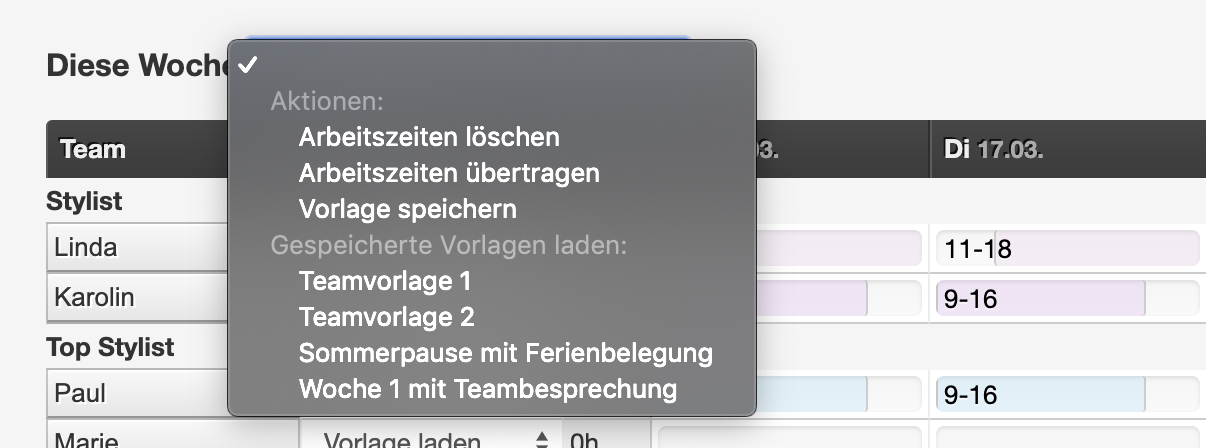
- Click on the selection field next to the calendar week in which you want to delete the working hours.
- Select the option "Delete Working Hours" (see image below).
- Proceed in the same way for all weeks that should not be bookable.
Display information text on the online booking page
You can inform your customers with an information text about the special features of your appointment booking, closing times or other special circumstances.
Learn how to add information text here.
Set up a gift voucher shop
You can offer your customers the ability to order gift vouchers from you directly online, pay via PayPal & credit card, and download them. For you, the voucher shop offers a way to secure your liquidity even during business closure and allow loyal customers to provide support. In this article, you will learn how to set up the voucher shop.