
belbo
  • Overview
    • Getting to know Belbo
    • Location Settings
    • Switch to Belbo
    • Calendar View & Navigation
    • Recurring Appointments & Courses
    • Appointment Entry & Management
    • Logins & Permissions
    • Multiple Locations & Head Office
    • Manage Employees
    • Absences & Holidays
    • General
    • Working Hours
    • Time Tracking
    • Data Protection (GDPR)
    • Customer Communication (Email, SMS)
    • Customer Management & Records
    • Bonus & Loyalty Programs
    • Campaigns (Newsletter & SMS)
    • Marketing Consents (GDPR)
    • Tracking & Analytics
    • Overview
    • Services & Prices
    • Products
    • Service Packages & Subscriptions
    • Vouchers
    • Purchasing & Suppliers
    • Stock & Inventory
    • Scanning & Sales
    • Materials & Costs
    • Design & Texts
    • Setup & Settings
    • Integration (Website, Google, Instagram, Facebook)
    • Online payment
    • Accounting & Exports
    • Cash Register Settings & Hardware
    • Checkout process
    • Daily Closing & Reports
    • TSE & Cash Register Anti-Tampering Ordinance
    • Export Overview
    • Employee Utilization
    • Revenue & Reports
    • Belbo Satellite
    • Printer
    • EC Terminal & Card Payment
    • Troubleshooting Hardware
    • Scanner & POS Devices
    • General Settings
    • API & Integrations
    • Notifications & Emails
    • Contracts & Legal
Skip to content

Customer field "Mark and label images"

With the customer field type "Mark and label images", you can store a schematic image in your customer files, which can be individually labeled for each customer.
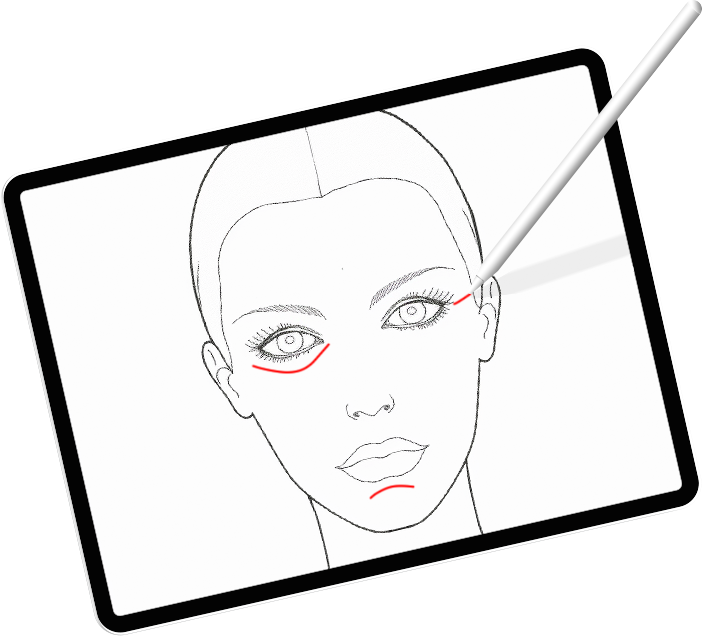
Application example beauty:
You can mark those facial or body areas during the conversation with the customer that are to be treated.
Application example massage:
Your customers can mark those areas on a tablet themselves as part of the customer questionnaires where they want the focus of the massage to be.

Create customer field "Mark and label images"

1. Create tab

Important: Customer fields of this type must always appear alone in their own tab!
First create a separate tab for this customer field. You can find out how to do this here.

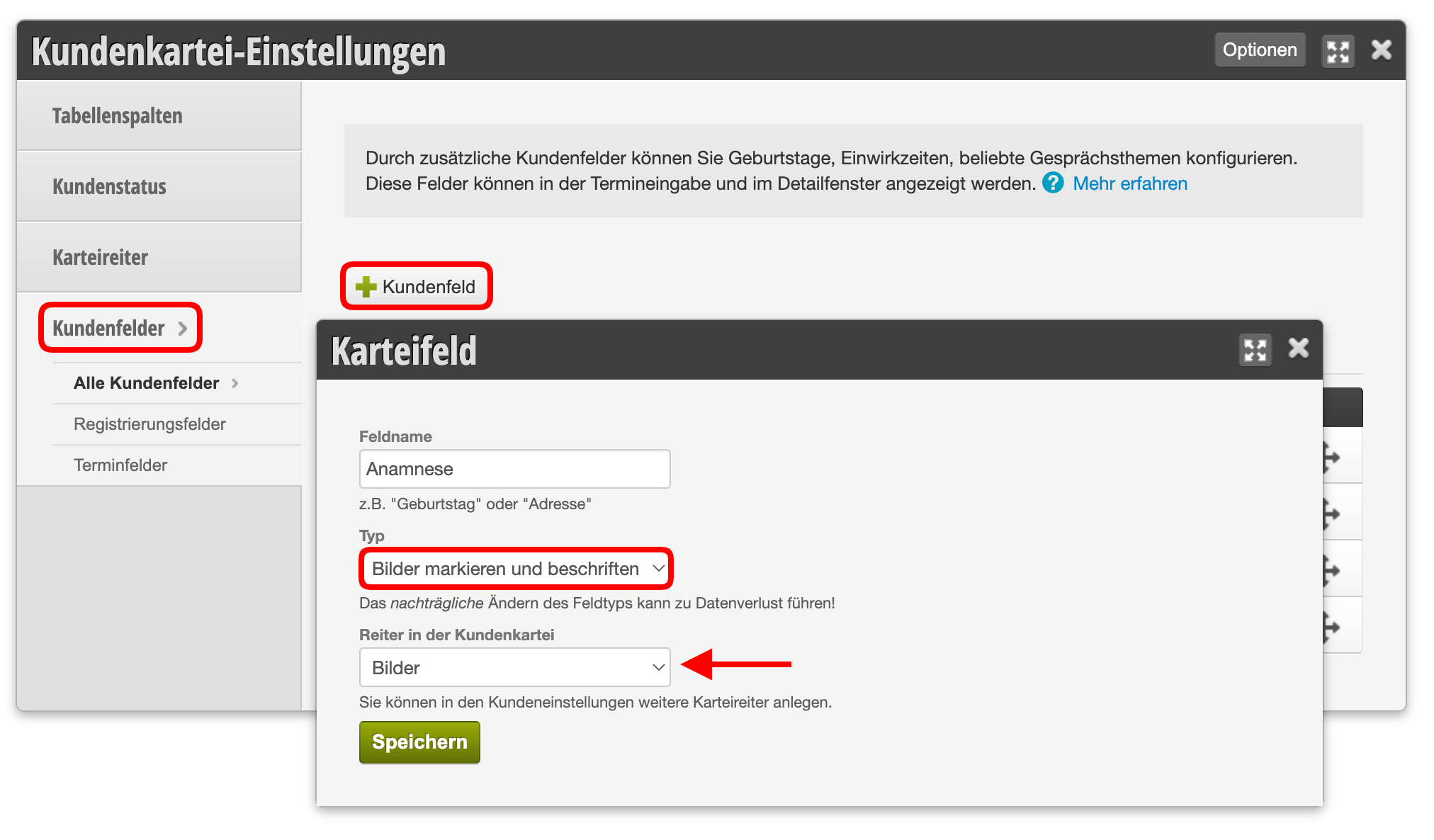
2. Create customer field

In the customer file settings, you can now store a new customer field. Give it the type "Mark and label images" and place it in the new customer file tab:
3. Upload your schematic image

Select image from your device and save after upload.
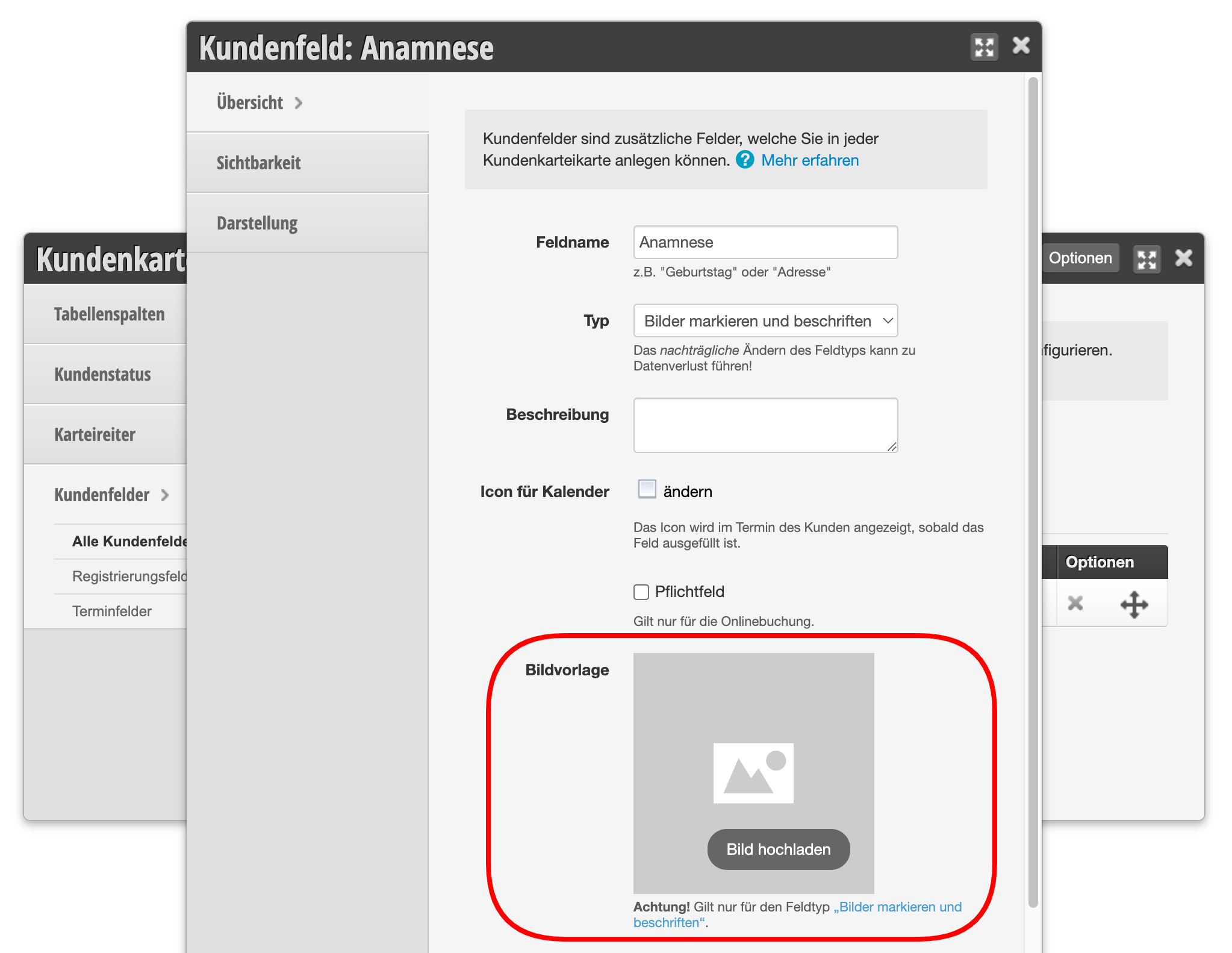
Please ensure that you have the copyright for your image. Unfortunately, we cannot provide you with extensive schematic images. However, you can download our example image (female face) here and use it if you wish.
The copyright for this image is held by Belbo Business Software GmbH and is provided permanently and free of charge to all Belbo users for use in the customer file.

Customer field "Mark and label images" in the customer file

In each of your customer files you will now see the image in the new tab and can click on it and label it.
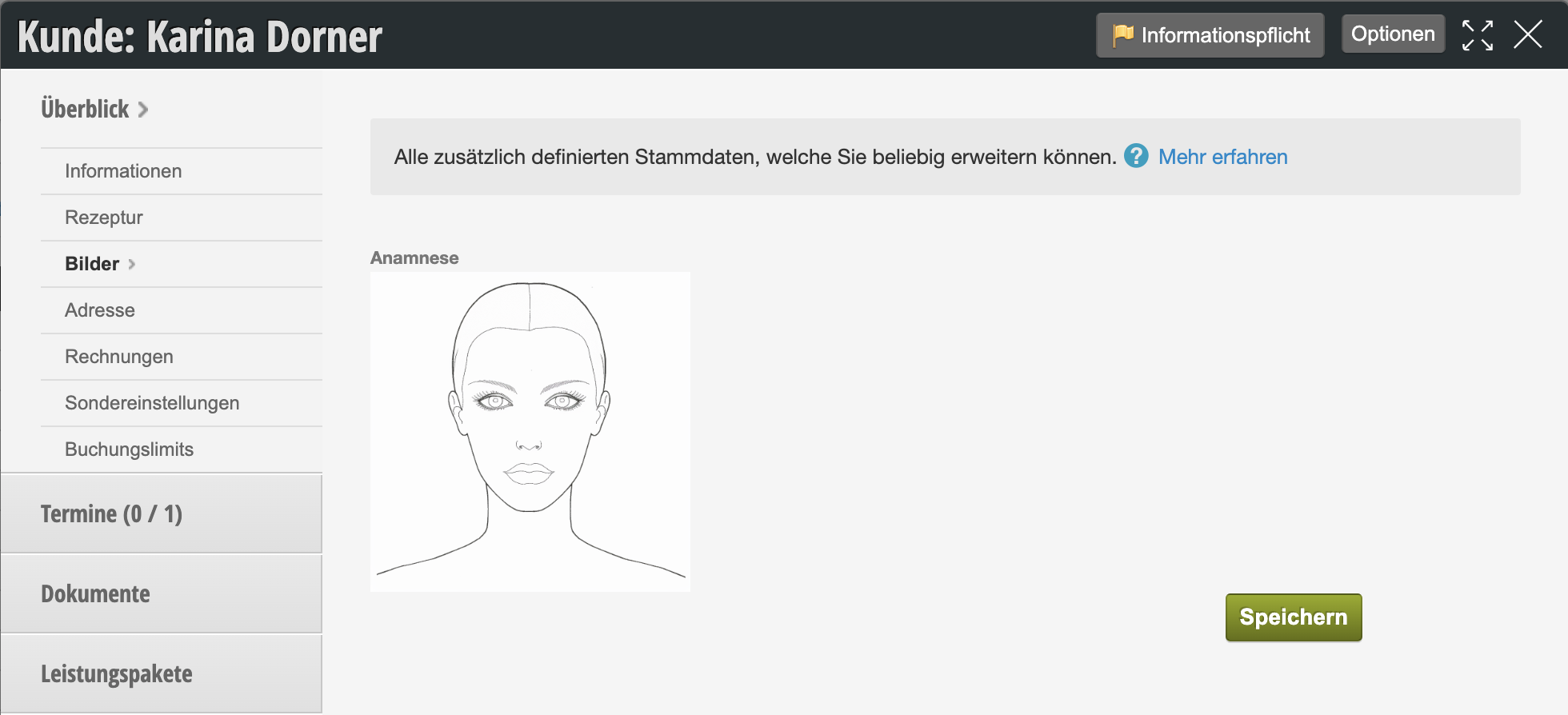
You have numerous colors, shapes and functions available for this.
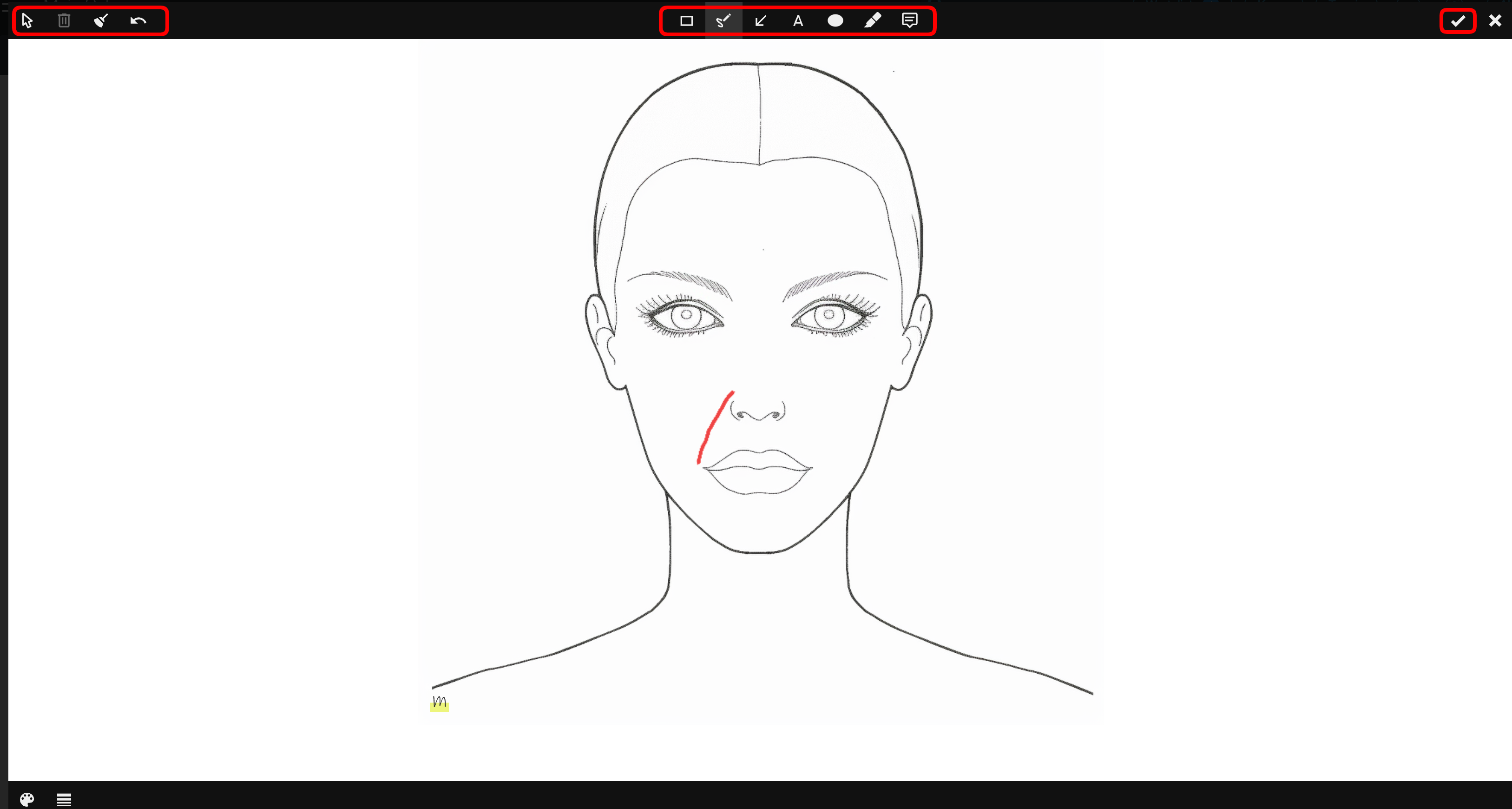
Please don't forget to save your markings in the top right. The image including editing will then be permanently saved in the customer file and can also be edited again.

Customer field "Mark and label images" in the customer questionnaire

With the "Customer questionnaires" function, you can enable your customer to supplement their own data on a tablet on site. The customer field "Mark and label images" can be added to your customer questionnaires in a separate step, so your customer can mark or label it themselves.

Our tip: Have your employees practice using this function on a test customer file before actual use. This ensures that all editing functions are mastered by your staff.
Categories: Customer Management & Records
This manual is a service by belbo. Legal notice