belbo
  • Overview
    • Getting to know Belbo
    • Location Settings
    • Switch to Belbo
    • Calendar View & Navigation
    • Recurring Appointments & Courses
    • Appointment Entry & Management
    • Tasks
    • Overview
    • Multiple Locations & Head Office
    • Manage Employees
    • Logins
    • Rights
    • Overview
    • Absences & Holidays
    • Working Hours
    • Time Tracking
    • Overview
    • Data Protection (GDPR)
    • Customer Communication (Email, SMS)
    • Customer Management & Records
    • Overview
    • Bonus & Loyalty Programs
    • Campaigns (Newsletter & SMS)
    • Marketing Consents (GDPR)
    • Tracking & Analytics
    • Overview
    • Services & Prices
    • Service Packages & Subscriptions
    • Vouchers
    • Products
    • Purchasing & Suppliers
    • Inventory & Stock Counts
    • Scanning & Sales
    • Cost of Goods & Expenses
    • Overview
    • Design & Texts
    • Setup & Settings
    • Integration (Website, Google, Instagram, Facebook)
    • Online payment
    • Overview
    • Accounting & Exports
    • Cash Register Settings & Hardware
    • Checkout process
    • Daily Closing & Reports
    • TSE & Cash Register Anti-Tampering Ordinance
    • Overview
    • Export Overview
    • Employee Utilization
    • Revenue & Reports
    • Belbo Satellite
    • Printer
    • EC Terminal & Card Payment
    • Troubleshooting Hardware
    • Scanner & POS Devices
    • General Settings
    • API & Integrations
    • Notifications & Emails
    • Contracts & Legal
Skip to content
Statistics & Reports›Export Overview

Open customer export in Excel (Windows PC)

The CSV files exportable from Belbo are valid standard data. If you have problems setting the desired view in Excel, you can proceed as follows.

In this article, you will learn how to open CSV files in Excel for Windows. If you are using a Mac, read on here.

This guide is a rough support tool for using Excel. Please understand that we cannot support you with third-party software. The internet contains numerous resources with detailed tutorials on Excel and CSV.

Step 1: Select File

To display the data in Excel in columns and without quotation marks, you can import the CSV file.

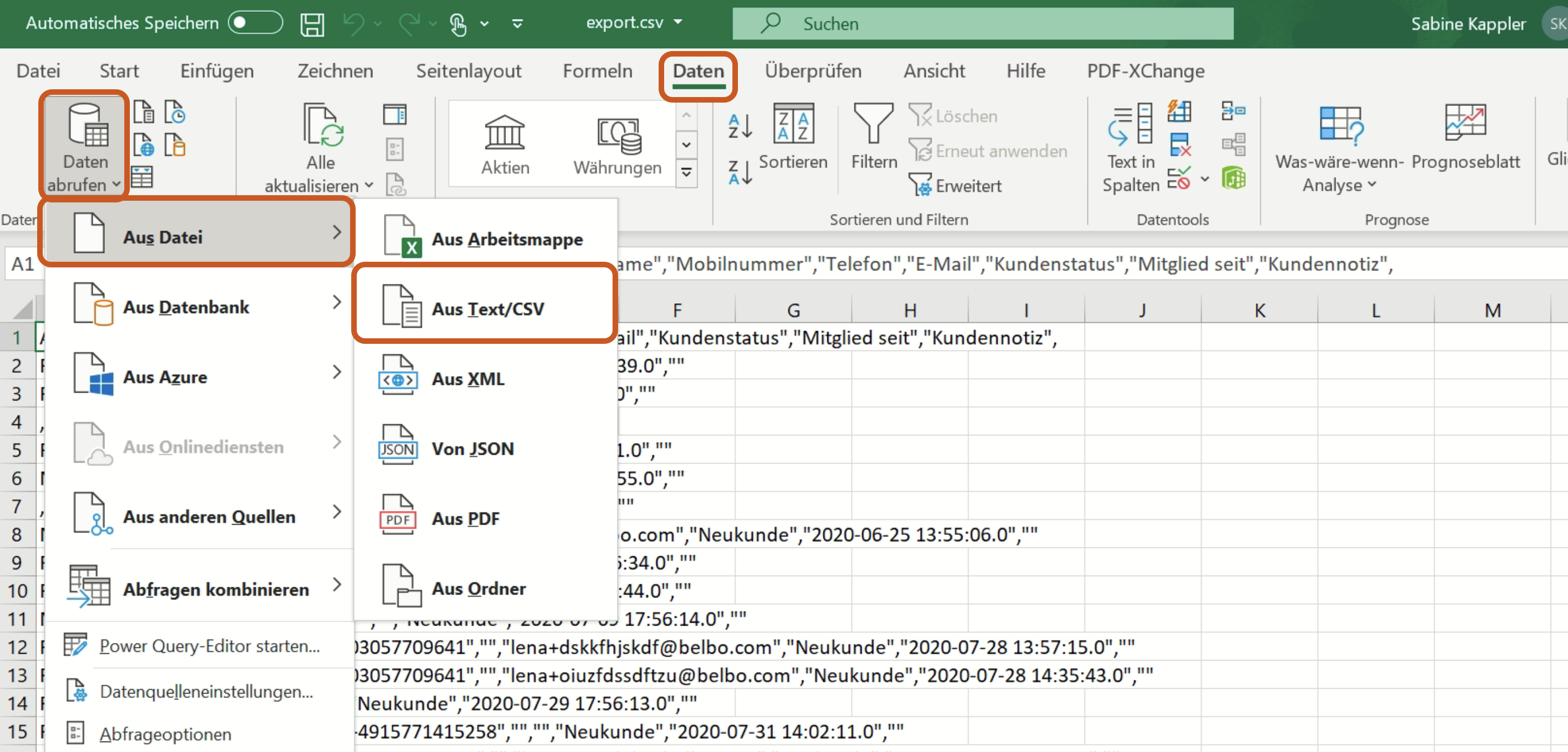
  1. Open a new blank file in Excel.
  2. Click on "Get Data" in the "File" menu.
  3. In the dialog that opens, select "From File > From Text/CSV":
Step 2: Set Character Format and Delimiter

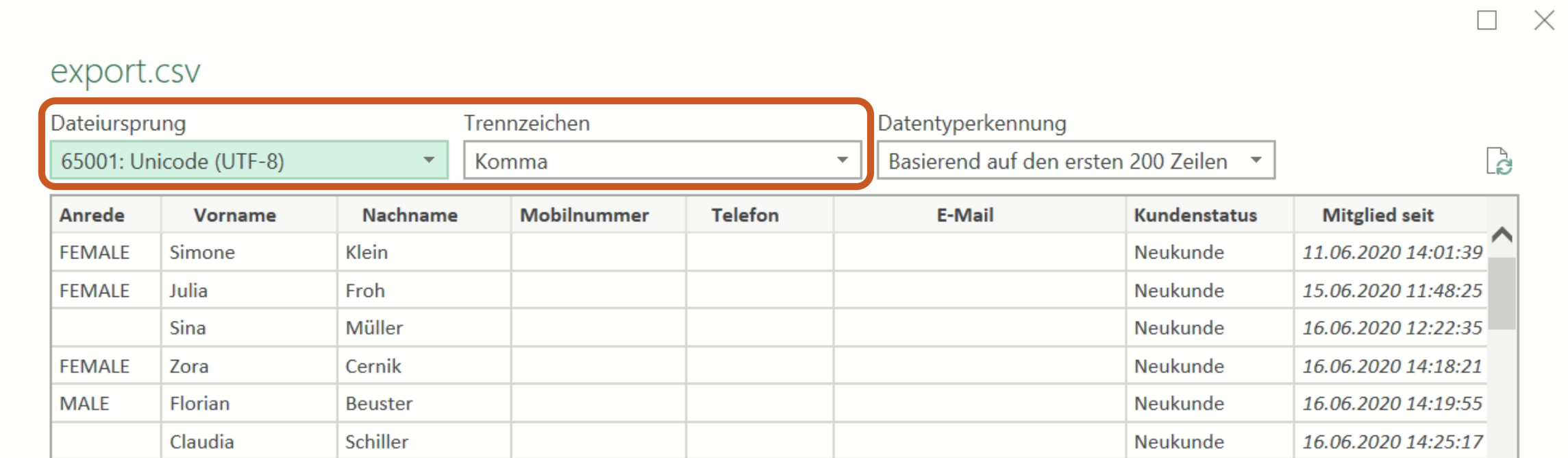
  1. Next, select the export file saved on your computer that you downloaded from Belbo.
  2. Another dialog opens where you can set the display options.
  3. Set the character format to display umlauts correctly. This is usually "UTF-8"
  4. Set the delimiter so that the columns are separated. This is usually "Comma".
  5. Click "Finish" to display the file.

Format Phone Numbers

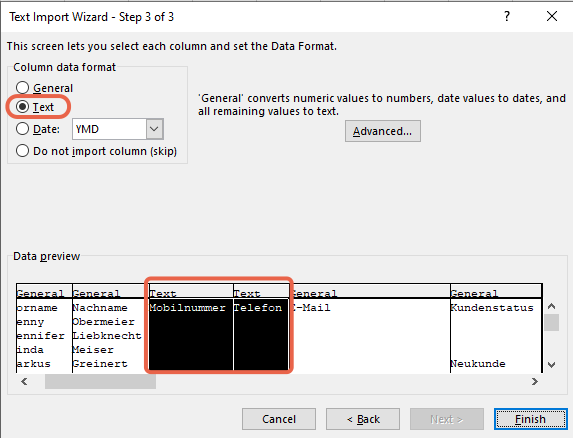
If your phone numbers were entered with a leading + or other characters, Excel sometimes interprets these as a formula and replaces the number with scientific numbers (e.g.: "1.23456E+10" instead of the phone number).

To do this, in step 3 of the import wizard, select the desired phone columns and specify that they should be displayed as "Text":
Categories: Export Overview
Tags: Excel

Have a question? Ask it here.

This manual is a service by belbo. Legal notice