belbo
  • Overview
    • Getting to know Belbo
    • Location Settings
    • Switch to Belbo
    • Calendar View & Navigation
    • Recurring Appointments & Courses
    • Appointment Entry & Management
    • Logins & Permissions
    • Multiple Locations & Head Office
    • Manage Employees
    • Absences & Holidays
    • General
    • Working Hours
    • Time Tracking
    • Data Protection (GDPR)
    • Customer Communication (Email, SMS)
    • Customer Management & Records
    • Bonus & Loyalty Programs
    • Campaigns (Newsletter & SMS)
    • Marketing Consents (GDPR)
    • Tracking & Analytics
    • Overview
    • Services & Prices
    • Products
    • Service Packages & Subscriptions
    • Vouchers
    • Purchasing & Suppliers
    • Stock & Inventory
    • Scanning & Sales
    • Materials & Costs
    • Design & Texts
    • Setup & Settings
    • Integration (Website, Google, Instagram, Facebook)
    • Online payment
    • Accounting & Exports
    • Cash Register Settings & Hardware
    • Checkout process
    • Daily Closing & Reports
    • TSE & Cash Register Anti-Tampering Ordinance
    • Export Overview
    • Employee Utilization
    • Revenue & Reports
    • Belbo Satellite
    • Printer
    • EC Terminal & Card Payment
    • Troubleshooting Hardware
    • Scanner & POS Devices
    • General Settings
    • API & Integrations
    • Notifications & Emails
    • Contracts & Legal
Skip to content

Lock customers

Prevent unwanted customers from booking appointments online.


You can access this area via Settings > Block customers
If this function is not enabled, you can enable it via "Settings > Add function".


You can prevent appointment bookings from certain customers based on their email address or mobile number. This is also possible if you want to allow online booking without prior registration. Customers who are already registered can be blocked via the customer file if you do not offer booking without registration anyway.

Use cases:

  • Unreliable customers who do not cancel in time or do not pay their invoices
  • Customers who harass or stalk employees
  • Business-damaging bookings, e.g. by competitors or former employees

Block a customer

In the "Block customers" function, you can block as many customers as you want. If this function is not enabled, you can enable it via "Settings > Add function".

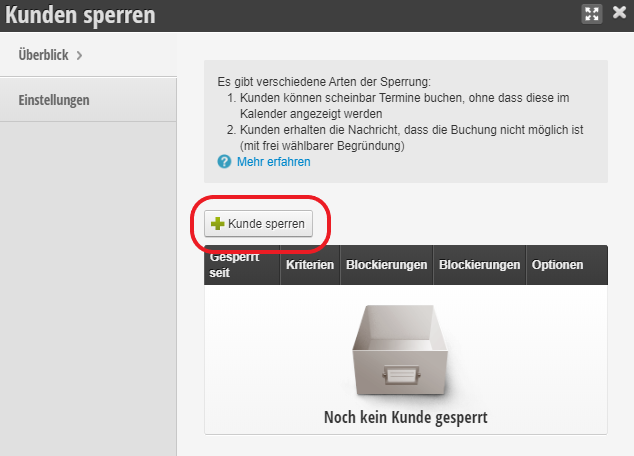
  1. Go to Settings > Block customers and click "+ Block customer".
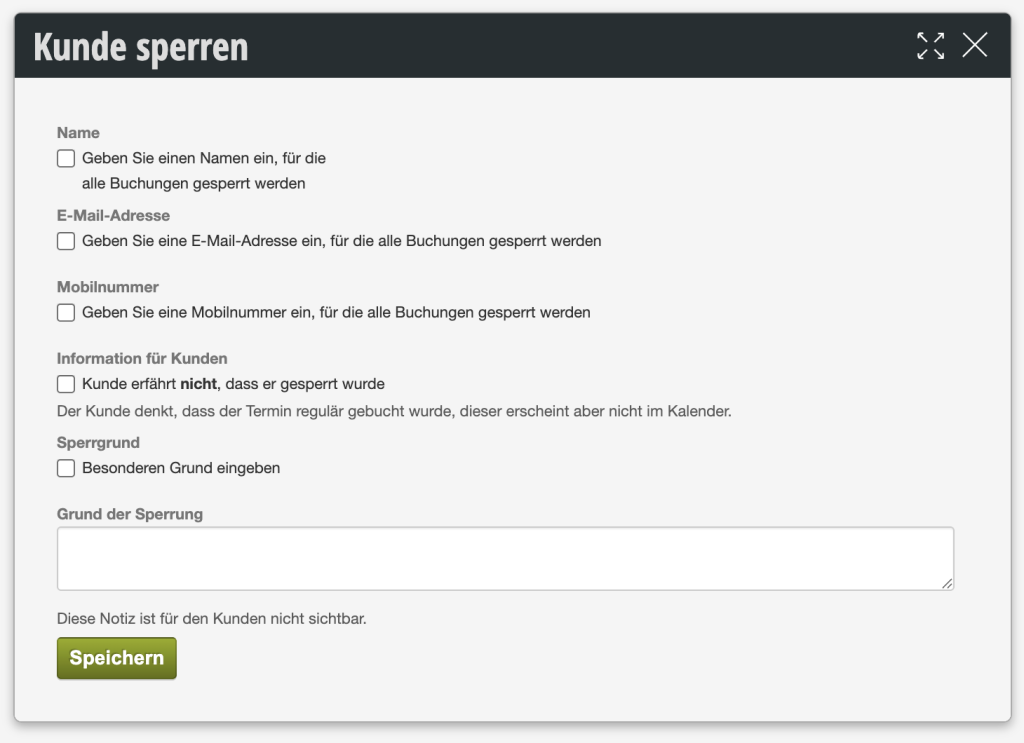
  2. Specify the attribute to be blocked. This can be the email address, the mobile number, or both.
  3. If necessary, enter a reason for the block so that colleagues can understand the reason later.

Tip:

All data contained in a block must match the person booking. To be safe that the email address can never book again, we therefore recommend entering only the email address and the name in a second rule.

Types of blocks

There are different types of blocks:

  1. Customers can apparently book appointments without them being displayed in the calendar
  2. Customers receive a message that the booking is not possible (with a freely selectable reason)


Find out more ways to deal with unreliable customers here.

Categories: Customer Management & Records
This manual is a service by belbo. Legal notice