belbo
  • Overview
    • Getting to know Belbo
    • Location Settings
    • Switch to Belbo
    • Calendar View & Navigation
    • Recurring Appointments & Courses
    • Appointment Entry & Management
    • Logins & Permissions
    • Multiple Locations & Head Office
    • Manage Employees
    • Absences & Holidays
    • General
    • Working Hours
    • Time Tracking
    • Data Protection (GDPR)
    • Customer Communication (Email, SMS)
    • Customer Management & Records
    • Bonus & Loyalty Programs
    • Campaigns (Newsletter & SMS)
    • Marketing Consents (GDPR)
    • Tracking & Analytics
    • Overview
    • Services & Prices
    • Products
    • Service Packages & Subscriptions
    • Vouchers
    • Purchasing & Suppliers
    • Stock & Inventory
    • Scanning & Sales
    • Materials & Costs
    • Design & Texts
    • Setup & Settings
    • Integration (Website, Google, Instagram, Facebook)
    • Online payment
    • Accounting & Exports
    • Cash Register Settings & Hardware
    • Checkout process
    • Daily Closing & Reports
    • TSE & Cash Register Anti-Tampering Ordinance
    • Export Overview
    • Employee Utilization
    • Revenue & Reports
    • Belbo Satellite
    • Printer
    • EC Terminal & Card Payment
    • Troubleshooting Hardware
    • Scanner & POS Devices
    • General Settings
    • API & Integrations
    • Notifications & Emails
    • Contracts & Legal
Skip to content

Calendar settings: Appointment entry – Required fields

In the mandatory fields, you can specify which fields must be filled in during appointment entry in order to save an appointment. If you do not activate these fields, you can also save appointments with "empty" data, which may result in inconsistent customer data.

You can access this area under
Settings > Calendar > Appointment Entry > Mandatory Fields

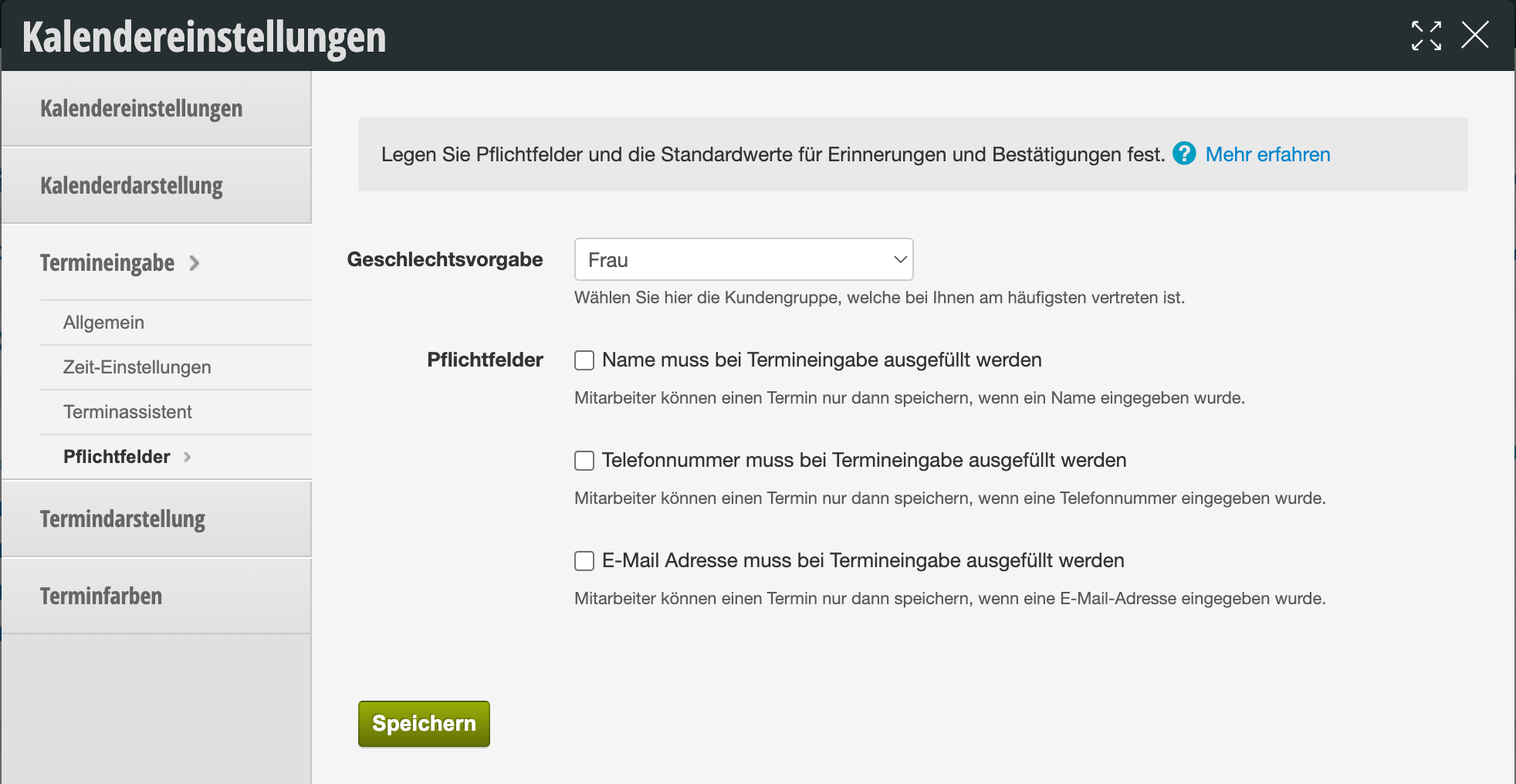
Gender Default

If the majority of your customers are either female or male, it makes sense to set a default here so that gender only needs to be explicitly selected if a customer belongs to a gender not specified here. This is suitable, for example, for nail studios or barbershops.
If you do not set a default here, employees must click on the gender each time to ensure clean data.

Mandatory Fields

Specify here whether name, phone number, and email address must be entered during appointment entry in the calendar, or can be left blank if needed.
For example, if you set the email address as a mandatory field, an appointment cannot be saved without an email address.

Attention: Please discuss with your employees how they should proceed if a customer does not have an email address or absolutely does not want to provide one. The following problems can occur if your employees cannot save appointments without an email address:

  • Employees always enter the same address (info@mycompany.de or similar) in order to save the appointment. In the customer file and in the duplicate finder, these customers appear as duplicates, even though they are not – and are sometimes incorrectly merged. This is critical because the merge cannot be undone.
  • Others enter fictitious addresses (asdf@asdf.de), which may actually exist. Then a third party receives the reminder emails and can complain to you for data protection reasons.

You can find an overview of all calendar settings here.
Categories: Calendar View & Navigation
Tags: Pflichtfelder, Termineingabe
This manual is a service by belbo. Legal notice