You can always track whether and when employees or customers have deleted appointments.
Deleted appointments in the calendar
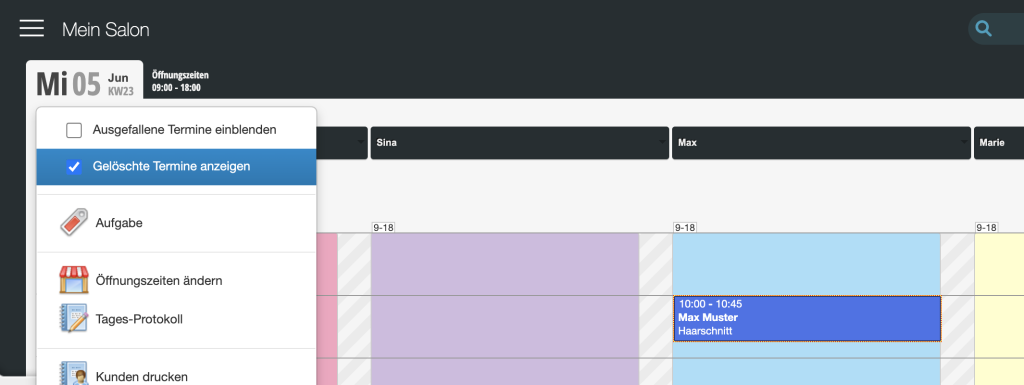
You can temporarily display the deleted appointments for any day. They will then be shown with dotted lines and will be hidden again when you reload the page.
Deleted appointments in the customer file
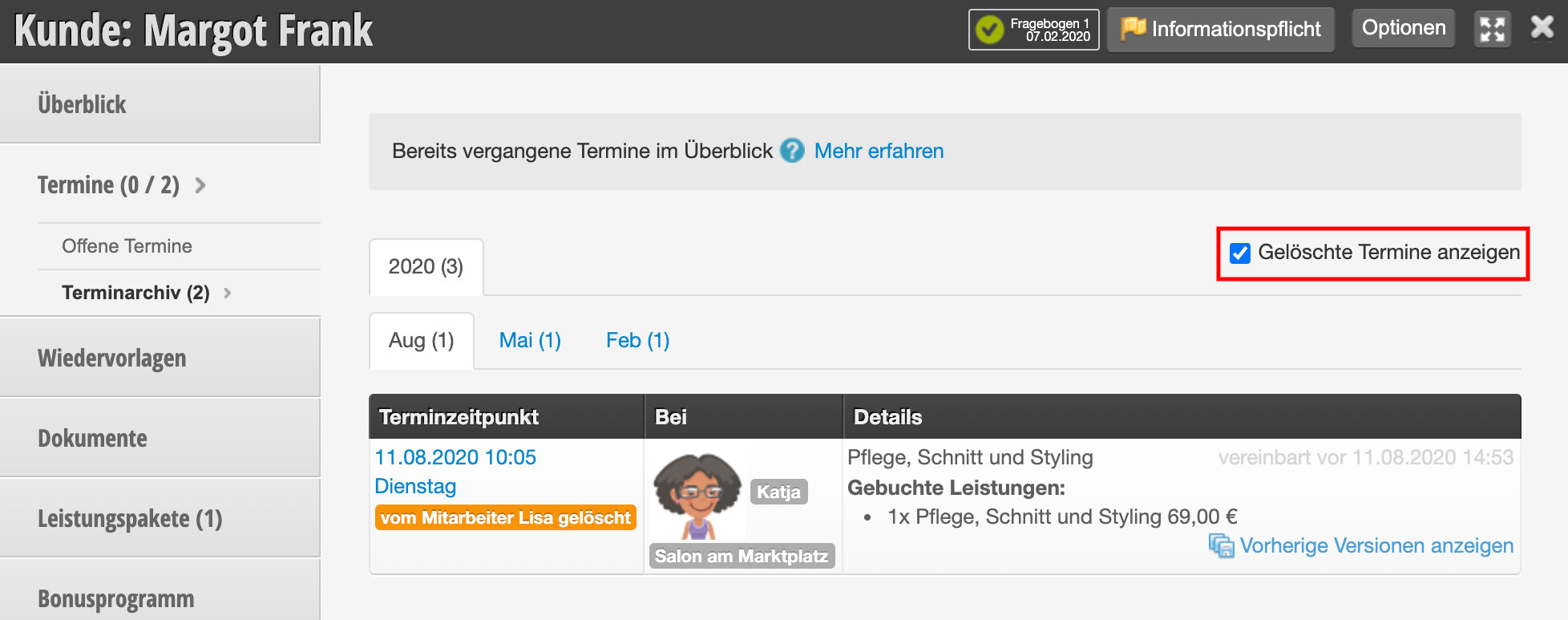
In each customer file, you can display the customer's deleted appointments at any time.
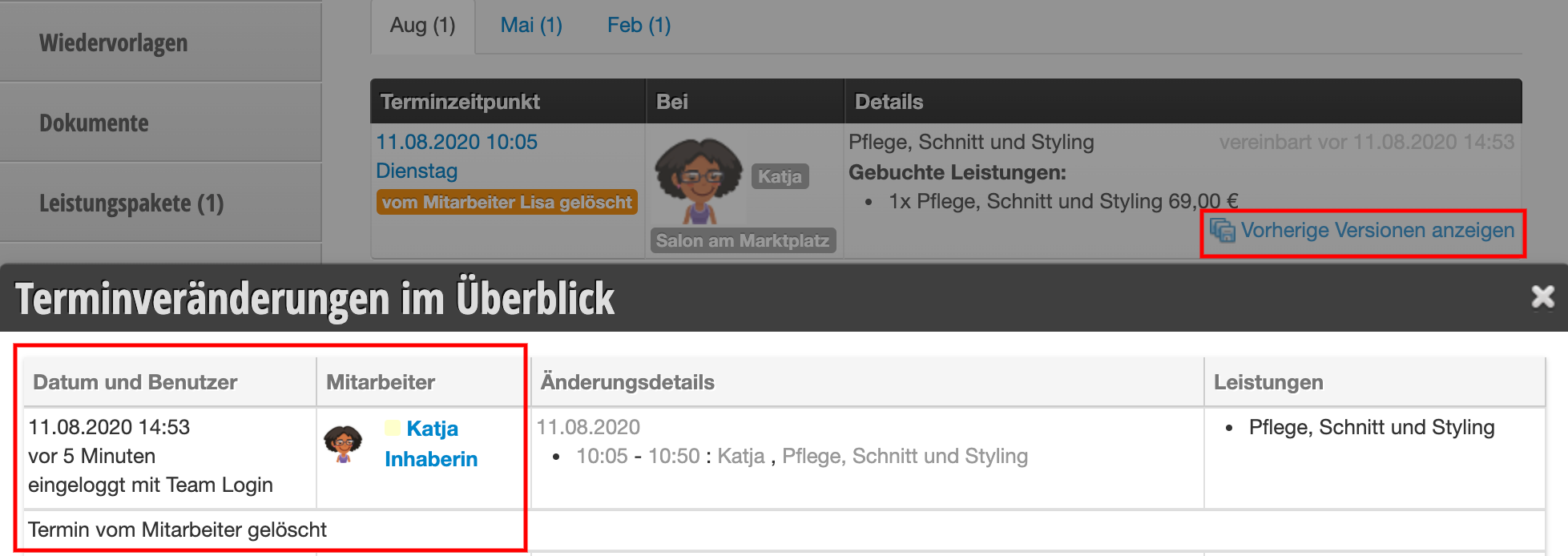
If you would like to find out when the appointment was deleted, you can click on "Show previous versions". Here you can see details about the deletion time and the login used.
Deleted appointments in the log
In the log you can see all appointment changes. Here you can also track which appointments were deleted, when, and by whom.
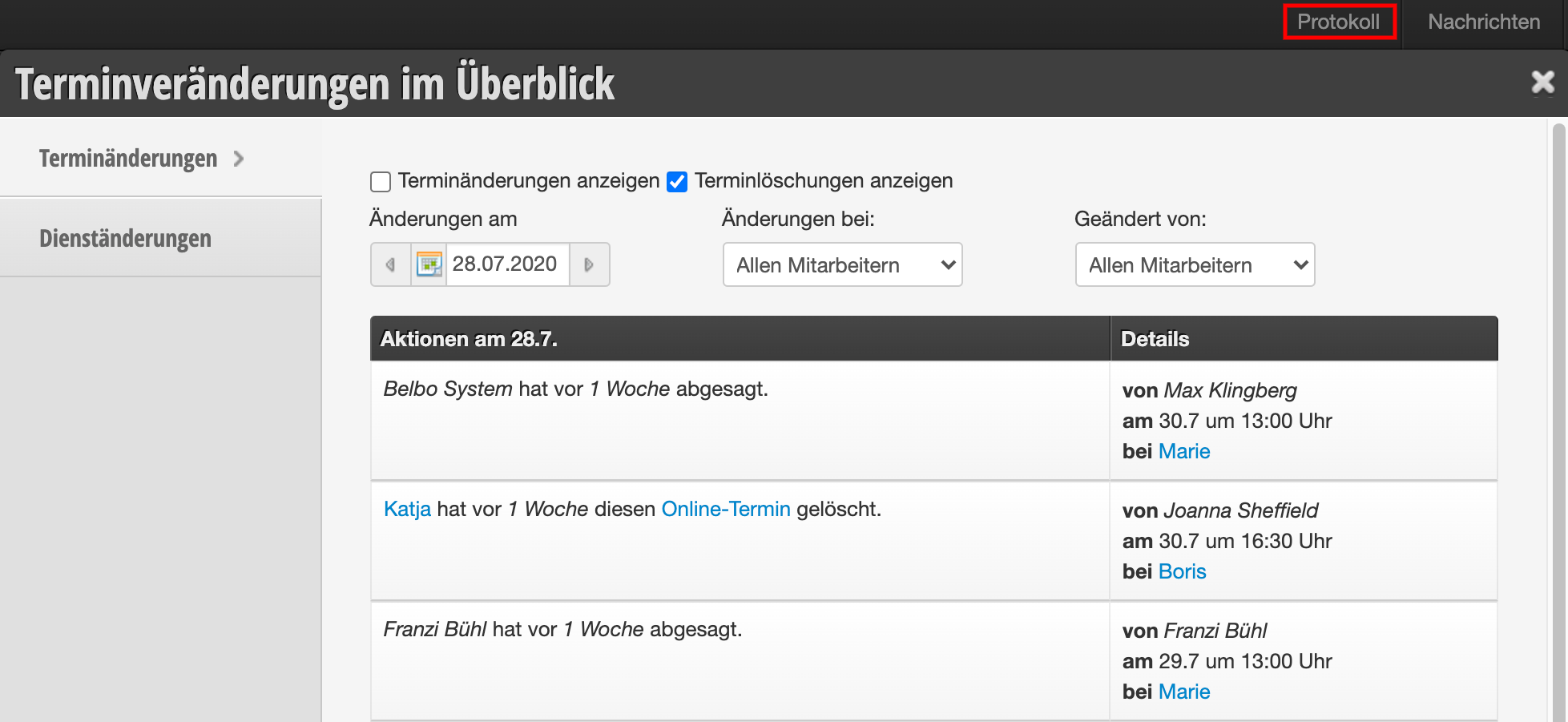
You can access this area in the header of your calendar. If this function is not activated, it can be activated via "Settings > Add function".
Restoring deleted appointments
Accidentally deleted appointments can be restored.
- Click on the blue linked word "Appointments" in the log or on the link "Show previous versions" in the customer file.
- Open the "Options" menu in the top right of the dialog window.
- Restore the appointment. It will be placed at the same location in the calendar as before.
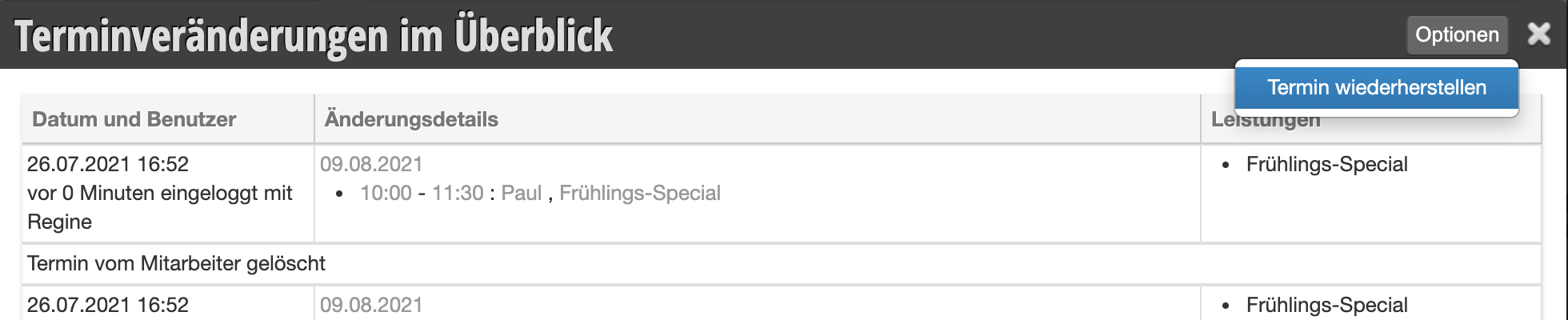
Please then check whether there is still enough space at the location where the appointment was restored. It is possible that another appointment has been entered in the meantime. In this case, both appointments will appear side by side in the calendar.
Apparently "automatic" deletion of appointments
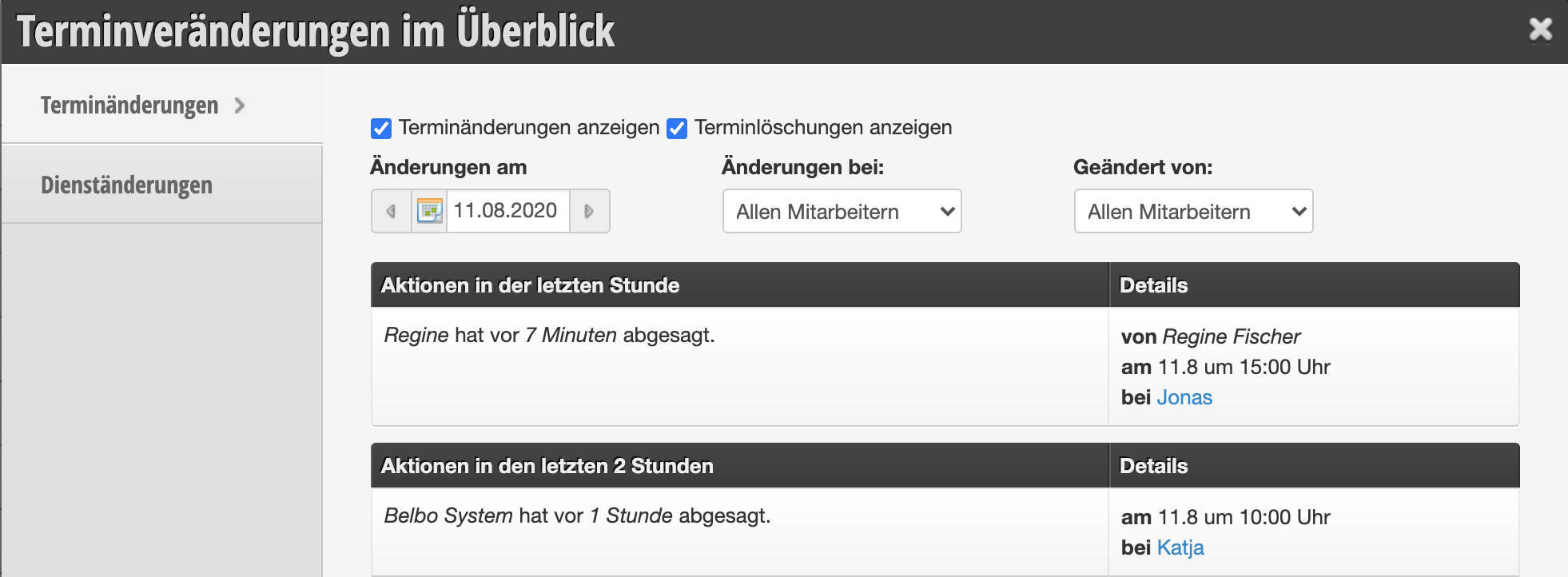
It can happen that you see in the log a notice that neither an employee nor a customer cancelled an appointment. This happens exclusively when an appointment is not completed within the time period you have set. As a rule, this period is 15 minutes. This can happen in the following cases:
- An employee clicks in the calendar at the desired time and begins to enter an appointment, but does not complete the process by clicking "Save". They also do not cancel the process using the "Cancel" button or by clicking in the calendar again.
- A customer selects a time for the appointment online, but does not complete the booking by clicking "Book now".
- A customer selects a time for the appointment online, but then clicks "Back" in the booking process, for example to add another service.
In all three cases, clicking on the desired time creates an appointment draft, which from that point on is no longer available for customers to book and already appears as a "dotted" draft in the calendar for colleagues. This makes unnoticed double bookings in the calendar impossible.
To ensure that the appointment becomes available again after an improper interruption of the booking, the draft is automatically deleted after the reservation period.
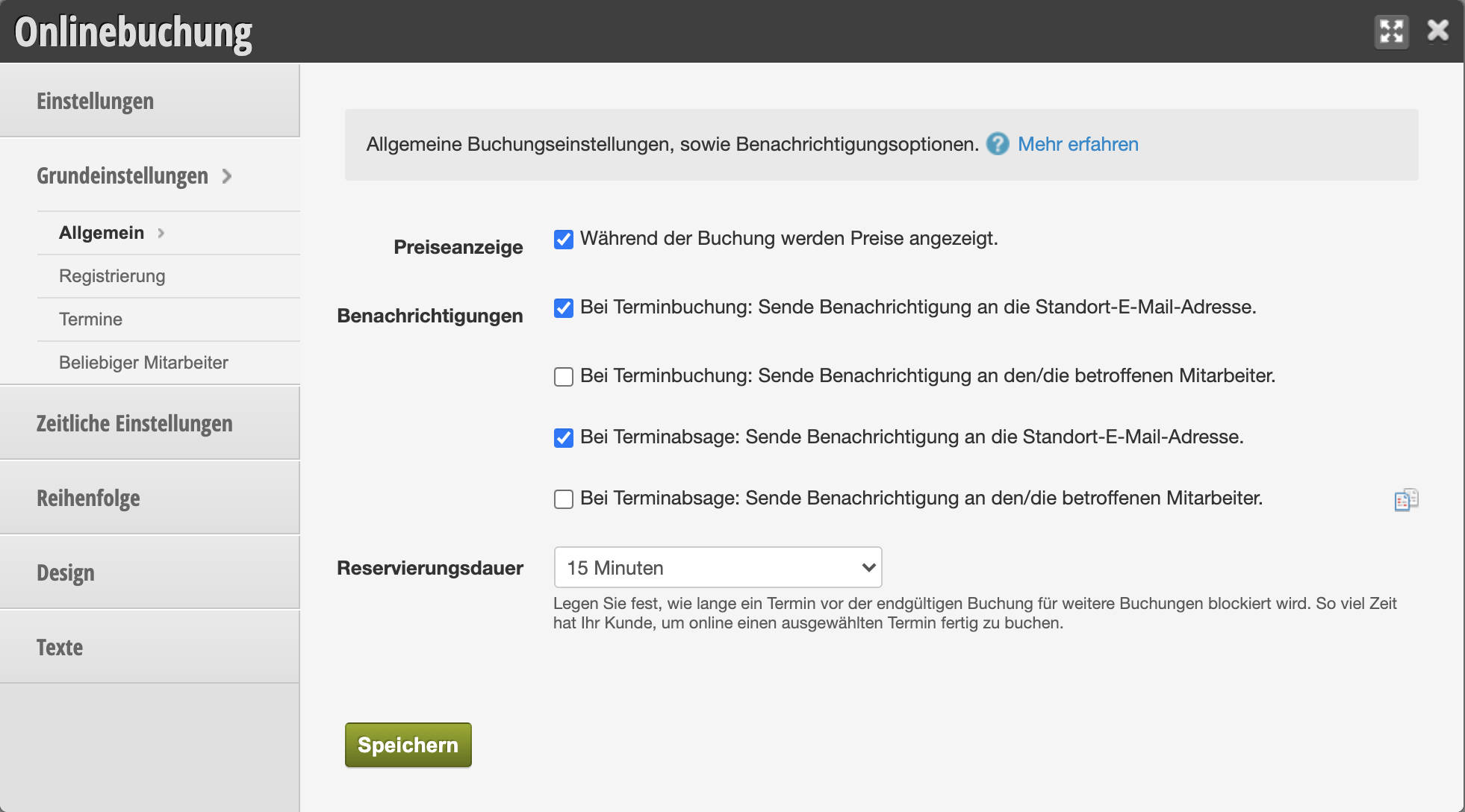
Set reservation period
You can determine the reservation period yourself in the online booking settings. We recommend not setting the period too short so that your customers have enough time to book the desired appointment, even if something unexpected comes up for them.