

Step 1 of 3: Epson Installation
First, install the driver for your Epson model.
- Important: Do not plug the USB cable into the computer before running the installation, otherwise the installation will fail.
- Download the driver software from Epson. You can find some drivers here:
- Epson TM-20: Download driver
- Epson TM-T88IV: Download driver
- Epson TM-T88V: Download driver
- Epson TM-M30: Download driver
- Epson TM-M30 II: Download driver
- Extract the installation file and then run the "setup.exe" file in the "setup" folder.
- Select the "Typical" option and complete the installation.
- Now connect the computer to the printer using the USB cable. Attention: Some printer models have 2 free USB ports. These are labeled "USB-A" and "USB-B". To connect to the computer, you must use the "USB-B" slot.
- The device should now appear in Windows in the area Settings > Devices > Printers once the device is connected to the USB port.
- You can now proceed to Step 2 "Test".
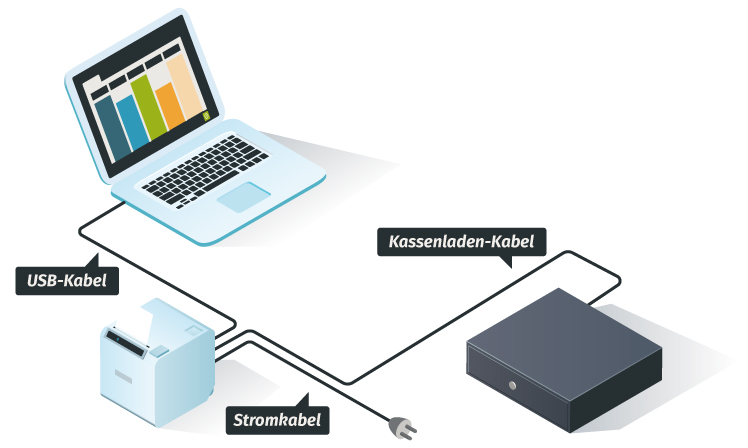
Wiring of POS Devices
Test on a Windows Computer
If the installation and setup were successful, you can test this. To do this, open any text editor and try to print on the printer. Only if this print succeeds can you use the printer in the Belbo system.
- Open the "Notepad" software and enter a short test text, for example "Test".
- Then select "File" in the navigation and then "Print".
- Do you see your printer in the printer selection? Good sign! Select and print. Otherwise, check the driver installation or repeat it if necessary.
- Has the receipt arrived? Excellent, then proceed to Step 3. The printer was not recognizedIf no printing occurs, it may be that you already connected the USB cable before installation. Please plug the cable into another free USB port and test again.
Step 2 of 3: Satellite Installation
Did the test print work? Then everything is ready to go. Now you just need to connect the printer to Belbo.
- Install the Belbo Satellite software before proceeding to the next step.
Step 3 of 3: Printer Connection in Belbo
- Go to "Settings" in your Belbo calendar.
- Enter the term "Printer connection" in the search field at the top of the page and open the "Printer connection" function.
- Switch to the "Printer configuration" tab.
- Select your printer model under "Printer type".
- Click "Set up printer" to find the installed printer.
- Enable your printer and then add it to Belbo.
- A detailed description of printer connection can be found here.