
By clicking on the green symbol 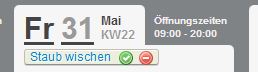 you can mark the task as completed. In this case, the task will be crossed out. By clicking on the red symbol, the task will be deleted.
Everything about: General Settings
Comment on task
Click on the text of the task to open the comment field. Enter your comment in the empty field. For example: "Everything cleaned except counter, counter on Thursday". This way, employees can see what still needs to be done. Click the "Comment" button and then "Close". Attention!!! Individual comments cannot be deleted afterwards without having to delete the entire task.
Add Tasks
You have the option to add general daily tasks in the calendar. These can be assigned to specific employees. Once the task is completed, it can be marked as done.
Create a daily task and mark it as done
Create task
Click on the date of any day in the calendar and select "Add task".
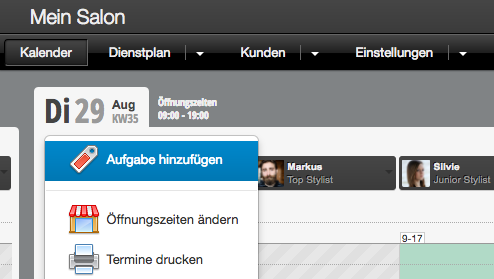
Enter the task and determine the date on which this task applies, then click "Save".
Display of tasks
Then you can save the task and see it in the calendar.
Daily tasks in standard view:
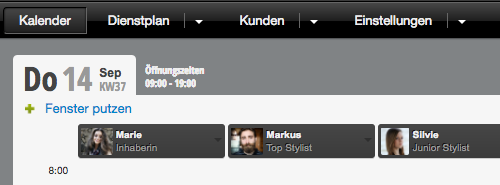
Daily tasks in day view:
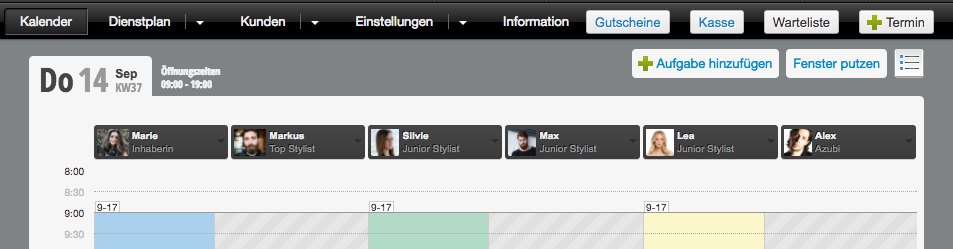
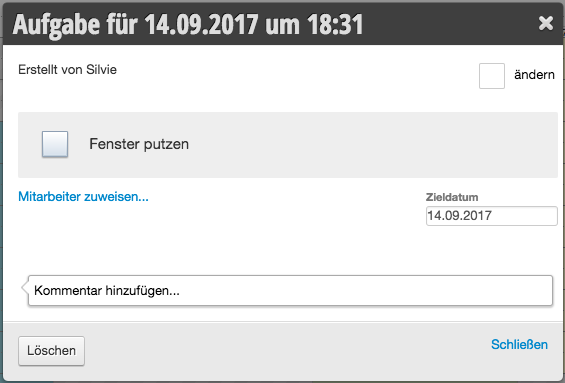
Comment and mark as done
Click on the task and check the box or comment on the task.
Tasks marked as done are crossed out in the calendar.
Tasks marked as done are crossed out in the calendar.
Additional functions
Assign color
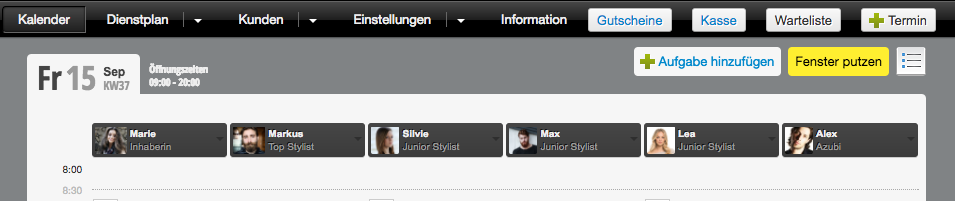
You can assign colors to tasks to make them stand out more clearly in the calendar.
Example of a color-marked task:
Repeat tasks
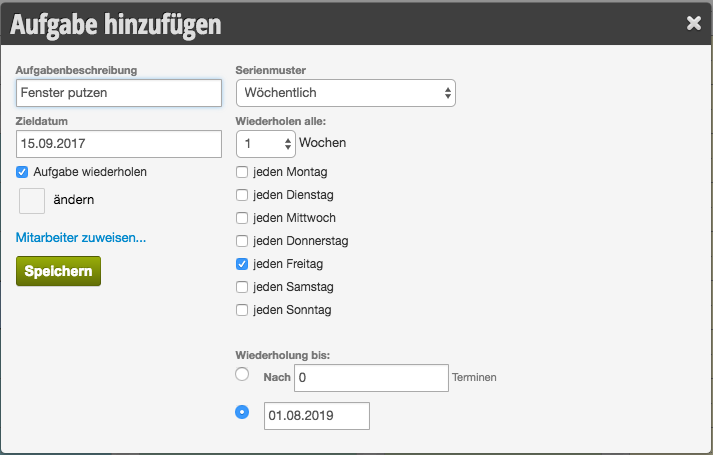
If you want to create recurring tasks, you can enable the "Repeat task" option.
Here you can precisely define the interval and duration for which this task repeats.
Here you can precisely define the interval and duration for which this task repeats.
Assign employees
You can assign one or more employees who should complete this task. They can see in the calendar that they have been assigned a task.
Show overdue tasks
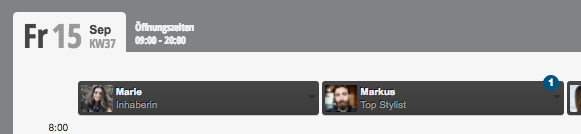
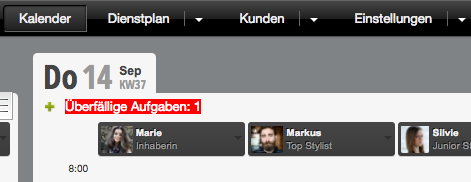
If you enable the "Show overdue tasks" function in the calendar settings, tasks that were not marked as done on the target day will be displayed prominently.
Example of an incomplete task:
Location Settings
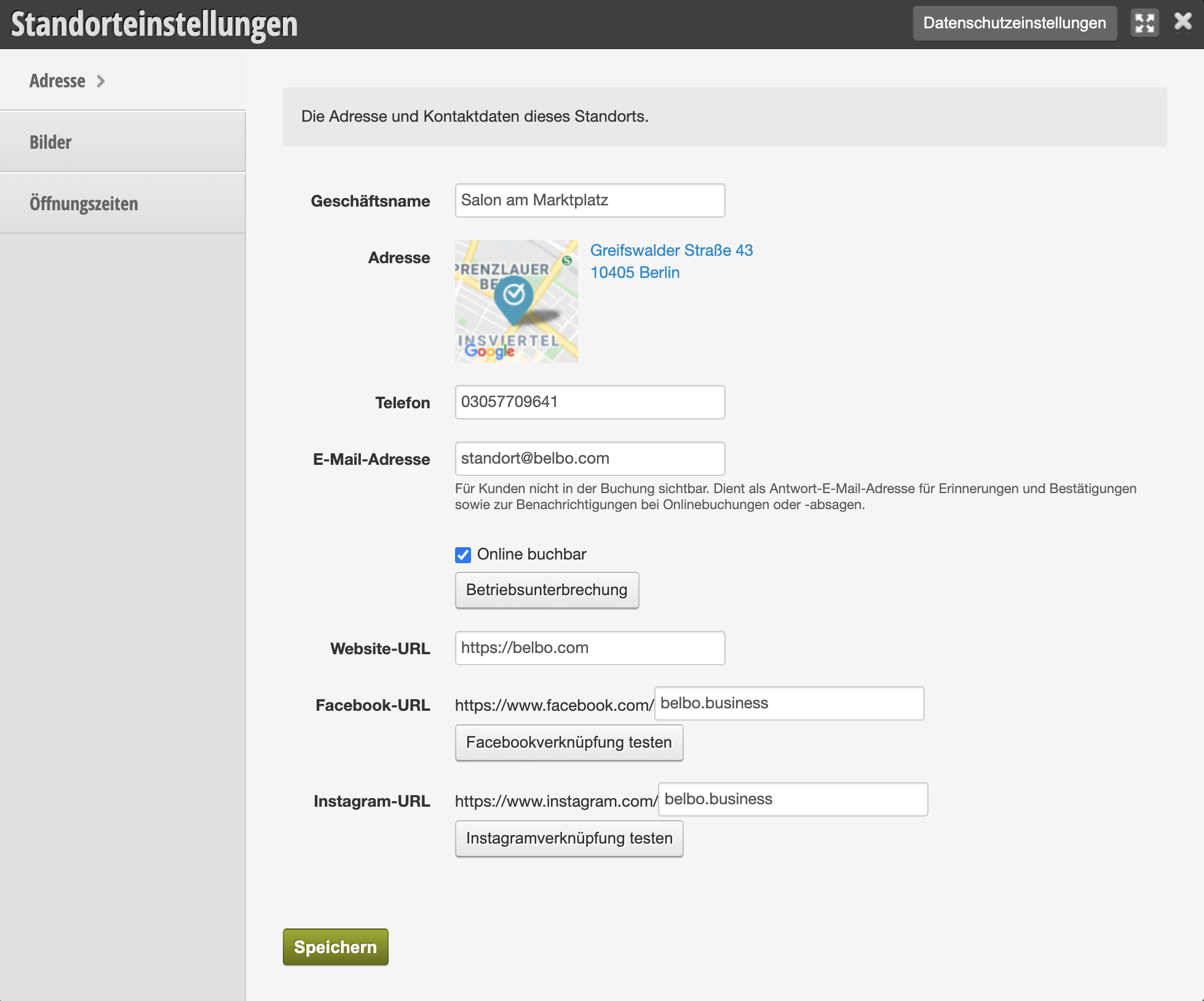
Please enter the address and contact information for this location here.
Address
Business Name
Please enter the business name or business designation for this location here.
Address
Add the complete address of your business here, where your
company can be found.
A map of your location will be displayed here via Google.
Email Address
Enter the email address for the location.
This email address is not visible to customers.
Phone
Enter the phone number for the location.
This phone number is not visible to customers.
Online Bookable
To be bookable online, you must check this box.
If you do not wish this, you can simply leave the box unchecked.
Facebook URL
If you have a Facebook page, enter the link to your page here.
You can test the link using the Facebook Link button.
Instagram URL
If you have an Instagram account, enter the link to your page here.
You can test the link using the Instagram Link button.
Green Save Button
After entering the address information, press the green save button, otherwise the address information will not be saved.
Images
Upload a representative image of your location here. This will also be used if you operate multiple locations or if you have an app.
Gallery
Images can be uploaded here to give an impression of your business.
To do this, please click on the green plus sign labeled Image.
Upload the image and add a description.
Then press save.
Opening Hours
If you want to change the existing opening hours, please press
the green plus sign or the magnifying glass.
A table opens: Edit Opening Hours.
If you want to change the opening hours for the future, please enter the date from which it is valid.
For each day you are open, check the box and enter the opening hours from/to.
If you are closed on certain days, leave the box unchecked.
Press the green save button to save the opening hours.