belbo
  • Overview
    • Getting to know Belbo
    • Location Settings
    • Switch to Belbo
    • Calendar View & Navigation
    • Recurring Appointments & Courses
    • Appointment Entry & Management
    • Logins & Permissions
    • Multiple Locations & Head Office
    • Manage Employees
    • Absences & Holidays
    • General
    • Working Hours
    • Time Tracking
    • Data Protection (GDPR)
    • Customer Communication (Email, SMS)
    • Customer Management & Records
    • Bonus & Loyalty Programs
    • Campaigns (Newsletter & SMS)
    • Marketing Consents (GDPR)
    • Tracking & Analytics
    • Overview
    • Services & Prices
    • Products
    • Service Packages & Subscriptions
    • Vouchers
    • Purchasing & Suppliers
    • Stock & Inventory
    • Scanning & Sales
    • Materials & Costs
    • Design & Texts
    • Setup & Settings
    • Integration (Website, Google, Instagram, Facebook)
    • Online payment
    • Accounting & Exports
    • Cash Register Settings & Hardware
    • Checkout process
    • Daily Closing & Reports
    • TSE & Cash Register Anti-Tampering Ordinance
    • Export Overview
    • Employee Utilization
    • Revenue & Reports
    • Belbo Satellite
    • Printer
    • EC Terminal & Card Payment
    • Troubleshooting Hardware
    • Scanner & POS Devices
    • General Settings
    • API & Integrations
    • Notifications & Emails
    • Contracts & Legal
Skip to content

Add Tasks

You have the option to add general daily tasks in the calendar. These can be assigned to specific employees. Once the task is completed, it can be marked as done.

If this function is not enabled, it can be activated via "Settings > Add Function > Tasks".

Create a daily task and mark it as done

Create task
Click on the date of any day in the calendar and select "Add task".
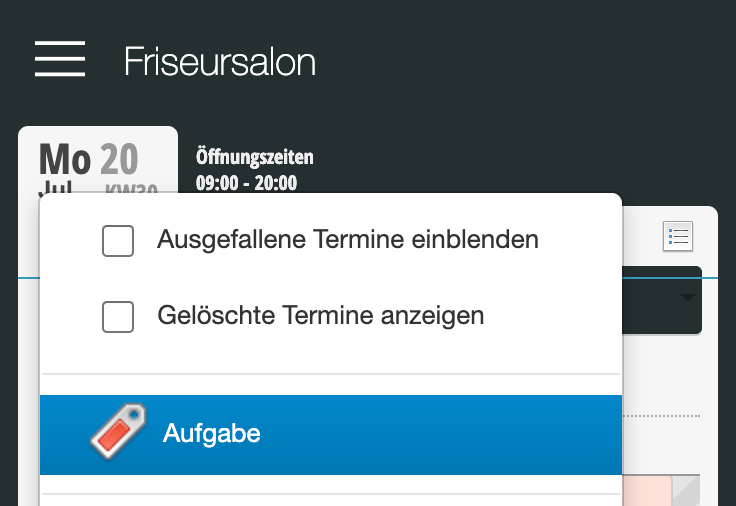
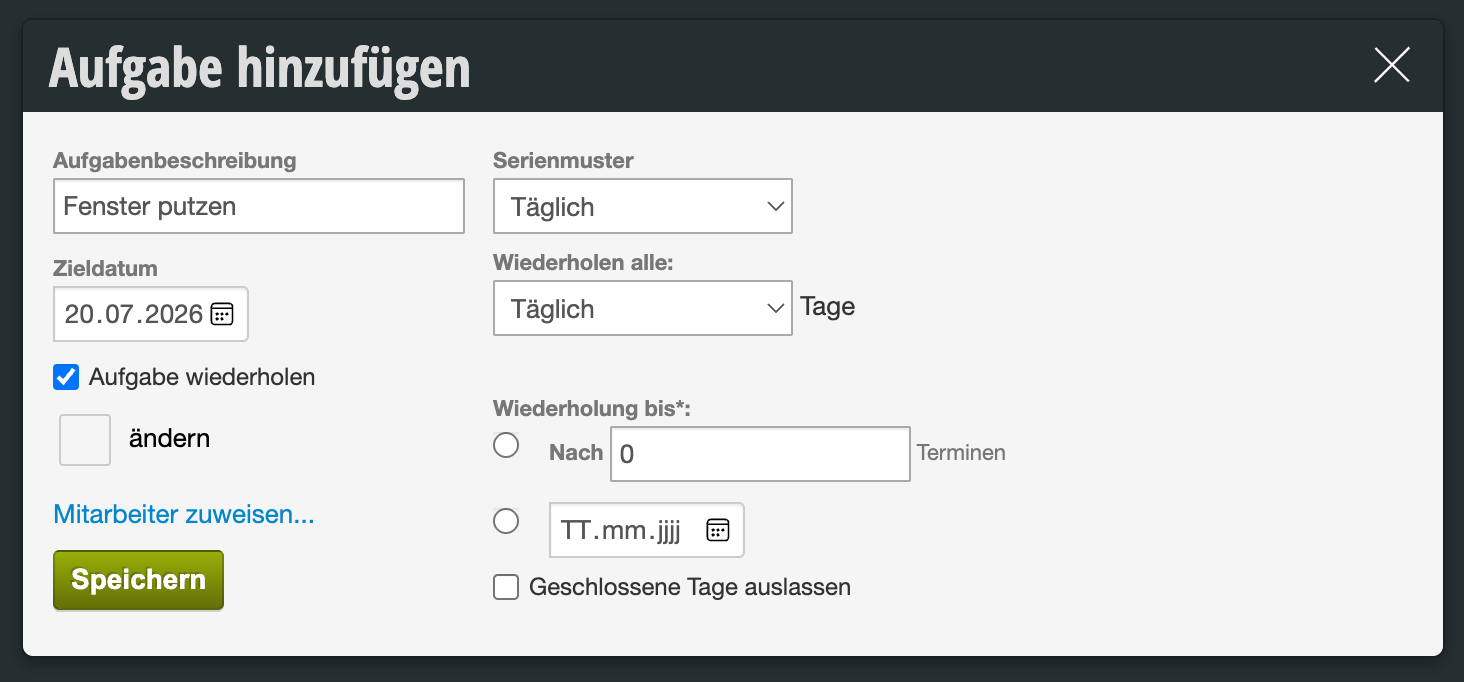
Enter the task and determine the date on which this task applies, then click "Save".

Display of tasks
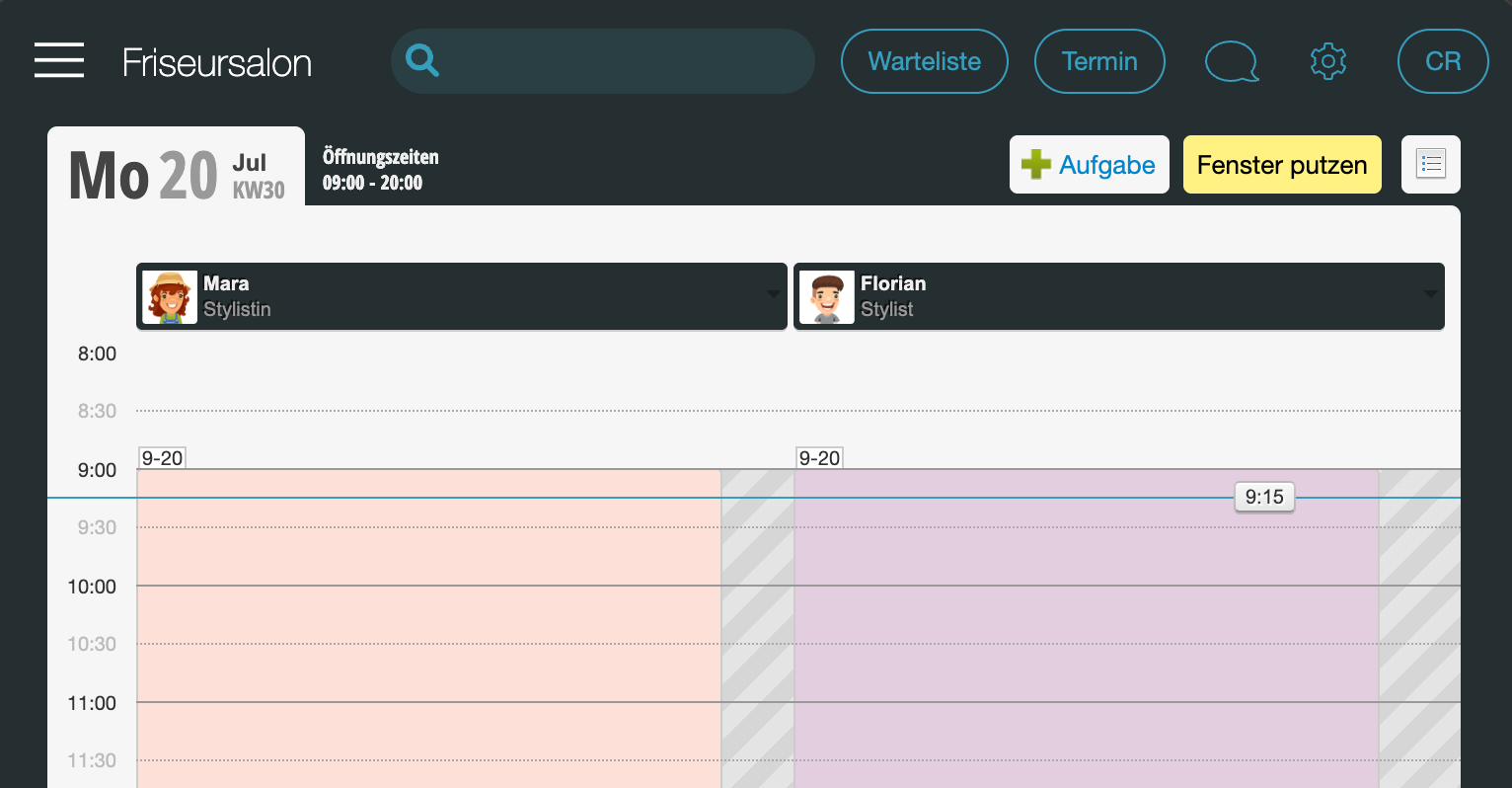
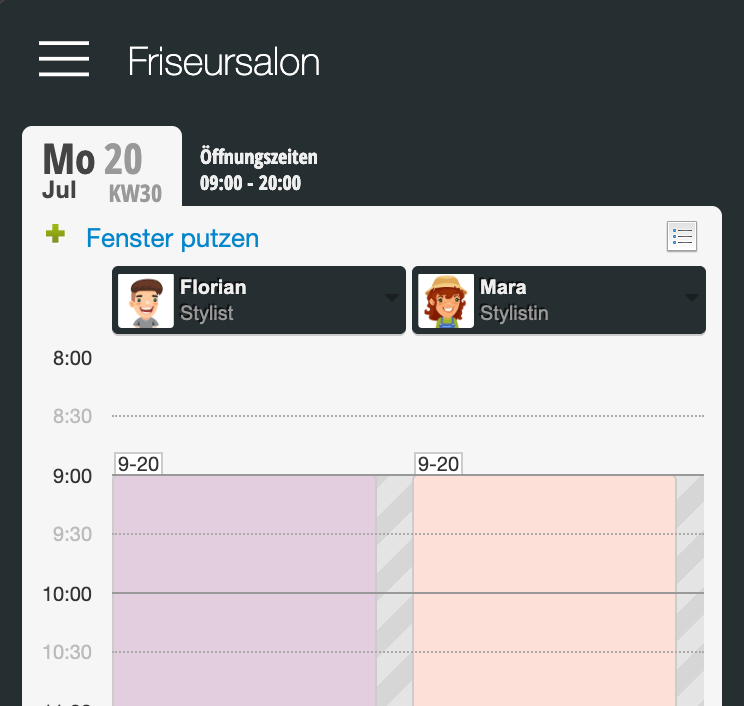
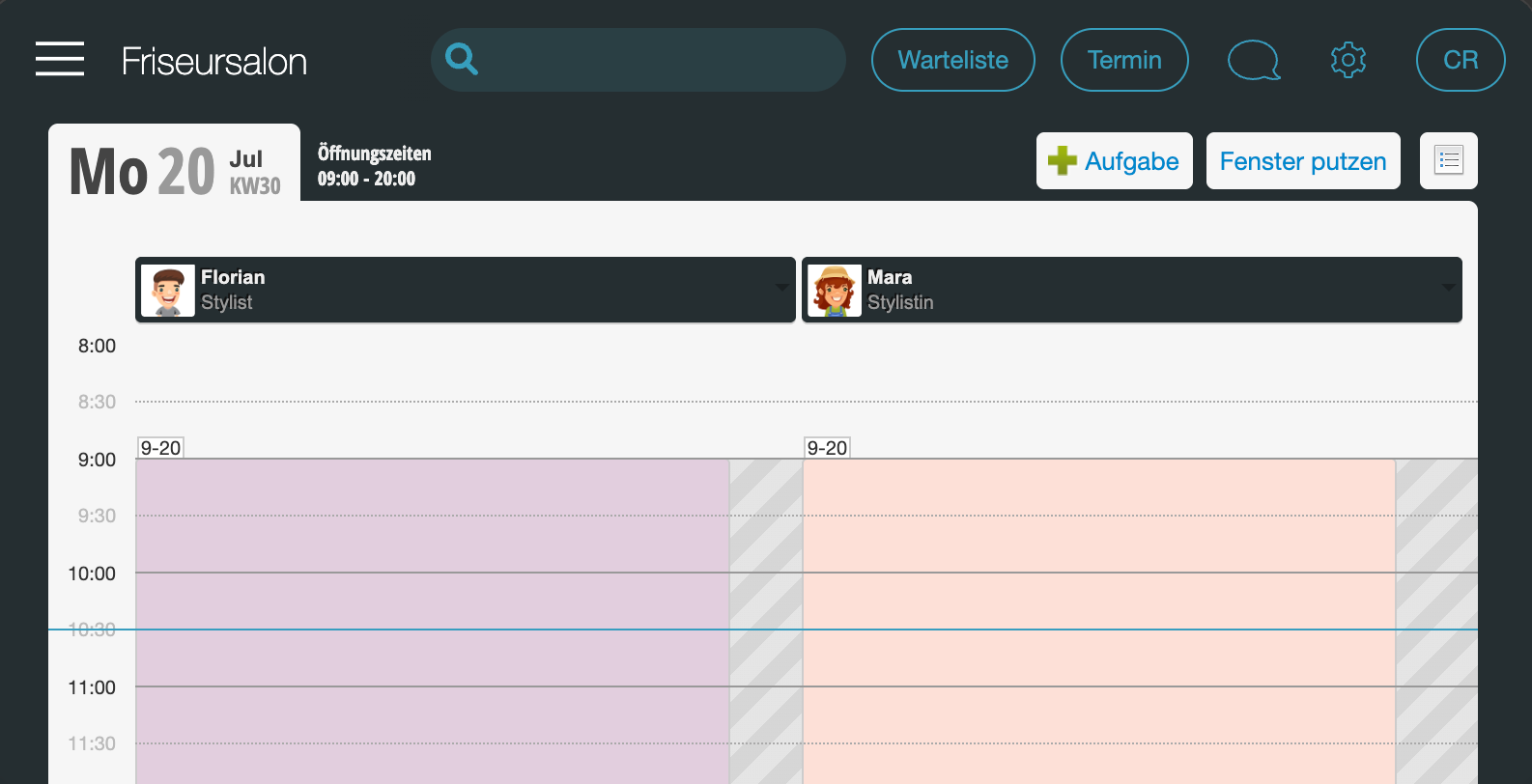
Then you can save the task and see it in the calendar.

Daily tasks in standard view:
Daily tasks in day view:

Comment and mark as done
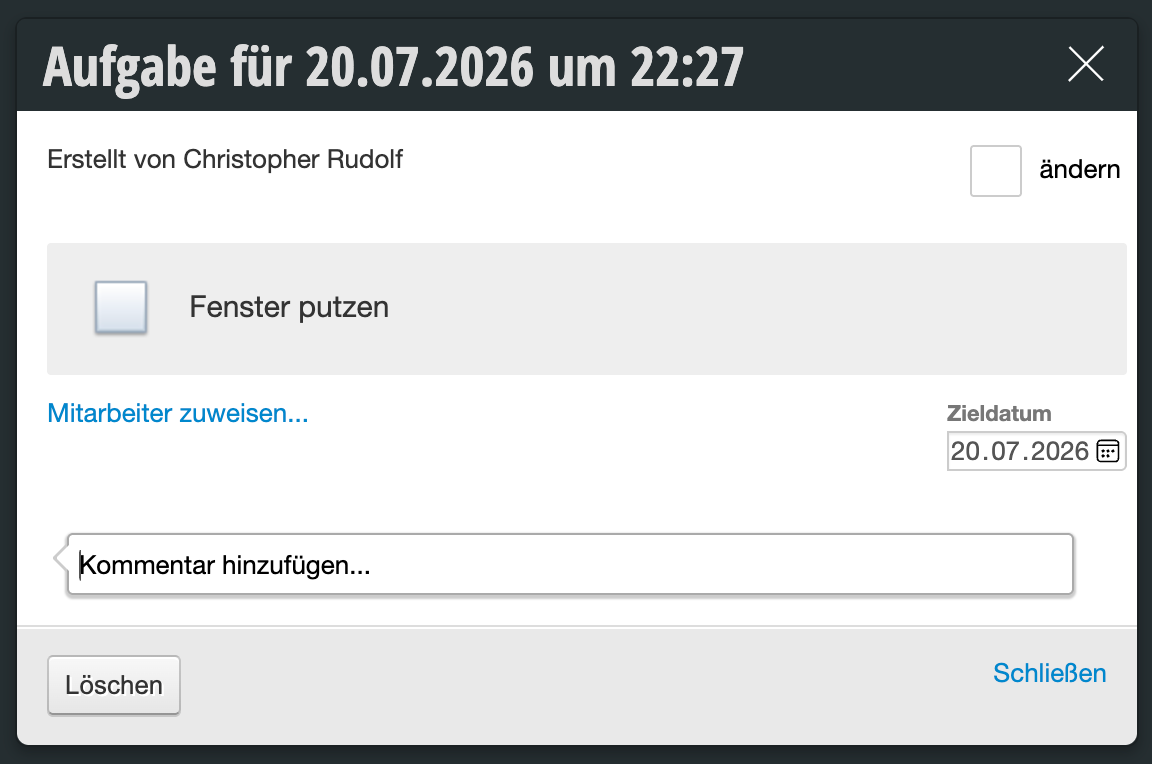
Click on the task and check the box or comment on the task.
Tasks marked as done are crossed out in the calendar.


Additional functions

Assign color
You can assign colors to tasks to make them stand out more clearly in the calendar.

Example of a color-marked task:


Repeat tasks
If you want to create recurring tasks, you can enable the "Repeat task" option.
Here you can precisely define the interval and duration for which this task repeats.


Assign employees
You can assign one or more employees who should complete this task. They can see in the calendar that they have been assigned a task.
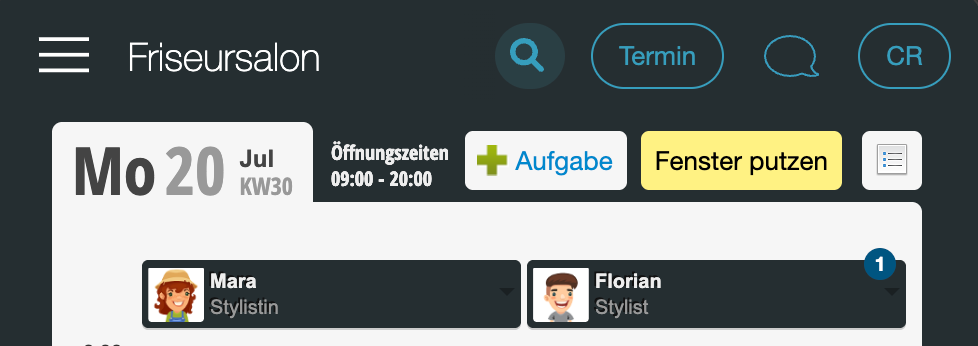

Show overdue tasks
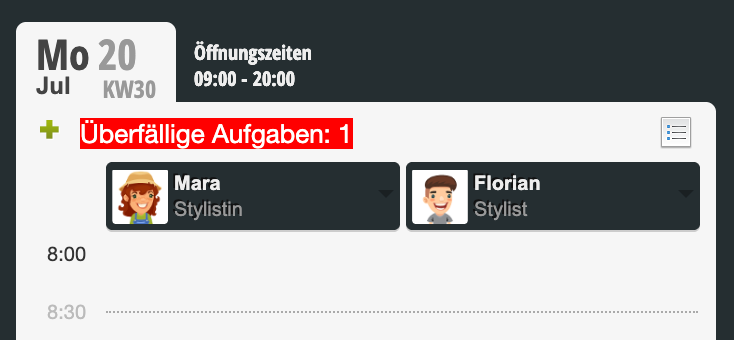
If you enable the "Show overdue tasks" function in the calendar settings, tasks that were not marked as done on the target day will be displayed prominently.

Example of an incomplete task:


Categories: General Settings
Tags: Aufgabe hinzufügen, Aufgaben
This manual is a service by belbo. Legal notice