
belbo
  • Overview
    • Getting to know Belbo
    • Location Settings
    • Switch to Belbo
    • Calendar View & Navigation
    • Recurring Appointments & Courses
    • Appointment Entry & Management
    • Logins & Permissions
    • Multiple Locations & Head Office
    • Manage Employees
    • Absences & Holidays
    • General
    • Working Hours
    • Time Tracking
    • Data Protection (GDPR)
    • Customer Communication (Email, SMS)
    • Customer Management & Records
    • Bonus & Loyalty Programs
    • Campaigns (Newsletter & SMS)
    • Marketing Consents (GDPR)
    • Tracking & Analytics
    • Overview
    • Services & Prices
    • Products
    • Service Packages & Subscriptions
    • Vouchers
    • Purchasing & Suppliers
    • Inventory & Stock Audit
    • Scanning & Sales
    • Materials & Costs
    • Design & Texts
    • Setup & Settings
    • Integration (Website, Google, Instagram, Facebook)
    • Online payment
    • Accounting & Exports
    • Cash Register Settings & Hardware
    • Checkout process
    • Daily Closing & Reports
    • TSE & Cash Register Anti-Tampering Ordinance
    • Export Overview
    • Employee Utilization
    • Revenue & Reports
    • Belbo Satellite
    • Printer
    • EC Terminal & Card Payment
    • Troubleshooting Hardware
    • Scanner & POS Devices
    • General Settings
    • API & Integrations
    • Notifications & Emails
    • Contracts & Legal
Skip to content

Charge products

Once you have created products, you can charge them at the cash register.

Sell product to walk-in customers
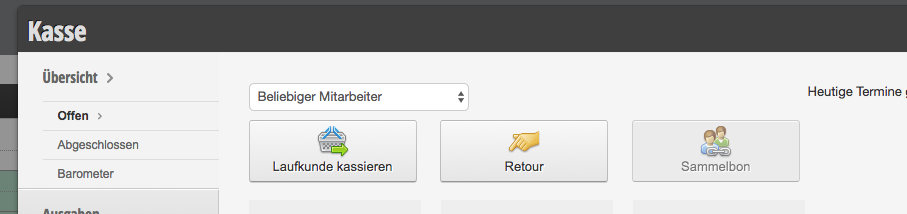
If a walk-in customer without an appointment only purchases a product, first click on Cash Register and then on Charge walk-in customer.

Sell product to appointment customers
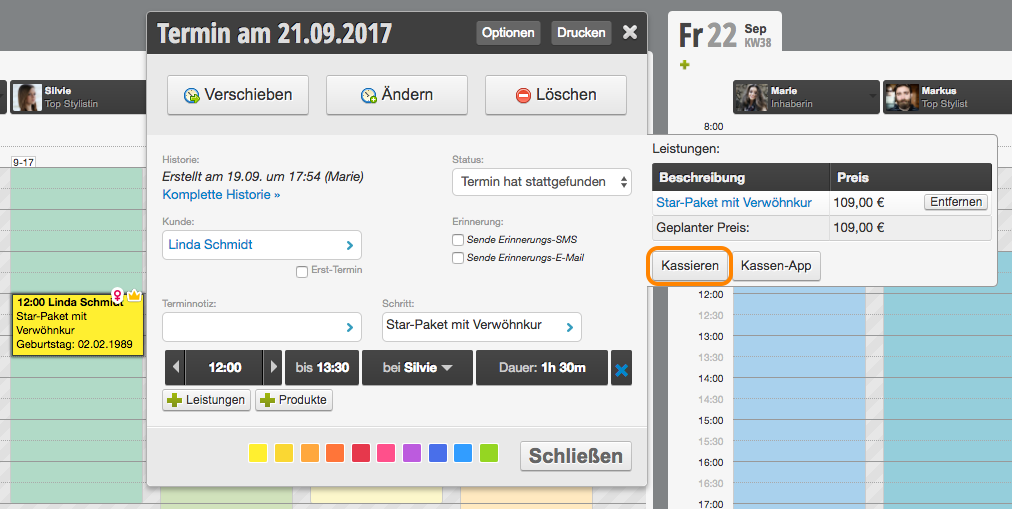
If a customer who has an appointment with you also takes a product with them, click on the appointment in the calendar and then on Charge.

Add products to the checkout process

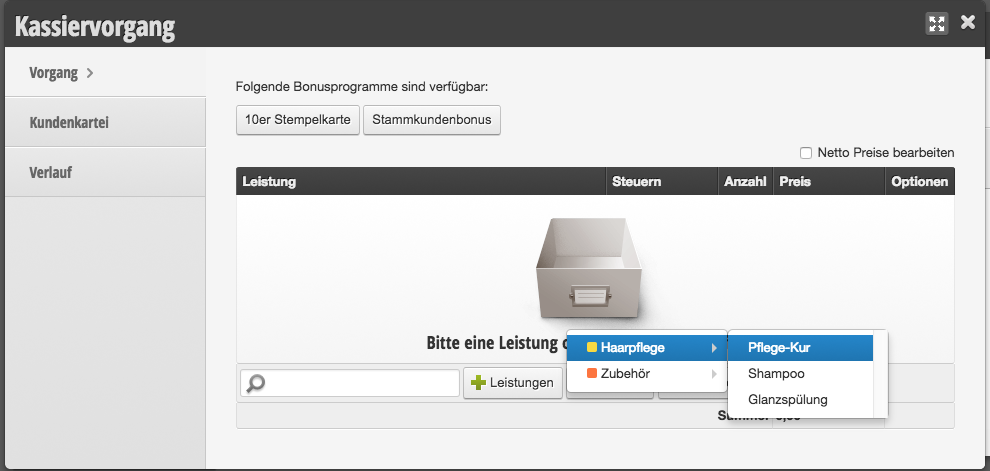
To add a product to the checkout process, you have 3 options:

  • Select manually: Click the + Product button to add a product.
  • Search: Use the search field to search by product name.
  • Scan: Click in the search field and scan the barcode of the product to add it.
Then proceed as described in Charge appointment from step 6 onwards.

Categories: Checkout process
Tags: Produkte verkaufen
This manual is a service by belbo. Legal notice