
If you use the Belbo cash register system, you can capture sales goods using a scanner during the checkout process and add them to the appointment to be checked out. Scanning helps avoid errors and save time.
Scanning products
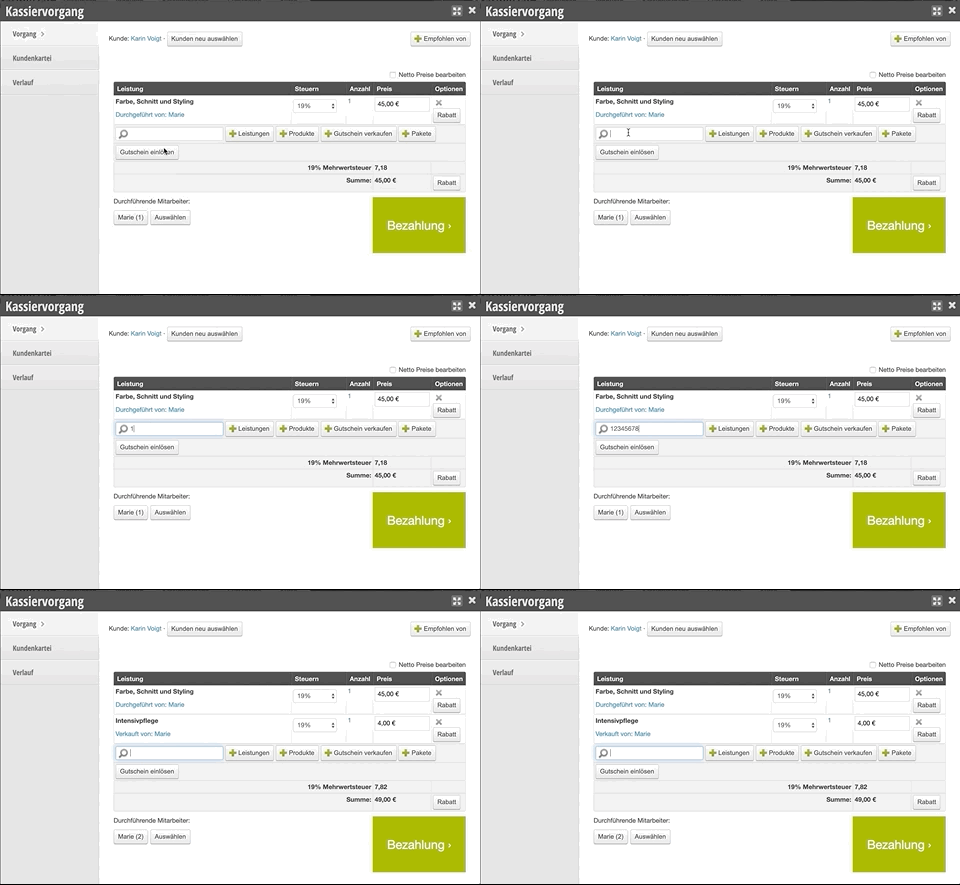
If you want to add products to a checkout process, you can scan the products. Proceed as follows:
- Place the mouse cursor in the search field by clicking in it once. For an unprocessed checkout process, this is already pre-selected.
- Once the barcode is recognized, the product is automatically added to the checkout process.
- You can repeat this as many times as you like to scan additional products.
Prerequisites for scanning
Barcodes in import
The easiest way to add a barcode to your sales products is to import it directly during product import. Many manufacturers offer files in Excel or CSV format that also include the barcode. Please contact the manufacturer or supplier of your product range to request this file.
Manually entering barcodes for existing products
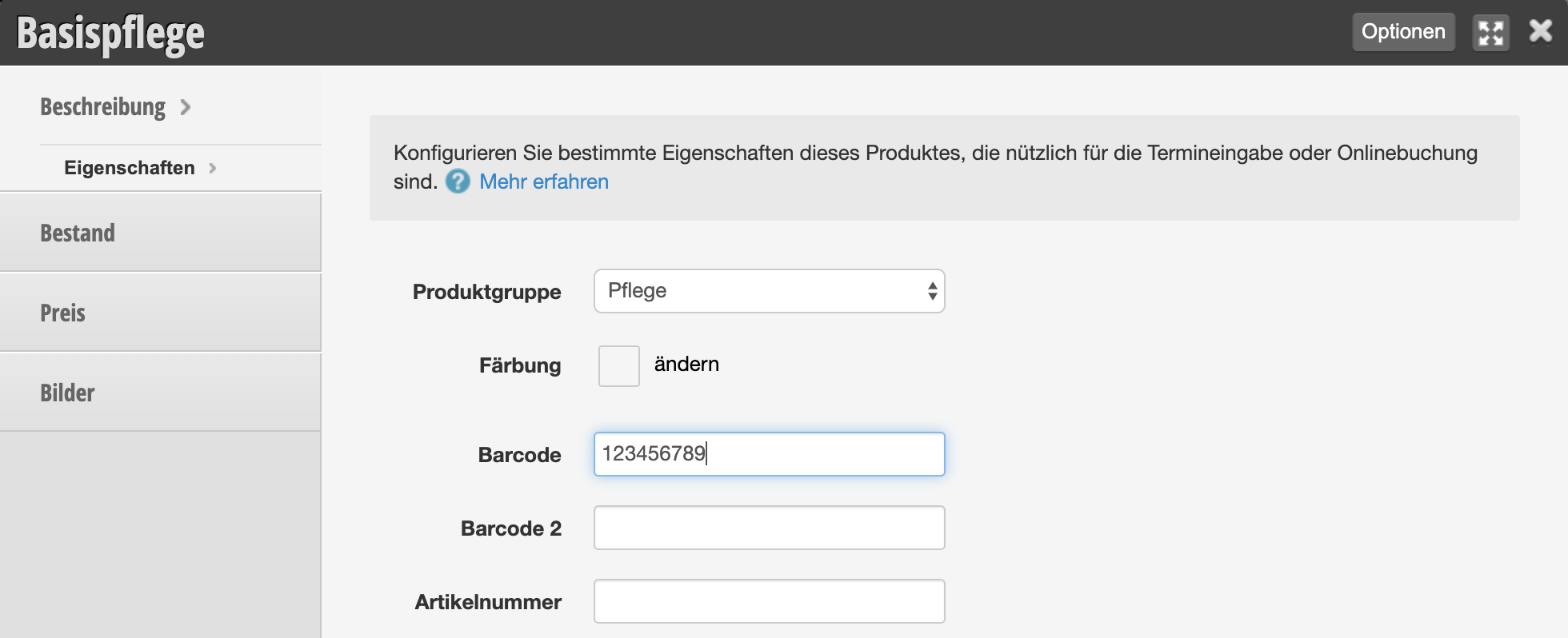
If your product manufacturer does not provide files or insufficient files for product import, you can also enter the barcodes manually. Proceed as follows:
- Have the desired product and your correctly installed scanner ready at hand.
- Under Settings » Prices and Services » Products, click on the appropriate product.
- Place the mouse cursor in the "Barcode" field in the "Properties" tab by clicking in it once.
- Now scan the barcode of the product.
- The field should automatically be filled with the correct barcode.
- Don't forget to save the entry.
Barcodes when creating a new product
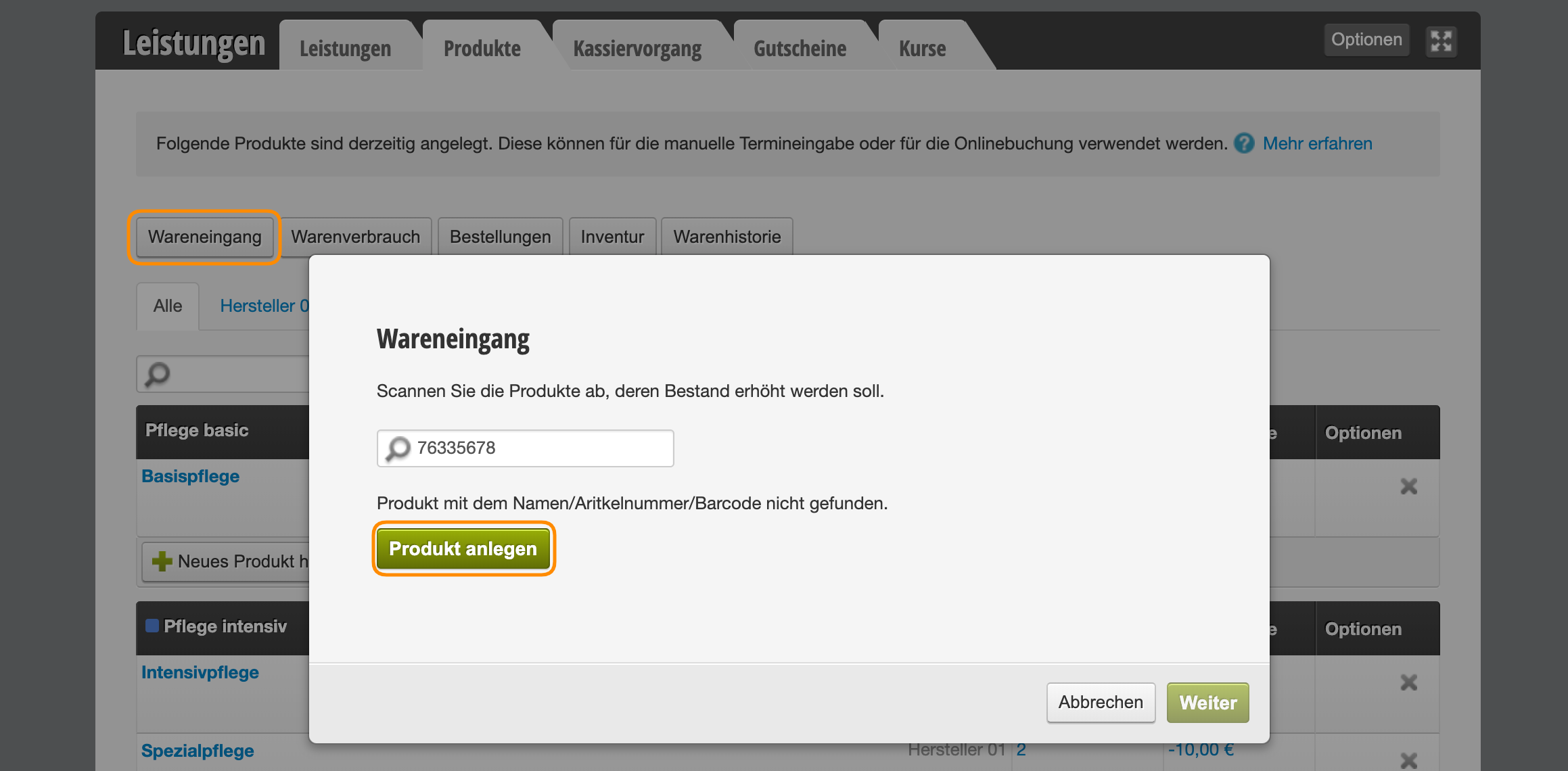
You can also scan new products to add them to your product overview. The appropriate barcode will be automatically saved.
- Under Settings » Prices and Services » Products, click on "Goods Receipt".
- Scan the new product.
- If the barcode is not recognized, Belbo will suggest that the product should be created new. Click the "Create Product" button to create a new product.
- After that, the new product is created and can be scanned at checkout.
Troubleshooting: No product is added to the checkout when scanning
If scanning your products in the checkout process is not working, this can have various causes. Please check the following cases:
Is the scanner installed correctly?
- Place the cursor in any input field, for example in the search field of the Belbo checkout process.
- Is a number entered? If so, check whether the code is correctly stored in the product (see below).
- If no number is entered, install your scanner according to the operating instructions.
Is the barcode stored correctly?
- Go to Settings > Prices and Competencies and select the "Products" tab
- Open the product you tried to scan.
- Check whether a barcode is stored here and whether the number entered here corresponds to the number printed under the barcode on the product packaging.
- Add or correct the barcode so that the product can be scanned correctly in the future.