
You can add products to your Belbo calendar manually at any time by creating a new product. However, if you want to import a large number of products into your Belbo calendar, you can also import them.
Product Import
Note: Product import is technically demanding. If you wish, we can handle the import for a fee. Just get in touch with us.
Your import data must be in Excel or CSV format. Many manufacturers provide detailed lists. Please make sure that all required columns are included in your import.
Required columns:
- Product category
- Product name
- Sales price
Examples of other importable columns:
- Description
- Up to 2 barcodes for scanning products
- Inventory
- Target inventory for orders
- Purchase price
- Tax rate
- Article number
Import Process
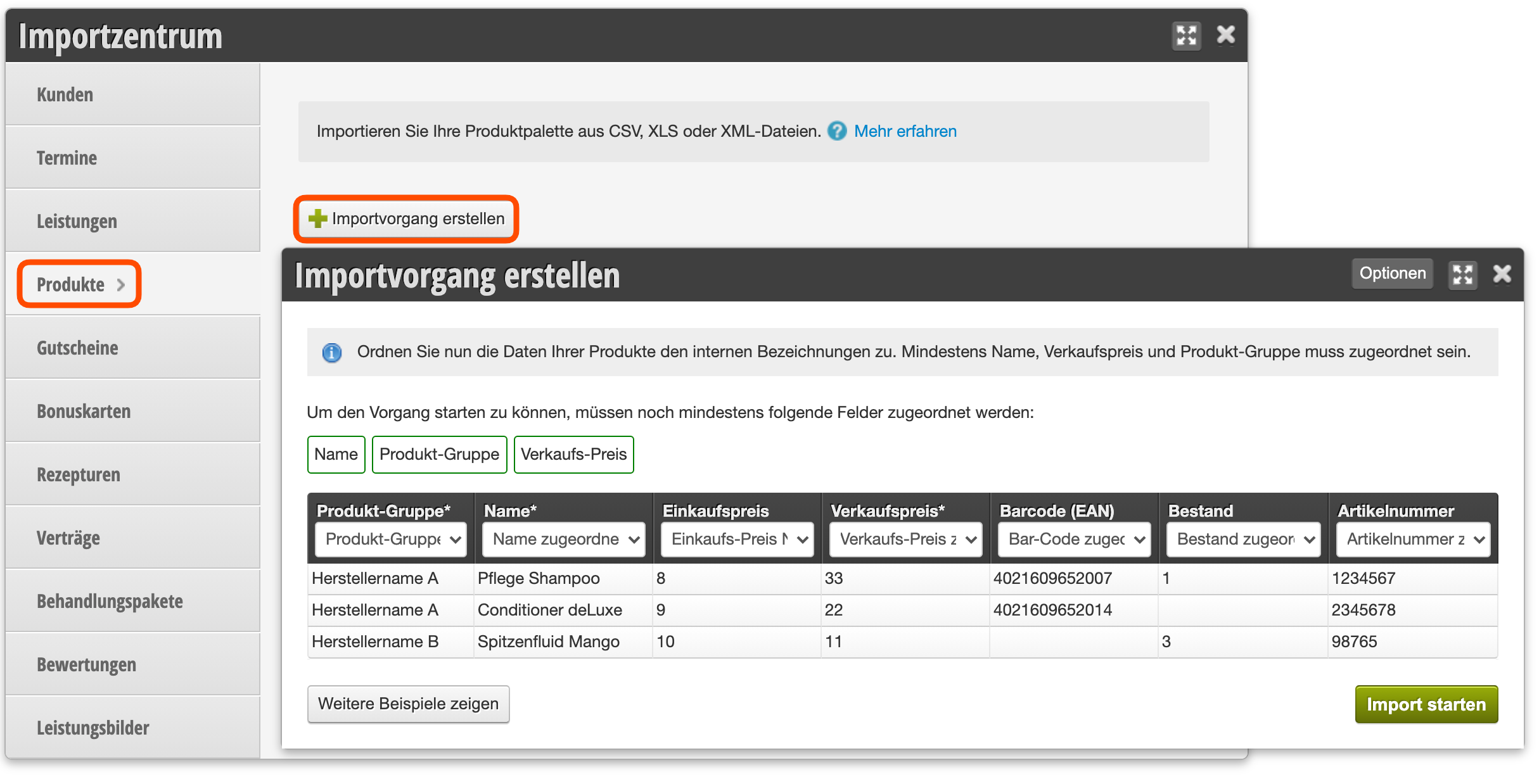
- Click on Import Center in the top right of the Settings page and switch to the "Products" tab.
- Create a new import job using the "Create import" button.
- Select the file you want to upload and wait until the process is complete.
- The detected data will then be displayed. Here you can assign the columns of your export to the field names of the products in your online calendar in the table header.
- If your product file is already populated, you can use the following step to avoid duplicates: Here you can optionally select fields that will be used to precisely match existing products. If existing products match completely in these fields, all other fields will be overwritten with the values from the export. Warning: Use unique column combinations so that on the one hand no duplicates are created and on the other hand no products are overwritten with incorrect information.
- Start the import process. This process may take some time depending on the number of products. You can close the window in the meantime.
Import Price Changes
If you only want to change the prices of your products, you can import the products again. The article number will be matched. If a product with the same article number already exists, it will not be created anew, but only the price will be adjusted. This makes price changes easy to import.