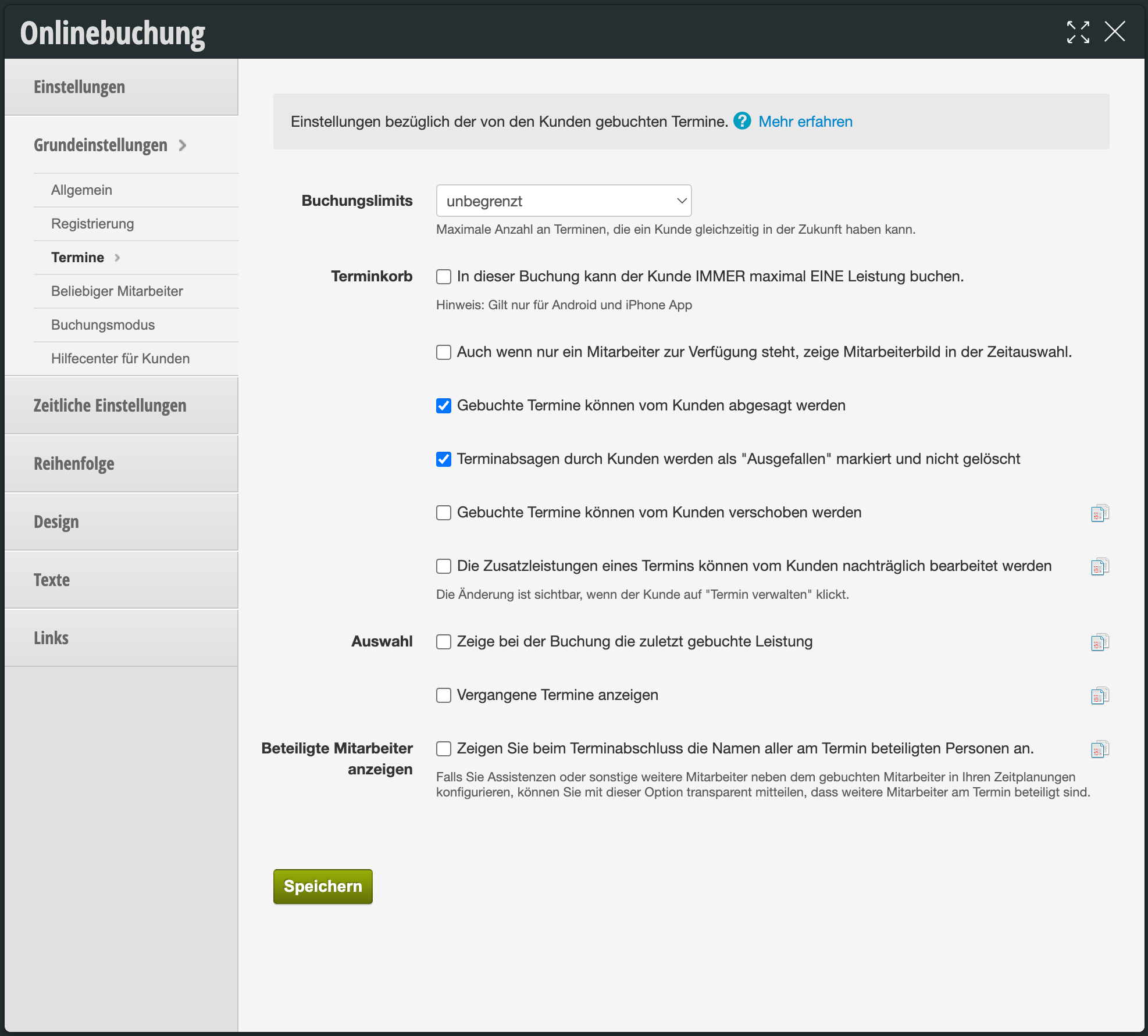
In the appointment settings you can customize the appointment booking according to your wishes.
Number of appointments
Determine the maximum number of appointments that the customer can book at the same time. The number of appointments refers to future appointments. If the customer already has this number of open appointments, they must wait for one appointment before they can book a new one.
Appointment cart
Limits the number of selectable services for the customer app (obsolete).
only one employee available / show employee image in time selection
If this field is not activated, no employee will be shown for selection (and no employee image) as soon as only a single employee is available.
If you still want to show which employee the service is booked with, activate this function.
If you still want to show which employee the service is booked with, activate this function.
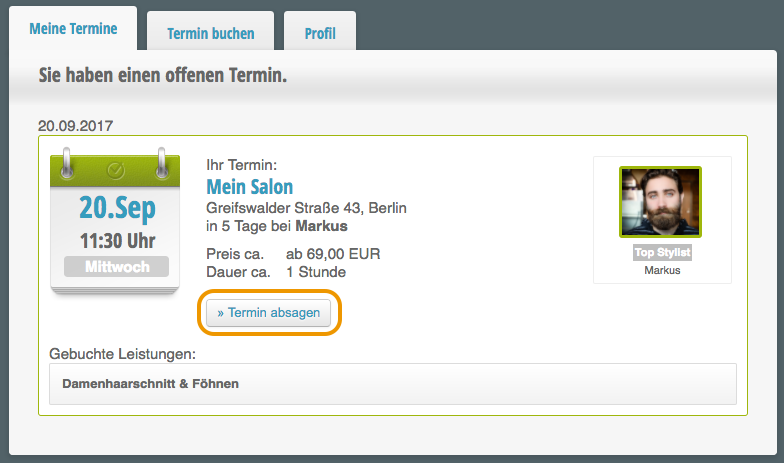
Booked appointments can be cancelled by the customer
Allows your customers to cancel booked appointments themselves. You can determine the cancellation period under Time Limits.
Booked appointments can be rescheduled by the customer
Allows your customers to reschedule booked appointments themselves. Learn more about rescheduling appointments here.
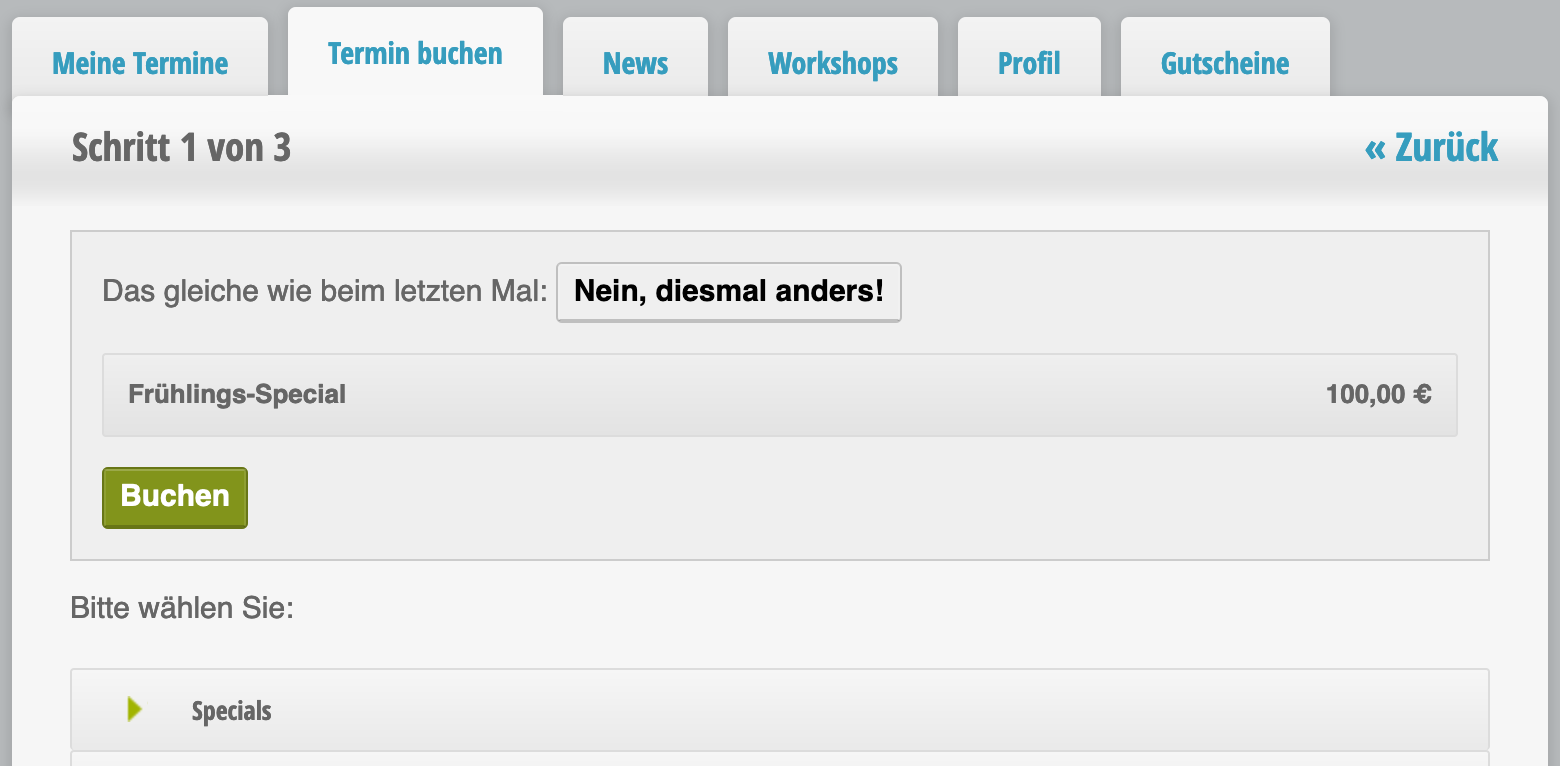
Show the most recently booked service during booking
Customers who log in before booking will see the most recently booked service and can rebook it with a single click. Of course, they still have the option to choose other services.
Show involved employees
If you offer services that are distributed across multiple employees, you can display these employees to the customer during booking. This way, the customer can already see which colleagues support the employee selected in the booking with their work.