
belbo
  • Overview
    • Getting to know Belbo
    • Location Settings
    • Switch to Belbo
    • Calendar View & Navigation
    • Recurring Appointments & Courses
    • Appointment Entry & Management
    • Logins & Permissions
    • Multiple Locations & Head Office
    • Manage Employees
    • Absences & Holidays
    • General
    • Working Hours
    • Time Tracking
    • Data Protection (GDPR)
    • Customer Communication (Email, SMS)
    • Customer Management & Records
    • Bonus & Loyalty Programs
    • Campaigns (Newsletter & SMS)
    • Marketing Consents (GDPR)
    • Tracking & Analytics
    • Overview
    • Services & Prices
    • Products
    • Service Packages & Subscriptions
    • Vouchers
    • Purchasing & Suppliers
    • Stock & Inventory
    • Scanning & Sales
    • Cost of goods & expenses
    • Design & Texts
    • Setup & Settings
    • Integration (Website, Google, Instagram, Facebook)
    • Online payment
    • Accounting & Exports
    • Cash Register Settings & Hardware
    • Checkout process
    • Daily Closing & Reports
    • TSE & Cash Register Anti-Tampering Ordinance
    • Export Overview
    • Employee Utilization
    • Revenue & Reports
    • Belbo Satellite
    • Printer
    • EC Terminal & Card Payment
    • Troubleshooting Hardware
    • Scanner & POS Devices
    • General Settings
    • API & Integrations
    • Notifications & Emails
    • Contracts & Legal
Skip to content

Weekly Team Templates

When you create weekly templates for your team, you can use them to quickly and easily create schedules for your team.
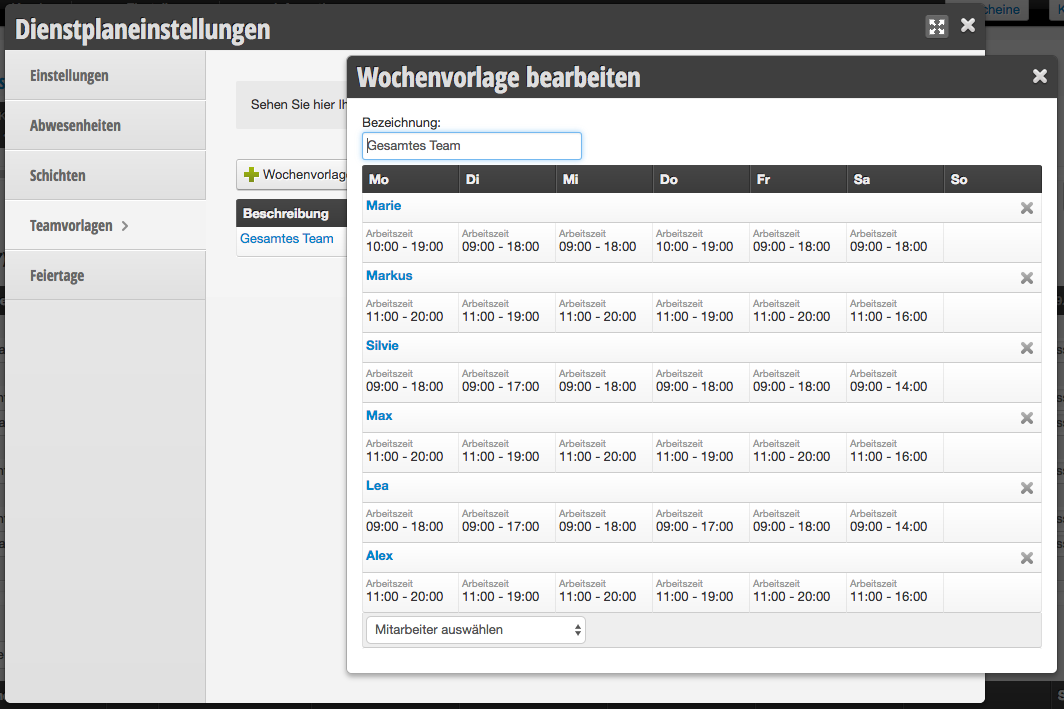
You can access this area via Settings > Schedule Settings > Team Templates.

Create weekly templates

Weekly templates are designed so you don't have to enter working hours for each employee individually. Weekly templates are ideal for businesses that operate in shifts.

Here's how to create a new weekly template:

  1. Select the small white triangle next to "Schedule" in the navigation bar.
  2. Go to "Schedule Settings".
  3. Click on "Working Times".
  4. Select "Weekly Templates".
  5. By clicking the "Create New Template" button, you can create a custom template.
  6. For each day, select the appropriate time/absence/event.
  7. Confirm your selection by clicking "Save".

Apply weekly templates in the schedule

In the schedule, you can now enter the saved weekly template for your entire team with just a few steps. To do this, go to the main menu item Schedule and navigate to the desired week. Select the desired weekly template here.
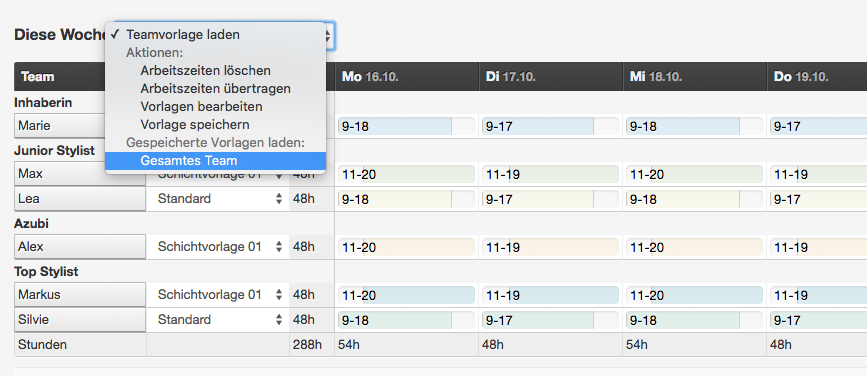
You can find an overview of all schedule settings here.
Categories: General
Tags: Teamvorlagen, Wochenvorlagen
This manual is a service by belbo. Legal notice