belbo
  • Overview
    • Getting to know Belbo
    • Location Settings
    • Switch to Belbo
    • Calendar View & Navigation
    • Recurring Appointments & Courses
    • Appointment Entry & Management
    • Logins & Permissions
    • Multiple Locations & Head Office
    • Manage Employees
    • Absences & Holidays
    • General
    • Working Hours
    • Time Tracking
    • Data Protection (GDPR)
    • Customer Communication (Email, SMS)
    • Customer Management & Records
    • Bonus & Loyalty Programs
    • Campaigns (Newsletter & SMS)
    • Marketing Consents (GDPR)
    • Tracking & Analytics
    • Overview
    • Services & Prices
    • Products
    • Service Packages & Subscriptions
    • Vouchers
    • Purchasing & Suppliers
    • Stock & Inventory
    • Scanning & Sales
    • Materials & Costs
    • Design & Texts
    • Setup & Settings
    • Integration (Website, Google, Instagram, Facebook)
    • Online payment
    • Accounting & Exports
    • Cash Register Settings & Hardware
    • Checkout process
    • Daily Closing & Reports
    • TSE & Cash Register Anti-Tampering Ordinance
    • Export Overview
    • Employee Utilization
    • Revenue & Reports
    • Belbo Satellite
    • Printer
    • EC Terminal & Card Payment
    • Troubleshooting Hardware
    • Scanner & POS Devices
    • General Settings
    • API & Integrations
    • Notifications & Emails
    • Contracts & Legal
Skip to content

Split revenue of a service between 2 employees

If you offer services that involve two people working simultaneously, the generated revenue must usually be allocated to both people as well. If the service costs €100, for example, this amount can be distributed equally between the employees, or for example 30/70. We explain how to do this here.


1.) Add cashier services to the service

The service to be split must be given the property that the revenue can be divided during the checkout process. This is done using the "Cashier services" function. If this is not yet activated, it can be added under "Settings".

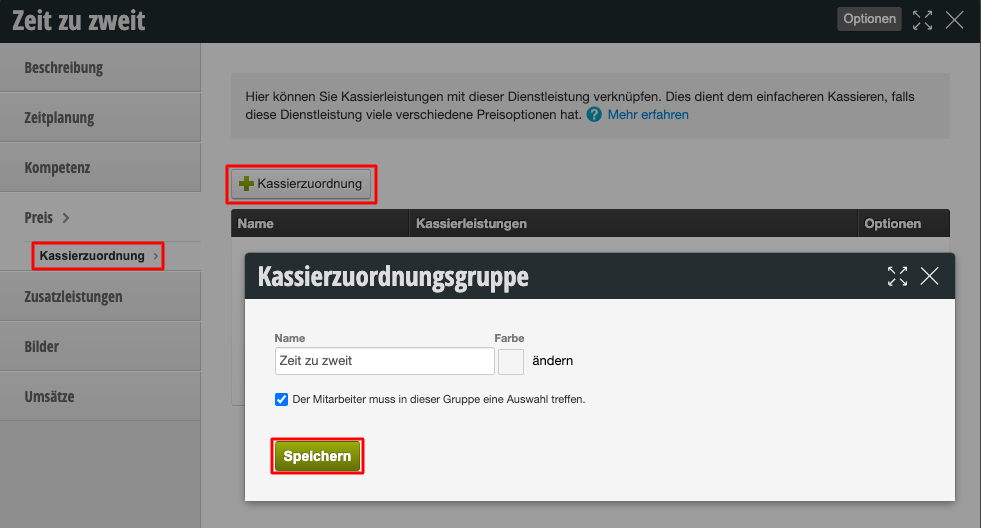
In the service to be set up, select the "Cashier assignment" sub-tab in the "Price" tab and initially create an assignment.

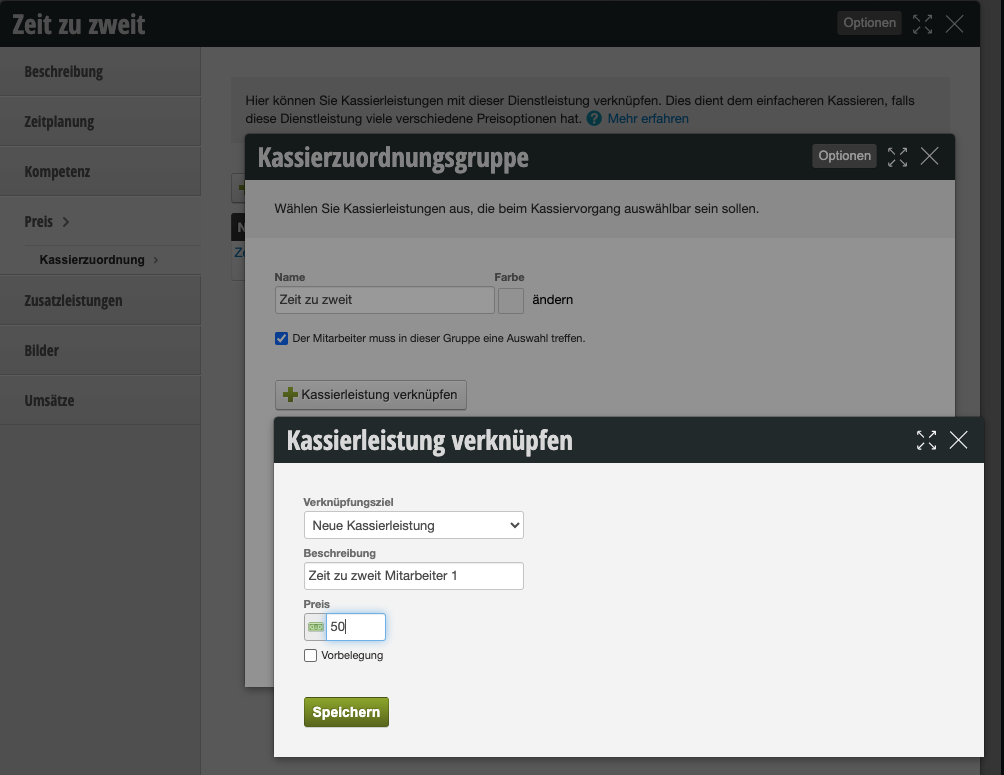
Then you can create the first of the two cashier services. Here you can enter 50 percent of the total price, or – if the employees are not splitting the revenue equally – also just a partial amount.

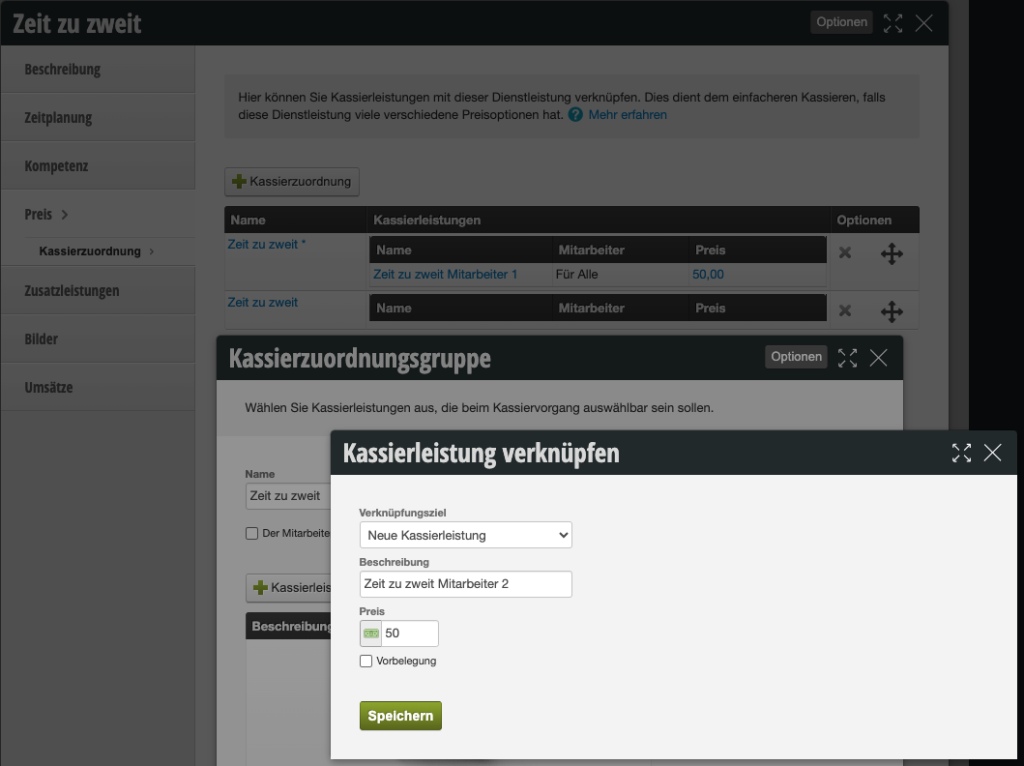
You proceed exactly the same way with the 2nd part. Here, a new assignment is first created in which the 2nd part of the revenue is entered:
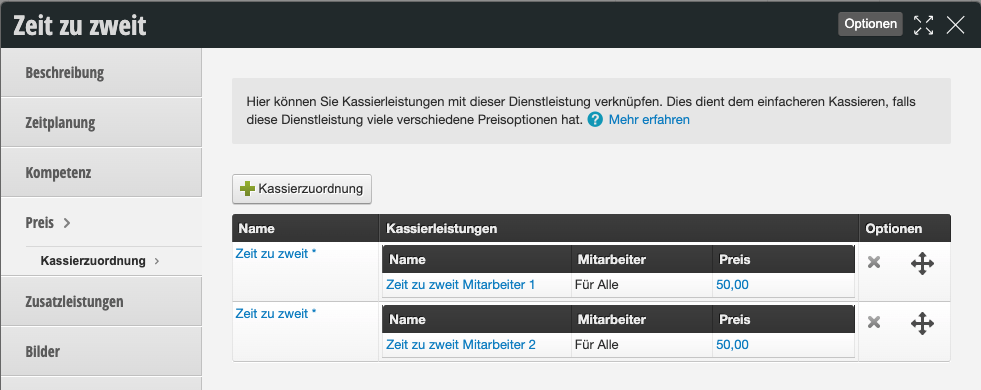
The correct setup now looks like this:
2.) Cashier the service

When this service is cashed, the booked employee is initially displayed for both parts of the revenue:
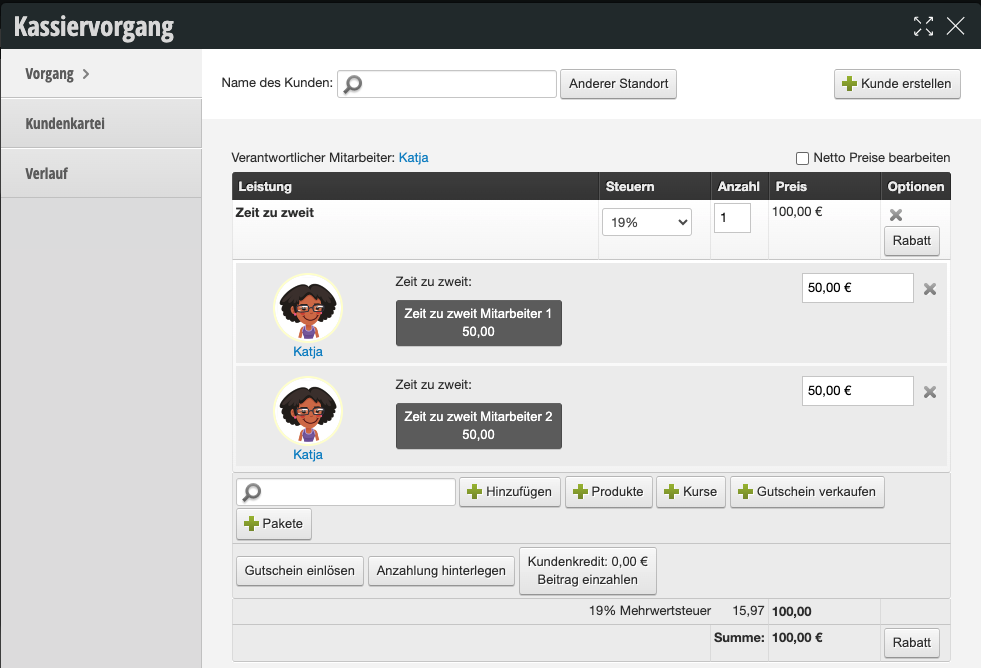
By clicking on the name / profile picture, you can select the other person here:
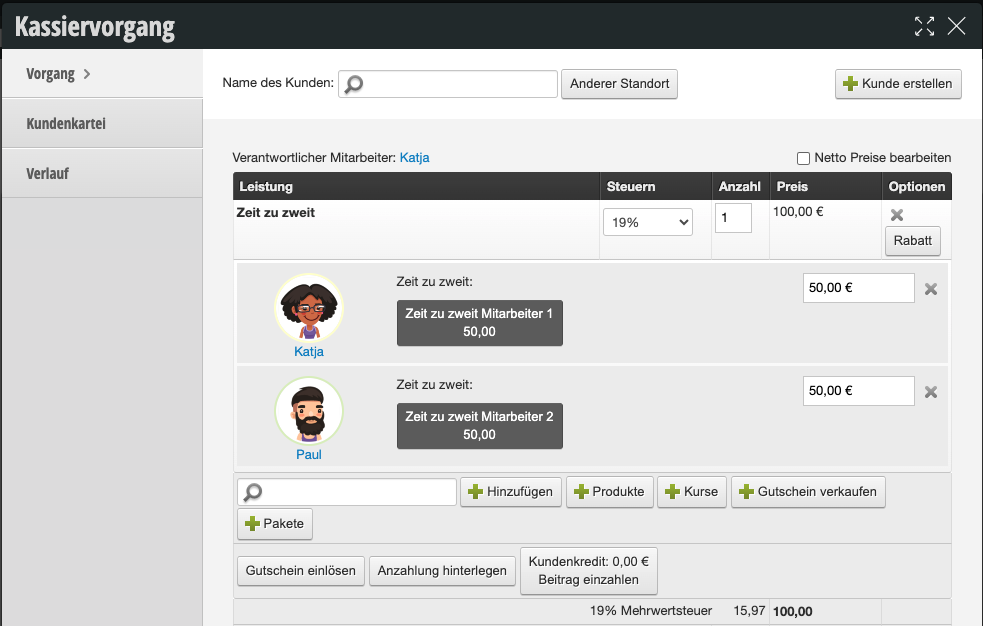
In this way, the revenue from a single service is allocated to different people.

Categories: Services & Prices
This manual is a service by belbo. Legal notice