
It happens that customers return purchased goods. To book these, you can use the return button in your cash register. This ensures that your cash register balance and inventory are always correct.
Book return and pay out cash
To correctly book a return, proceed as follows:
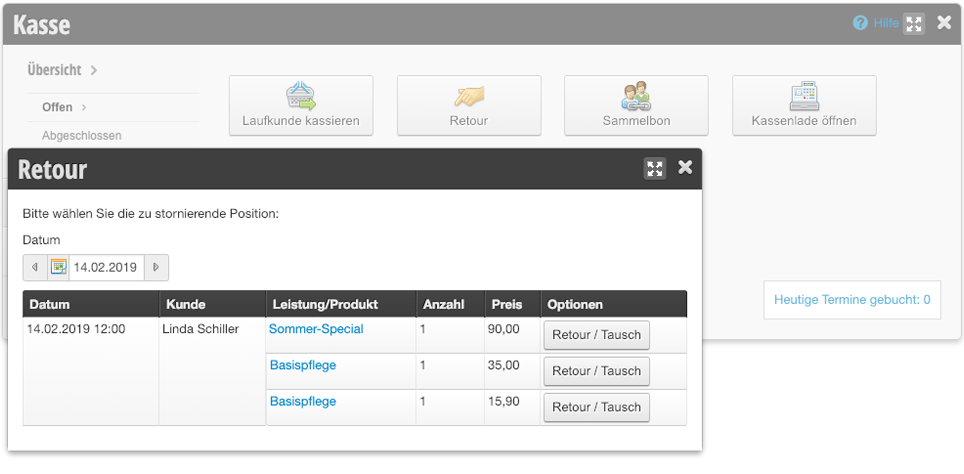
- Click on the cash register in the main navigation. Here you will find the "Return" button.
- Select the purchase date of the goods and then click on the returned product.
- If the customer wants to purchase a different product, it can be added to the transaction.
- Click on "Payment" and select the payment method with which the customer will be refunded for the goods, normally this is cash, and complete the process.
- In case of cash refund, take the money from the cash register and return it to the customer.
Issue return value as a voucher
If you want to issue a voucher for the amount of the returned product instead of cash, proceed as follows:
- Click on the cash register in the main navigation. Here you will find the "Return" button.
- Select the purchase date of the goods and then click on the returned product.
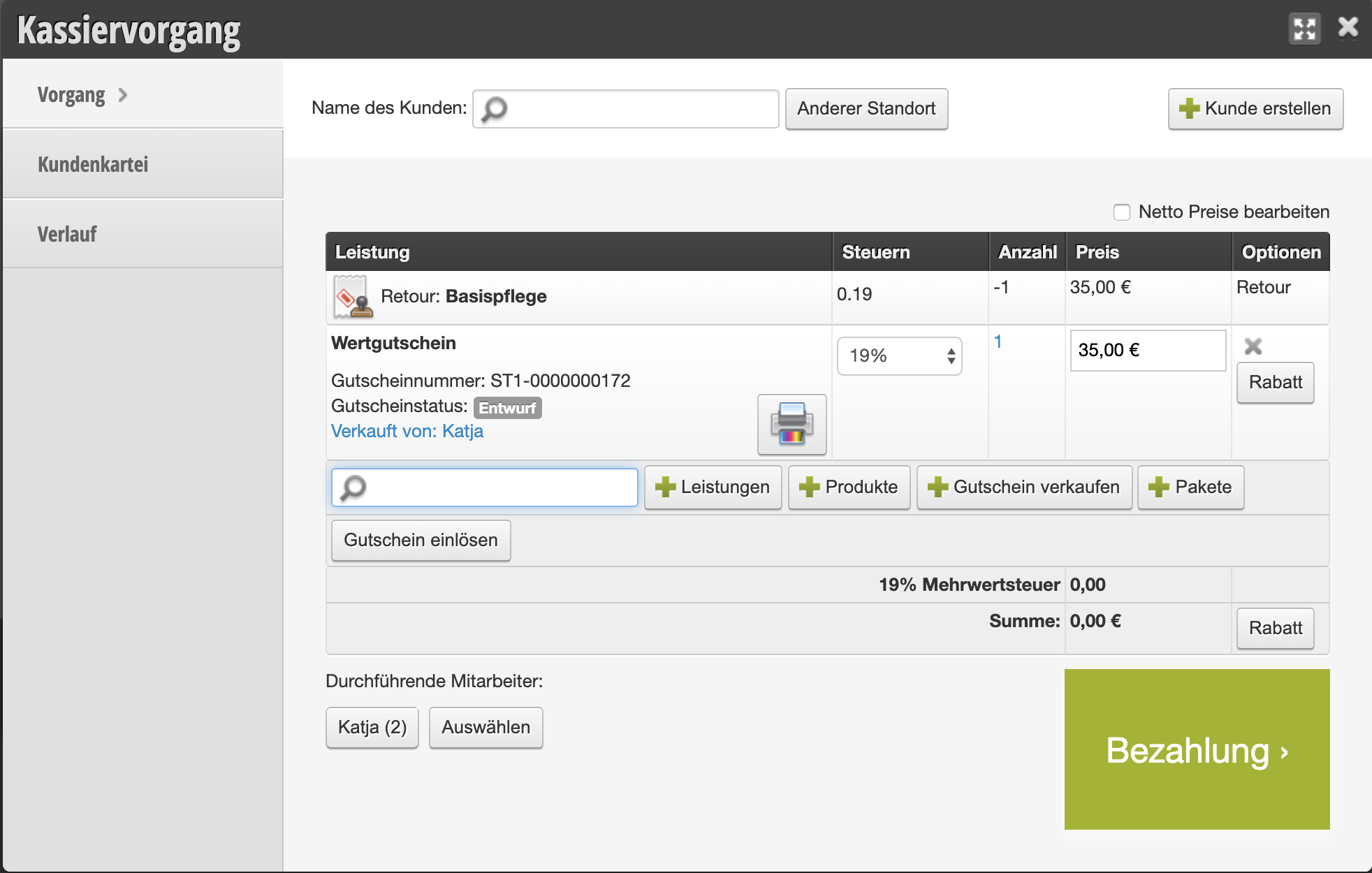
- Click on "+ Voucher" and change the voucher price to the same value the voucher should have.
- The total price should now be 0.00.
- Click on "Payment" and complete the process.
- A payment method does not need to be selected for an invoice total of 0.00, but you can print a receipt or issue an A4 invoice for the transaction.
Transfer sum instead of paying out cash
Prerequisite: A payment method "Transfer" (or "Invoice" or similar) must be available. If this is not the case in your cash register, please contact your tax office to find out the accounting account number for this payment method. Then let us know (info@belbo.com).
- Click on the cash register in the main navigation. Here you will find the "Return" button.
- Select the purchase date of the goods and then click on the returned product.
- If the customer wants to purchase a different product, it can be added to the transaction.
- Click on "Payment" and select the payment method with which the customer will be refunded for the goods, in this case "Transfer" (name may differ in your cash register).
- Transfer the money to the customer.