
belbo
  • Overview
    • Getting to know Belbo
    • Location Settings
    • Switch to Belbo
    • Calendar View & Navigation
    • Recurring Appointments & Courses
    • Appointment Entry & Management
    • Logins & Permissions
    • Multiple Locations & Head Office
    • Manage Employees
    • Absences & Holidays
    • General
    • Working Hours
    • Time Tracking
    • Data Protection (GDPR)
    • Customer Communication (Email, SMS)
    • Customer Management & Records
    • Bonus & Loyalty Programs
    • Campaigns (Newsletter & SMS)
    • Marketing Consents (GDPR)
    • Tracking & Analytics
    • Overview
    • Services & Prices
    • Products
    • Service Packages & Subscriptions
    • Vouchers
    • Purchasing & Suppliers
    • Stock & Inventory
    • Scanning & Sales
    • Materials & Costs
    • Design & Texts
    • Setup & Settings
    • Integration (Website, Google, Instagram, Facebook)
    • Online payment
    • Accounting & Exports
    • Cash Register Settings & Hardware
    • Checkout process
    • Daily Closing & Reports
    • TSE & Cash Register Anti-Tampering Ordinance
    • Export Overview
    • Employee Utilization
    • Revenue & Reports
    • Belbo Satellite
    • Printer
    • EC Terminal & Card Payment
    • Troubleshooting Hardware
    • Scanner & POS Devices
    • General Settings
    • API & Integrations
    • Notifications & Emails
    • Contracts & Legal
Skip to content

Edit Prices and Services: Price

Set the price of your service and, if desired, create different prices for your employees or employee roles.
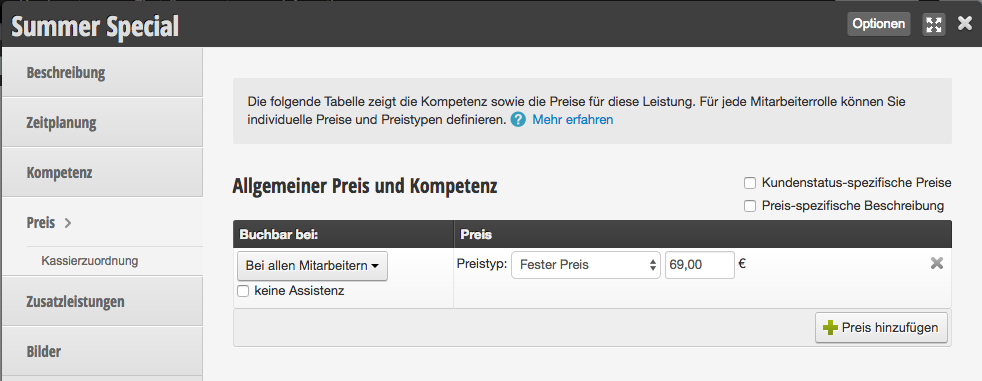
Bookable by
Define here for which employee or employee group a price should be set.

Price
Define what type of price it is. You have the choice between:

  • by arrangement:
  • Price from:
  • Price up to
  • Price range
  • Fixed price
  • Time-based price
  • Travel surcharge
  • No price

Then enter the desired price or price range.

The prices will be displayed to your users during online booking exactly as you define them here. If you do not want to display the prices during online booking, please set this in the online booking settings.

Prices for different employees
If your employees offer the same service at different prices, you can create as many price properties as you like.

Example use case:

Your service costs from 69.00 € with the top stylist and exactly 49.00 € with the junior stylist.

To do this, select "Add price" and determine the employee or employee role to which this price property applies.
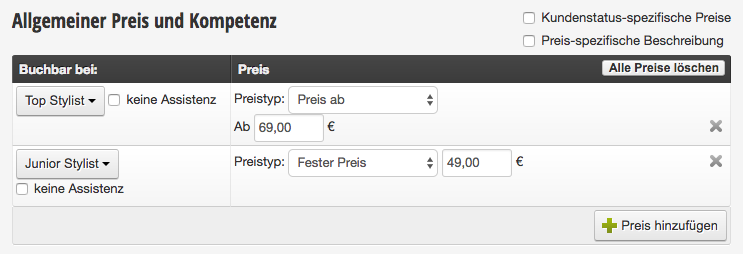
Delete price property
To delete a price, click the gray cross on the right in the row.

Customer status-specific prices
If you want to offer customers with a specific customer status different prices, you can activate this field. You can now set individual prices for each customer status.

Example use case:
You want to offer your regular customers the existing prices, while new customers receive adjusted prices.

Price-specific description
To add a custom description to your prices, activate "Price-specific description".

When you change your prices, please note that the prices in existing appointments will not change. Only appointments created after the price change will receive the new prices.

Time-dependent prices

If you wish, you can offer the same service on different weekdays or at different times at various prices.

Example use case:
You offer this service at slightly lower prices on days that are typically not fully booked, to encourage budget-conscious or time-flexible customers to avoid popular afternoon or weekend appointments.

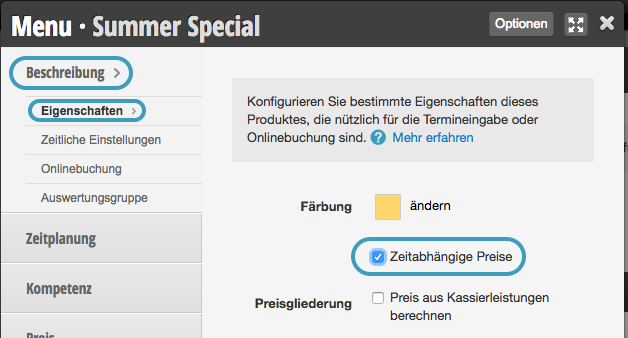
Activate time-dependent prices
Under "Description > Properties" you can activate this type of price structure.

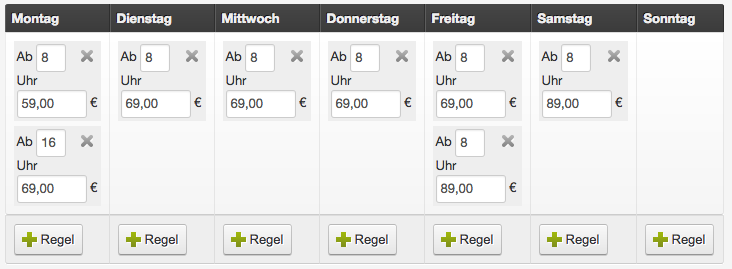
Set time-dependent prices
Once you have activated time-dependent prices, you can specify your prices for different weekdays and times in the adjusted price view.

All settings for your services can be found in this overview
Categories: Services & Prices
Tags: Preise, Preiseigenschaften
This manual is a service by belbo. Legal notice