
In the properties, you can set the basic settings for your service.
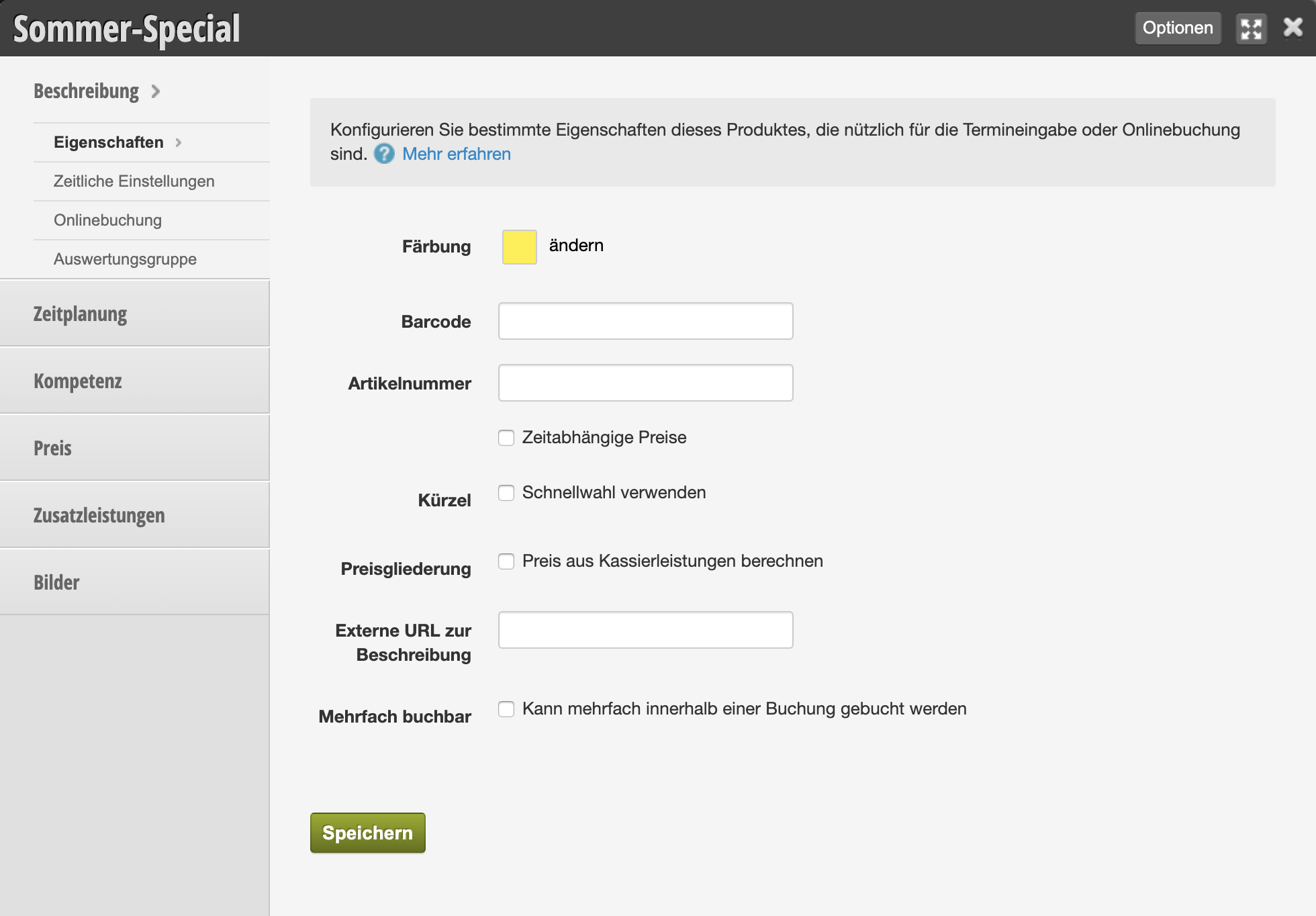
Color
Set the color that your appointment should have in the calendar so that you can see at a glance the type of service.
Barcode / Item Number
If you use the Belbo cash register system, you can store a barcode or item number here. You can then add this service to a cash register process by either entering the item number or scanning the barcode with a scanner from a service list in the cash register area.
Time-Dependent Prices
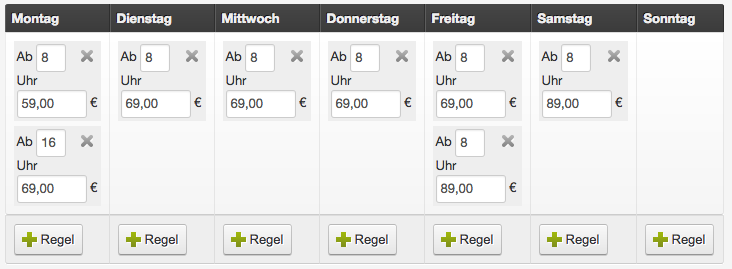
If the same service should have different prices at different times, you can set this here. You will then find a new price assignment under "Price" with a weekday list in which you can set prices for specific weekdays and times.
Example of the price list with higher prices at popular times and lower prices on underutilized days:
Price Breakdown
In the cash register process, the sum specified under "Price" is displayed.
Only if you want to offer certain additional price specifications in the cash register process should you activate this field.
Only if you want to offer certain additional price specifications in the cash register process should you activate this field.
Abbreviation
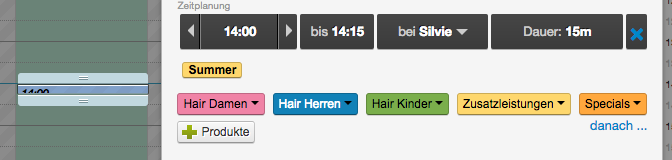
For very frequently booked services you can set an abbreviation here, which will be offered to you during appointment entry. To see this function, activate the Service Abbreviation function if necessary.
Example of an abbreviation in the calendar:

Multiple Bookings
If this service can be booked multiple times by the customer within one appointment, you can activate this. To see this function, activate the Book Services Multiple Times function if necessary.