
belbo
  • Overview
    • Getting to know Belbo
    • Location Settings
    • Switch to Belbo
    • Calendar View & Navigation
    • Recurring Appointments & Courses
    • Appointment Entry & Management
    • Tasks
    • Overview
    • Multiple Locations & Head Office
    • Manage Employees
    • Logins
    • Rights
    • Overview
    • Absences & Holidays
    • Working Hours
    • Time Tracking
    • Overview
    • Data Protection (GDPR)
    • Customer Communication (Email, SMS)
    • Customer Management & Records
    • Overview
    • Bonus & Loyalty Programs
    • Campaigns (Newsletter & SMS)
    • Marketing Consents (GDPR)
    • Tracking & Analytics
    • Overview
    • Services & Prices
    • Service Packages & Subscriptions
    • Vouchers
    • Products
    • Purchase & Vendors
    • Stock & Inventory
    • Scanning & Sales
    • Cost of Goods & Expenses
    • Overview
    • Design & Texts
    • Setup & Settings
    • Integration (Website, Google, Instagram, Facebook)
    • Online payment
    • Overview
    • Accounting & Exports
    • Cash Register Settings & Hardware
    • Checkout process
    • Daily Closing & Reports
    • TSE & Cash Register Anti-Tampering Ordinance
    • Overview
    • Export Overview
    • Employee Utilization
    • Revenue & Reports
    • Belbo Satellite
    • Printer
    • EC Terminal & Card Payment
    • Troubleshooting Hardware
    • Scanner & POS Devices
    • General Settings
    • API & Integrations
    • Notifications & Emails
    • Contracts & Legal
Skip to content
Calendar & Appointments›Appointment Entry & Management

Service abbreviation

Feature: Calendar › Service abbreviations › Settings

You can set abbreviations for services that are booked particularly frequently to simplify the entry of appointments.

You can access this area via Settings > Service Abbreviations
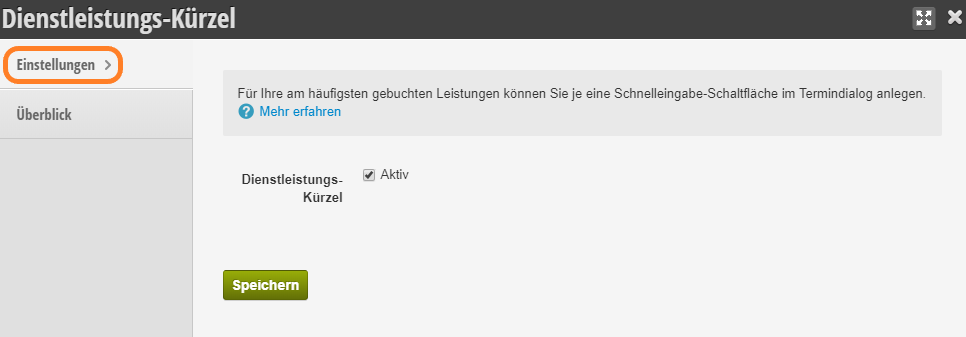
If this function is not activated, it can be activated via "Settings > Add Function".

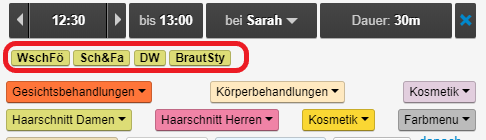
Example of abbreviations in appointment entry:
This is how the Service Abbreviations function is activated.
Overview

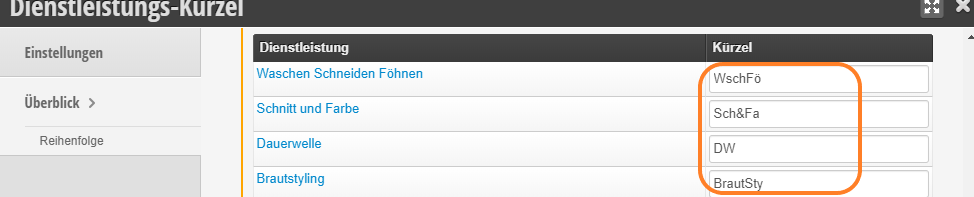
In the Overview tab you will find an overview of your services. In the empty field next to each service, you can set a corresponding abbreviation. The abbreviations are saved automatically.
Note Only set abbreviations for the most frequently booked services. Assigning abbreviations to all services would clutter the appointment entry dialog and would not serve the clarity of your appointment entry.

Order

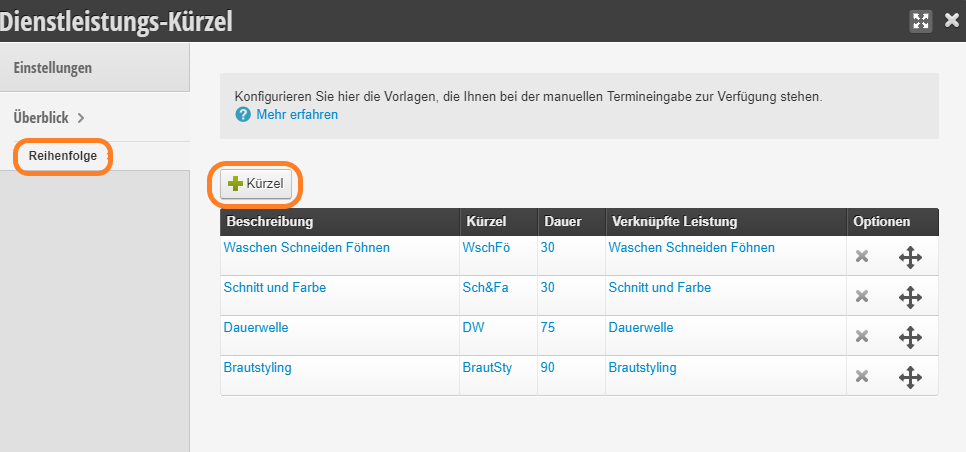
In the Order tab, the abbreviations that have already been created are listed. Here you have the option to create new abbreviations using the +Abbreviation button.
Categories: Appointment Entry & Management
Tags: Kürzel, Schnellwahl

Have a question? Ask it here.

This manual is a service by belbo. Legal notice