
belbo
  • Overview
    • Getting to know Belbo
    • Location Settings
    • Switch to Belbo
    • Calendar View & Navigation
    • Recurring Appointments & Courses
    • Appointment Entry & Management
    • Logins & Permissions
    • Multiple Locations & Head Office
    • Manage Employees
    • Absences & Holidays
    • General
    • Working Hours
    • Time Tracking
    • Data Protection (GDPR)
    • Customer Communication (Email, SMS)
    • Customer Management & Records
    • Bonus & Loyalty Programs
    • Campaigns (Newsletter & SMS)
    • Marketing Consents (GDPR)
    • Tracking & Analytics
    • Overview
    • Services & Prices
    • Products
    • Service Packages & Subscriptions
    • Vouchers
    • Purchasing & Suppliers
    • Stock & Inventory
    • Scanning & Sales
    • Cost of goods & expenses
    • Design & Texts
    • Setup & Settings
    • Integration (Website, Google, Instagram, Facebook)
    • Online payment
    • Accounting & Exports
    • Cash Register Settings & Hardware
    • Checkout process
    • Daily Closing & Reports
    • TSE & Cash Register Anti-Tampering Ordinance
    • Export Overview
    • Employee Utilization
    • Revenue & Reports
    • Belbo Satellite
    • Printer
    • EC Terminal & Card Payment
    • Troubleshooting Hardware
    • Scanner & POS Devices
    • General Settings
    • API & Integrations
    • Notifications & Emails
    • Contracts & Legal
Skip to content

Online Booking Design

You can customize the images and colors of your online booking page to match your company's design.

Main Image
The main image should be representative and contain your logo. We recommend using a wide, not too tall image that fits well into your online booking page.

Example of a suitable main image:
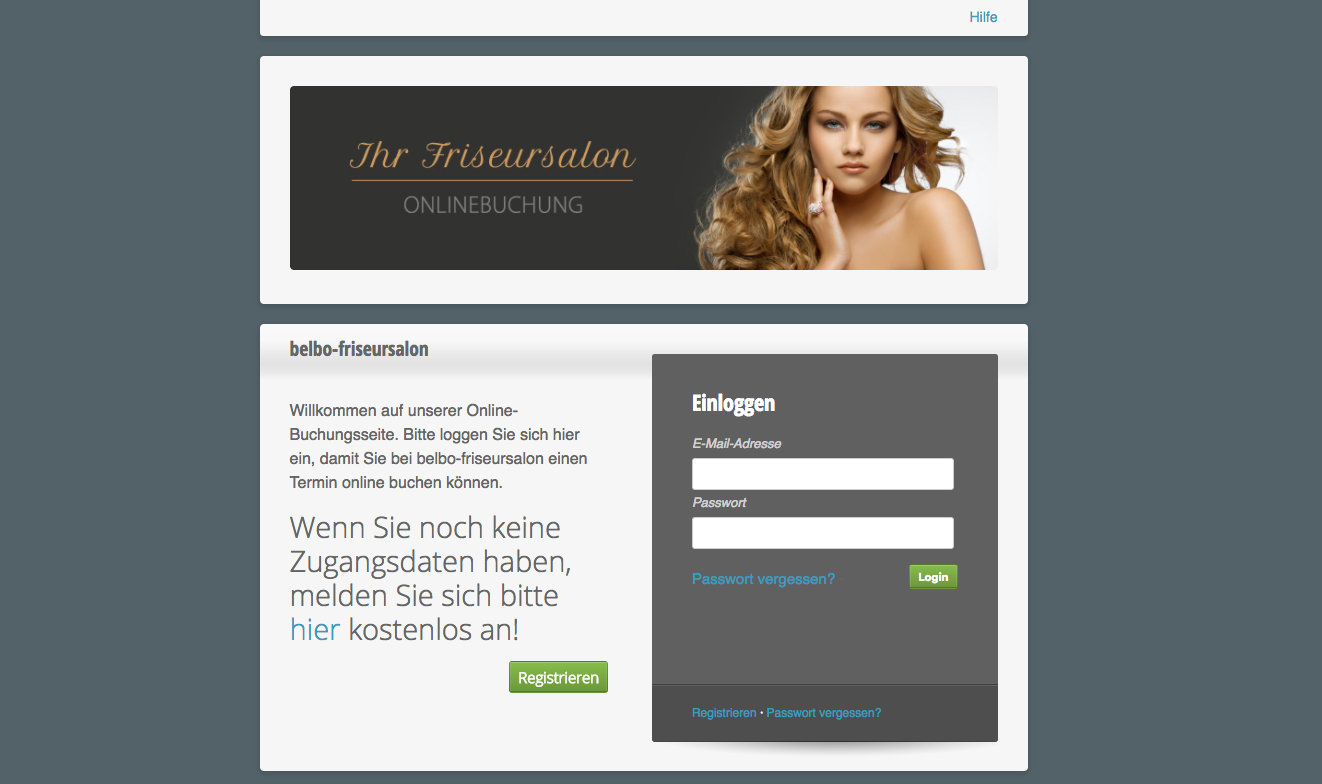
Recommended dimensions:

  • Width: 800 pixels
  • Height: 150 – 250 pixels

Your graphic design office can assist you in designing a suitable main image. You can also contact us: design@belbo.com.

Browser Favicon
If you wish, you can add a custom browser icon. This is displayed to the user as a thumbnail in the browser tab.

Example of browser icon with Belbo logo:


Use Background Image
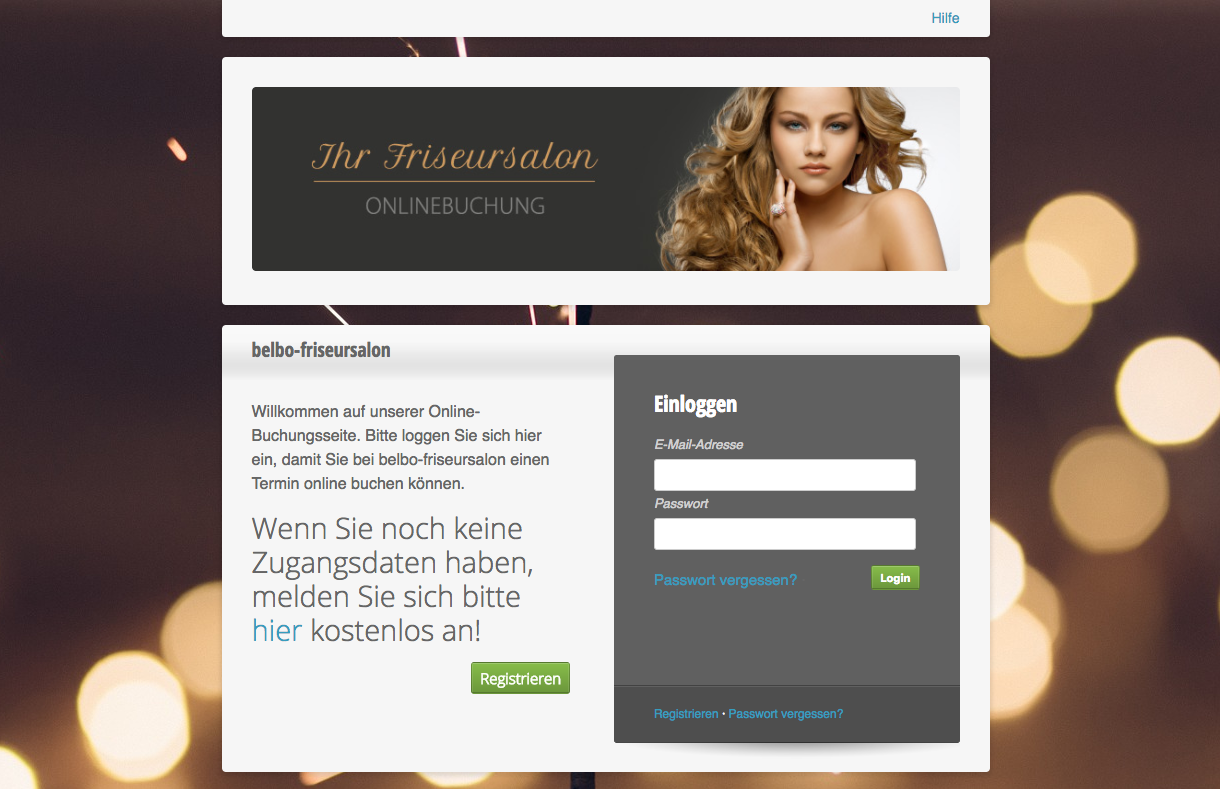
If you enable the background image function, you can add a background image to your online booking page after saving.

Example of a booking page with background image:

Background Color
If you don't use a background image, you can set a color that matches your company.

Button Design
To set up the buttons on your online booking page, you can use 2 different colors to achieve a gradient effect. If you don't want a gradient effect, you can specify the same color both times. We recommend bright colors that stand out well from the basic design of the page.
The text color should have good readable contrast to the button color.

Example of a button with white text and subtle color gradient:


For an overview of all online booking settings click here.
Categories: Design & Texts
Tags: Design, Onlinebuchung
This manual is a service by belbo. Legal notice