
belbo
  • Overview
    • Getting to know Belbo
    • Location Settings
    • Switch to Belbo
    • Calendar View & Navigation
    • Recurring Appointments & Courses
    • Appointment Entry & Management
    • Tasks
    • Overview
    • Multiple Locations & Head Office
    • Manage Employees
    • Logins
    • Rights
    • Overview
    • Absences & Holidays
    • Working Hours
    • Time Tracking
    • Overview
    • Data Protection (GDPR)
    • Customer Communication (Email, SMS)
    • Customer Management & Records
    • Overview
    • Bonus & Loyalty Programs
    • Campaigns (Newsletter & SMS)
    • Marketing Consents (GDPR)
    • Tracking & Analytics
    • Overview
    • Services & Prices
    • Service Packages & Subscriptions
    • Vouchers
    • Products
    • Purchasing & Suppliers
    • Inventory & Stock Management
    • Scanning & Sales
    • Material & Costs
    • Overview
    • Design & Texts
    • Setup & Settings
    • Integration (Website, Google, Instagram, Facebook)
    • Online payment
    • Overview
    • Accounting & Exports
    • Cash Register Settings & Hardware
    • Checkout process
    • Daily Closing & Reports
    • TSE & Cash Register Anti-Tampering Ordinance
    • Overview
    • Export Overview
    • Employee Utilization
    • Revenue & Reports
    • Belbo Satellite
    • Printer
    • EC Terminal & Card Payment
    • Troubleshooting Hardware
    • Scanner & POS Devices
    • General Settings
    • API & Integrations
    • Notifications & Emails
    • Contracts & Legal
Skip to content
Services›Services & Prices

Services » Scheduling » Booked Employee

If you receive a warning in the scheduling of a service that no "Booked Employee" is selected, this can mean that this service cannot be correctly entered in the calendar or booked online.

You can access this area via the scheduling by clicking on a service

When you create the scheduling of services, it is important that at least one of the steps is assigned to the employee "Booked Employee".

The employee selection in the scheduling does not describe who can perform the service! If you want to determine which of your employees can perform the service, please set this in the Competency tab!

Single-step Services

If your service has only one step, scheduling is very simple:
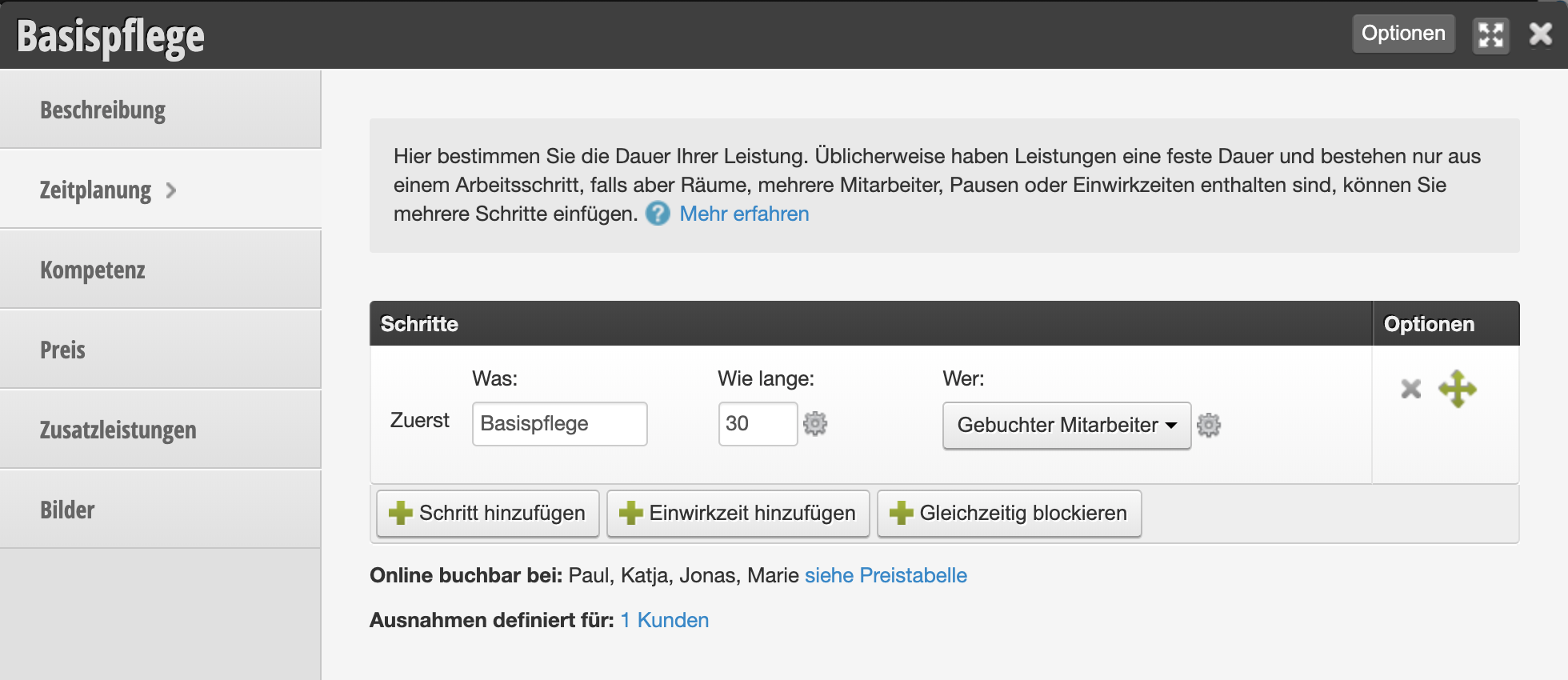
  • Who: Make sure that "Booked Employee" is selected under "Who".

Learn more about scheduling here.

Multi-step Services

In Belbo, you can divide services into different steps. This is useful if you want to distribute a service among multiple employees.
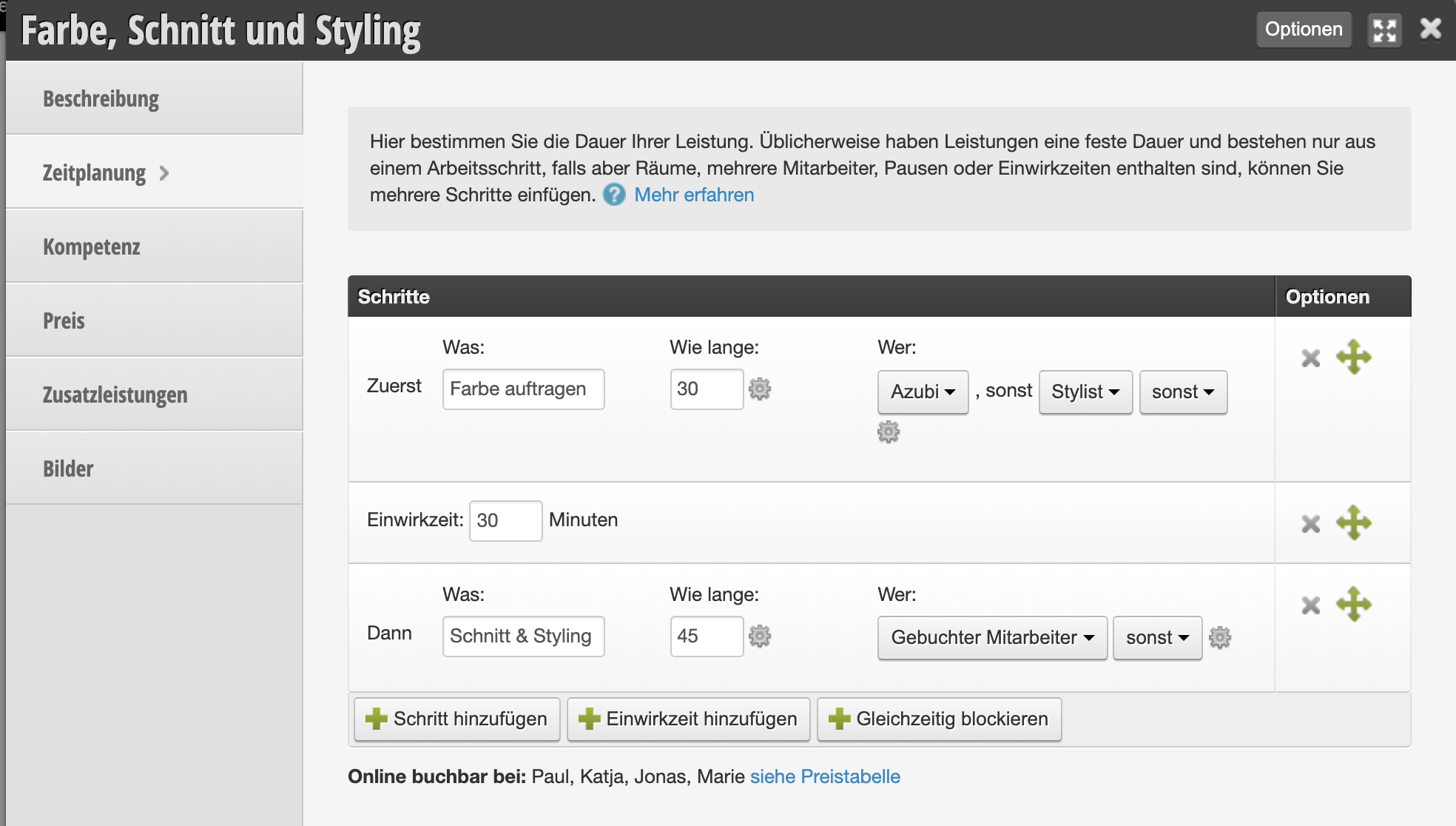
Example use case: The service "Color, Cut and Styling" includes a step that should ideally be performed by an assistant or apprentice. You can set this in the scheduling. It is important that the main step is performed by the "Booked Employee".

This way customers in online booking (or employees in the calendar) can book the service with the desired employee and Belbo automatically assigns the assistant step to one of the assistants or apprentices:
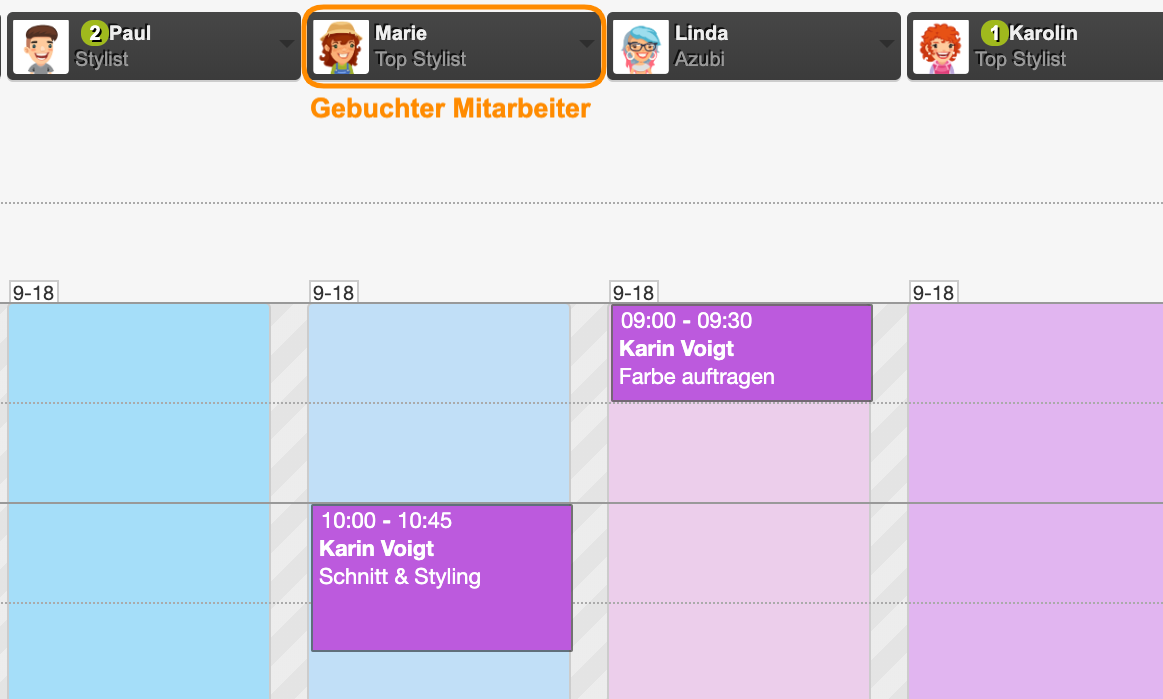
In the example above, the appointment was booked with top stylist Marie. She is the "Booked Employee" in this case and all steps of the service for which you have set "Booked Employee" appear in her column. The assistant step was automatically assigned to a free employee with the role "Apprentice". Customers don't notice any of this during online booking. This way you can improve the utilization of your well-paid main staff members.

Categories: Services & Prices

Have a question? Ask it here.

This manual is a service by belbo. Legal notice