
In Belbo, you create a customer questionnaire in two steps:
- The customer fields to be queried are structured and created in tabs
- The tabs are stored in customer questionnaires in query steps
1. Create customer fields in a structured way
Under Settings > Customers > Customer Settings > Tabs > + Tab you can first create a new tab:
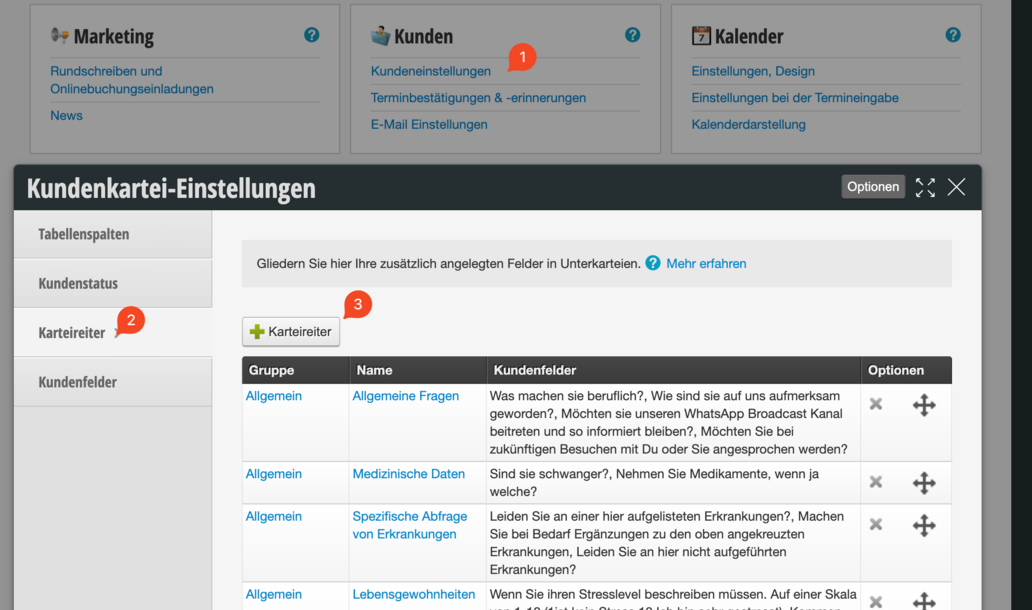
We recommend creating one tab per section in the patient history form.

To keep things even more organized, we recommend assigning the same "Parent Tab" for each patient history form. It is important that the name of the parent tab is spelled the same everywhere!

Now you can create the customer fields in the tabs. To do this, click on the blue tab name (1), then on Customer Fields (2) and then on "+ Customer Field" (3)
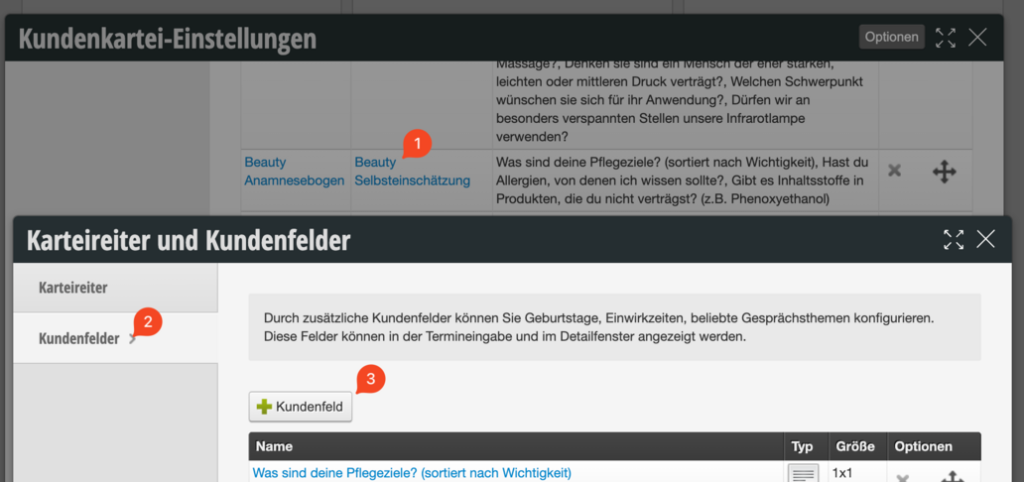
Customer fields in Belbo have different types. For customer questionnaires, the "Checkbox Group" type can be used in 90% of cases. Other options are "Text Field" or "Large Text Field".
Examples:
Yes / No - Queries with checkbox groups:
Here the field name is the question and the type is checkbox group:
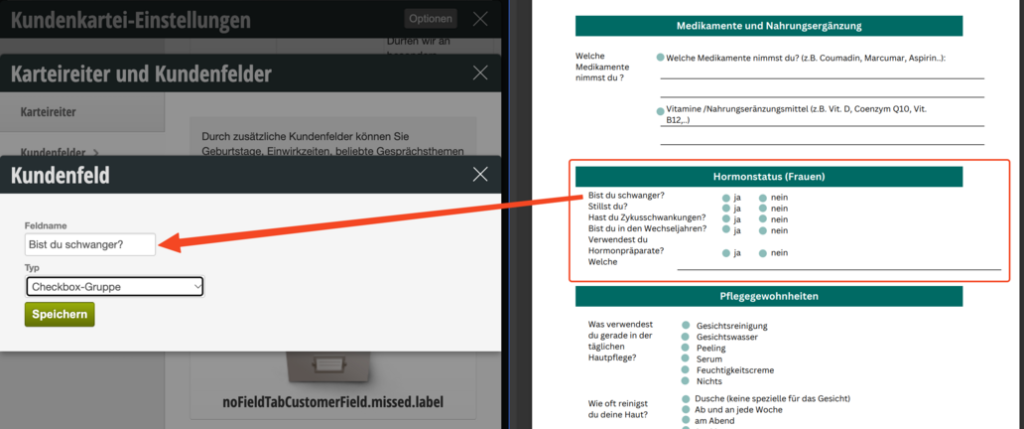

If you now click on the blue field name, you enter the detailed view of the field. Here you can enter the selection options in the description: "Yes" ENTER "No". A new line creates a new selection option.
Checkbox Groups:
It's similar with checkbox groups where customers should check multiple fields. The selection options are then each written on a new line:

Create customer questionnaires in a structured way
After all customer fields have been created in the appropriate tabs, the customer questionnaire can be created in the second step.
In the "Customer Questionnaires" function under Settings > Customer Questionnaires you can now create a new customer questionnaire.
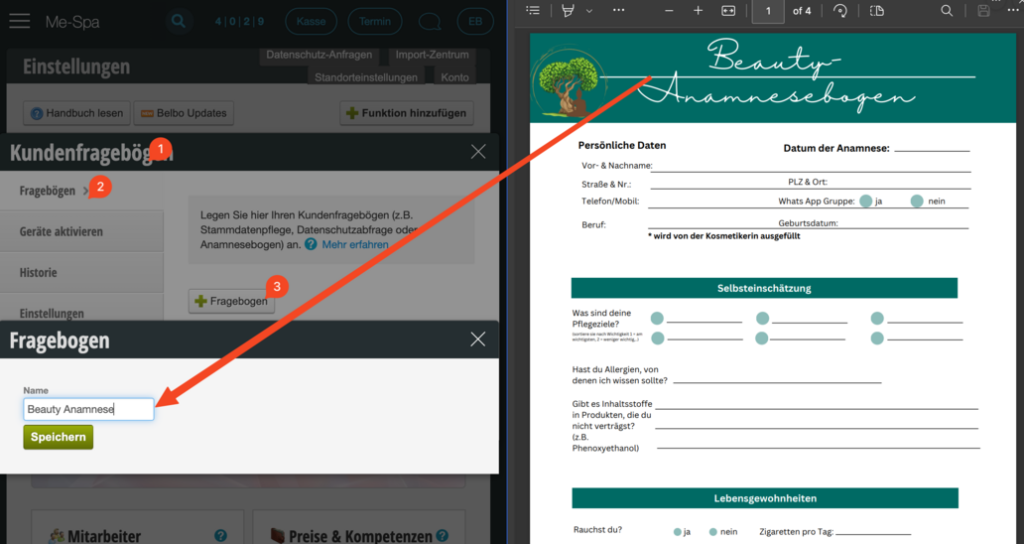
Now we configure the questionnaire. In general, we recommend always setting the following checkmarks:


Now we create a query step for each tab or section in the patient history form.
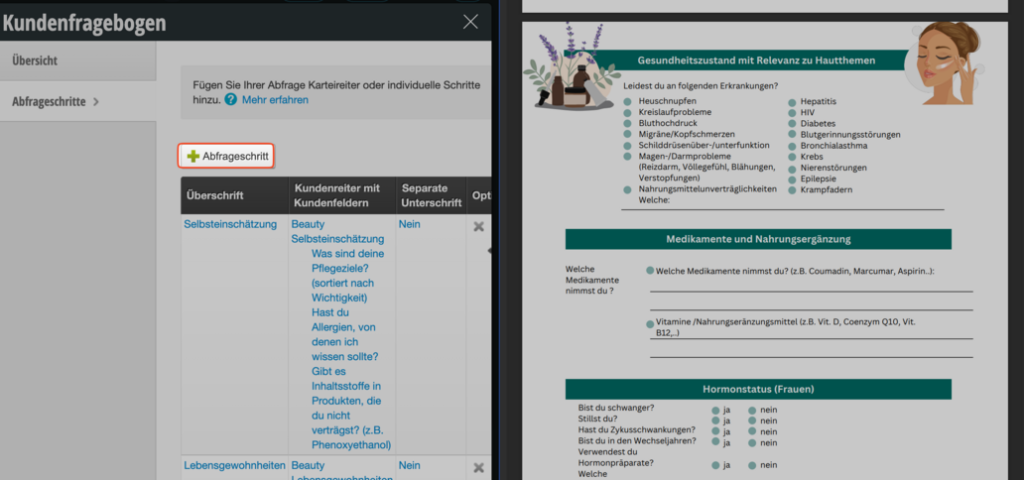
When we create a new query step, we select a heading, optionally also a description text, and can then select the corresponding tab in the lower section that should be queried in this step.
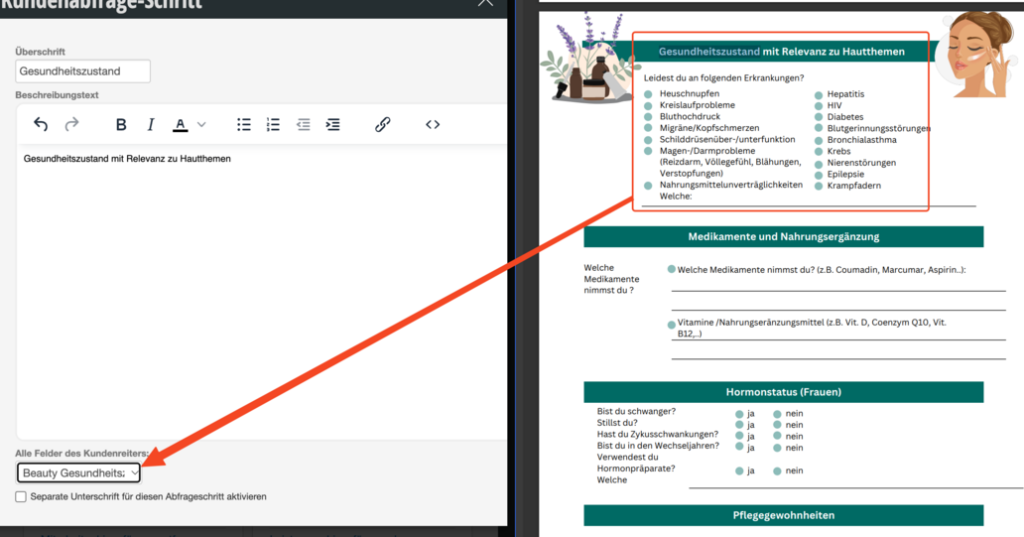
You can also enable the signature either at the end of the questionnaire or for individual steps, as needed, via the corresponding checkbox.
How a customer questionnaire can now be queried is described in the following article from step 4 onwards: /kundenabfrage/
Videos:
We have also recorded videos on the topic of creating customer questionnaires: