belbo
  • Overview
    • Getting to know Belbo
    • Location Settings
    • Switch to Belbo
    • Calendar View & Navigation
    • Recurring Appointments & Courses
    • Appointment Entry & Management
    • Logins & Permissions
    • Multiple Locations & Head Office
    • Manage Employees
    • Absences & Holidays
    • General
    • Working Hours
    • Time Tracking
    • Data Protection (GDPR)
    • Customer Communication (Email, SMS)
    • Customer Management & Records
    • Bonus & Loyalty Programs
    • Campaigns (Newsletter & SMS)
    • Marketing Consents (GDPR)
    • Tracking & Analytics
    • Overview
    • Services & Prices
    • Products
    • Service Packages & Subscriptions
    • Vouchers
    • Purchasing & Suppliers
    • Stock & Inventory
    • Scanning & Sales
    • Materials & Costs
    • Design & Texts
    • Setup & Settings
    • Integration (Website, Google, Instagram, Facebook)
    • Online payment
    • Accounting & Exports
    • Cash Register Settings & Hardware
    • Checkout process
    • Daily Closing & Reports
    • TSE & Cash Register Anti-Tampering Ordinance
    • Export Overview
    • Employee Utilization
    • Revenue & Reports
    • Belbo Satellite
    • Printer
    • EC Terminal & Card Payment
    • Troubleshooting Hardware
    • Scanner & POS Devices
    • General Settings
    • API & Integrations
    • Notifications & Emails
    • Contracts & Legal
Skip to content

Send customer surveys as direct message via email

With the Customer Questionnaires feature, customers can fill in certain data themselves. For example, they can be filled out and signed directly on-site on an iPad. If you would like to send the questionnaires via email to specific customers, proceed as described here.


1. Create a direct message

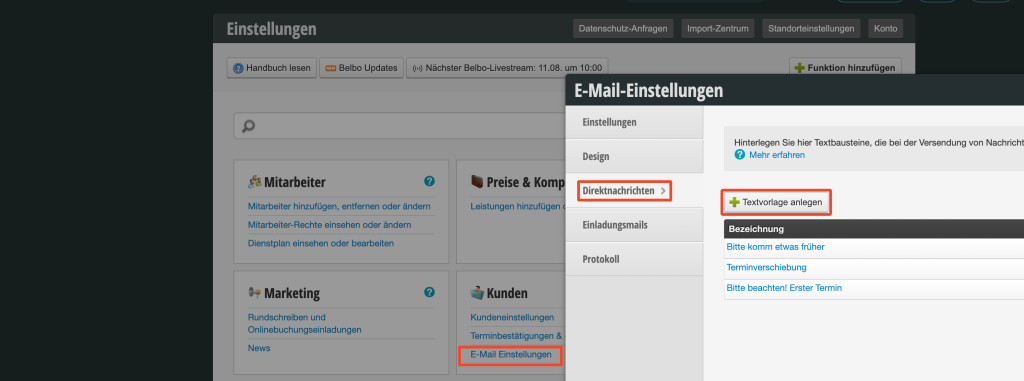
Under Settings > Email Settings you can create and edit direct messages. Create a new direct message template or edit an existing one.

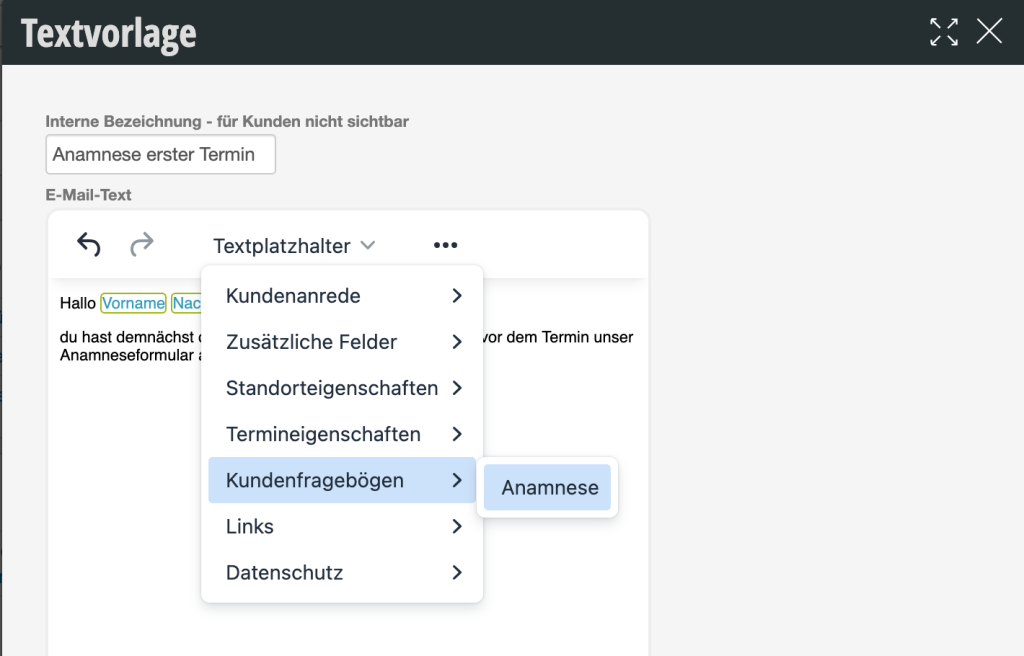
You can use placeholders to include the customer's name and of course the customer questionnaire to be filled out in the message at the desired location:

2. Send direct message to the customer

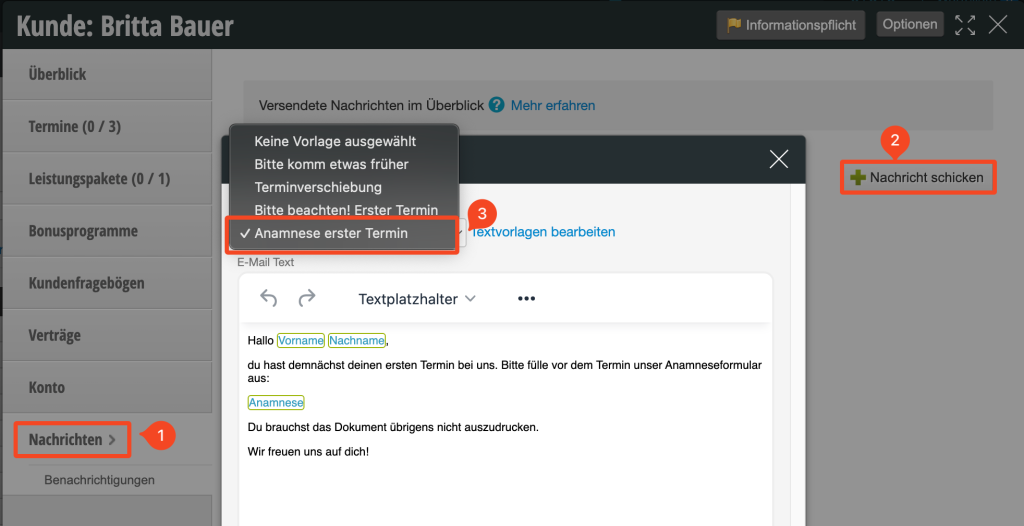
In the customer record in the "Messages" tab, you can now select the direct message template and send it to the customer:

Categories: Customer Communication (Email, SMS)
This manual is a service by belbo. Legal notice