
To open the cash drawer during the checkout process, there are several options:
- Open cash drawer via button from Belbo
- Cash drawer opens automatically when printing via the receipt printer
This article describes the second option. Have you already successfully installed your receipt printer? Congratulations! Now let's move on to the configuration.
Requirement:
- The cash drawer is already connected to the printer via cable.
- If you are using the mPOP cash drawer, this of course does not apply, as this is a compact device.
Opening the cash drawer on a Mac computer
- Visit the page http://localhost:631/printers/. This page comes from your computer!
- Does the message "Web interface is disabled" appear there? Then you need to do the following:
- Click the magnifying glass in the top right or press [CMD]+[Spacebar].
- Type "Terminal" and press [Enter].
- In this hacker window, type the following: "cupsctl WebInterface=yes" and confirm with [Enter].
- Now after reloading the above page, something "real" should appear. It could look something like this:
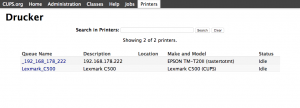
- You now need to click on the installed printer:
For mPOP, click on mPOP. You may need to confirm this with your computer password. - A new page then appears, which contains 2 boxes at the top "Maintenance" and "Admin". Please click on "Admin" and then "Set Default Options".
- Click on the "Cash Drawer Control" tab
- We're there: Simply activate the "Open before Printing" option and save it with the "Set Default Options" button. You may need to confirm this with your computer password.
- Done! Now just print and test that the cash drawer really opens.