You can import customer data that you have in digital form into Belbo, for example if you want to switch to Belbo from another provider.
Requirements
Your customer data must be in CSV or Excel format. Please note that CSV files can be saved in different ways. You must ensure that the following options are selected in the tool you choose to export the customer data:
- Separator: ,
- Text delimiter: "
Import Process
- Create a new import job using the "Create import process" button.
- Select your file to upload and wait until the process is complete.
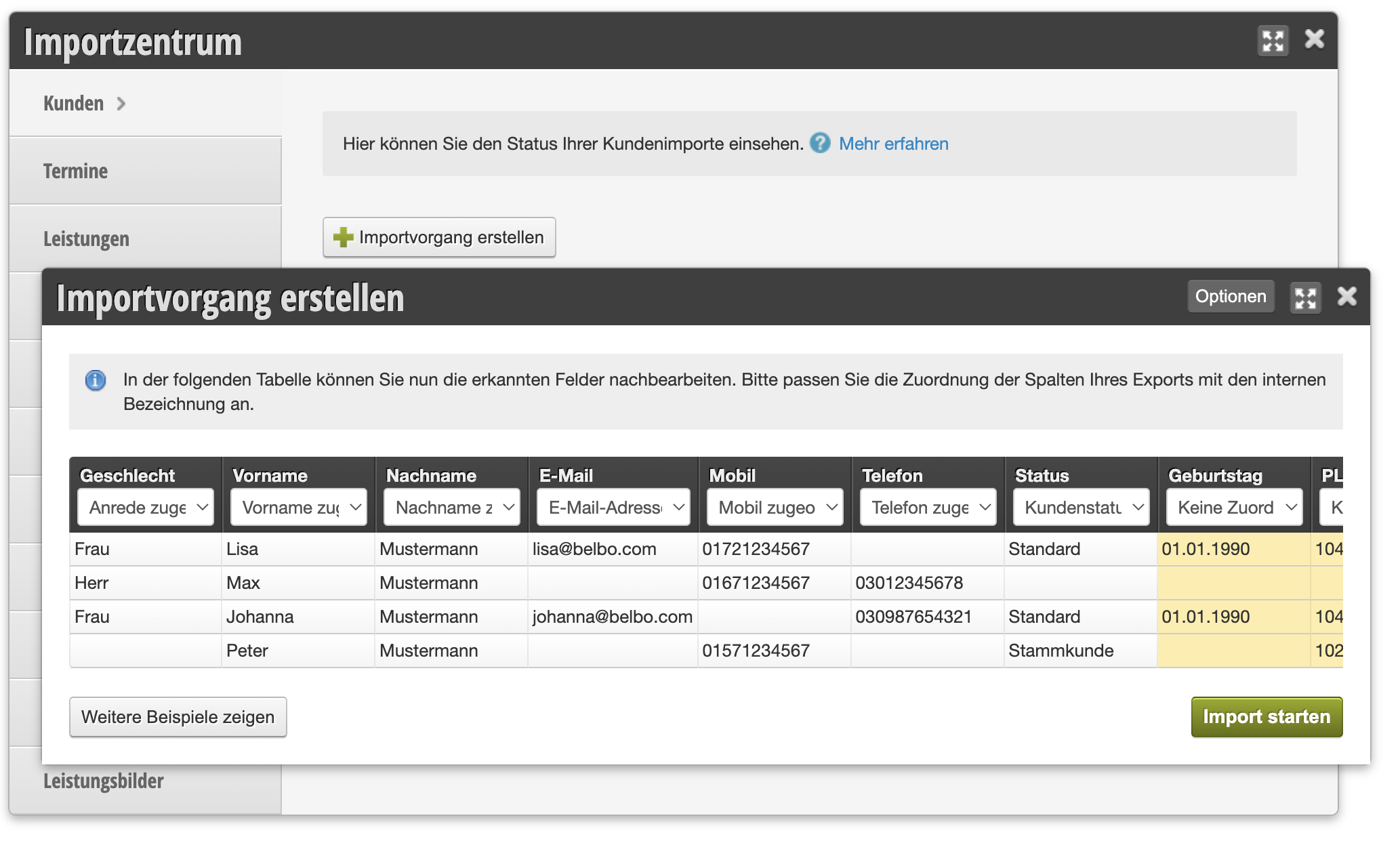
- The detected data will then be displayed. Here you can map the columns of your export to the field names of your online calendar's customer file in the table header (details in the "Map data fields" section).
Map Data Fields
- In the displayed table, the available data fields in Belbo are listed under the column names of your file.
- Select the correct data types here.
- Note that the table headers in your file may have a different name for the data type, e.g. "Mobile number" instead of "Mobile".
- Mapped data columns are displayed in white, unmapped data columns in yellow. If you don't need certain data from the original file, you can remove the mapping. Columns marked in yellow will be ignored during the import process and not imported.
Standard Data
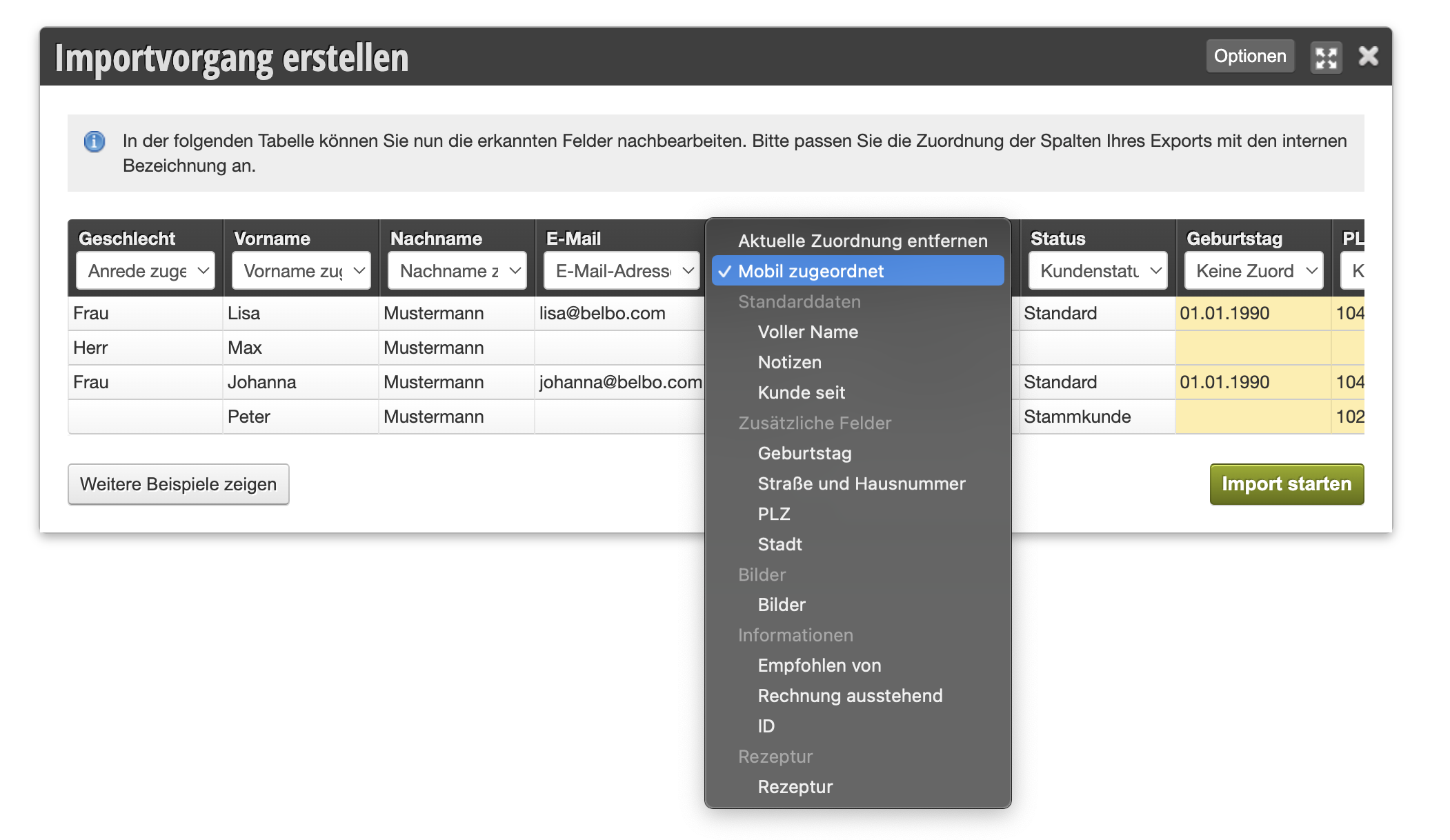
- In Belbo, some data fields are already set up. These include name, email address, and phone numbers. These can be mapped directly or are automatically recognized by the import center.
- Please check and correct the mapping of the data if necessary.
Custom Fields
- In Belbo, you have the option to create any number of custom data fields for your customer files.
- If information from the export should be transferred to the calendar that is not yet available, you can create additional customer fields and map them.
- It is important that the type of data field matches the content to be imported (for example, type "Birthday" and not "Date" for the birthday). Please contact us if you need help with this.
Special Cases
Full Name
Some providers export their data so that the customer's first and last name are in one column. In this case, the correct mapping in Belbo is the "Full Name" field. The import center separates the name at the first space during the import process and creates the "First Name" and "Last Name" data fields from it. This makes the import easier since the table file does not need to be edited manually first. Please check the data afterwards, as multiple first names can result in inconsistent data.
Color Formulas
In the salon industry, color formulas are an important part of customer data and can be imported into Belbo. However, color formulas are typically provided by other providers in very different ways. Please contact us if you are unsure how best to import the formulas.
Avoid Duplicates
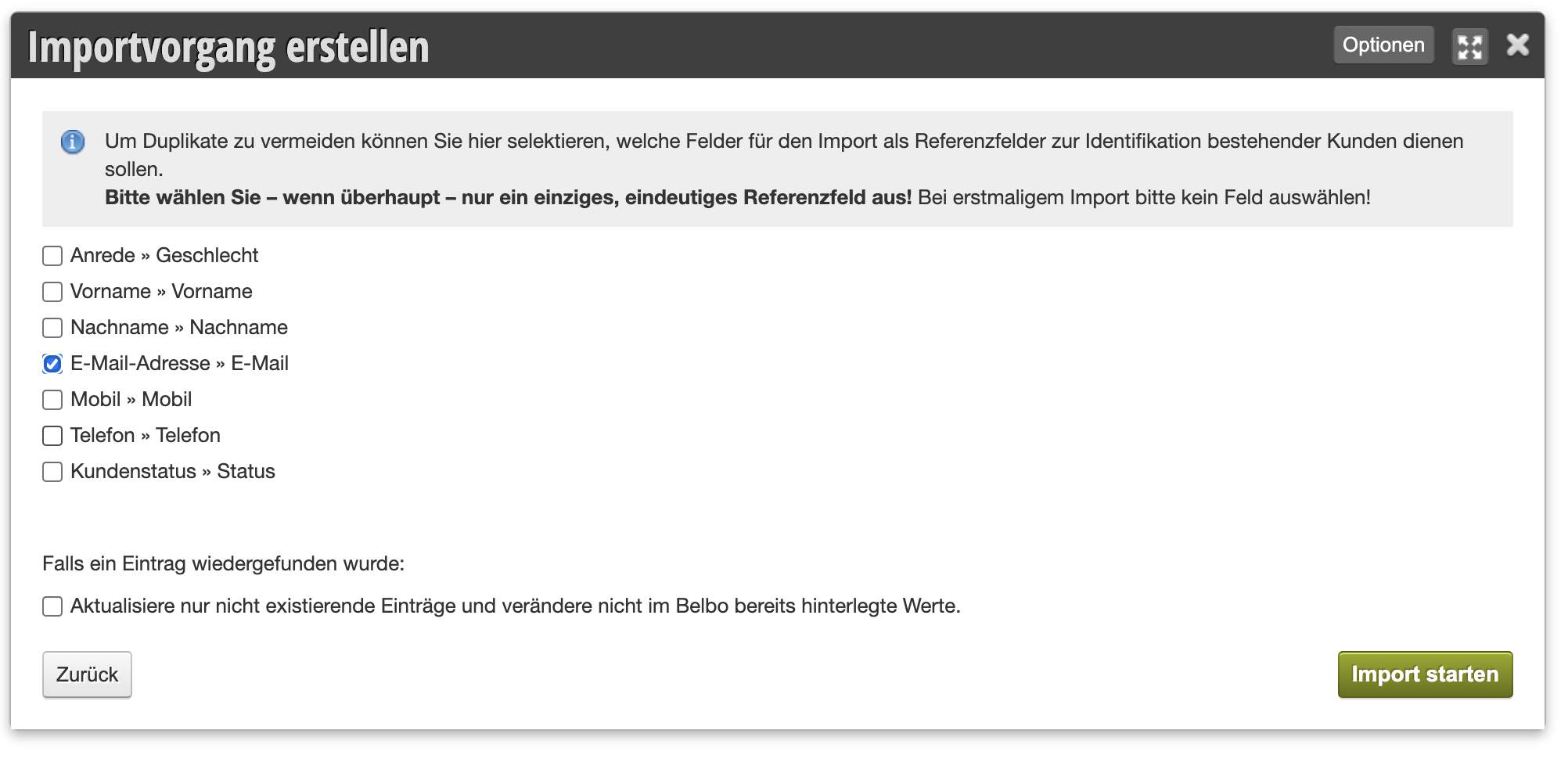
- If your customer file is already filled, you can use the following step to avoid duplicates: Here you can select unique fields (for example: email address or mobile number) to exactly match existing customer files.
- If existing customer files completely match in these fields, all other fields will be overwritten with the values from the export.
- Warning: Use unique column combinations so that, on the one hand, no duplicates are created and, on the other hand, no customer files are overwritten with incorrect customer information.
Import Process
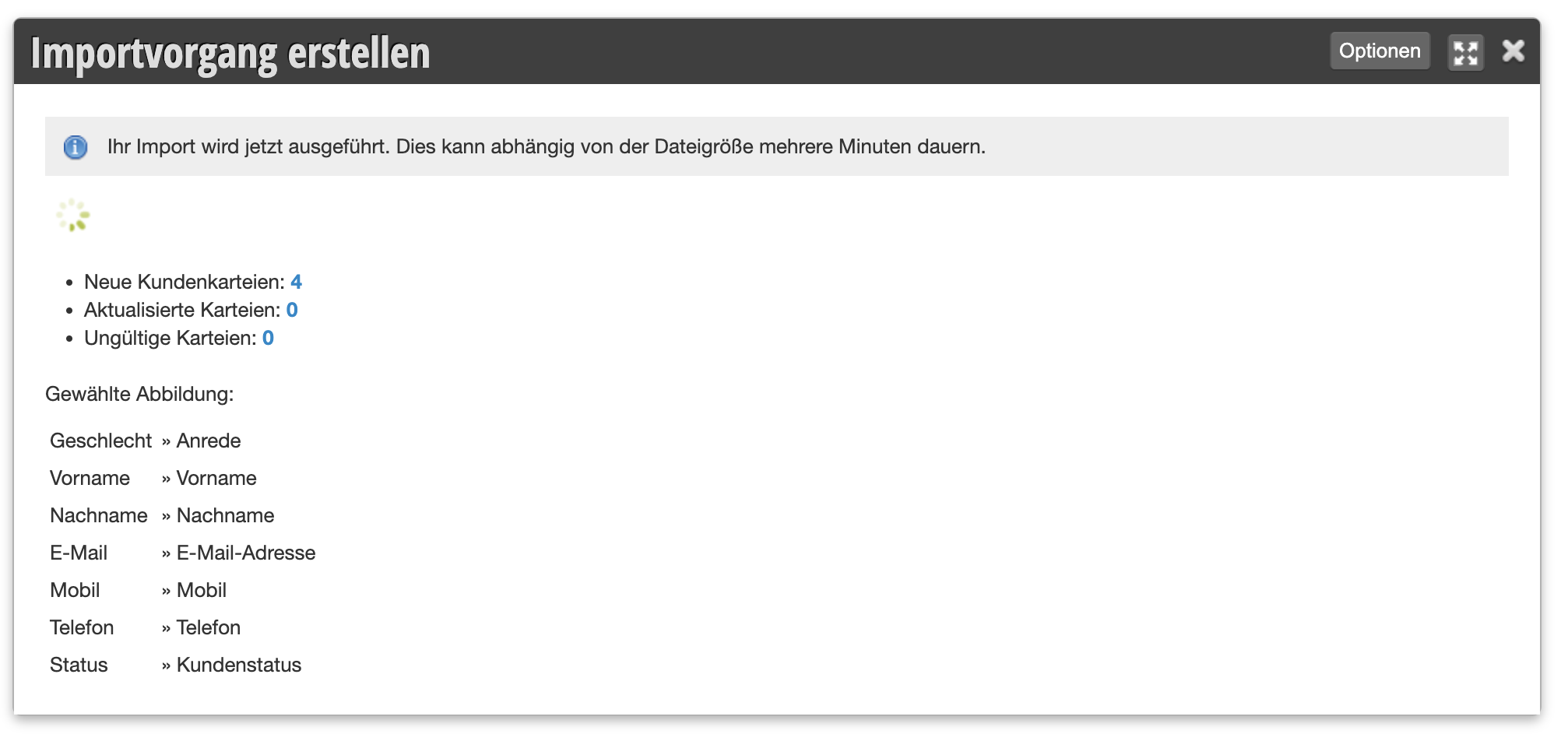
Start the import process. This process can take several minutes depending on the number of customer files. You can close the window in the meantime and return to the import center at any time.