
With the flexible break, you set a time window for an employee during which a break of a specific duration should take place. The exact time of the break is not yet fixed: it is only finalized when an appointment touches the time window. This keeps the employee available for booking throughout the entire time window while still ensuring the break.
How the flexible break works
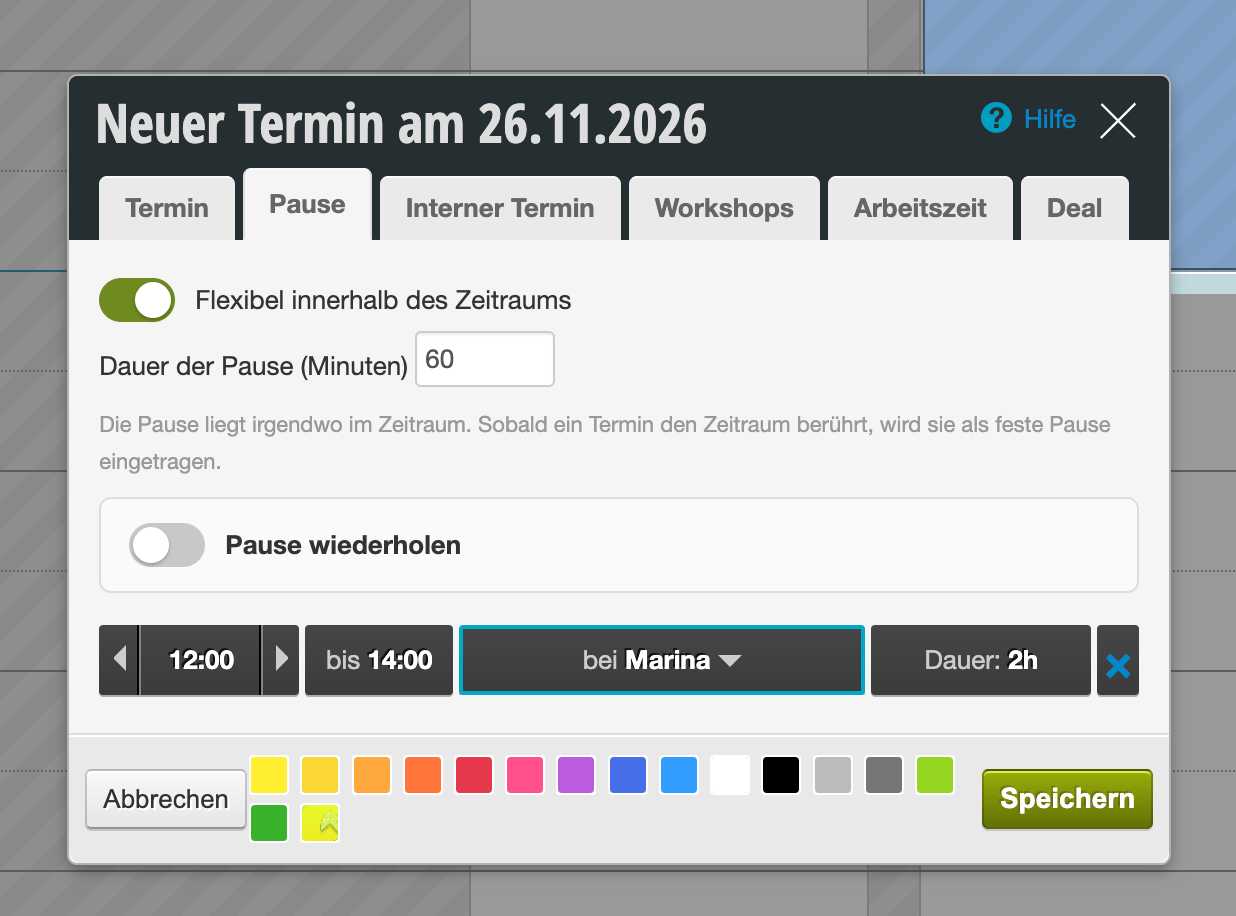
- Time window: You specify the time period during which the break should take place, e.g., from 12:00 to 14:00.
- Break duration: You specify how long the break should be, e.g., 60 minutes.
- Fixation upon booking: As long as no appointment touches the time window, the break is scheduled somewhere within the time window. As soon as an appointment touches the time window, it is entered as a fixed break.
Enter a flexible break
- 1In the calendar, drag an appointment for the desired employee over the desired time window, e.g., from 12:00 to 14:00.
- 2In the appointment dialog, select the Break tab.
- 3Enable the Flexible within the time period toggle.
- 4Under Break duration (minutes), enter the length of the break, e.g., 60.
- 5Check the start and end time of the time window as well as the employee, and adjust them if necessary.
- 6Click Save.
Display in the calendar
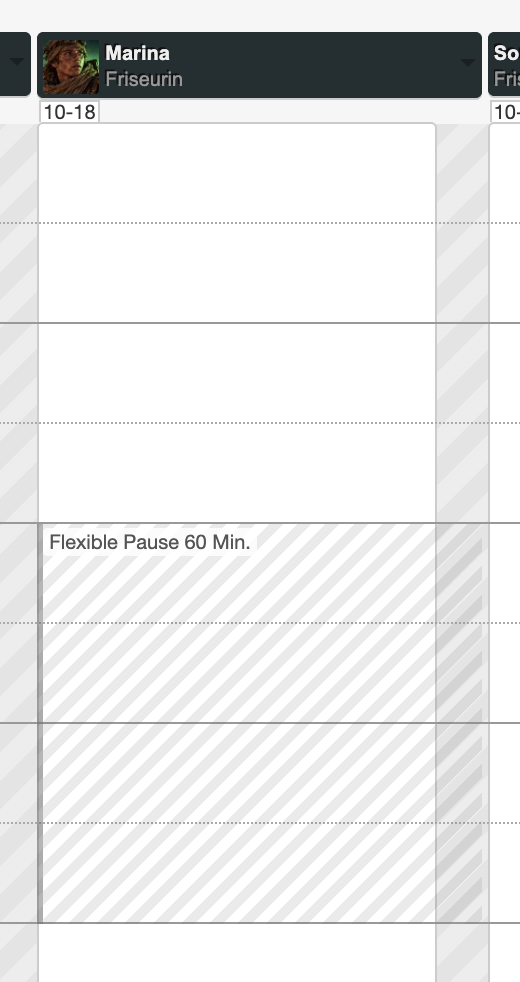
In the calendar, the flexible break is displayed as a hatched block across the entire time window, labeled with Flexible Break and the break duration, e.g., "Flexible Break 60 Min.".
Difference from a fixed break
A fixed break is entered with a specific start and end time, e.g., daily from 12:00 to 13:00. No appointments can be booked during this time. The flexible break is suitable when the exact break time depends on workload and you want to keep as many booking options available as possible within the time window.